
Staying connected with family, friends, and colleagues has never been more important. Skype remains one of the most widely used platforms for voice calls, video chats, and instant messaging across devices. A key part of maximizing your Skype experience is building and managing your contact list effectively. Whether you're reconnecting with an old friend or collaborating with a remote team, knowing how to add, organize, and maintain your contacts ensures smooth communication. This guide walks you through every aspect of managing friendships on Skype—clearly, efficiently, and securely.
How to Add Friends on Skype: Step-by-Step
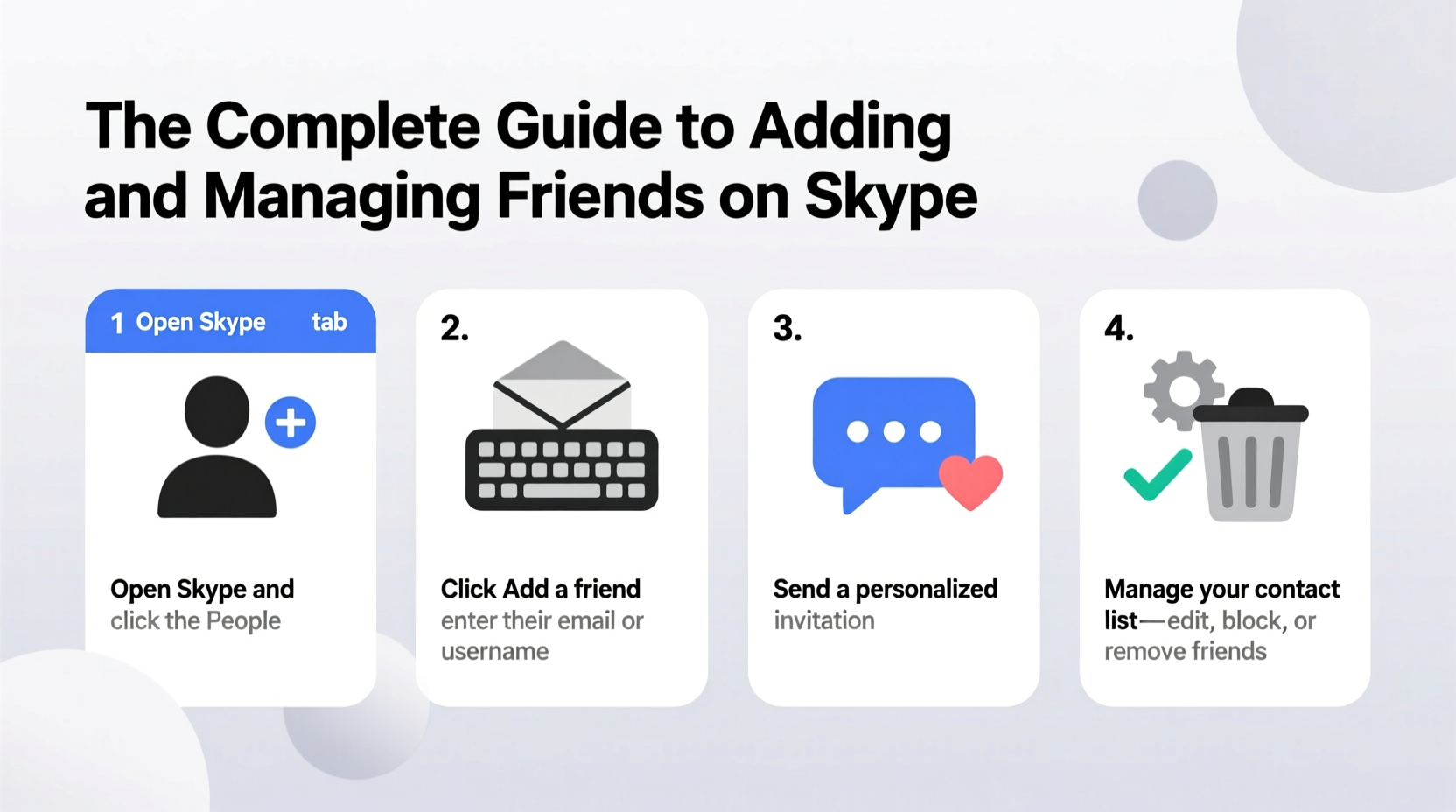
Adding someone on Skype is straightforward, but the method varies slightly depending on your device and whether you know their username, email, or phone number. Follow this universal process to send a contact request:
- Open the Skype app or visit skype.com and sign in.
- Navigate to the “Contacts” tab (usually located on the left sidebar).
- Click or tap the “Add Contact” button, typically represented by a person icon with a plus sign.
- Enter the person’s Skype username, full email address, or phone number linked to their account.
- Select the correct profile from the search results.
- Send a personalized message along with your request (optional but recommended).
- Click “Add” to send the invitation.
The recipient will receive a notification and must accept your request before you can message or call them. Until then, their status appears as “Pending.”
Managing Your Skype Contacts
Once you've started building your network, organizing your contacts becomes essential. A cluttered list makes it harder to find the right person quickly. Here are practical ways to manage your connections:
- Group Chats: Create group conversations for teams, families, or social circles. Click “New Chat,” select multiple contacts, and assign a name.
- Rename Contacts: If someone uses a nickname or professional name, you can assign a personal label. Right-click the contact > “Rename” > enter a preferred display name.
- Pinning Conversations: Keep frequent contacts at the top by pinning their chat. Hover over the conversation and click the pin icon.
- Blocking Unwanted Users: To block someone, go to their profile, click the three dots, and select “Block.” They won’t be able to contact you or see your activity.
Organizing Contacts with Favorites and Groups
Skype allows you to categorize contacts into groups such as Family, Work, or Close Friends. While native group folders aren't available, using naming conventions in chat titles or pinning key individuals helps simulate organization.
“Efficient contact management reduces friction in digital communication. Prioritize clarity and accessibility when organizing your network.” — Daniel Reeves, Digital Communication Consultant
Ways to Find and Connect with People
You don’t always need a username to connect. Skype supports multiple discovery methods:
| Method | How It Works | Best For |
|---|---|---|
| Email Address | Search using the email tied to their Skype account | Reconnecting with old contacts |
| Phone Number | Enter a mobile number they’ve verified on Skype | Connecting with international friends |
| SMS Invite | Send an invite via text message from within Skype | People who don’t use Skype yet |
| QR Code | Scan a friend’s QR code via mobile app | In-person meetups or events |
| Shareable Link | Generate a personal invite link to send anywhere | Quick invites via social media or email |
To generate your own shareable link, go to your profile > “Share Profile” > copy the link. Anyone who clicks it can start a conversation or add you directly.
Troubleshooting Common Connection Issues
Sometimes, despite following all steps correctly, you may encounter issues adding someone. Below are common problems and fixes:
- “User Not Found”: Double-check spelling, especially in usernames. Ensure you’re using the exact Skype ID, not just an email alias.
- Request Not Received: The user might have changed privacy settings to only accept requests from people in their phone contacts.
- Pending Forever: The person may have ignored the request. You can resend after a few days or reach out off-platform to confirm receipt.
- Can’t Message After Acceptance: Wait a few minutes for sync across devices. Restart the app if needed.
Mini Case Study: Reconnecting Across Continents
Lena, a freelance designer based in Lisbon, hadn’t spoken to her university roommate in over two years. She remembered her email but wasn’t sure if she still used Skype. Lena logged into her Skype account, clicked “Add Contact,” and entered the email. The profile appeared immediately. She sent a warm message: “Hey Sarah! It’s Lena from college. Would love to catch up if you’re around.” Within hours, Sarah accepted the request. They scheduled a video call that weekend and rekindled their friendship. By using simple search tools and a thoughtful note, Lena turned uncertainty into connection.
Security and Privacy Best Practices
While expanding your network, protecting your personal information is crucial. Skype offers privacy controls to help you stay safe:
- Go to Settings > Privacy to control who can contact you.
- Choose between “Everyone,” “People in my contacts,” or “Only people I allow.”
- Disable “Let others find me by email” if you prefer selective connections.
- Review pending requests regularly and remove unknown or suspicious ones.
Avoid accepting requests from strangers unless you initiated contact. Scammers sometimes impersonate real users to gain access to personal conversations.
Checklist: Adding and Managing Skype Friends Safely
- ✔️ Confirm the correct username, email, or phone number
- ✔️ Personalize your contact request with a friendly message
- ✔️ Verify profiles before accepting incoming requests
- ✔️ Organize contacts using pinning and custom names
- ✔️ Adjust privacy settings to match your comfort level
- ✔️ Regularly clean up inactive or outdated contacts
- ✔️ Use blocking features for unwanted interactions
Frequently Asked Questions
Can I add someone on Skype without a phone number or email?
Yes, if you know their unique Skype username, you can search and add them directly. However, usernames are case-sensitive and must be entered exactly as shown.
What happens when I remove a contact?
Removing a contact deletes the conversation history from your view and ends the connection. They won’t be notified, but they’ll need to send a new request to reconnect.
Can I message someone who isn’t my contact?
Only if they’ve set their privacy to allow messages from anyone. Otherwise, you must send a contact request first. Unsolicited messages to non-contacts may be filtered as spam.
Conclusion: Strengthen Your Connections with Confidence
Building and managing relationships on Skype doesn’t require technical expertise—just a few deliberate actions. From sending personalized invitations to organizing conversations and safeguarding your privacy, each step enhances your digital communication experience. Whether you're reaching out to a long-lost friend or coordinating with a colleague overseas, mastering contact management empowers you to stay meaningfully connected.




 浙公网安备
33010002000092号
浙公网安备
33010002000092号 浙B2-20120091-4
Comments
No comments yet. Why don't you start the discussion?