
Clickable links in YouTube videos are powerful tools for driving traffic, increasing viewer retention, and growing your online presence. Whether you want to direct viewers to a product page, a related video, or your website, knowing how to effectively use YouTube’s linking features can significantly boost engagement. Unlike traditional hyperlinks in blogs or emails, YouTube doesn’t allow arbitrary clickable text within video descriptions. Instead, it offers structured tools—cards, end screens, and community posts—that serve as interactive gateways. Mastering these tools requires understanding their functions, limitations, and strategic placement.
Understanding YouTube’s Linking Tools
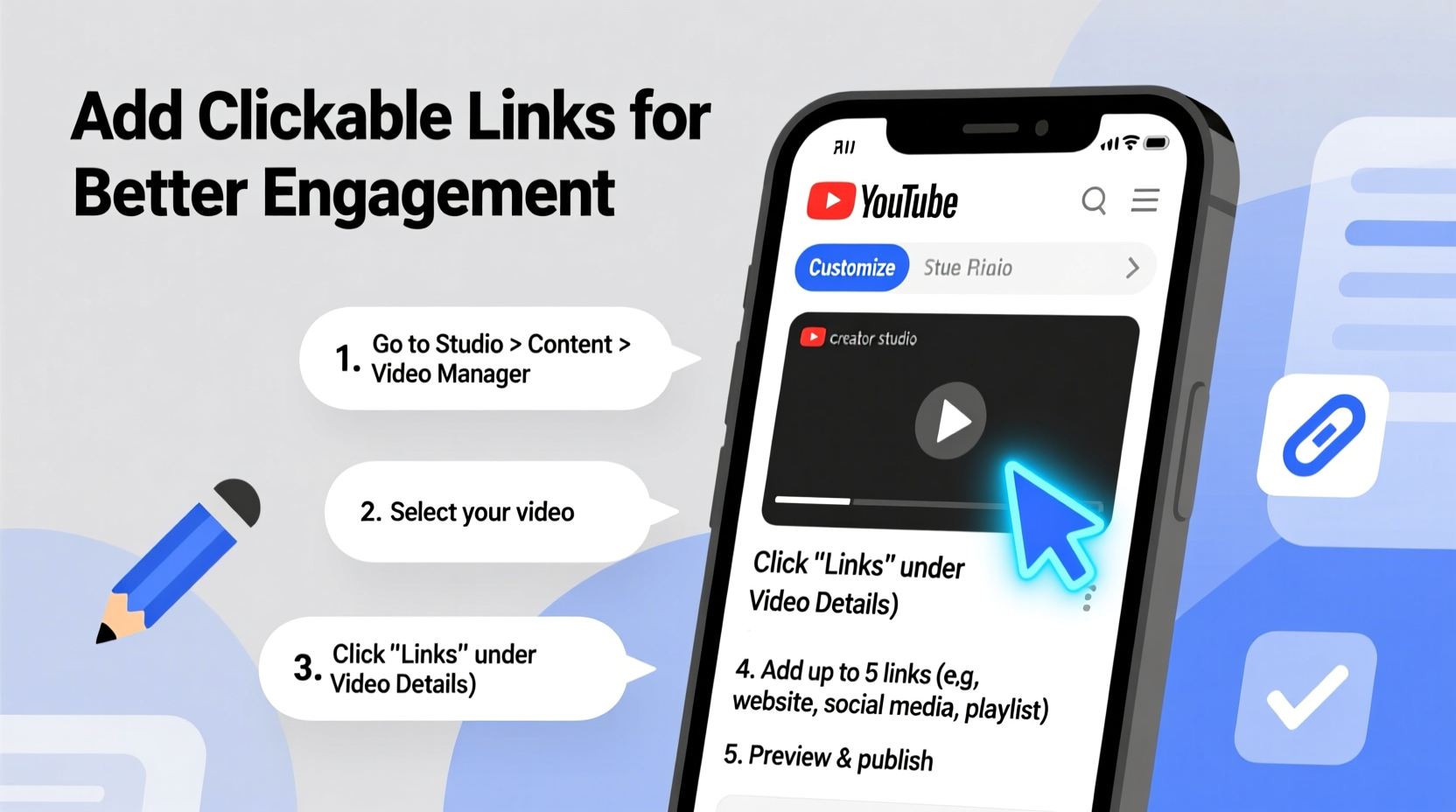
YouTube has phased out older methods like annotations in favor of more reliable and mobile-friendly options: cards and end screens. These tools appear as small icons or banners during playback and are supported across devices, including smartphones and tablets. Each serves a specific purpose and works best when used at the right moment in your video.
- Cards: Small notifications that appear in the top-right corner of a video. They can link to other videos, playlists, channels, websites, or fundraising campaigns.
- End Screens: Full-width elements shown in the last 5–20 seconds of a video. Ideal for promoting subscriptions, related content, or external websites.
- Community Posts & Description Links: While not embedded in the video itself, these provide supplemental opportunities to share URLs.
These tools are accessible through YouTube Studio and require careful timing and design to avoid disrupting the viewer experience.
Step-by-Step Guide to Adding Cards and End Screens
Adding a Card to Your Video
- Log in to YouTube Studio.
- Navigate to Content and select the video you want to edit.
- In the left menu, click Editor and then choose Cards.
- Click + Add Item and select the type of card (e.g., video, playlist, channel, or link).
- If linking externally, verify your URL by confirming ownership of the site via Google Search Console (required for non-YouTube links).
- Set the start and end time for the card to appear. Aim for moments when the action slows down or when the call-to-action feels natural.
- Customize the card’s teaser text to encourage clicks (e.g., “Learn more here” or “Watch the full tutorial”).
- Save your changes and publish.
Creating an End Screen
- In YouTube Studio, open the video editor and go to the End Screen & Info Cards tab.
- Drag the end screen module into the final 5–20 seconds of your video timeline.
- Add elements such as:
- A subscribe button
- A link to another video or playlist
- A website URL (must be verified)
- Adjust the size and position of each element using the drag handles.
- Preview the end screen to ensure clarity and visibility.
- Save and republish if necessary.
End screens work best when they feel like a natural conclusion—think of them as your video’s closing statement.
“Strategic use of end screens can increase viewer follow-through by up to 30%. The key is relevance and timing.” — Sarah Lin, Digital Engagement Strategist at VidMetrics
Best Practices for Maximum Click-Through Rates
Just adding a link isn’t enough. To convert passive viewers into active visitors, apply proven engagement tactics.
| Practice | Do | Avoid |
|---|---|---|
| Timing | Show cards after delivering value (e.g., post-tutorial) | Don’t interrupt critical explanations |
| Text Clarity | Use action-oriented language (“Get the template,” “Join now”) | Avoid vague phrases (“Click here”) |
| Link Relevance | Link to content directly related to the video topic | Don’t promote unrelated products |
| Visual Design | Keep end screens uncluttered with one primary CTA | Avoid stacking too many buttons |
Additionally, always mention the link verbally. Say something like, “Check the link in the corner to download the checklist.” This cues viewers to look for the visual prompt.
Mini Case Study: Boosting Course Sign-Ups Through Strategic Linking
Jamal runs a YouTube channel teaching graphic design. His video “How to Create a Logo in Adobe Illustrator” had high views but low conversion to his paid course. He decided to test a new linking strategy:
- He added a card at 8:30, after demonstrating the final logo step, linking to his course landing page.
- An end screen included both the course link and a suggestion to watch his “Advanced Illustrator Tips” playlist.
- He verbally said, “If you want the project files and 20 more lessons, the link is on screen now.”
Over the next month, click-throughs from the video increased by 42%, and course sign-ups rose by 27%. The combination of precise timing, clear messaging, and verbal reinforcement made the difference.
FAQ: Common Questions About YouTube Links
Can I add clickable links directly in the video?
No, YouTube does not allow hyperlinked text within the video player itself. You must use cards, end screens, or description links. Cards and end screens are interactive during playback; description links are static and visible below the video.
Why can’t I add an external link to my card?
You must first verify ownership of the destination website through Google Search Console. Go to YouTube Studio > Settings > Feature eligibility > Verify your website. Once confirmed, external links become available in the card editor.
Do clickable links work on mobile devices?
Yes. Cards and end screens are fully supported on iOS and Android. However, they may appear slightly differently—cards show as small banners at the top, and end screens occupy the lower portion of the video. Always preview on mobile before publishing.
Comprehensive Checklist for Effective Linking
Before publishing any video, run through this checklist to ensure your linking strategy is optimized:
- ✅ Verified ownership of any external websites you plan to link to
- ✅ Added at least one card with a relevant, timed call-to-action
- ✅ Designed an end screen with a primary goal (subscribe, watch next, visit site)
- ✅ Mentioned the link verbally during the video
- ✅ Tested the video preview to confirm link visibility and timing
- ✅ Included key URLs in the video description with clear labels
- ✅ Avoided overloading the viewer with too many simultaneous prompts
This routine ensures consistency and maximizes return on every upload.
Conclusion: Turn Viewers Into Engaged Followers
Clickable links are not just technical features—they’re engagement bridges. When used thoughtfully, they transform casual viewers into subscribers, customers, and community members. The real power lies not in the link itself, but in how and when you present it. By combining YouTube’s built-in tools with strategic timing, clear messaging, and audience awareness, you create a seamless journey from watching to acting.




 浙公网安备
33010002000092号
浙公网安备
33010002000092号 浙B2-20120091-4
Comments
No comments yet. Why don't you start the discussion?