
Call forwarding can be a useful feature when you're expecting important calls but know you won’t be near your primary phone. However, if left active unintentionally, it can lead to missed calls, privacy concerns, or unexpected charges—especially with international forwarding. Whether you set it up months ago and forgot, or someone else accessed your phone settings, knowing how to cancel call forwarding is essential. This guide covers every method across all major devices and carriers, ensuring you regain full control of your incoming calls.
Why Cancel Call Forwarding?
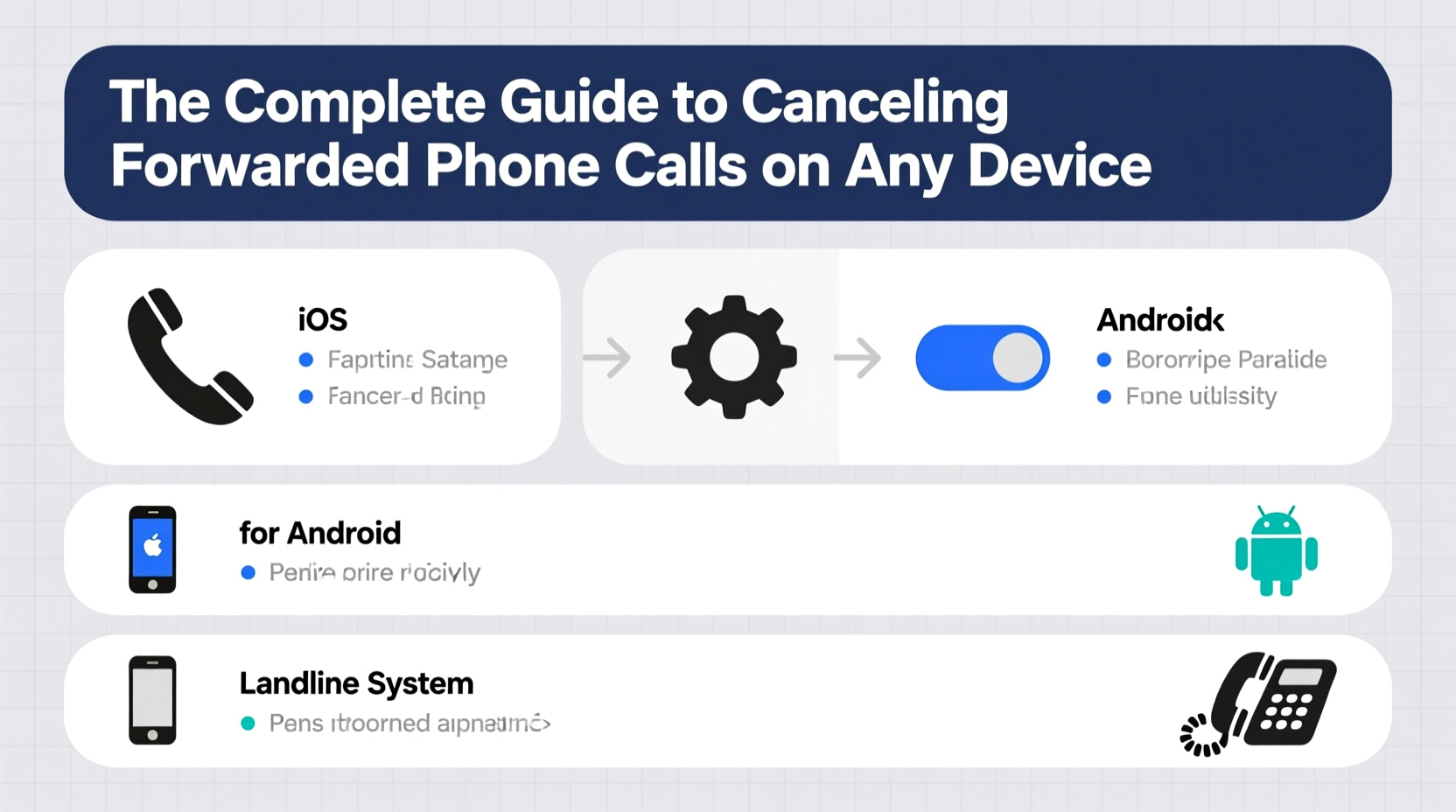
While call forwarding serves legitimate purposes—like routing business calls to a secondary line or ensuring connectivity during travel—it can become problematic when active by mistake. Common issues include:
- Calls being redirected without your knowledge
- Inability to receive calls directly on your device
- Higher phone bills due to forwarded calls, especially internationally
- Security risks if someone has enabled forwarding remotely
Canceling call forwarding restores normal call functionality and ensures your number behaves as expected. It’s also a smart move for privacy and cost control.
How to Cancel Call Forwarding Using Dial Codes
One of the fastest and most universal ways to disable call forwarding is through USSD (Unstructured Supplementary Service Data) codes. These work regardless of your device model, as long as your carrier supports them. The standard code to cancel all call forwarding is:
##002#
To use this:
- Open the Phone app on your device.
- Dial
##002#and press the call button. - You should see a confirmation message such as “All call forwarding deactivated” or “Forwarding deactivated.”
This single command disables all types of forwarding—unconditional, busy, no reply, and unreachable. It works on both iPhone and Android devices and is supported by major U.S. carriers like Verizon, AT&T, T-Mobile, and many international providers.
If you only want to disable specific forwarding types, use these codes instead:
| Forwarding Type | Deactivation Code |
|---|---|
| Unconditional Forwarding | ##21# |
| Forward When Busy | ##67# |
| Forward When Unreachable | ##62# |
| Forward When No Reply | ##61# |
These codes are standardized under GSM protocols, meaning they’re reliable across most networks. However, some MVNOs (Mobile Virtual Network Operators) may have variations, so check with your provider if the codes don’t work.
Disabling Call Forwarding on Smartphones
Beyond dial codes, you can manage forwarding directly through your phone’s settings. This method offers more visibility and control.
iOS (iPhone)
To turn off call forwarding on an iPhone:
- Go to Settings.
- Tap Phone.
- Select Call Forwarding.
- Toggle the switch to Off.
If the toggle is already off but calls are still being forwarded, try restarting your phone or using the ##002# code to force-reset the network setting.
Android Devices
The process varies slightly depending on the manufacturer and Android version, but generally:
- Open the Phone app.
- Tap the three-dot menu or Settings icon.
- Select Settings or Call Settings.
- Choose Call Forwarding.
- Disable all active forwarding options.
On Samsung phones, this may be under \"Supplementary Services\" in the default calling app settings. Google Pixel users will find it directly in the Phone app settings under \"Calls.\"
Landlines and VoIP Services
Traditional landlines and VoIP (Voice over IP) services like Vonage, Ooma, or Google Voice also support call forwarding—and require different deactivation methods.
Traditional Landlines
Most landline providers use star codes (*73) to disable forwarding:
- Lift the receiver and wait for the dial tone.
- Dial *73.
- Listen for a confirmation tone or voice message indicating forwarding is turned off.
This feature may not be available on all plans, and some rural providers require a customer service call to deactivate.
VoIP and Digital Phone Services
For services like Google Voice:
- Log in to your Google Voice account online or via the app.
- Navigate to Settings.
- Under the “Calls” section, find “Forward calls” and deselect all numbers.
- Save changes.
Other VoIP platforms like RingCentral or Nextiva offer similar dashboard controls. Always log in to your account portal to verify forwarding status, as mobile apps may not reflect real-time updates.
“Many users don’t realize that VoIP forwarding settings persist across devices and can override mobile configurations.” — Linda Tran, Telecommunications Security Analyst
Troubleshooting Persistent Call Forwarding
Sometimes, even after following the correct steps, calls continue to forward. This could indicate deeper issues.
Possible Causes and Fixes
- Carrier-level forwarding: Some carriers allow account-wide call forwarding through their web portal. Log in to your account online and check under call settings.
- Malware or spyware: Rarely, malicious apps on Android can enable forwarding without consent. Review recently installed apps and run a security scan.
- Old carrier settings: After switching carriers, residual settings may remain. Reset network settings on your phone or contact support.
Mini Case Study: Recovering Control After Unauthorized Access
Sarah, a small business owner, noticed her clients’ calls were going to an unknown number. She hadn’t set up forwarding, but a former employee had briefly used her phone during onboarding. After failed attempts in settings, she dialed ##002#, which deactivated hidden forwarding. She then changed her carrier account password and enabled two-factor authentication. Her calls returned instantly, and she avoided potential data breaches.
This case highlights the importance of both technical knowledge and account security in managing call features.
FAQ
Will canceling call forwarding affect my voicemail?
No. Disabling call forwarding does not impact voicemail settings. Calls will go to voicemail normally when you’re unavailable, unless voicemail is separately disabled.
Can I tell if my phone is forwarding calls without my knowledge?
Yes. Signs include calls not ringing your phone, unfamiliar icons (like arrows) in the status bar, or hearing a double ring when calling your own number. Use *#21# to check active forwarding numbers.
Is there a way to prevent call forwarding from being activated remotely?
Some carriers offer call forwarding locks or PIN protection. Contact your provider to inquire about adding a barring code or service restriction to prevent unauthorized changes.
Final Checklist: Secure Your Call Settings
Use this checklist to ensure call forwarding is fully disabled and secure:
- ✅ Dial
##002#to deactivate all forwarding types - ✅ Check phone settings (iOS/Android) and disable forwarding manually
- ✅ Log in to your carrier or VoIP account and verify forwarding is off
- ✅ Test with an incoming call from another phone
- ✅ Enable account security features like 2FA and PINs
Conclusion
Regaining control of your phone line is simple once you know the right steps. Whether you’re using a smartphone, landline, or digital service, the tools to cancel call forwarding are readily available—often just a few taps or keystrokes away. By understanding dial codes, device settings, and carrier options, you protect not only your connectivity but also your privacy and peace of mind. Don’t wait for a missed call to become a bigger problem. Take action today, verify your settings, and ensure your phone works exactly as you intend.




 浙公网安备
33010002000092号
浙公网安备
33010002000092号 浙B2-20120091-4
Comments
No comments yet. Why don't you start the discussion?