
Upgrading your motherboard is one of the most impactful changes you can make to your PC. It opens the door to newer processors, faster RAM, improved connectivity, and better overall performance. However, unlike swapping a graphics card or adding memory, replacing a motherboard involves careful planning, precise execution, and often, reinstallation of your operating system. Done correctly, it breathes new life into your build. Done poorly, it can lead to boot failures, driver conflicts, or hardware damage.
This comprehensive guide walks through every phase of the process—from preparation to post-installation checks—so you can confidently replace your motherboard with minimal downtime and maximum results.
Why Upgrade Your Motherboard?
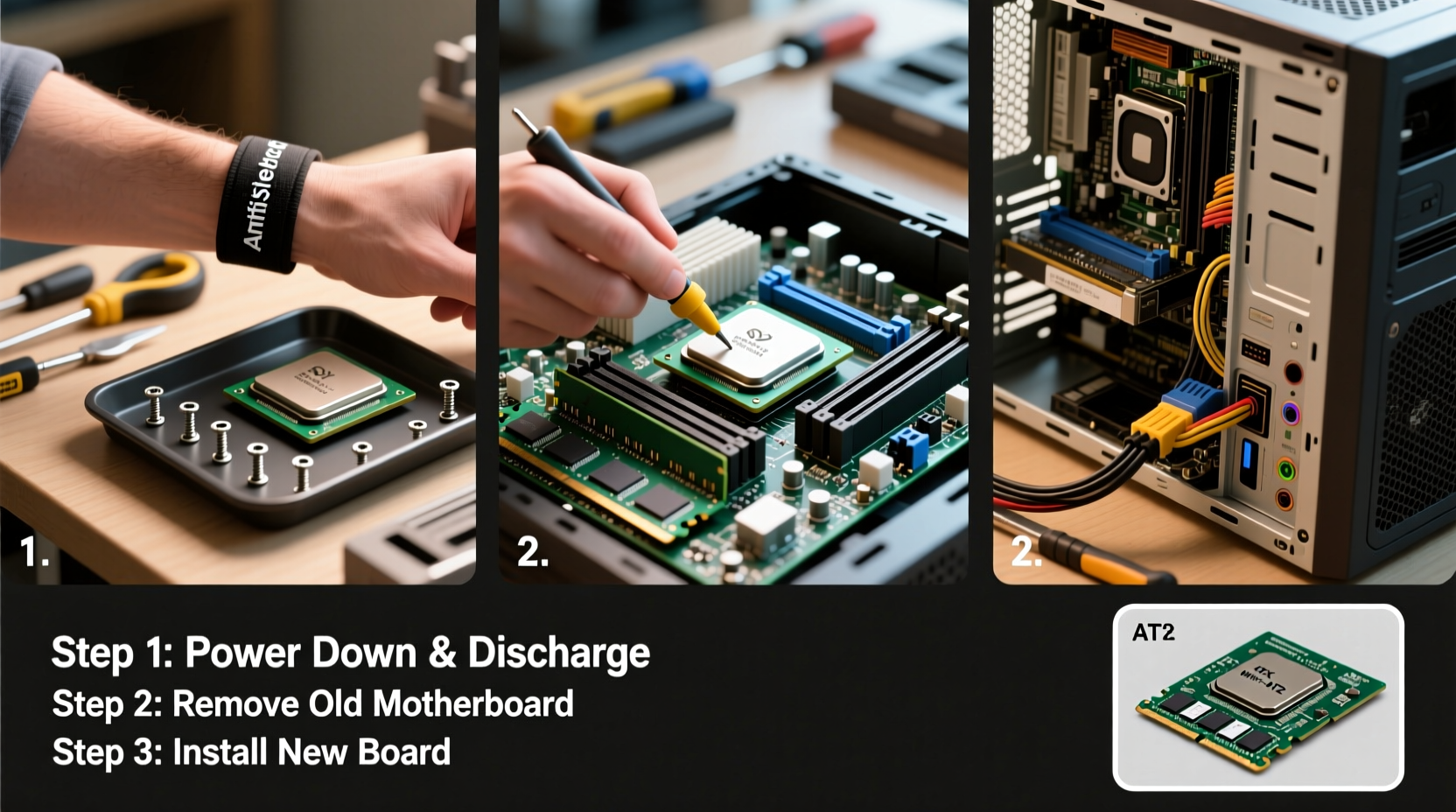
The motherboard is the backbone of your computer, connecting all components and determining compatibility with future upgrades. Common reasons to replace it include:
- Support for newer CPUs that your current board doesn’t accept
- Need for faster RAM (e.g., DDR4 to DDR5 or higher speeds)
- Desire for PCIe 4.0 or 5.0 support for next-gen GPUs and NVMe drives
- Lack of modern features like Wi-Fi 6E, USB-C, or Thunderbolt
- Failed or outdated board limiting system stability
Before proceeding, confirm that your other components—especially CPU, RAM, and power supply—are compatible with the new motherboard. In some cases, a motherboard upgrade may necessitate additional component swaps.
Step-by-Step Guide to Changing a Motherboard
Follow this sequence carefully to ensure a smooth transition. Each step minimizes risk and maximizes the chance of a successful boot after installation.
- Back up your data – Even if you plan to keep your drive, unexpected issues can occur. Clone your drive or back up critical files externally.
- Gather tools and workspace – You’ll need a Phillips screwdriver, anti-static wrist strap, zip ties, and a clean, well-lit surface.
- Power down and disconnect – Shut down your PC, unplug the power cable, and press the power button for 3 seconds to discharge residual electricity.
- Open the case – Remove the side panel, typically secured by two screws at the rear.
- Ground yourself – Wear an anti-static wrist strap connected to the case or frequently touch unpainted metal to prevent electrostatic discharge.
- Remove peripheral cards – Take out GPU, sound cards, capture cards, etc., and set them aside safely.
- Disconnect cables – Label or photograph front-panel connectors (power switch, USB, audio), SATA cables, power leads (24-pin ATX, 8-pin EPS), and any fan headers.
- Uninstall the old motherboard – Unscrew standoffs securing the board, then gently lift it from the I/O shield side first.
- Install the new motherboard in the tray – Align screw holes with standoffs (ensure none are misplaced), insert the board, and secure it with screws—don’t overtighten.
- Reconnect all components – Reattach power cables, front-panel headers, fans, storage drives, and expansion cards.
- Double-check connections – Verify CPU power, GPU power, and front-panel wiring are properly seated.
- Power on and enter BIOS – Boot the system and immediately access BIOS (usually by pressing Del or F2). Confirm CPU detection, RAM speed, and boot order.
If the system fails to power on, double-check the 24-pin and 8-pin power connections and ensure the power switch header is correctly oriented.
Post-Installation Considerations
After successfully booting into BIOS, several steps remain before your system is fully operational.
- Update BIOS: Download the latest firmware from the manufacturer’s website using a bootable USB if needed. A BIOS update ensures full compatibility with your CPU and improves stability.
- Reinstall operating system (recommended): While Windows may boot, a motherboard change alters core hardware drivers. For optimal performance and reliability, perform a clean OS install.
- Install chipset drivers: Use the included USB drive or download from the manufacturer site to install SATA, LAN, audio, and USB drivers.
- Activate Windows: If you’re using a retail license, reactivate via Microsoft account. OEM licenses tied to the old board may not transfer.
Do’s and Don’ts When Replacing a Motherboard
| Do’s | Don’ts |
|---|---|
| Check CPU socket compatibility (e.g., AM5, LGA 1700) | Assume your old CPU will work without verification |
| Use an anti-static mat or wrist strap | Work on carpet or synthetic surfaces |
| Label cables or take reference photos | Guess front-panel connector layouts |
| Test boot outside the case if possible (bench test) | Install everything inside the case before first boot |
| Update BIOS before installing OS | Run the system long-term on outdated firmware |
“Replacing a motherboard isn’t just a hardware swap—it’s a system rebirth. Treat it like building a new PC, even if you're reusing parts.” — Jordan Lee, Senior Hardware Engineer at TechBuild Labs
Real-World Example: Upgrading from B450 to B650
Mark had a Ryzen 5 3600 on a B450 motherboard and wanted to upgrade to a Ryzen 7 7700. He purchased an AMD B650 board, which supports AM5 and DDR5. Although his old CPU wouldn’t fit the new socket, he reused his case, GPU, PSU, and cooling solution.
He followed these steps:
- Backed up documents and photos to an external drive
- Bought a DDR5 kit and new CPU compatible with AM5
- Installed the new motherboard, connected all components, and updated BIOS using USB flashback
- Performed a clean Windows 11 install from a bootable USB
The result? A seamless transition with 40% better multi-core performance and support for PCIe 5.0 SSDs. Mark noted that taking time to label cables saved him over an hour during reassembly.
Frequently Asked Questions
Do I need to reinstall Windows when changing the motherboard?
Technically, Windows might boot, but it’s not recommended. Driver conflicts and HAL (Hardware Abstraction Layer) mismatches can cause crashes or blue screens. A clean install ensures optimal stability and performance.
Can I use my old power supply with a new motherboard?
In most cases, yes—modern ATX PSUs are backward and forward compatible as long as they provide the required 24-pin ATX and 8-pin EPS connectors. Check wattage and efficiency ratings to ensure sufficient headroom.
What if my PC doesn’t turn on after installation?
First, verify power connections and ensure the PSU switch is on. Check that the front-panel power header is correctly aligned. Try a minimal boot: CPU, one RAM stick, and GPU only. If still no POST, inspect for bent pins or improper seating.
Final Checklist Before You Begin
- ✅ Compatibility Check
- Confirm CPU socket, RAM type, and PSU connectors match the new board.
- ✅ Tools & Environment
- Anti-static strap, screwdrivers, zip ties, clean workspace.
- ✅ Data Backup
- External drive or cloud backup completed.
- ✅ OS Installation Media
- Bootable USB with latest Windows or Linux version.
- ✅ BIOS Update Plan
- Check if your new board requires a BIOS update for CPU support.
- ✅ Component Testing
- Ensure GPU, RAM, and storage are functional before integration.
Conclusion
Changing a motherboard is more than a hardware swap—it's an opportunity to optimize your entire system. With careful planning, attention to detail, and adherence to best practices, the process can be straightforward and rewarding. Whether you're unlocking next-gen performance or extending the life of a trusted build, the effort pays off in speed, stability, and future-proofing.




 浙公网安备
33010002000092号
浙公网安备
33010002000092号 浙B2-20120091-4
Comments
No comments yet. Why don't you start the discussion?