
The Apple Pencil (USB-C), introduced alongside the iPad (10th generation) and later models, offers precision, responsiveness, and seamless integration for artists, note-takers, and professionals. However, its performance hinges on consistent power management. Unlike earlier magnetic versions, this model relies on a USB-C port for charging, introducing new considerations for efficiency and reliability. Understanding how to charge it properly—and what to do when problems arise—can save time, extend battery life, and prevent workflow disruptions.
Understanding the Apple Pencil USB-C Charging System
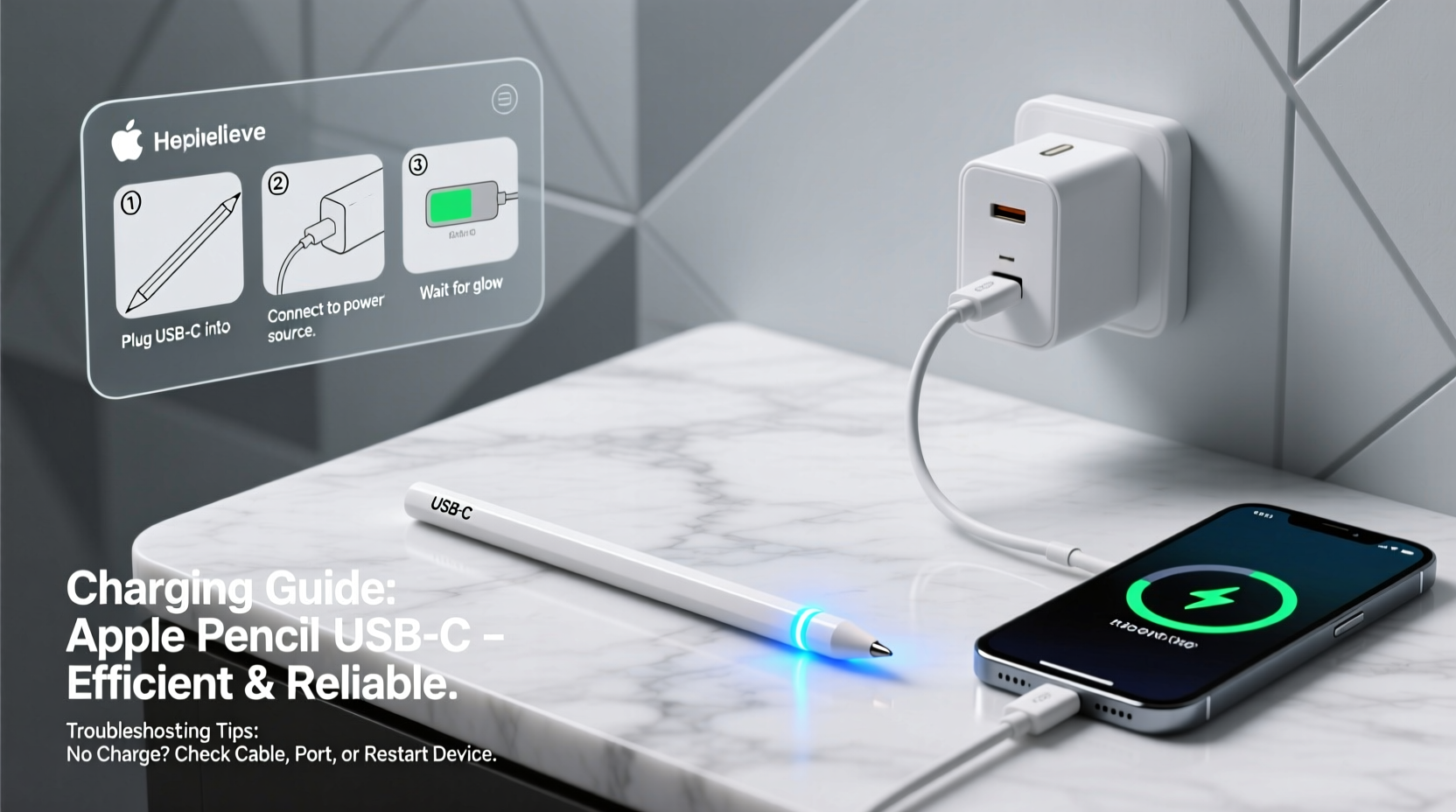
The Apple Pencil USB-C uses a built-in lithium-ion battery charged via a standard USB-C port located under a removable cap at the end of the barrel. It supports fast charging: 15 seconds of charging provides approximately 30 seconds of use. A full charge takes about 10 minutes and delivers up to 12 hours of continuous usage, depending on application intensity and environmental conditions.
This design prioritizes accessibility—no need for proprietary cables or iPad-side ports—but also exposes the charging port to dust, lint, and moisture, which are common causes of charging failure. The lack of an LED indicator adds complexity; users must rely on their connected iPad to monitor battery status.
Step-by-Step Guide to Efficient Charging
Charging the Apple Pencil USB-C correctly ensures longevity and avoids unnecessary wear. Follow this sequence for optimal results:
- Inspect the charging port: Before connecting, examine both the pencil’s USB-C port and the cable tip for debris. Use a dry, soft brush or compressed air to remove lint.
- Select a reliable USB-C cable: Use a certified USB-C to USB-C or USB-A to USB-C cable. Avoid low-quality third-party cables that may deliver inconsistent voltage.
- Use a stable power source: Plug into a wall adapter (5W or higher), powered USB hub, or directly into a laptop. Avoid using unpowered USB hubs or dying power banks.
- Connect securely: Insert the cable firmly but gently into the Apple Pencil’s port. Do not force it if resistance is felt.
- Monitor connection on iPad: Open the Notes app or swipe right on the Home Screen to view widget battery levels. Look for a lightning bolt icon next to the Pencil’s battery percentage.
- Charge fully when possible: While quick top-ups work in a pinch, aim for complete charges to maintain battery health over time.
- Disconnect carefully: Gently pull the cable from the Pencil—not by yanking the cord—to avoid damaging internal connectors.
“Battery longevity in styluses like the Apple Pencil depends heavily on charge cycles and thermal stress. Avoid charging in extreme temperatures.” — Dr. Lena Torres, Battery Technology Researcher, Stanford Energy Lab
Common Charging Issues and How to Fix Them
Even with careful handling, users may encounter charging failures. Below are frequent problems and proven fixes:
- No response when plugged in: Clean the port thoroughly. Lint buildup is the most common culprit. If cleaning doesn’t help, try a different cable and power source.
- Intermittent connection: This often indicates worn cable pins or debris inside the Pencil’s port. Test with another cable and inspect for bent metal contacts.
- Battery drains quickly after charging: Background apps consuming Bluetooth resources or firmware glitches can cause phantom drain. Restart your iPad and reconnect the Pencil.
- Pencil shows charge but won’t turn on: Perform a reset by plugging it into a charger for 10 seconds, then unplugging. Wait 30 seconds and attempt to reconnect via Bluetooth settings.
- Overheating during charge: Stop charging immediately. Allow the device to cool in a shaded area. Never charge in direct sunlight or enclosed spaces like pockets or bags.
Troubleshooting Checklist
- ✅ Inspect and clean the USB-C port
- ✅ Try a different, certified USB-C cable
- ✅ Use a known-working power adapter
- ✅ Check battery level via iPad widget
- ✅ Restart the iPad and re-pair the Pencil
- ✅ Update iPadOS to the latest version
- ✅ Reset network settings if pairing fails repeatedly
Do’s and Don’ts of Apple Pencil USB-C Charging
| Do | Don't |
|---|---|
| Use MFi-certified or Apple-branded cables | Use damaged or frayed cables |
| Charge in a cool, dry environment | Leave it charging overnight regularly |
| Clean the port monthly with a dry tool | Expose the port to liquids or moisture |
| Store the Pencil capped when not in use | Drop or toss the Pencil loosely into bags |
| Update iPadOS to ensure compatibility | Force connections if the port feels tight |
Real-World Example: Artist Regains Workflow After Charging Failure
Sophia, a freelance illustrator based in Portland, relied on her Apple Pencil USB-C for client sketches. One morning, the Pencil wouldn’t connect despite showing a brief flash of charge. Assuming battery failure, she considered purchasing a replacement. Instead, she followed a systematic approach: cleaned the port with a wooden toothpick wrapped in tape, tested with a different cable, and restarted her iPad. The Pencil reconnected instantly. Later inspection revealed a compacted ball of pocket lint blocking proper contact. Her $129 investment was saved with five minutes of troubleshooting.
This case underscores how minor physical obstructions—often invisible to the naked eye—can mimic hardware failure. Regular maintenance prevents such setbacks.
Frequently Asked Questions
Can I charge the Apple Pencil USB-C with my iPhone charger?
Yes. Any standard USB-C power adapter, including those used for iPhones, iPads, or MacBooks, is compatible as long as it outputs at least 5W (5V/1A). Fast chargers (e.g., 18W or higher) are safe due to built-in voltage regulation.
Why does my Apple Pencil lose charge when not in use?
Minimal self-discharge is normal for lithium-ion batteries. However, rapid drain may indicate outdated firmware, Bluetooth interference, or background apps maintaining active connections. Ensure your iPadOS is updated and disable unnecessary Bluetooth devices.
Is wireless charging supported on the Apple Pencil USB-C?
No. Unlike some third-party styluses, the Apple Pencil USB-C does not support Qi or any form of wireless charging. Attempting to place it on a wireless pad will not work and could expose it to unnecessary heat.
Maximizing Longevity Through Smart Habits
Beyond immediate charging needs, long-term care preserves functionality. Keep the Pencil capped to protect the nib and USB-C port. Store it away from high-heat areas like car dashboards or direct sunlight. Avoid full discharges—try to recharge when battery drops below 20%. Lithium-ion batteries degrade faster when kept at 0% or 100% for extended periods.
Pairing habits matter too. Disconnect the Pencil from Bluetooth when unused for days to reduce standby drain. While automatic reconnection is convenient, it keeps the radio active, subtly increasing energy consumption.
Conclusion: Take Control of Your Digital Tool’s Performance
The Apple Pencil USB-C is only as reliable as its power management allows. By mastering efficient charging techniques and recognizing early signs of trouble, you protect both productivity and investment. Simple actions—cleaning the port monthly, using quality cables, monitoring battery levels—compound into years of dependable service. Don’t wait for failure to act. Implement these practices today and keep your creative flow uninterrupted.




 浙公网安备
33010002000092号
浙公网安备
33010002000092号 浙B2-20120091-4
Comments
No comments yet. Why don't you start the discussion?