
Knowing your IP address is essential for troubleshooting network issues, setting up remote access, configuring routers, or securing your connection. On Windows 10, there are several straightforward ways to find your IP address—whether it's your local (private) IP assigned by your router or your public IP visible to the internet. This guide walks you through every reliable method with clear steps, practical tips, and real-world context so you can retrieve this information confidently and quickly.
Understanding IP Addresses: What You Need to Know
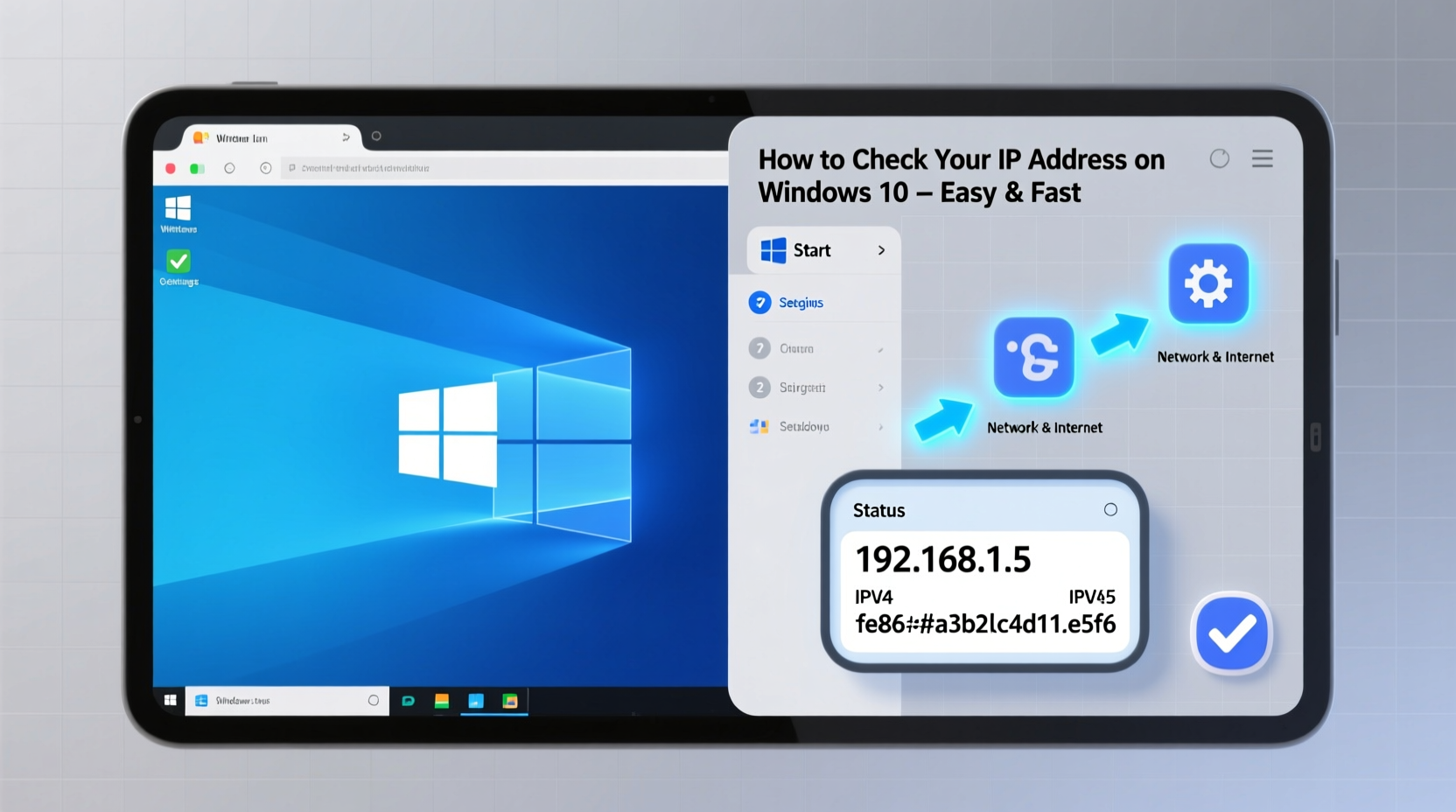
An IP (Internet Protocol) address is a unique identifier assigned to each device connected to a network. There are two types you'll encounter:
- Private (Local) IP Address: Used within your home or office network. Assigned by your router via DHCP. Typically starts with 192.168.x.x, 10.x.x.x, or 172.16.x.x–172.31.x.x.
- Public IP Address: Assigned by your Internet Service Provider (ISP). This is the address websites see when you browse online.
Most troubleshooting tasks—like accessing your router settings or sharing files between devices—require your private IP. However, if you're setting up port forwarding, running a server, or checking geolocation accuracy, you’ll need your public IP.
“Every device on a network needs an IP address to communicate. Misconfigurations often stem from not knowing which IP is in use.” — David Lin, Network Systems Engineer
Method 1: Using Command Prompt (ipconfig)
The most widely used and fastest way to find your local IP address is through the Command Prompt using the ipconfig command.
Step-by-Step Guide
- Press Windows + R to open the Run dialog box.
- Type
cmdand press Enter. - In the black window, type
ipconfigand press Enter. - Look for the section labeled Wireless LAN adapter Wi-Fi (for Wi-Fi) or Ethernet adapter Ethernet (for wired connections).
- Find the line that says IPv4 Address. The number next to it (e.g., 192.168.1.15) is your local IP address.
You can also use additional flags for more detail:
ipconfig /all– Shows detailed info including MAC address, DNS servers, and lease expiration.ipconfig /releaseandipconfig /renew– Useful for refreshing your IP if connectivity fails.
Method 2: Through Windows 10 Settings App
If you prefer a graphical interface over command-line tools, Windows 10’s built-in Settings app offers a user-friendly way to view your IP address.
Steps to Access via Settings
- Click the Start Menu and select Settings (gear icon).
- Go to Network & Internet.
- Select either Wi-Fi or Ethernet, depending on your connection type.
- Click the name of the network you’re connected to.
- Scroll down to the Properties section.
- Your IPv4 address will be listed under IPv4 address.
This method is ideal for users who avoid technical tools and want a clean visual layout. It also displays other useful details like subnet mask, default gateway, and DNS servers.
Method 3: Using PowerShell
PowerShell is a more advanced command-line shell but provides powerful networking commands. It's particularly useful for automation or scripting tasks.
How to Retrieve IP in PowerShell
- Press Windows + X and choose Windows PowerShell or Terminal.
- Type the following command and press Enter:
Get-NetIPAddress -AddressFamily IPv4 | Where-Object {$_.PrefixOrigin -eq 'Dhcp'} - This filters only IPv4 addresses obtained via DHCP (your local IPs).
- Look at the IPAddress column for your current local IP.
Alternatively, use a simpler version:
ipconfig
Yes—PowerShell supports ipconfig too, just like Command Prompt.
How to Find Your Public IP Address
Your public IP isn’t stored locally—it’s assigned externally by your ISP. To find it, you must query an external service.
Using a Web Browser
- Open any browser (Chrome, Edge, Firefox).
- Visit one of these sites:
- whatismyipaddress.com
- ip.me
- icanhazip.com (shows only IP, no design)
- The site will automatically display your public IPv4 address.
Using Command Line (Curl Method)
- Open Command Prompt or PowerShell.
- Type:
curl ifconfig.me
- Press Enter. The response will be your public IP.
curl ifconfig.me >> public_ip.txt saves your IP to a file.
Mini Case Study: Troubleshooting Home Office Connectivity
Sarah, a freelance graphic designer, couldn't connect her new printer to her laptop despite being on the same Wi-Fi. She suspected an IP conflict. Using ipconfig, she discovered her laptop had an IP starting with 169.254.x.x—a sign of failed DHCP assignment. After restarting her router and renewing her IP (ipconfig /release then ipconfig /renew), her device received a proper 192.168.x.x address and connected successfully. This simple check saved her hours of frustration and unnecessary tech support calls.
Do’s and Don’ts When Checking IP Addresses
| Action | Do | Don’t |
|---|---|---|
| Finding Local IP | Use ipconfig or Settings app |
Confuse IPv6 with IPv4 unless required |
| Verifying Public IP | Use trusted sites like whatismyip.com | Rely solely on third-party ads or pop-up-heavy sites |
| Sharing IP Info | Share local IP internally for device setup | Post your public IP on public forums unnecessarily |
| Automating Checks | Use PowerShell or batch scripts for repeated checks | Run untrusted scripts from unknown sources |
FAQ: Common Questions About IP Addresses on Windows 10
Can my IP address change?
Yes. Most home networks use dynamic IP addressing (DHCP), meaning your local IP can change when you reconnect or restart your router. Your public IP may also change periodically unless you have a static IP plan from your ISP.
Why does my IP show as 169.254.x.x?
This indicates your PC failed to get an IP from the router (APIPA address). Check your Wi-Fi connection, ensure the router is working, or try restarting network services.
Is it safe to share my IP address?
Sharing your local IP within a trusted network is harmless. Sharing your public IP carries minimal risk but could allow others to approximate your location or target your network if vulnerabilities exist. Avoid posting it publicly.
Checklist: How to Confirm and Verify Your IP Address
- ✅ Determine whether you need your local or public IP.
- ✅ Use
ipconfigin Command Prompt for quick local IP lookup. - ✅ Verify connection type (Wi-Fi or Ethernet) before checking.
- ✅ Open Settings > Network & Internet > Wi-Fi/Ethernet for GUI-based access.
- ✅ Use
curl ifconfig.mein PowerShell or CMD for public IP. - ✅ Cross-check results across methods if inconsistencies arise.
- ✅ Renew IP with
ipconfig /renewif connection issues persist.
Final Thoughts and Next Steps
Checking your IP address on Windows 10 doesn’t require technical expertise—just the right method for your comfort level. Whether you're diagnosing a dropped connection, setting up a smart home device, or configuring a game server, having instant access to your IP empowers you to take control of your network environment. These tools are built into your system; learning them adds a valuable skill to your digital toolkit.




 浙公网安备
33010002000092号
浙公网安备
33010002000092号 浙B2-20120091-4
Comments
No comments yet. Why don't you start the discussion?