
In today’s digital world, your smartphone stores more than just photos and messages—it quietly accumulates data every time you browse the web. Among the most common yet overlooked types of stored information are cookies: small files websites use to remember your preferences, login status, and behavior. While cookies can make browsing more convenient, they also pose risks to speed, privacy, and security if left unchecked. Over time, an overloaded cache can slow down your browser, while outdated or malicious cookies may expose you to tracking or phishing attempts.
Clearing cookies regularly is one of the simplest ways to reclaim performance and protect your personal data. Yet many users either skip this step entirely or do it incorrectly, leaving residual data behind. This guide provides a comprehensive, platform-specific approach to managing cookies on your phone—covering both iOS and Android—with practical steps, expert insights, and real-world benefits.
Why Clearing Cookies Matters for Speed and Security
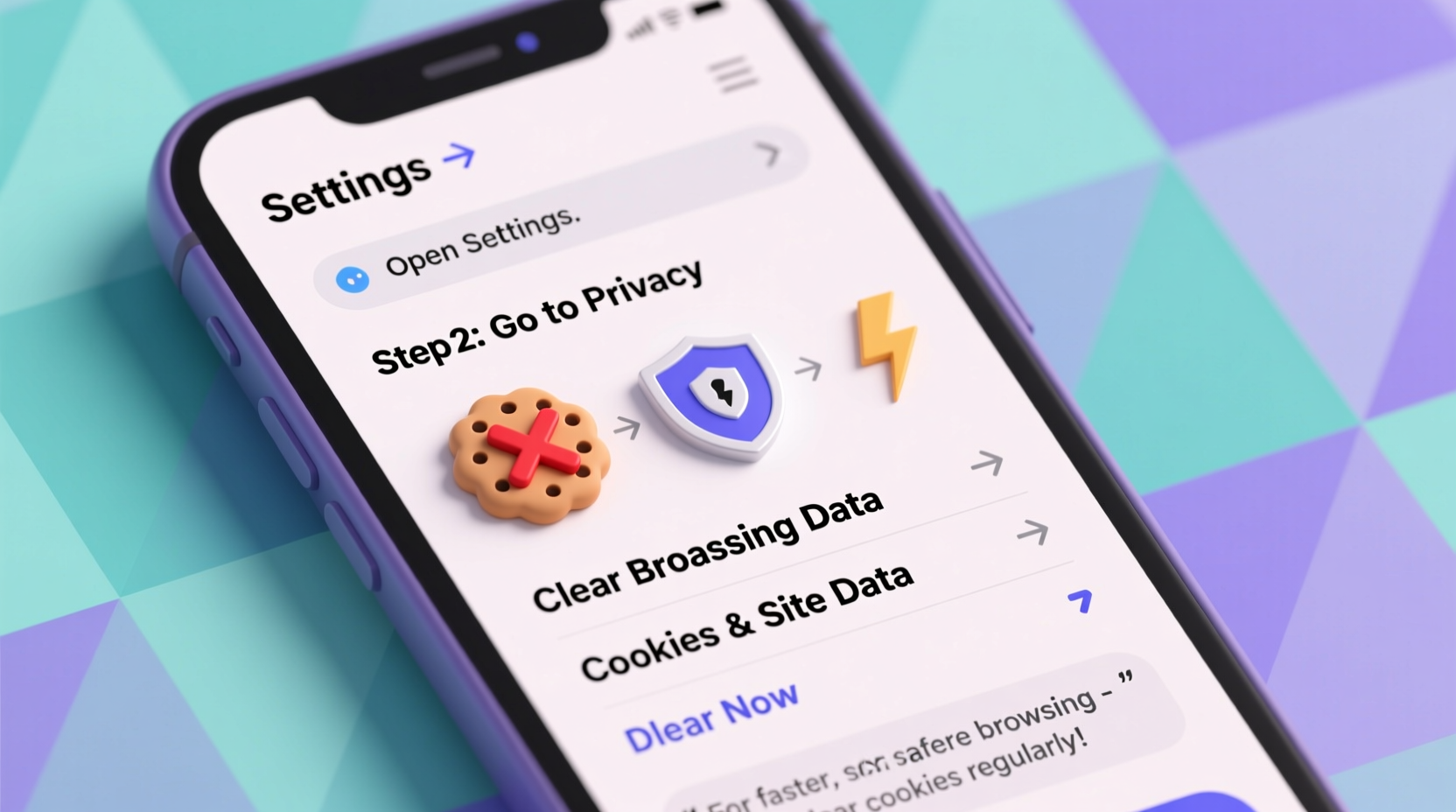
Cookies serve a functional purpose. They allow sites to “remember” you—so you don’t have to log in repeatedly or reset preferences. However, not all cookies are created equal. There are first-party cookies (set by the site you’re visiting) and third-party cookies (placed by advertisers or analytics tools), the latter being particularly invasive in terms of tracking.
Over weeks or months, these files accumulate. A cluttered browser cache filled with expired sessions, broken redirects, and redundant scripts forces your phone to work harder, leading to sluggish page loads and increased battery drain. Worse, saved login tokens or session IDs can be exploited if your device is ever compromised.
“Cookies are like digital footprints. The longer you leave them unattended, the easier it is for others to follow your trail.” — Dr. Lena Torres, Cybersecurity Researcher at MobileTrust Labs
How to Clear Cookies on iPhone (iOS)
Apple prioritizes user privacy, but Safari still collects cookies unless manually managed. On iOS, you can't clear cookies selectively—you must erase all website data at once. Here's how:
- Open the Settings app on your iPhone.
- Scroll down and tap Safari.
- Under the “Privacy & Security” section, tap Clear History and Website Data.
- Confirm by tapping Clear History and Data when prompted.
This action removes all browsing history, cookies, and cached files from Safari. Note: If you use iCloud Sync, this change will apply across all your Apple devices logged into the same account.
For users who want more granular control, Safari offers a “Manage Website Data” option under Settings > Safari > Advanced > Website Data. From here, you can view and delete cookies by domain, useful if you only want to remove tracking scripts from specific advertisers without losing logins elsewhere.
How to Clear Cookies on Android Devices
Android offers more flexibility depending on your default browser. Most users rely on Google Chrome, though Samsung Internet, Firefox, and others are popular alternatives. Below are instructions for Chrome, the most widely used mobile browser.
Clearing Cookies in Google Chrome (Android)
- Open the Chrome app.
- Tap the three-dot menu icon in the top-right corner.
- Select History, then tap Clear browsing data.
- Choose a time range (e.g., “Last hour,” “All time”). For full cleanup, select All time.
- Check the box next to Cookies and site data. You may also want to enable “Cached images and files” for deeper optimization.
- Tap Clear data.
After completion, Chrome will no longer recognize saved logins or preferences on most sites until you revisit them. If you're signed into a Google Account, some settings may sync back automatically.
Alternative browsers like Firefox allow similar functionality. In Firefox, go to Settings > Privacy Protection > Delete Browsing Data, then select cookies and cache.
Do’s and Don’ts of Managing Mobile Cookies
| Do’s | Don’ts |
|---|---|
| Clear cookies monthly to maintain speed and privacy | Ignore cookie buildup until your browser feels slow |
| Use private/incognito mode for sensitive sessions | Delete cookies right before completing an online purchase (may lose cart items) |
| Review saved passwords after clearing data to ensure access | Assume clearing cookies alone protects against all tracking (use ad blockers too) |
| Enable “Block third-party cookies” in browser settings | Store banking or medical logins on public or shared phones |
Real-World Example: Recovering a Sluggish Phone
Jamal, a freelance designer based in Austin, noticed his phone was taking over 15 seconds to load simple websites—even on strong Wi-Fi. His Instagram ads seemed eerily accurate, suggesting products he’d only discussed verbally near his phone. Concerned about both speed and privacy, he decided to investigate.
After reading about cookie accumulation, Jamal cleared his browser data on Chrome (Android). He was shocked to see over 1,200 stored cookies and 187 MB of cached files. Immediately after, his browser responsiveness improved dramatically. Pages loaded in under 3 seconds, and unrelated ads decreased significantly. He later enabled third-party cookie blocking and set a monthly reminder to repeat the process. His phone felt faster, and he regained confidence in his digital privacy.
Essential Checklist for Safe Cookie Management
- ✅ Back up important passwords using a secure password manager before clearing data
- ✅ Select “All time” as the time range to ensure complete removal
- ✅ Re-enable auto-fill or sync only after verifying trusted sites
- ✅ Turn on “Block third-party cookies” in browser privacy settings
- ✅ Schedule monthly maintenance via calendar alerts
- ✅ Use incognito mode for one-off searches or shopping comparisons
Frequently Asked Questions
Will clearing cookies log me out of all my accounts?
Yes, in most cases. Clearing cookies removes active login sessions. You’ll need to re-enter usernames and passwords for sites like Gmail, Facebook, or banking portals. Using a trusted password manager makes this process quick and secure.
Can I clear cookies without deleting my entire browsing history?
On Android Chrome, yes. When selecting “Clear browsing data,” you can uncheck “Browsing history” and keep only “Cookies and site data” selected. On iOS Safari, however, the option clears both together unless you use “Manage Website Data” for selective deletion.
Are cookies dangerous?
Not inherently. First-party cookies improve usability. But third-party cookies, especially from unknown domains, can track your behavior across sites and build detailed profiles. Some may even carry malware if linked to compromised advertising networks. Regular cleanup reduces exposure.
Take Control of Your Digital Experience
Your phone is one of your most personal devices, constantly gathering data through every tap and swipe. Cookies, while useful, shouldn’t be allowed to compromise your speed, privacy, or security. By understanding how they work and adopting a disciplined maintenance routine, you gain back control over your browsing experience.
The steps outlined here require less than five minutes each month and deliver measurable improvements in performance and peace of mind. Whether you're using an iPhone or Android device, the power to browse faster and safer is literally at your fingertips.




 浙公网安备
33010002000092号
浙公网安备
33010002000092号 浙B2-20120091-4
Comments
No comments yet. Why don't you start the discussion?