
Over time, every web browser accumulates digital clutter—temporary files, stored cookies, and a growing history of visited sites. While these elements help speed up browsing by remembering login details and loading pages faster, they can eventually slow down performance, compromise privacy, or cause display issues on websites. Regularly clearing your browser’s cache, cookies, and history is a simple yet powerful maintenance task that restores speed, enhances security, and ensures a smoother online experience.
This comprehensive guide walks through why you should clear your browser data, when to do it, and how to do it correctly across major browsers. You’ll also find practical tips, expert insights, and a step-by-step checklist to keep your browsing fast and secure.
Why Clearing Browser Data Matters
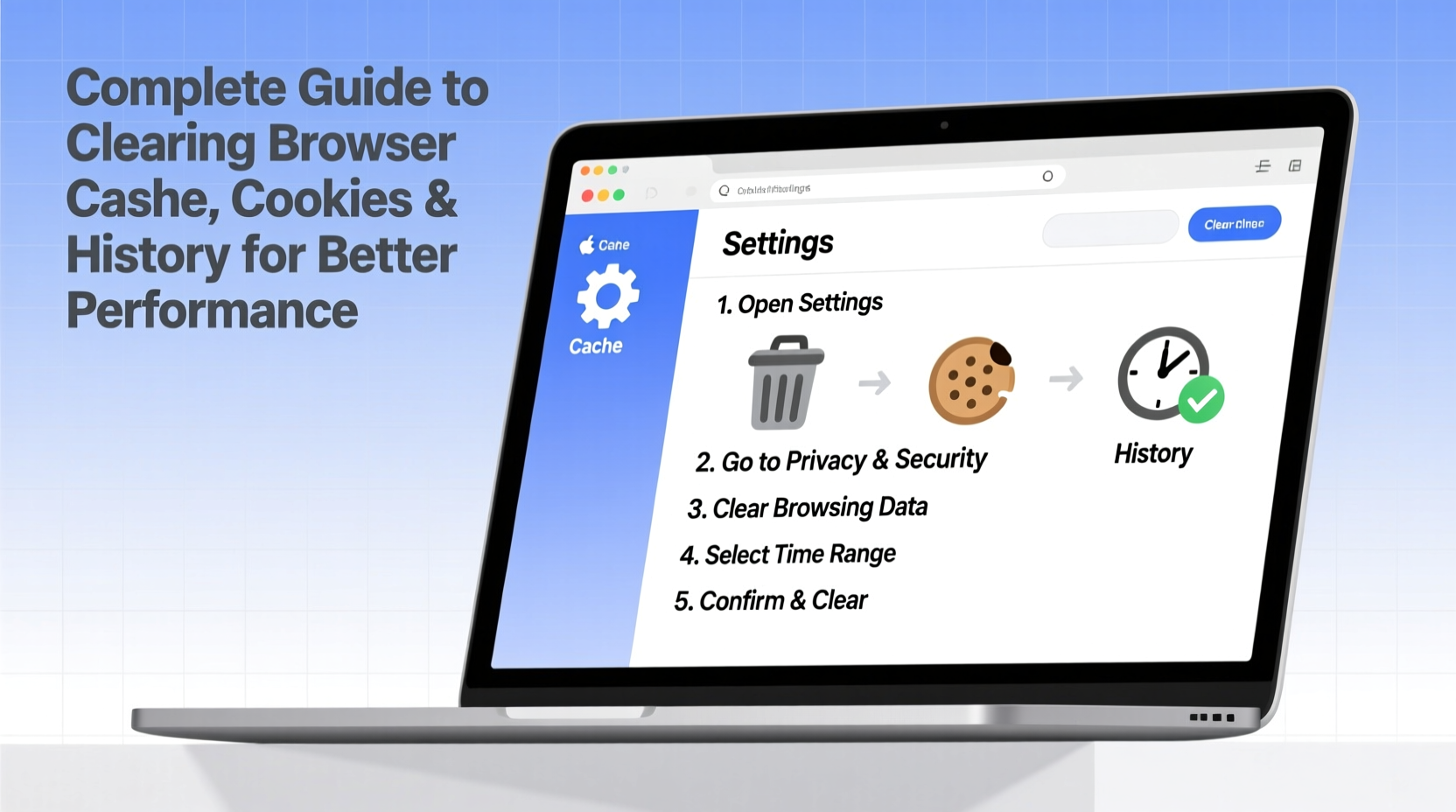
Your browser stores information every time you visit a website. This includes cached images and scripts (to load pages faster), cookies (to remember preferences and logins), and a detailed history of your activity. While useful in the short term, this data can become outdated, bloated, or exploited over time.
Outdated cache files may prevent new versions of websites from loading properly, leading to broken layouts or malfunctioning features. Cookies can be used to track your behavior across sites, raising privacy concerns. And an extensive browsing history not only takes up space but can expose sensitive information if your device is shared or compromised.
Performance Benefits
- Faster page loads: A clean cache forces the browser to fetch updated resources efficiently, reducing lag from corrupted or redundant files.
- Reduced memory usage: Browsers use RAM to manage stored data; clearing it frees up system resources.
- Better responsiveness: Fewer background processes related to tracking and auto-fill improve overall browser agility.
Privacy and Security Advantages
- Prevent tracking: Third-party cookies can follow you across websites. Removing them limits targeted advertising.
- Protect login sessions: Old session cookies might be vulnerable to hijacking, especially on public devices.
- Maintain discretion: Clearing history ensures others won’t see where you’ve been online.
“Regular browser maintenance is as important as updating software. It prevents slowdowns and reduces exposure to digital tracking.” — Lena Patel, Cybersecurity Analyst at NetShield Labs
When Should You Clear Your Cache, Cookies, and History?
There’s no one-size-fits-all answer, but certain signs indicate it’s time to clean house:
- Web pages look broken or outdated. This often means old cached files are interfering with new content.
- Login issues persist on familiar sites, even with correct credentials.
- Browser feels sluggish or uses excessive memory.
- You’re using a shared or public computer and want to protect your privacy.
- After visiting untrusted websites or suspecting malware exposure.
A general best practice is to perform a full cleanup monthly. For heavy users or those concerned about privacy, doing it every two weeks is advisable. Light users can go longer—but shouldn’t skip it entirely.
Step-by-Step Guide to Clearing Browser Data
The process varies slightly between browsers, but the core options—cache, cookies, and history—are always accessible through settings. Below are detailed instructions for the most widely used browsers.
Google Chrome
- Click the three vertical dots in the top-right corner.
- Select Settings.
- Go to Privacy and security > Clear browsing data.
- Choose a time range (e.g., “Past month” or “All time”).
- Check the boxes for Browsing history, Cookies and other site data, and Cached images and files.
- Click Clear data.
Mozilla Firefox
- Click the menu button (three horizontal lines) and select Settings.
- Navigate to Privacy & Security.
- Scroll down to History and click Clear History.
- Select the time range and check all relevant boxes.
- Click OK.
Apple Safari
- Open Safari and go to Safari > Preferences.
- Click the Privacy tab.
- Select Manage Website Data and then Remove All to delete cookies and cache.
- To clear history, go to History > Clear History and choose a time frame.
Microsoft Edge
- Click the three dots in the top-right corner.
- Go to Settings > Privacy, search, and services.
- Under Clear browsing data, click Choose what to clear.
- Select the desired data types and time range.
- Click Clear now.
Do’s and Don’ts of Browser Cleanup
| Do’s | Don’ts |
|---|---|
| Do back up saved passwords before clearing cookies, especially if not synced to a password manager. | Don’t clear data too frequently—doing it daily can defeat the purpose of caching and make browsing slower. |
| Do use the “All time” option when troubleshooting persistent site issues. | Don’t assume clearing cache deletes everything—you may need to manually remove site permissions or autofill data. |
| Do enable automatic clearing in private browsing modes for added protection. | Don’t forget mobile browsers—they collect just as much data as desktop ones. |
Real-World Example: Fixing a Broken Login Flow
Jamal, a freelance designer, couldn’t log into his client portal despite entering the correct credentials. The page redirected endlessly without error messages. He tried resetting his password and switching browsers, but the problem persisted. After consulting a tech forum, he learned that corrupted cookies might be causing the redirect loop.
He cleared his browser cache and cookies in Chrome, specifically selecting “All time” and checking both boxes. Upon revisiting the site, the login worked immediately. The outdated session cookie had been conflicting with the new authentication system, and removing it restored normal function.
This scenario highlights how seemingly complex technical problems can have simple solutions rooted in routine browser maintenance.
Essential Checklist for Effective Browser Maintenance
Follow this checklist monthly—or whenever you notice performance drops:
- ✅ Close unnecessary tabs and extensions before clearing data
- ✅ Back up important passwords using a secure manager
- ✅ Select “All time” for thorough cleaning when needed
- ✅ Clear cache, cookies, and history simultaneously for maximum effect
- ✅ Restart the browser after clearing to ensure changes take full effect
- ✅ Check critical sites (email, banking) post-clearance to re-authenticate securely
- ✅ Repeat the process on mobile devices using their respective browsers
Frequently Asked Questions
Will clearing my cache log me out of all websites?
Yes, in most cases. Cookies store login sessions, so removing them will require you to sign in again on most sites. Make sure you remember your passwords or use a trusted password manager.
Does clearing history improve computer speed?
Not directly. History itself doesn’t consume significant resources. However, combined with clearing cache and cookies, the overall reduction in stored data can free memory and improve browser responsiveness.
Can I automate this process?
Yes. Most browsers allow you to set automatic clearing in incognito mode. For regular browsing, third-party tools or built-in scheduler extensions can help, though manual control is recommended for precision.
Take Control of Your Digital Experience
Clearing your browser cache, cookies, and history isn’t just a fix for glitches—it’s a proactive habit that supports faster performance, stronger privacy, and more reliable browsing. Whether you're troubleshooting a specific issue or performing routine maintenance, taking a few minutes to reset your browser data pays long-term dividends.
Start today. Pick your browser, follow the steps, and feel the difference a clean slate makes. Then, set a monthly reminder to keep your digital footprint lean and efficient.




 浙公网安备
33010002000092号
浙公网安备
33010002000092号 浙B2-20120091-4
Comments
No comments yet. Why don't you start the discussion?