
Modern iPads are powerful devices capable of handling multiple tasks at once. However, even the most advanced hardware can slow down when too many apps run in the background or aren't managed efficiently. Unlike traditional computers, iOS handles app management differently — but that doesn’t mean user intervention isn’t beneficial. Knowing how to properly close and manage apps can improve responsiveness, extend battery life, and free up system resources. This guide breaks down everything you need to know about app management on your iPad, from basic gestures to long-term optimization strategies.
Understanding How iPad Apps Work in the Background
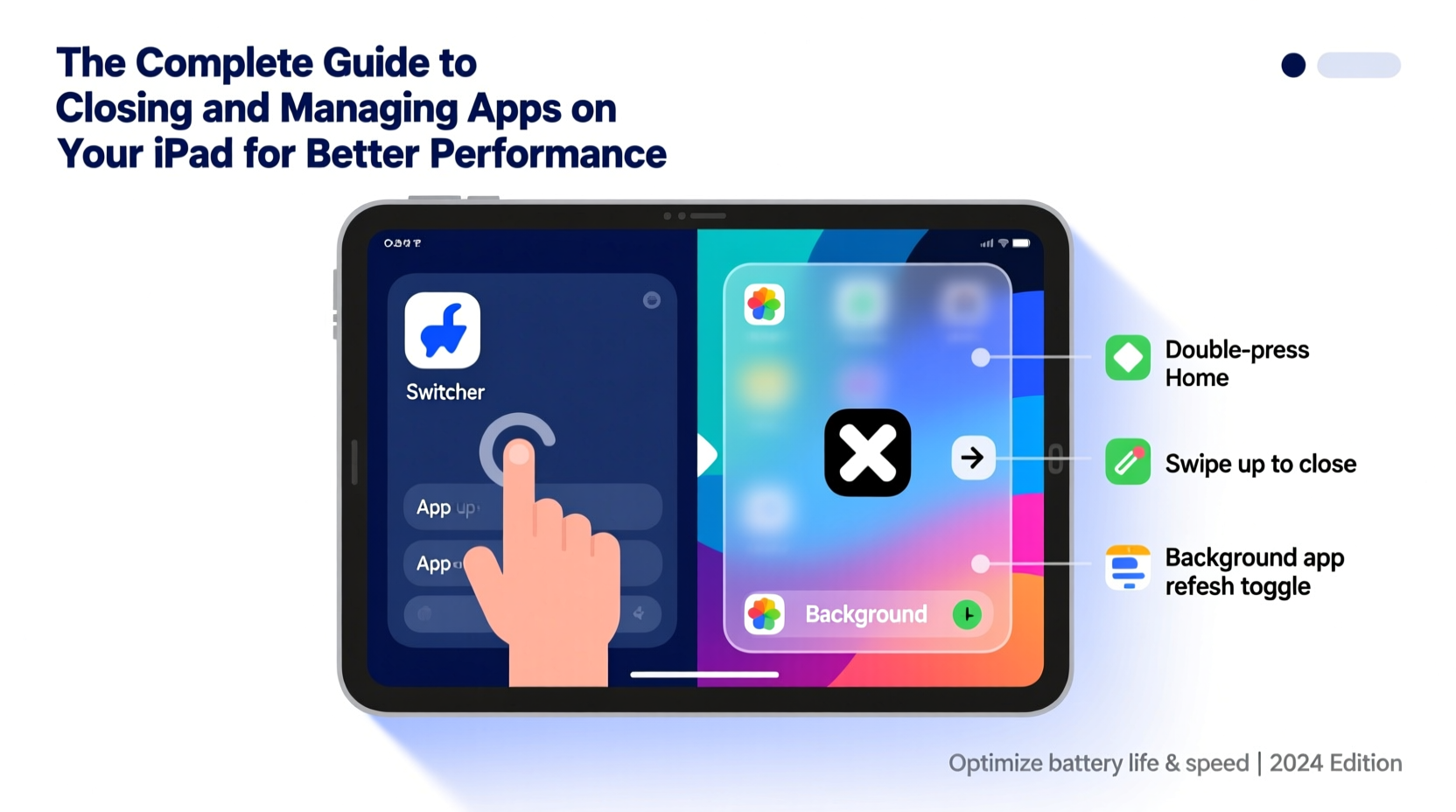
iOS is designed to optimize performance by suspending apps when they’re not in use, rather than keeping them fully active. When you switch away from an app, it typically enters a “suspended” state — meaning it’s still in memory but uses no CPU or network resources. This allows for faster relaunching without draining the battery unnecessarily.
However, some apps continue limited background activity for updates, location tracking, or downloads. While this functionality is useful, unchecked background behavior can lead to reduced performance over time, especially on older iPad models with less RAM.
“Apple’s memory management is highly efficient, but users can still benefit from occasional manual oversight — particularly with resource-heavy apps like video editors or games.” — David Lin, Mobile Performance Analyst
How to Close Apps on Your iPad: Step-by-Step Guide
Closing apps on your iPad requires accessing the App Switcher, where all currently open (or recently used) apps are displayed. The method varies slightly depending on whether your iPad has a Home button.
For iPads Without a Home Button (iPad Pro, iPad Air 4+, iPad mini 6+)
- Swipe up from the bottom of the screen and pause slightly in the center.
- The App Switcher will appear, showing card-style previews of open apps.
- To close one app, swipe its preview upward off the top of the screen.
- To close multiple apps, repeat the swipe-up gesture for each.
For iPads With a Home Button
- Double-press the Home button quickly.
- The App Switcher appears at the bottom of the screen.
- Swipe any app preview upward to close it.
When Should You Actually Close Apps?
A common misconception is that leaving apps open drains battery or slows down the device. In reality, suspended apps have minimal impact. However, there are specific situations where closing apps makes sense:
- App freezing or crashing: If an app becomes unresponsive, closing and reopening it often resolves the issue.
- Excessive battery drain: Some apps continue background processes (e.g., GPS tracking, streaming). Check Settings > Battery to identify culprits.
- After software updates: Restarting apps post-update ensures compatibility and clears temporary glitches.
- Privacy concerns: Closing apps that access camera, microphone, or location prevents unintended background access.
Real Example: Recovering from a Frozen Drawing App
Sophie, a digital artist using her iPad Pro for illustration, noticed her favorite drawing app had frozen mid-session. The brush tool stopped responding, and undo commands failed. She accessed the App Switcher, swiped the app away, and reopened it. Upon relaunch, the app functioned normally, and her work was preserved thanks to auto-save. This simple action saved her from potential data loss and frustration.
Optimizing App Management for Long-Term Performance
Beyond manually closing apps, proactive settings adjustments can enhance efficiency and reduce the need for frequent intervention.
Enable Automatic App Refresh Control
Background App Refresh allows apps to update content when not in use. While convenient, it can consume data and battery. To manage it:
- Go to Settings > General > Background App Refresh.
- Choose Wi-Fi Only, Wi-Fi & Cellular, or turn it off entirely.
- Select individual apps to disable refresh for non-essential ones (e.g., social media).
Limit Location Services and Push Notifications
Apps constantly checking your location or sending notifications run background processes. Disable these features for apps that don’t require them:
- Settings > Privacy & Security > Location Services — set apps to “While Using” or “Never.”
- Settings > Notifications — disable alerts for low-priority apps.
| Setting | Recommended Action | Benefit |
|---|---|---|
| Background App Refresh | Disable for non-critical apps | Reduces battery usage and data consumption |
| Automatic Downloads | Turn off for apps/music/books | Prevents unexpected storage use |
| App Offload | Enable in Settings > App Store | Removes unused apps but keeps documents and data |
| Low Power Mode | Enable during heavy usage | Temporarily halts background activity |
Checklist: Monthly iPad App Maintenance Routine
To keep your iPad running smoothly, perform this quick maintenance routine monthly:
- ✅ Review battery usage in Settings > Battery to identify power-hungry apps.
- ✅ Clear unnecessary apps from the App Switcher if they’ve been idle for days.
- ✅ Update all apps via the App Store to ensure optimal performance.
- ✅ Delete apps you no longer use to free up storage space.
- ✅ Reboot your iPad to clear cached data and reset system processes.
- ✅ Check for iOS updates under Settings > General > Software Update.
Frequently Asked Questions
Does closing apps save battery life?
Generally, no. Suspended apps use almost no power. However, if an app is actively refreshing in the background or malfunctioning, closing it may prevent unnecessary battery drain. Use Settings > Battery to monitor actual usage.
Do I need to close apps daily?
No. iOS manages memory efficiently. Daily app closing is unnecessary and adds no measurable benefit. Reserve force-closing for troubleshooting purposes only.
Why does my iPad still feel slow even after closing apps?
Poor performance may stem from low storage, outdated software, or too many widgets/running services. Try freeing up space (delete unused apps/media), updating iOS, or restarting the device before assuming app multitasking is the cause.
Conclusion: Smarter App Habits for Peak iPad Performance
Effective app management isn’t about constantly swiping apps away — it’s about understanding how iOS works and intervening only when necessary. By combining smart settings, periodic maintenance, and informed use of the App Switcher, you can maintain a fast, responsive iPad experience for years. Whether you're a student, professional, or creative user, taking control of your app environment leads to better productivity, longer battery life, and fewer frustrations.




 浙公网安备
33010002000092号
浙公网安备
33010002000092号 浙B2-20120091-4
Comments
No comments yet. Why don't you start the discussion?