
Converting a PDF to an SVG is more than just a file format switch—it's about unlocking scalability, editability, and web compatibility. Whether you're a designer refining vector graphics, a developer integrating assets into a website, or someone preparing print materials for digital use, understanding how to accurately convert PDFs to SVGs is essential. This guide walks through reliable methods, evaluates the best tools available, and provides practical insights to ensure your conversions preserve quality and functionality.
Why Convert PDF to SVG?
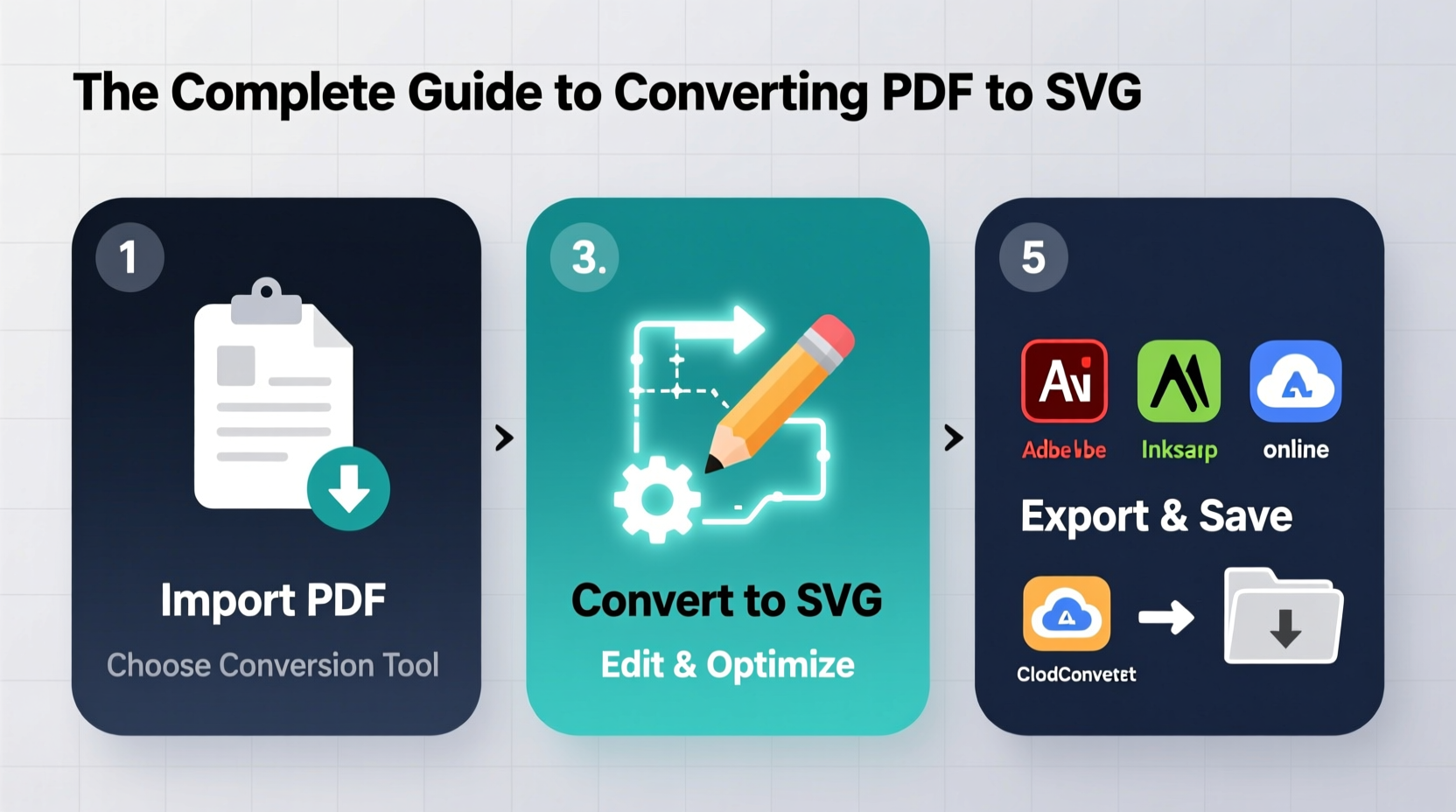
PDFs are excellent for document sharing and printing, but they fall short when it comes to responsive design and dynamic editing. SVG (Scalable Vector Graphics), on the other hand, is an XML-based vector image format designed for the web. It scales infinitely without losing quality, integrates seamlessly with CSS and JavaScript, and loads faster than raster images. Converting from PDF to SVG allows:
- Editing individual elements in design software like Adobe Illustrator or Inkscape
- Embedding clean, lightweight graphics directly into HTML
- Animating logos, icons, or illustrations using code
- Optimizing graphics for high-resolution displays
“SVG isn’t just the future of web graphics—it’s the present. If you’re still using static images for logos and icons, you’re adding unnecessary weight and complexity.” — Lena Torres, Front-End Development Lead at WebFlow Studios
Step-by-Step Conversion Methods
There are multiple ways to convert a PDF to SVG, each suited to different technical levels and project needs. Below is a detailed breakdown of four reliable approaches.
Method 1: Using Online Converters (Beginner-Friendly)
For users who need a quick, no-installation solution, online converters offer instant results. These tools are ideal for simple documents like single-page diagrams or logos.
- Navigate to a trusted converter such as CoolUtils, CloudConvert, or PDFtoSVG.net.
- Upload your PDF file—most platforms support drag-and-drop.
- Select “SVG” as the output format.
- Click “Convert” and wait for processing (usually under a minute).
- Download the resulting SVG file.
Method 2: Adobe Illustrator (Professional Design Workflow)
If you have access to Adobe Creative Cloud, Illustrator remains one of the most precise tools for vector conversion.
- Open Adobe Illustrator and select File → Open, then choose your PDF.
- In the import dialog, ensure “Preserve Illustrator Editing Capabilities” is checked if applicable.
- Select the specific page if the PDF contains multiple pages.
- Edit the artwork as needed—adjust colors, ungroup objects, or simplify paths.
- Go to File → Save As, choose “SVG (svg)” from the format dropdown.
- In the SVG Options window, set decimal places (2–3 recommended), select “Responsive,” and embed fonts as outlines if needed.
- Click OK and save.
This method excels when working with complex vector artwork or brand assets requiring pixel-perfect control.
Method 3: Inkscape (Free & Open Source Alternative)
Inkscape is a powerful free tool that handles PDF-to-SVG conversion effectively, especially for technical drawings and open-source projects.
- Download and install Inkscape from inkscape.org.
- Launch the program and go to File → Open, selecting your PDF.
- Inkscape uses Poppler to render PDFs; note that only vector elements translate cleanly—raster images remain embedded.
- Once loaded, inspect the object structure using the Objects Panel.
- Make edits: break apart groups, modify strokes, or clean up stray points.
- Save via File → Save As, choosing “Plain SVG” or “Inkscape SVG” depending on compatibility needs.
Method 4: Command-Line Tools (Developer-Focused)
For automation or batch processing, command-line utilities provide unmatched efficiency.
PoDoFo and pdf2svg are two popular open-source tools:
# Install pdf2svg (on Ubuntu/Debian)
sudo apt-get install pdf2svg

# Convert a single file
pdf2svg input.pdf output.svg
This approach integrates well into CI/CD pipelines or asset build scripts. For large-scale conversions, combine with shell loops or Node.js scripts to process entire directories.
Comparison of Top Tools
Different tools serve different purposes. The right choice depends on your technical level, budget, and intended use.
| Tool | Type | Best For | Pros | Cons |
|---|---|---|---|---|
| CloudConvert | Online | Quick one-off conversions | User-friendly, supports batch, secure upload | Limited free tier, less control over output |
| Adobe Illustrator | Desktop (Paid) | High-fidelity design work | Precise editing, industry standard | Expensive, steep learning curve |
| Inkscape | Desktop (Free) | Budget-conscious designers | Full-featured, open source | UI feels dated, occasional rendering quirks |
| pdf2svg | Command Line | Developers, automation | Fast, scriptable, lightweight | No GUI, requires terminal knowledge |
| PDFtoSVG.net | Online | Simple, immediate results | No sign-up, fast processing | Privacy concerns with sensitive files |
Common Pitfalls and How to Avoid Them
Even successful conversions can introduce issues if not handled carefully. Watch out for these common problems:
- Font Substitution: If fonts aren’t embedded or converted to outlines, text may appear distorted. Always outline text in Illustrator or Inkscape before saving.
- Raster Artifacts: PDFs containing scanned images or raster graphics won’t become vectors. Manually trace or replace these elements post-conversion.
- Layer Merging: Some tools collapse layers during conversion, making future edits difficult. Use layered formats like AI or Inkscape SVG when possible.
- Excessive File Size: Unoptimized SVGs can be larger than expected. Run output through SVGO or similar optimizers.
Real-World Example: Converting a Company Logo
A marketing team at a tech startup received their brand logo as a multi-page PDF from the original designer. They needed SVG versions for their website, app icons, and social media banners.
They used Adobe Illustrator to open the PDF, isolated the logo on page three, expanded all text to outlines, removed unused background elements, and saved as a responsive SVG. After testing across devices, they reduced file size by 60% using SVGO. The result was a crisp, scalable logo that loaded instantly on all platforms.
Checklist: Preparing for a Successful PDF-to-SVG Conversion
Before starting any conversion, follow this checklist to ensure optimal results:
- ✅ Confirm the PDF contains vector data (not just a scanned image)
- ✅ Back up the original PDF before editing
- ✅ Outline all text to prevent font issues
- ✅ Simplify complex paths where possible
- ✅ Test the output in a browser or design tool
- ✅ Optimize the final SVG using tools like SVGO or SVGOMG
- ✅ Validate accessibility (add titles/descriptions if needed)
Frequently Asked Questions
Can I convert a scanned PDF to SVG?
Not directly. A scanned PDF is a raster image (like a photo). You must first use vectorization software such as Inkscape’s “Trace Bitmap” feature or Adobe Illustrator’s Image Trace to convert the image into vector paths before exporting as SVG.
Why does my SVG look blurry on screen?
Blurry SVGs usually result from incorrect scaling or embedded raster images within the graphic. Ensure all elements are true vectors and test the SVG at multiple sizes. Also, check that the viewBox attribute is properly defined in the SVG code.
Is it safe to use online converters for confidential documents?
Exercise caution. Many online tools upload files to their servers, which may retain copies. For sensitive material, use offline tools like Inkscape or pdf2svg. Always review the platform’s privacy policy before uploading.
Final Thoughts and Next Steps
Converting PDF to SVG opens up a world of flexibility for digital design and development. From sleek logos to interactive data visualizations, SVG empowers clean, efficient, and scalable graphics. By choosing the right method—whether it’s a quick online tool or a robust desktop application—you maintain control over quality and usability.
The key is matching the tool to your skill level and project requirements. Start small, validate outputs, and refine your workflow over time. With practice, PDF-to-SVG conversion becomes a seamless part of your digital pipeline.




 浙公网安备
33010002000092号
浙公网安备
33010002000092号 浙B2-20120091-4
Comments
No comments yet. Why don't you start the discussion?