
In an era where digital privacy is increasingly fragile, managing your online footprint has never been more important. Browsing history isn’t just a list of sites you’ve visited—it can reveal personal interests, financial habits, health concerns, and even location data. Whether you're sharing a device, concerned about targeted ads, or simply want to maintain control over your digital identity, knowing how to thoroughly delete your browsing history across all devices is essential.
This guide provides detailed, platform-specific steps to erase your history from desktops, smartphones, tablets, and cloud-synced accounts. It also covers advanced settings like clearing cached data, managing autofill information, and disabling future tracking—ensuring your cleanup is both comprehensive and sustainable.
Why Clearing Browsing History Matters
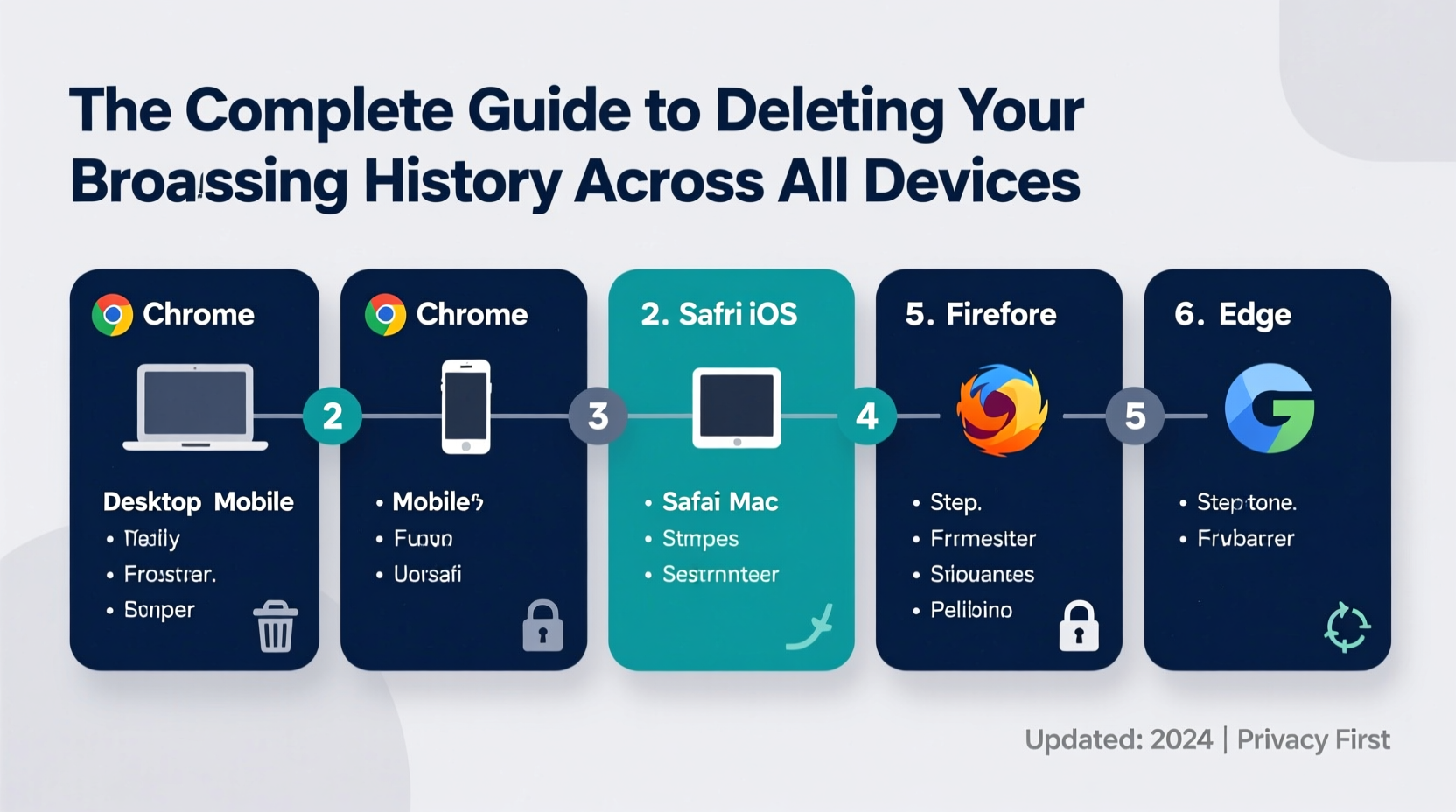
Browsing history may seem harmless, but it accumulates quickly and can be accessed by others with physical or remote access to your device. Beyond privacy risks, stored history can slow down browsers, lead to inaccurate autocomplete suggestions, and contribute to personalized ad targeting that feels invasive.
Security expert Dr. Lena Torres explains:
“Every website visit leaves behind traces—not just in history logs, but in cookies, cache, and session storage. These fragments can be reassembled to profile user behavior, even after history deletion if not handled correctly.” — Dr. Lena Torres, Cybersecurity Researcher at Digital Trust Lab
To truly protect yourself, deletion must extend beyond the visible history log to include related data stored locally and in sync across devices.
Step-by-Step Guide to Deleting History by Browser
The process varies depending on the browser and operating system. Below are precise instructions for the most widely used platforms.
Google Chrome (Windows & macOS)
- Open Chrome and click the three-dot menu in the top-right corner.
- Select History, then click Clear browsing data.
- Choose a time range (e.g., “All time” for full deletion).
- Check boxes for: Browsing history, Cookies and other site data, Cached images and files.
- Click Clear data.
Mozilla Firefox (Desktop)
- Navigate to the hamburger menu (three horizontal lines) > Settings.
- Go to Privacy & Security > scroll to \"History.\"
- Select \"Use custom settings for history\" and click Clear History….
- Set the time range to “Everything,” then confirm.
- For automation, check “Clear history when Firefox closes” and customize what gets deleted.
Apple Safari (macOS)
- From the Safari menu, choose Clear History…
- Select “all history” from the dropdown.
- Click Clear History.
- Additionally, go to Safari > Preferences > Privacy and click Manage Website Data > Remove All.
Safari on iPhone/iPad
- Open Settings > tap Safari.
- Scroll down and select Clear History and Website Data.
- Confirm the action. This removes history, cookies, and cache from the device.
Google Chrome (Android)
- Launch Chrome and tap the three-dot menu.
- Tap History > Clear browsing data.
- Select “All time” and ensure all options are checked.
- Tap Clear data.
Managing Synced Accounts Across Devices
If you’re signed into a Google, Apple, or Microsoft account, your browsing history may sync across devices. Simply clearing history on one device won’t remove it from others unless sync settings are addressed.
Disable and Reset Synced History
- Google Account: Visit myactivity.google.com, filter by “Web & App Activity,” and delete entries manually or set auto-delete for 3 or 18 months.
- iCloud: On iPhone, go to Settings > [Your Name] > iCloud > Safari, toggle off Safari. Choose “Keep on My iPhone” to preserve local history while stopping sync.
- Firefox Sync: In Settings > Sync, disconnect your account before clearing data to avoid re-downloading history.
| Platform | Sync Control Panel | Auto-Delete Option? |
|---|---|---|
| Google Chrome | myactivity.google.com | Yes (3 or 18 months) |
| Apple Safari | iCloud Settings / System Settings | No (manual only) |
| Firefox | Firefox Account Dashboard | Limited (via device management) |
What Else Should You Delete Alongside History?
Deleting history alone doesn't eliminate all traces. For true privacy, clean these associated elements:
- Cookies: Small files that track login status and preferences; can be exploited for cross-site tracking.
- Cache: Stored versions of web pages that speed up loading but may contain sensitive data.
- Autofill Form Data: Names, addresses, phone numbers—often overlooked but highly personal.
- Download History: A list of files downloaded, including potentially private documents.
- Site Permissions: Revoke microphone, camera, or location access granted to websites.
Checklist: Complete Browsing Cleanup Routine
- ☐ Clear browsing history
- ☐ Delete cookies and site data
- ☐ Empty cache and temporary files
- ☐ Remove saved passwords (if shared device)
- ☐ Wipe autofill form entries
- ☐ Disable or reset sync settings
- ☐ Review and revoke website permissions
- ☐ Confirm no recovery options retain backups (e.g., Time Machine, Google Takeout)
Real-World Scenario: Securing a Shared Laptop
Consider Maria, a college student who shares a family laptop. She uses it to research mental health resources and apply for internships. After noticing targeted ads referencing her searches, she realized her history was exposed.
Maria followed this protocol:
- She signed out of her Google account on Chrome.
- Cleared all browsing data with “All time” selected.
- Visited myactivity.google.com and deleted her Web & App Activity for the past six months.
- Disabled sync moving forward.
- Used private browsing mode for future sensitive sessions.
Within days, intrusive ads disappeared. More importantly, she regained confidence in using the shared device without fear of exposure.
Frequently Asked Questions
Can deleted browsing history be recovered?
In most cases, once cleared from the browser and synced services, history cannot be recovered through standard means. However, third-party forensic tools or system backups (like iCloud, Google Backup, or Time Machine) may retain copies. Always check backup settings if maximum privacy is required.
Does incognito mode delete history automatically?
Yes—browsing in private or incognito mode prevents history, cookies, and form data from being saved after the session ends. However, downloads and bookmarks are retained, and your ISP or employer may still monitor traffic.
Will clearing history log me out of websites?
Often, yes. Since cookies store login sessions, deleting them will log you out of most sites. Be prepared to re-enter credentials for email, banking, social media, and shopping accounts.
Take Control of Your Digital Footprint
Your browsing history is more than a convenience feature—it's a record of your digital life. By understanding how and where it’s stored, you gain the power to manage who sees it and for how long. The steps outlined here go beyond surface-level deletion, addressing synchronization, auxiliary data, and long-term prevention strategies.
Privacy isn’t a one-time task. Schedule regular cleanups, use private browsing when appropriate, and audit your sync settings quarterly. The effort today ensures greater security and peace of mind tomorrow.




 浙公网安备
33010002000092号
浙公网安备
33010002000092号 浙B2-20120091-4
Comments
No comments yet. Why don't you start the discussion?