
Saving files directly to a flash drive during download eliminates the need for intermediate storage on your computer’s hard drive. This method saves time, conserves local disk space, and streamlines workflows—especially when dealing with large media files, software installers, or frequent file transfers. Whether you're a student, professional, or casual user, mastering this process enhances efficiency and data management.
While many assume downloads must first go to the desktop or Documents folder, modern operating systems and browsers support direct saving to external drives. However, success depends on correct setup, drive compatibility, and understanding how different platforms handle file operations.
How File Downloads Work: The Basics
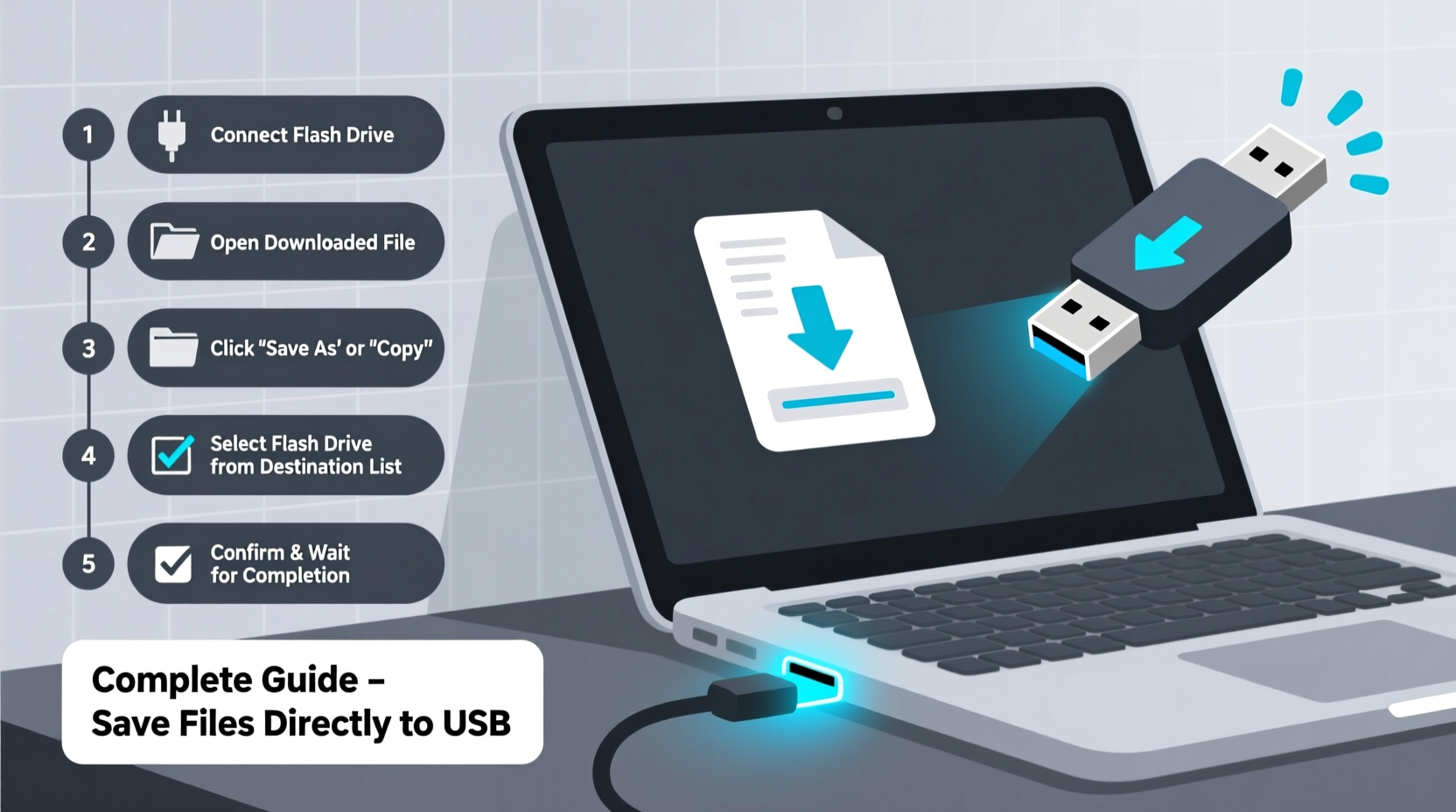
When you initiate a download from a website, your browser fetches data from a remote server and stores it locally. By default, most browsers use a designated \"Downloads\" folder on your primary drive. But you can change this destination to any accessible location—including a connected USB flash drive.
The key requirement is that the flash drive must be recognized by your system and assigned a drive letter (on Windows) or mounted properly (on macOS or Linux). Once detected, it becomes a valid save location.
Not all download methods allow real-time path selection. Some websites trigger automatic downloads using scripts that bypass manual folder choice. In such cases, preparation and system settings become critical to ensure files land where you want them.
Step-by-Step: Saving Downloads Directly to Your Flash Drive
- Insert the flash drive into an available USB port. Wait a few seconds for your system to recognize it.
- Verify the drive appears in File Explorer (Windows), Finder (macOS), or your file manager (Linux).
- Note the drive letter or name—e.g., “E:\\” on Windows or “UNTITLED” on macOS.
- Open your browser and navigate to the file you wish to download.
- Right-click the download link (or control-click on Mac) and select “Save link as…” or “Download linked file as…”
- In the dialog box, navigate to your flash drive using the sidebar or directory tree.
- Select the flash drive folder, optionally rename the file, and click “Save.”
- Wait for the download to complete. Do not remove the drive until the transfer finishes.
This method gives full control over the destination. It works consistently across Chrome, Firefox, Edge, and Safari, provided the site doesn’t force an auto-download without user input.
Browser-Specific Settings for Default Download Locations
To make saving to a flash drive faster, configure your browser to default to the external drive whenever it's connected. While this requires manual switching each time, it reduces repetitive navigation.
| Browser | How to Change Default Save Location |
|---|---|
| Google Chrome | Settings → Downloads → “Ask where to save each file before downloading” (enable). When downloading, manually select the flash drive. |
| Mozilla Firefox | Settings → General → Files and Applications → “Always ask you where to save files.” Then choose the drive during download. |
| Microsoft Edge | Settings → Downloads → Turn on “Ask me what to do with each download.” Select location each time. |
| Safari (macOS) | Preferences → General → “File download location” → Choose “Other…” and browse to your flash drive when connected. |
Note: Browsers cannot dynamically detect when a flash drive is inserted and switch defaults automatically. You must manually confirm the path every time.
“Direct-to-drive downloading is one of the most underused productivity techniques. It prevents clutter, reduces transfer steps, and minimizes accidental deletion risks.” — Daniel Reed, Systems Optimization Consultant
Tips for Reliable and Safe Transfers
Transferring files directly to a flash drive is efficient, but improper handling can lead to data corruption or hardware damage. Follow these best practices to ensure reliability.
- Use high-quality USB drives from reputable brands to reduce failure risk.
- Avoid cheap, no-name drives that may lack proper controllers or error correction.
- Eject safely using the “Safely Remove Hardware” (Windows) or “Eject” (macOS) option before unplugging.
- Don’t interrupt transfers—removing the drive mid-download can corrupt both the file and the drive’s file system.
- Check available space before starting large downloads; insufficient capacity causes failed transfers.
Real-World Example: A Student’s Research Workflow
Maya, a graduate student, regularly downloads academic papers, datasets, and presentation videos for her research. Her laptop has limited SSD space, so she uses a 64GB exFAT-formatted flash drive labeled “Research Archive.”
Each week, she connects the drive, opens her browser, and right-clicks PDF links from journal sites, selecting “Save As” and navigating directly to the flash drive. She organizes files into dated folders like “2024-04-Papers” and “Conferences/Videos.”
At the end of each session, she safely ejects the drive and stores it separately. This method keeps her laptop uncluttered, ensures backups are portable, and allows her to share materials easily with advisors. Over six months, she saved over 20GB of space and reduced file misplacement incidents by 90%.
Common Issues and How to Fix Them
Even with careful execution, problems can arise. Here are frequent issues and their solutions:
| Issue | Possible Cause | Solution |
|---|---|---|
| Flash drive not showing in browser save dialog | Drive not properly mounted or assigned a letter | Reconnect the drive; check Disk Management (Windows) or Disk Utility (macOS) |
| Download fails midway | Insufficient space or unstable connection | Free up space; use a powered USB hub if needed |
| Files appear corrupted after transfer | Improper ejection or faulty drive | Always eject safely; test drive health with tools like CHKDSK or Disk Utility |
| “Permission denied” error | Write protection enabled or file system limitation | Check for physical lock switch (on some drives); reformat if necessary |
Checklist: Preparing to Download to a Flash Drive
- ✅ Confirm the flash drive is securely plugged in
- ✅ Verify it appears in your file manager
- ✅ Ensure sufficient free space for the intended file(s)
- ✅ Set browser to “ask where to save” for maximum control
- ✅ Format the drive appropriately (exFAT recommended for cross-platform use)
- ✅ Close unnecessary programs to prevent USB bandwidth congestion
- ✅ Plan to remain near the device until the download completes
Frequently Asked Questions
Can I set my flash drive as the default download location permanently?
No—not reliably. Since flash drives are removable, browsers don’t allow permanent default assignment. You can only set fixed paths to internal drives. The workaround is enabling “ask where to save” and manually choosing the drive each time.
Why does my download slow down when saving directly to the flash drive?
This often happens with low-speed USB 2.0 drives or heavily fragmented files. Upgrade to a USB 3.0+ drive with high write speeds (look for 100MB/s+ ratings). Also, avoid running multiple USB devices simultaneously on the same hub.
Is it safe to leave a flash drive plugged in all the time?
Technically yes, but not advisable. Constant connection increases exposure to power surges, malware auto-execution, and accidental overwrites. Use it only when needed, and always eject properly before removal.
Final Thoughts: Streamline Your Digital Habits
Downloading files directly to a flash drive is a simple yet powerful habit that enhances organization, saves local storage, and improves mobility. With the right tools and awareness of system behavior, anyone can integrate this practice seamlessly into daily routines.
Success lies not just in knowing the steps, but in consistent application—using quality hardware, verifying connections, and prioritizing data safety. Whether you're collecting resources, sharing projects, or archiving content, taking control of your download destinations puts you one step ahead.




 浙公网安备
33010002000092号
浙公网安备
33010002000092号 浙B2-20120091-4
Comments
No comments yet. Why don't you start the discussion?