
Photos on Facebook often capture meaningful moments—family gatherings, travel adventures, milestone events. Whether you're preserving memories, backing up personal content, or repurposing images for creative projects, knowing how to download photos from Facebook efficiently is essential. But with evolving privacy settings, platform restrictions, and security concerns, doing so the right way matters just as much as doing it quickly.
This guide walks through proven, safe methods to retrieve your Facebook photos, whether they’re yours or shared with you. You’ll learn official tools, practical workarounds, and critical precautions to protect your data while maintaining image quality.
Why Downloading Facebook Photos Isn’t Always Simple
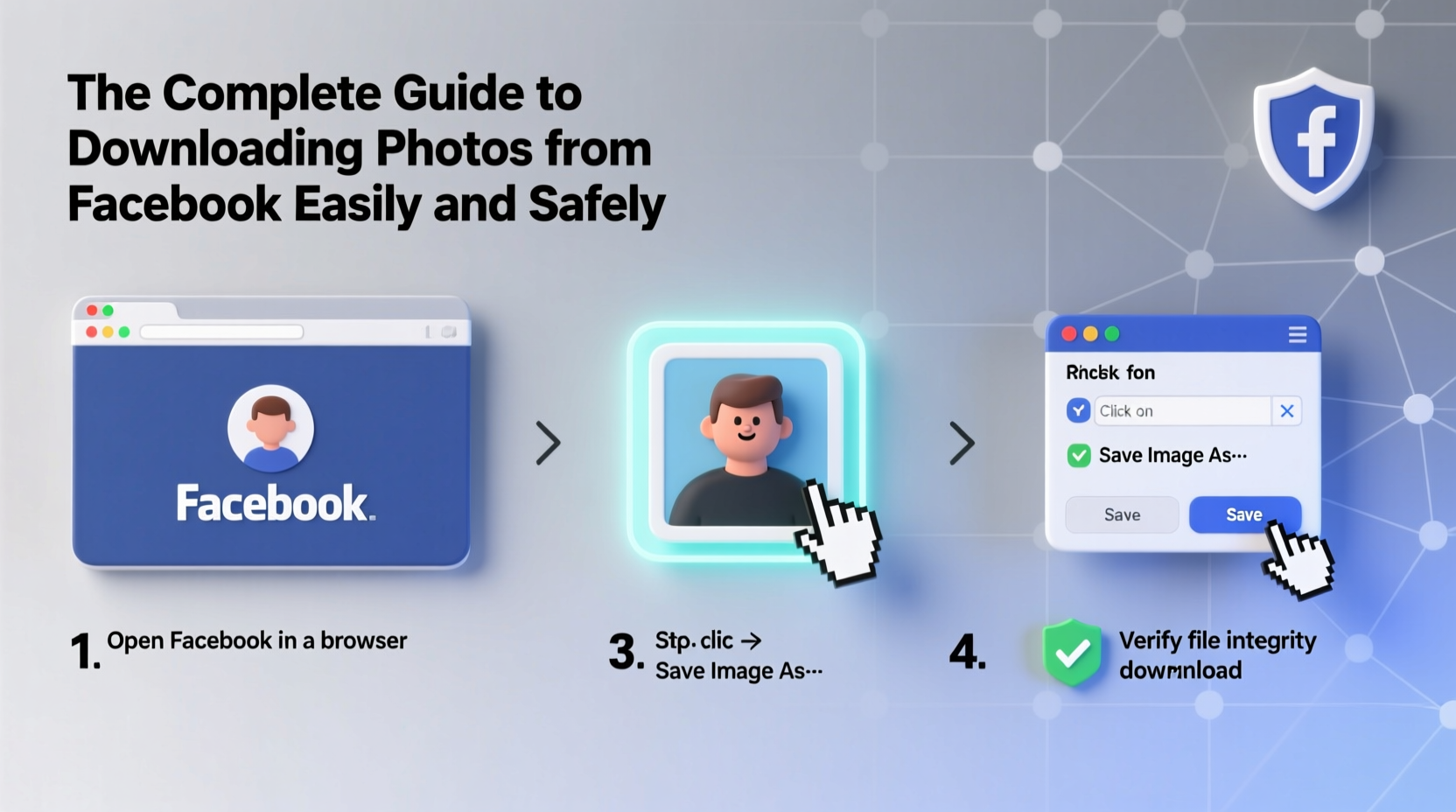
Facebook intentionally limits direct access to photos to prevent misuse, unauthorized sharing, and mass scraping. While this protects user privacy, it can make retrieving your own images more complicated than expected. Some photos may be high-resolution when uploaded but served in compressed form on the site. Others might belong to friends or groups, requiring permission before saving.
The platform’s mobile app also lacks a built-in bulk download feature, forcing users to seek alternative solutions. Understanding these limitations helps you choose the safest and most effective method for each situation.
Method 1: Use Facebook’s Built-In Download Tool (Most Secure)
Facebook offers an official way to download all your data—including photos—through its Settings & Privacy > Your Facebook Information > Download Your Information tool. This method is completely safe, respects privacy policies, and gives you full control over what you export.
- Log into Facebook and click the down arrow in the top-right corner.
- Select Settings & Privacy, then Settings.
- On the left sidebar, click Your Facebook Information.
- Choose Download Your Information.
- Select the date range, media quality (High, Standard, or Low), and file format (HTML or JSON).
- Deselect non-photo items like posts, comments, or ads if you only want images.
- Click Create File. Facebook will prepare your archive and email you a secure download link when ready (usually within minutes to hours).
The downloaded ZIP file contains folders organized by category—photos are typically under “Photos” or “Albums.” This method works best for comprehensive backups of your entire photo history.
“Using Facebook’s native data export ensures compliance with privacy regulations and minimizes exposure to third-party risks.” — Dr. Lena Patel, Digital Privacy Researcher at CyberTrust Labs
Method 2: Manual Save via Browser (Quick for Individual Photos)
If you only need a few specific images, manually saving them through a web browser is fast and reliable. This method preserves original quality when done correctly.
Steps to Save a Single Photo:
- Open the photo on desktop.facebook.com (not the mobile app).
- Click the photo to view it in full size.
- Right-click the image and select Save Image As…
- Choose a location on your device and save the file.
Note: On some browsers or platforms, right-clicking may be disabled. In such cases, hover over the photo, click the three dots (⋯), and select View Full Post. Then locate the image URL in the address bar and press Enter to open it directly before saving.
Tips for Higher Quality Downloads:
- Avoid saving thumbnails from news feeds—they’re often low resolution.
- Always open the photo in full view first to ensure you’re downloading the highest available version.
- Use Chrome or Firefox for better compatibility with image-saving functions.
Method 3: Mobile Workarounds (iOS and Android)
The Facebook mobile app doesn’t allow direct photo downloads, but you can still save images using system-level features or alternate browsers.
iOS (iPhone):
- Tap and hold the photo in the Facebook app.
- Select Save Image from the pop-up menu.
- The photo saves to your Camera Roll automatically.
Android:
- Tap and hold the photo.
- If prompted, grant Facebook storage permission (only do this on trusted devices).
- Tap Download or Save Image.
What About Third-Party Tools? Proceed With Caution
Numerous websites and apps claim to let you download Facebook photos in bulk. While some function as advertised, many pose serious security risks. These include:
- Data harvesting (collecting login credentials or personal info)
- Malware distribution
- Violation of Facebook’s Terms of Service
If you must use a third-party service, follow these guidelines:
| Do | Don’t |
|---|---|
| Use only reputable, open-source tools with clear privacy policies | Enter your Facebook username or password into unknown sites |
| Check reviews and community feedback on platforms like GitHub or Reddit | Allow apps that request excessive permissions (e.g., “access all your data”) |
| Download one-off images via temporary tools without installing software | Store sensitive albums on unverified cloud-based scrapers |
No third-party solution is 100% risk-free. When possible, rely on Facebook’s own tools or manual methods instead.
Mini Case Study: Recovering Lost Wedding Photos
Sophie, a freelance photographer, needed to recover high-resolution images from her cousin’s wedding album posted privately on Facebook. The original files were lost due to a hard drive failure. She couldn’t ask the cousin to re-upload everything, so she used Facebook’s Download Your Information tool.
She selected “High” quality, chose only the “Photos and Videos” category, and limited the date range to the event weekend. Within two hours, she received a secure link. The ZIP file contained over 300 images in near-original resolution—enough to reprint keepsakes and restore her portfolio.
By using the official export feature, Sophie avoided risky third-party tools and ensured compliance with Facebook’s privacy rules—all while recovering irreplaceable memories.
Checklist: Safe Photo Downloading Best Practices
- ✅ Confirm you have permission to download the photo (especially if not yours)
- ✅ Use Facebook’s native data export for large collections
- ✅ Open photos in full view before saving to get the best quality
- ✅ Avoid entering Facebook credentials into external websites
- ✅ Scan downloaded files with antivirus software if using third-party tools
- ✅ Store downloaded photos in multiple locations (external drive, cloud backup)
- ✅ Delete downloaded archives from public computers or shared devices
Frequently Asked Questions
Can I download someone else’s Facebook photos?
You can only download photos you own or have explicit permission to save. Even if an album is public, downloading others’ content without consent may violate privacy norms or copyright laws. Always ask for permission when in doubt.
Why are my downloaded photos blurry?
Facebook compresses images during upload. If the original was high-resolution, the downloaded version may still appear sharp. However, if the uploader shared a low-quality file, that’s all you can retrieve. Using “High” quality in the data export increases chances of getting better results.
Is it legal to download photos from Facebook?
Yes, for your own content and with proper authorization for others’. Facebook’s Terms allow users to download their data. However, redistributing or commercially using downloaded images without rights can lead to legal issues. Respect ownership and licensing.
Final Thoughts: Protect Your Memories Responsibly
Downloading photos from Facebook doesn’t have to be difficult or dangerous. By relying on official tools, understanding quality trade-offs, and respecting digital boundaries, you can preserve your memories securely. Whether you’re archiving years of family albums or retrieving a single snapshot, prioritize safety over speed.




 浙公网安备
33010002000092号
浙公网安备
33010002000092号 浙B2-20120091-4
Comments
No comments yet. Why don't you start the discussion?