
Call logs are a convenient way to track incoming, outgoing, and missed calls. However, over time, they can accumulate unnecessary data that clutters your phone and potentially exposes your private communication history. Whether you're preparing to sell your device, sharing it temporarily, or simply prioritizing digital privacy, knowing how to efficiently manage and erase call logs is essential. This guide walks you through proven methods for deleting call logs across all major mobile platforms—Android, iPhone, and even lesser-known operating systems—without compromising usability.
Why Deleting Call Logs Matters
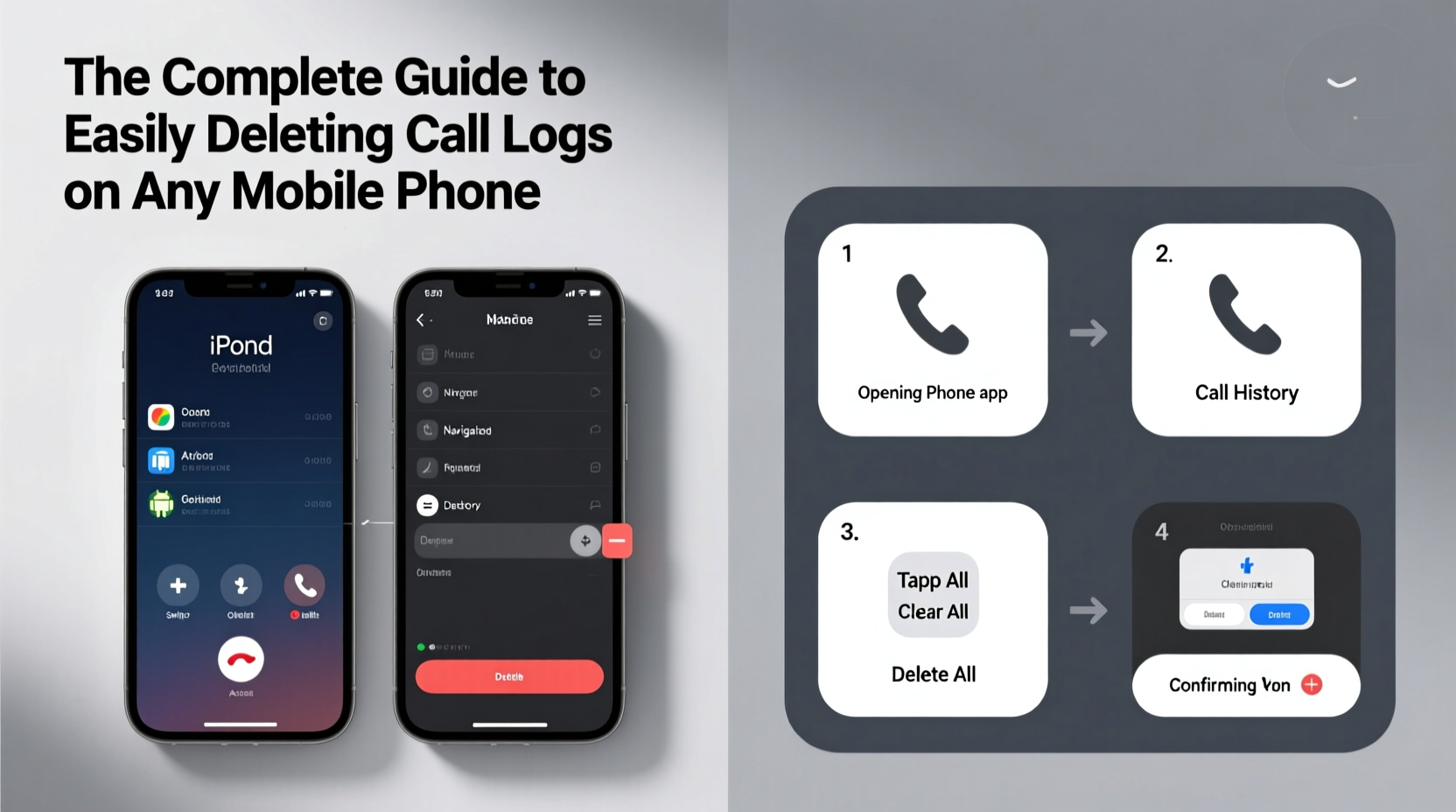
Your call log isn’t just a list of numbers; it’s a record of your personal interactions. Left unchecked, it can reveal patterns in your behavior, relationships, and even locations. For many users, especially those concerned about privacy or security, clearing this data regularly is a smart habit. Additionally, removing old logs can improve phone performance on devices with limited storage, as system resources used to index and display large call histories are freed up.
“Deleting outdated call logs is one of the simplest yet most overlooked steps in digital hygiene.” — Lena Patel, Mobile Security Analyst at SecureEdge Labs
How to Delete Call Logs on Android Devices
Android offers multiple ways to manage call history, depending on your device manufacturer and version. The process is generally consistent across Samsung, Google Pixel, OnePlus, and other brands using stock or near-stock Android.
Step-by-Step: Clearing All Call Logs
- Open the Phone app (usually labeled “Dialer” or has a telephone icon).
- Navigate to the Recent calls tab.
- Tap the three-dot menu (⋮) in the top-right corner.
- Select Delete > Delete all call logs.
- Confirm the action when prompted.
Removing Specific Entries
To delete individual calls:
- Long-press on a specific call entry in the Recent list.
- A checkbox will appear; tap it to confirm deletion.
- Some phones allow multi-select by tapping multiple entries before choosing “Delete.”
Clearing Call History on iPhone
iOS handles call logs differently than Android, integrating them tightly with iCloud and recent contacts. However, removing them is straightforward and supports both bulk and selective deletion.
Deleting All Call Logs at Once
- Open the Phone app from your home screen.
- Go to the Recents tab at the bottom.
- Scroll to the top and tap Clear next to “Edit.”
- Choose Clear All Recents and confirm.
Removing Individual Calls
- In the Recents tab, swipe left on any call entry.
- Tap Delete to remove that single log.
- Note: This does not block the number or affect future calls.
“Unlike messages, deleted call logs on iPhone cannot be recovered unless backed up via iCloud prior to deletion.” — Marcus Tran, Apple Support Consultant
Cross-Platform Comparison: Methods and Limitations
| Platform | Bulk Delete Option | Selective Deletion | Synced to Cloud? | Recovery Possible? |
|---|---|---|---|---|
| Android (Stock) | Yes | Yes | Varies by app & account | Rarely, without backup |
| Samsung One UI | Yes | Yes | With Samsung Account | Possibly via cloud restore |
| iPhone (iOS) | Yes | Yes | Yes, if iCloud enabled | Only via backup |
| KaiOS (e.g., Nokia 2720) | Limited | Yes, per entry | No | No |
Advanced Tips for Permanent Data Removal
Simply deleting call logs may not guarantee complete erasure. Some devices store metadata in backups or sync services. To ensure full removal:
- Disable call history sync before deletion: On Android, go to Settings > Accounts > Google > Sync and turn off “Call history.” On iPhone, disable iCloud Contacts and check if call history is included in backups.
- Delete from backups: If you use Google Drive or iCloud, deleting logs from the device won’t remove them from existing backups. You must delete the backup itself or create a new one after clearing logs.
- Use third-party cleaner apps cautiously: Apps like CCleaner or SD Maid claim to wipe residual data, but only install them from trusted sources and review permissions carefully.
Real-World Scenario: Selling Your Old Phone
Jamal decided to upgrade his smartphone and planned to sell his old Android device online. Before listing it, he deleted photos, messages, and accounts—but forgot about his call log. During a test call with a potential buyer, the person noticed multiple entries with names linked to Jamal’s workplace and family members. Embarrassed and concerned about privacy, Jamal canceled the sale temporarily, reset the phone completely, and wiped all data properly. His experience highlights how easily overlooked call logs can unintentionally expose personal networks.
The lesson: Always clear call history during device deactivation, especially before resale or donation.
Checklist: Secure Call Log Management Routine
Follow this monthly checklist to maintain privacy and organization:
- ✅ Review recent call logs for accuracy and relevance
- ✅ Delete unnecessary or outdated entries (bulk or individual)
- ✅ Confirm no sensitive numbers are visible on lock screen
- ✅ Disable cloud sync for call history if not needed
- ✅ Restart device after major deletions to flush cache
- ✅ Perform a full factory reset if transferring ownership
Frequently Asked Questions
Can deleted call logs be recovered?
In most cases, no—unless you have an active backup on iCloud, Google Drive, or a third-party service. Deleted logs are typically removed permanently from the device, but restoring from a previous backup will bring them back.
Does deleting call logs also delete voicemails?
No. Voicemails are stored separately by your carrier or within your phone app. You must delete them individually in the Voicemail tab, usually found alongside Recent Calls.
Will clearing call logs affect my ability to make or receive calls?
Absolutely not. Deleting logs only removes the historical record. Your calling functionality remains unchanged, and new calls will continue to be logged unless auto-save is disabled.
Take Control of Your Digital Footprint Today
Your mobile phone holds more personal information than you might realize. While call logs seem minor, they form part of a larger digital trail that can compromise your privacy if left unmanaged. By adopting simple habits—like routinely clearing outdated entries, disabling unnecessary syncing, and verifying deletions—you protect yourself from accidental exposure and maintain better control over your device. Whether you're using the latest flagship smartphone or a basic feature phone, these practices apply universally. Start today: open your phone app, review your recent calls, and clean up what’s no longer needed.




 浙公网安备
33010002000092号
浙公网安备
33010002000092号 浙B2-20120091-4
Comments
No comments yet. Why don't you start the discussion?