
In today’s digital world, every website you visit leaves behind traces—especially through cookies. These small data files track your behavior, remember login sessions, and personalize content. While some cookies are helpful, others pose serious privacy risks by enabling targeted ads, cross-site tracking, and even potential data breaches. Regularly erasing cookies is a simple yet powerful step toward reclaiming control over your online footprint. This guide walks you through how to delete cookies on every major device and browser, offering practical strategies to enhance your digital privacy.
Understanding Cookies: What They Are and Why You Should Care
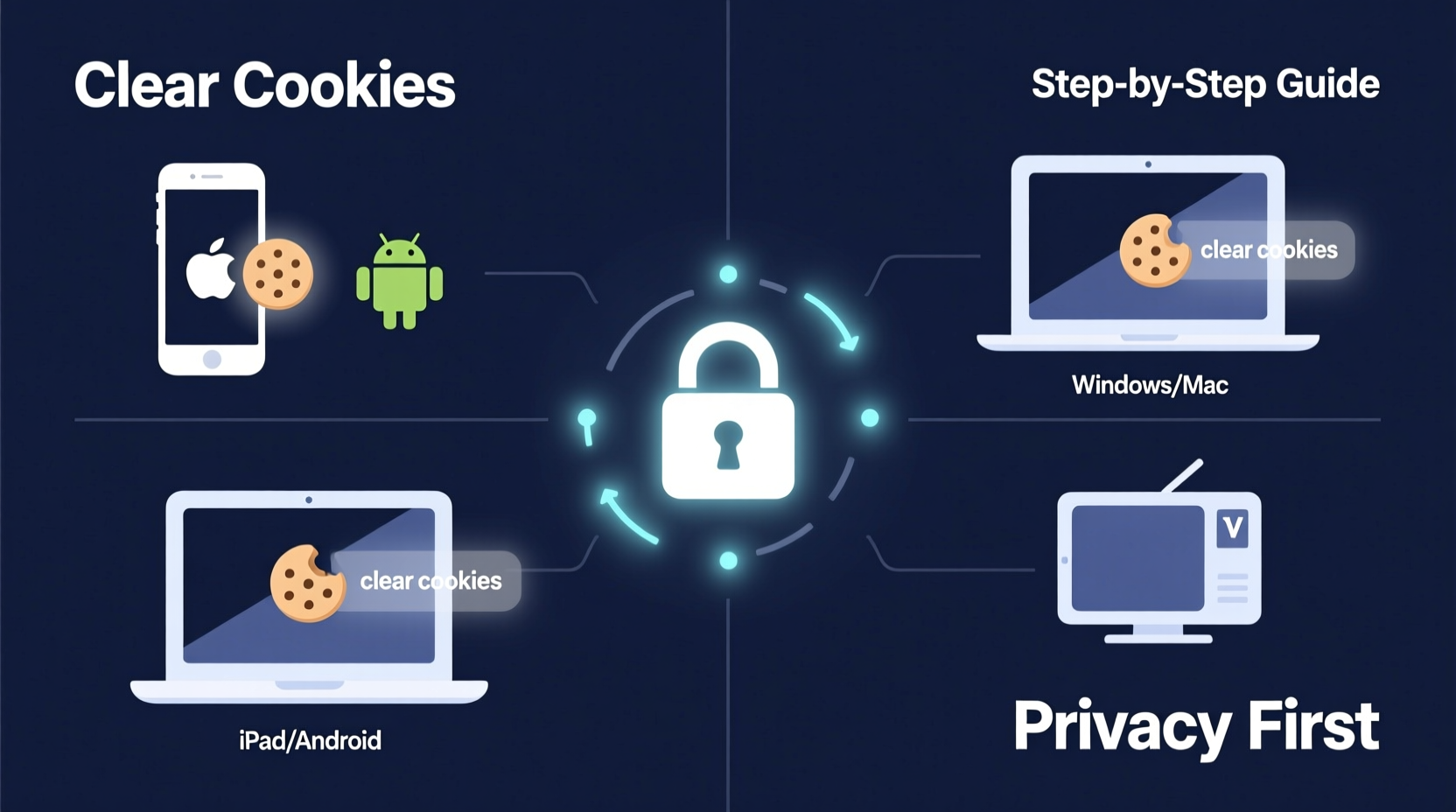
Cookies are text files created by websites and stored on your device. They serve several purposes: remembering usernames, saving shopping cart items, or tracking browsing habits. There are two main types:
- First-party cookies: Set by the site you’re visiting. Generally safe and functional (e.g., staying logged in).
- Third-party cookies: Created by external domains, often used for advertising and behavioral tracking. These raise the most privacy concerns.
Over time, accumulated cookies can build a detailed profile of your interests, location, and online activity. Cybersecurity experts warn that this data can be exploited if intercepted or sold without consent.
“Every cookie left behind is another piece of the puzzle someone could use to identify you online.” — Dr. Lena Torres, Digital Privacy Researcher at SecureNet Labs
How to Erase Cookies by Device and Browser
Deleting cookies varies depending on your operating system and browser. Below are step-by-step instructions for the most common platforms.
On Windows (Google Chrome)
- Open Chrome and click the three-dot menu in the top-right corner.
- Select Settings.
- Go to Privacy and security > Clear browsing data.
- Choose a time range (e.g., “All time” to remove everything).
- Check the box next to Cookies and other site data.
- Click Clear data.
On macOS (Safari)
- Open Safari and click Safari in the top menu bar.
- Select Settings, then go to the Privacy tab.
- Click Manage Website Data.
- You can remove specific sites or click Remove All.
- Confirm deletion when prompted.
On iPhone (iOS - Safari)
- Open the Settings app.
- Scroll down and tap Safari.
- Tap Clear History and Website Data.
- Confirm the action. This removes cookies, history, and cache.
On Android (Google Chrome)
- Open the Chrome app.
- Tap the three-dot menu in the upper-right corner.
- Tap History, then Clear browsing data.
- Select a time range and ensure Cookies and site data is checked.
- Tap Clear data.
Browser Comparison: Cookie Management Features
| Browser | Blocks Third-Party Cookies? | Automatic Clear Option? | Private Mode Deletes Cookies? |
|---|---|---|---|
| Google Chrome | Limited (can be enabled manually) | Yes (on exit, customizable) | Yes |
| Mozilla Firefox | Yes (Enhanced Tracking Protection) | Yes (via Settings) | Yes |
| Apple Safari | Yes (Intelligent Tracking Prevention) | Yes (weekly cleanup option) | Yes |
| Microsoft Edge | Yes (Tracking Prevention levels) | Yes (on shutdown) | Yes |
| Brave | Yes (blocks by default) | Yes (aggressive auto-clear) | Yes |
Browsers like Brave and Firefox lead in privacy protection with default blocking of third-party trackers. Chrome, while widely used, requires manual configuration for similar safeguards.
Real-World Scenario: Recovering from Suspicious Ad Targeting
Jamal noticed something unsettling: after casually searching for hiking boots one evening, he began seeing ads for the same product on unrelated sites—from news portals to social media. Even more concerning, his partner started seeing identical ads on her device connected to the same Wi-Fi network. Suspecting cross-device tracking via cookies, Jamal decided to take action.
He cleared cookies on both his Android phone and Windows laptop using Chrome’s “Clear browsing data” tool, selected “All time,” and ensured “Cookies and site data” was checked. He also disabled third-party cookies in settings and switched to Firefox for daily browsing. Within days, the targeted ads disappeared. More importantly, Jamal felt a renewed sense of control over his digital space.
This case illustrates how invisible tracking mechanisms operate—and how effective basic hygiene like clearing cookies can disrupt invasive surveillance.
Best Practices for Ongoing Cookie Management
Erasing cookies once isn’t enough. To maintain strong privacy, adopt these long-term habits:
- Schedule regular cleanups: Monthly or bi-weekly deletions prevent excessive data buildup.
- Use privacy-focused browsers: Firefox, Brave, or DuckDuckGo Browser block trackers by default.
- Review permissions: In browser settings, manage which sites can store data or track activity.
- Log out of accounts when not in use: This reduces session cookie exposure.
- Avoid public Wi-Fi for sensitive logins: Unsecured networks make cookie theft easier via packet sniffing.
“Think of cookie clearing as digital flossing—it’s not glamorous, but skipping it leads to long-term problems.” — Marcus Reed, Cybersecurity Consultant
Quick Privacy Checklist
- Clear cookies on all personal devices this week
- Disable third-party cookies in browser settings
- Switch at least one browser to a privacy-first option (e.g., Firefox)
- Enable automatic cookie clearing on exit
- Bookmark this guide for future reference
Frequently Asked Questions
Will deleting cookies log me out of all my accounts?
Yes, removing cookies will likely log you out of websites where you’re signed in, including email, social media, and banking platforms. Be prepared to re-enter credentials. Consider doing this during a time when you can easily re-authenticate.
Can websites still track me after I delete cookies?
Potentially, yes. Some sites use techniques like fingerprinting (tracking your device’s unique configuration) or storing data in alternative storage (like localStorage). However, deleting cookies significantly limits traditional tracking methods and resets existing profiles.
Is it safe to delete all cookies at once?
Yes, it's completely safe. No critical system functions rely on cookies. The worst outcome is temporary inconvenience from having to re-login or reconfigure preferences on certain sites. The privacy benefits far outweigh the minor hassle.
Take Control of Your Digital Life
Your online experience shouldn’t come at the cost of your privacy. Clearing cookies is a straightforward, impactful habit that disrupts silent surveillance and reduces your digital footprint. Whether you're using a smartphone, tablet, or desktop computer, the tools to protect yourself are already built into your devices—you just need to use them.
Start today. Delete your cookies, adjust your settings, and commit to regular maintenance. Small actions compound into meaningful change. In an era where data is currency, taking back control isn't just smart—it's essential.




 浙公网安备
33010002000092号
浙公网安备
33010002000092号 浙B2-20120091-4
Comments
No comments yet. Why don't you start the discussion?