
AirPlay is one of Apple’s most seamless wireless technologies, allowing users to stream audio, video, and even mirror their entire screen from a Mac to compatible devices like Apple TV, HomePod, or third-party AirPlay 2-enabled speakers and displays. Despite its convenience, many Mac users either don’t know how to access AirPlay or underutilize its full potential. This guide walks through everything you need to know—from locating the AirPlay menu to optimizing performance and troubleshooting common issues.
Understanding AirPlay: What It Can Do for Your Mac
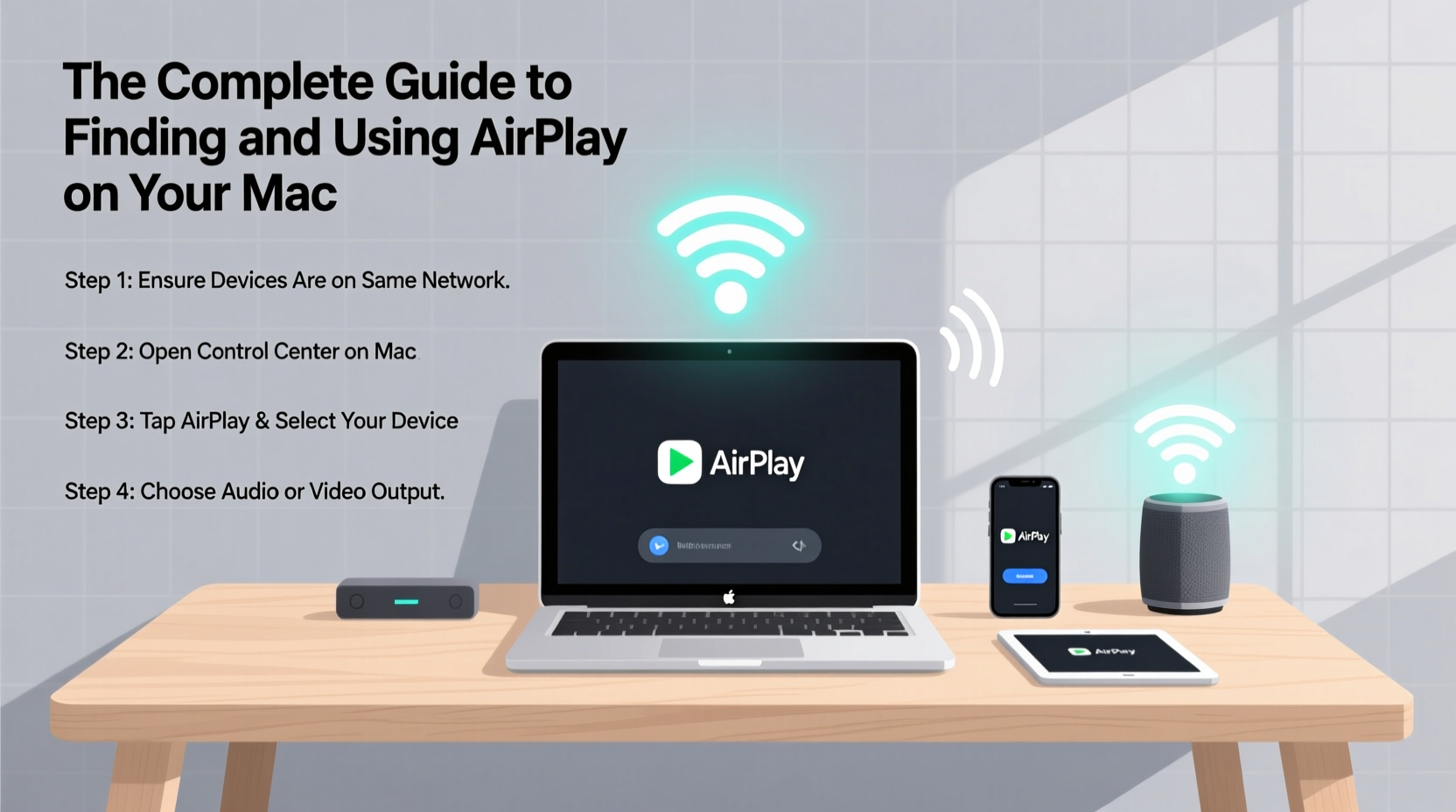
AirPlay isn't just about streaming music. On a Mac, it enables several powerful functions:
- Screen Mirroring: Duplicate your Mac’s display to a TV or projector via Apple TV.
- Extended Display: Use an external screen as additional workspace (supported via macOS Extended Mode over AirPlay).
- Audio Streaming: Send system audio or specific app sound to HomePods or AirPlay-compatible speakers.
- Video Streaming: Play videos from Safari, QuickTime, or supported apps directly to a large screen.
Unlike traditional HDMI connections, AirPlay eliminates cables while maintaining high-quality output—provided your network supports it. The feature works best in environments with strong Wi-Fi and modern Apple hardware.
“AirPlay transforms any compatible display into an extension of your Mac experience—wirelessly and instantly.” — Lisa Tran, Senior Apple Ecosystem Consultant
How to Find and Enable AirPlay on Your Mac
Finding AirPlay on your Mac depends on your macOS version, but it's always accessible through the menu bar or System Settings.
Step-by-Step: Locating the AirPlay Icon
- Click the Apple menu and go to System Settings (or System Preferences on older versions).
- Select Displays or Sharing, depending on your use case.
- Ensure that Show mirroring options in the menu bar when available is enabled.
- Look at the top-right corner of your screen. If nearby AirPlay-compatible devices are detected, you’ll see a small rectangle-with-arrow icon.
- Click the icon to view available receivers.
Using AirPlay for Screen Mirroring and Extension
Mirroring your Mac to a TV or secondary monitor enhances presentations, media viewing, or collaborative work.
Mirroring Your Display
To mirror your screen:
- Click the AirPlay icon in the menu bar.
- Select your Apple TV or AirPlay-enabled display from the list.
- Your Mac will begin mirroring instantly. You may be prompted to enter a code displayed on the TV.
Once connected, everything on your Mac appears on the external screen at the same resolution and refresh rate supported by both devices.
Extending Your Desktop
If you're using macOS Monterey or later, you can extend your desktop wirelessly:
- After connecting via AirPlay, open System Settings > Displays.
- You’ll see two virtual displays: your Mac and the AirPlay device.
- Drag windows between them just like physical monitors.
- Adjust resolution and orientation independently.
This is particularly useful for multitasking—keeping email or chat on the extended screen while working on the main display.
Streaming Audio and Video with AirPlay
Beyond screen sharing, AirPlay excels at media delivery.
Streaming Audio to Speakers
To route audio output:
- Click the volume icon in the menu bar.
- Hover over Sound Output and select an AirPlay speaker (e.g., HomePod, AirPlay 2-compatible stereo).
- All system sounds and app audio will now play through the selected device.
You can also control volume individually per speaker using the same menu.
Streaming Video from Apps
Many apps support direct AirPlay streaming:
- In Safari, click the AirPlay icon within a video player to send it to Apple TV.
- Music and Podcasts apps allow sending playback to multiple rooms via AirPlay 2.
- Third-party apps like VLC or Infuse include built-in AirPlay buttons.
| Action | Supported Devices | Requirements |
|---|---|---|
| Screen Mirroring | Apple TV, AirPlay-enabled TVs | Same Wi-Fi, macOS 10.8+ |
| Extended Display | Apple TV (4K or HD) | macOS Monterey+, tvOS 15.2+ |
| Audio Only | HomePod, AirPlay 2 speakers | Any modern Mac |
| Direct Video Streaming | Apple TV, smart TVs with AirPlay 2 | App must support AirPlay button |
Troubleshooting Common AirPlay Issues
Even with robust hardware, AirPlay connections can falter. Here’s how to resolve frequent problems.
Device Not Showing Up?
- Ensure both devices are on the same Wi-Fi network.
- Restart the Apple TV or receiver.
- Check that AirPlay receiving is enabled on the target device (Settings > AirPlay & Handoff).
- Disable VPNs or firewalls temporarily—they sometimes block mDNS traffic needed for discovery.
Connection Drops or Lags?
- Move closer to the router or switch to 5GHz Wi-Fi.
- Reduce bandwidth-heavy activities (e.g., large downloads) during streaming.
- Update both your Mac and receiving device to the latest OS version.
Audio/Video Out of Sync?
This often occurs with older Apple TV models or congested networks.
- Reduce video resolution in Display Settings during mirroring.
- Close unnecessary background apps on your Mac.
- Use direct streaming (e.g., AirPlay from Safari) instead of full-screen mirroring when possible—it reduces latency.
Real-World Example: Presenting Wirelessly in a Conference Room
Sarah, a marketing director, arrives at a client meeting with only her MacBook Air. The conference room has a large AirPlay-compatible display mounted on the wall. Instead of fumbling with adapters, she clicks the AirPlay icon, selects the room’s display, and enters the four-digit code shown on-screen. Within seconds, her presentation appears on the big screen. She uses extended mode to keep her notes and timer visible only on her laptop. No cables, no delays—just seamless professionalism.
This scenario highlights how AirPlay improves mobility and efficiency, especially in hybrid work environments.
Essential Checklist for Using AirPlay Successfully
- ✅ Confirm both Mac and receiver are on the same Wi-Fi network.
- ✅ Enable “Show mirroring options” in Display settings.
- ✅ Update macOS and receiving device firmware.
- ✅ Position devices within reasonable range of the router.
- ✅ Test connection before critical meetings or events.
- ✅ Use extended mode for productivity; mirroring for presentations.
- ✅ Restart devices if detection fails after software updates.
Frequently Asked Questions
Can I use AirPlay without an Apple TV?
Yes. Many modern smart TVs from Samsung, LG, Sony, and others support AirPlay 2 natively. Additionally, AirPlay 2-compatible speakers like Sonos systems can receive audio. No Apple TV is required for basic functionality.
Is AirPlay secure?
AirPlay uses end-to-end encryption when connecting to devices running iOS 12, iPadOS 13, macOS 10.14, or later. This ensures that your screen content and audio remain private, even on public networks. A passcode may be required for initial pairing.
Why does my Mac not support extended display over AirPlay?
Wireless extended display requires macOS Monterey (12.0) or later and tvOS 15.2 or higher on Apple TV 4K or Apple TV HD. Older combinations only support mirroring. Check your system versions under About This Mac and Apple TV Settings.
Mastering Wireless Freedom
AirPlay represents the pinnacle of Apple’s ecosystem integration—turning connectivity into an invisible, intuitive experience. Whether you’re giving a presentation, watching a film on a bigger screen, or filling a room with music, mastering AirPlay on your Mac unlocks new levels of flexibility. By understanding where to find it, how to use it effectively, and how to troubleshoot hiccups, you transform your Mac into a truly mobile command center. Don’t let cables define your workflow. Explore AirPlay today and experience the power of wireless harmony across your devices.




 浙公网安备
33010002000092号
浙公网安备
33010002000092号 浙B2-20120091-4
Comments
No comments yet. Why don't you start the discussion?