
Streaming services have transformed how we watch television. From Netflix and Hulu to YouTube and Disney+, access to online content is now a standard expectation. But not every TV comes ready with built-in internet connectivity. Whether you have an older model or just bought a basic display, connecting your TV to the internet doesn’t have to be complicated. With the right tools and knowledge, any TV can become a smart hub for entertainment.
Understanding Your TV’s Connectivity Options
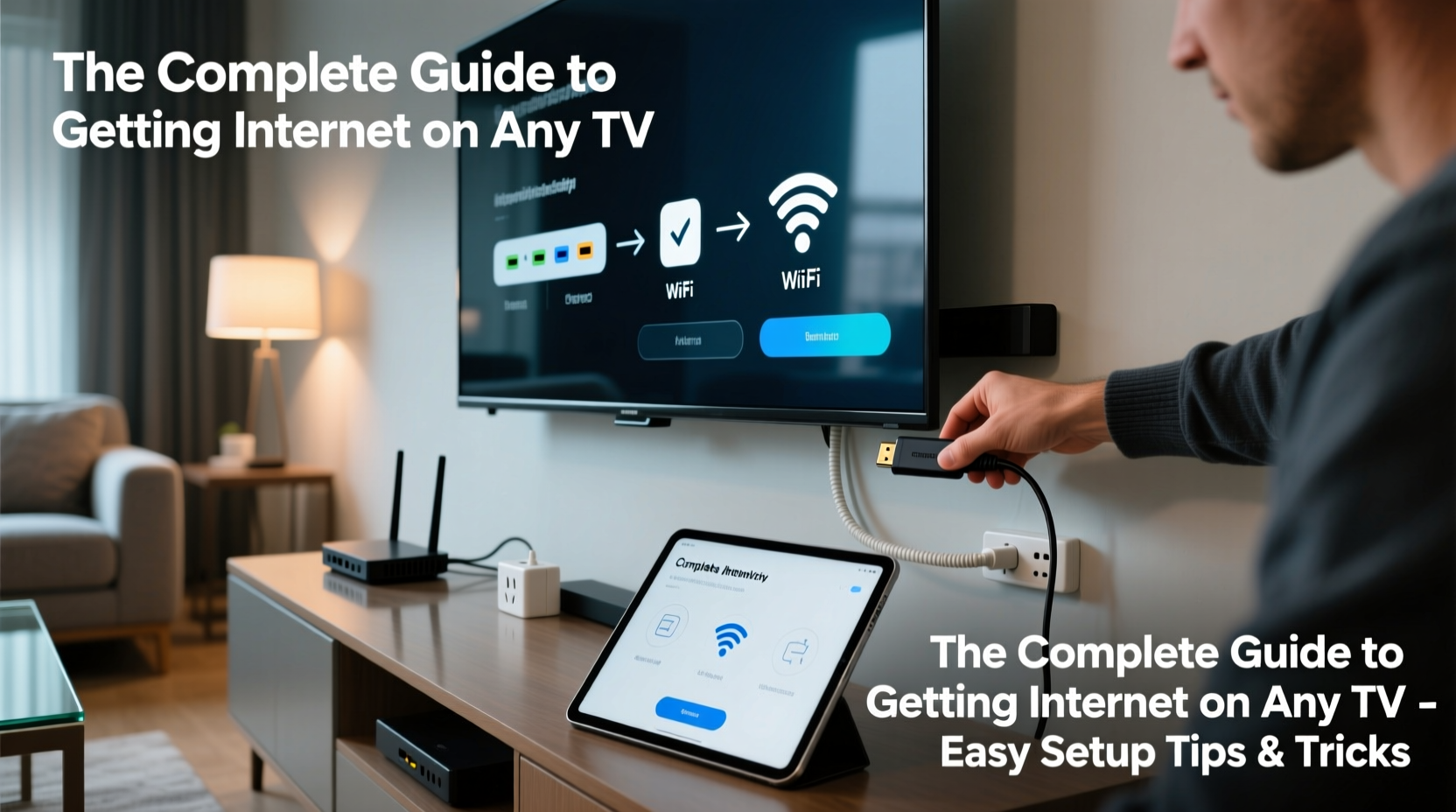
The first step in getting internet on your TV is understanding what kind of inputs and capabilities it already has. Most modern TVs come with at least one HDMI port and sometimes built-in Wi-Fi. Older models may only have composite (red, white, yellow) or component inputs. Knowing what ports are available helps determine which solution will work best.
- HDMI Port: Essential for connecting external devices like streaming sticks or media boxes.
- Ethernet Port: Allows direct wired internet connection if your TV supports networking.
- Wi-Fi Capability: Found in smart TVs; enables wireless internet without extra hardware.
- USB Ports: Useful for powering devices or using certain adapters (though not typically used for direct internet).
If your TV lacks built-in Wi-Fi or smart features, don’t worry—external devices can bridge the gap seamlessly.
Step-by-Step Guide to Connecting Any TV to the Internet
Follow this logical sequence to bring internet functionality to any television, regardless of age or brand.
- Identify Available Inputs: Examine the back and sides of your TV for HDMI, Ethernet, or legacy AV ports.
- Choose a Streaming Device: Based on your TV’s inputs, select a compatible device such as a Roku, Amazon Fire Stick, Chromecast, or Apple TV.
- Connect the Device: Plug the streaming stick into an HDMI port. Use an HDMI switch if all ports are occupied.
- Power the Device: Most sticks draw power via USB from the TV, but some require a wall adapter.
- Select Input Source: Use your remote to switch to the correct HDMI input where the device is plugged in.
- Connect to Wi-Fi: Follow on-screen prompts to join your home network. Enter your password when prompted.
- Update Firmware & Apps: Allow the device to update automatically for optimal performance and security.
- Log Into Streaming Services: Open apps like Netflix, Hulu, or YouTube and sign in with your credentials.
Once completed, your non-smart TV functions identically to a high-end smart model.
Best Devices for Adding Internet to Any TV
Not all streaming devices are created equal. The right choice depends on your budget, desired features, and existing ecosystem.
| Device | Price Range | Key Features | Best For |
|---|---|---|---|
| Amazon Fire Stick Lite | $30 | Voice remote, Alexa integration, HD streaming | Amazon Prime subscribers |
| Google Chromecast with Google TV (HD) | $50 | Simple interface, Google Assistant, 4K support | Android/YouTube users |
| Roku Express | $30 | Easy setup, wide app selection, private listening via app | Beginners and cord-cutters |
| Apple TV 4K | $130 | Siri remote, Dolby Vision, seamless iOS integration | Apple ecosystem users |
| NVIDIA Shield TV (Pro) | $200 | AI upscaling, gaming support, fastest processor | Tech enthusiasts and gamers |
For most users, mid-tier options like the Fire Stick or Roku Express offer excellent value and reliability without breaking the bank.
Optimizing Your Connection for Smooth Streaming
A strong, stable internet connection ensures buffer-free viewing. Even the best device will underperform with poor bandwidth.
- Check Internet Speed: Aim for at least 10 Mbps for HD streaming and 25+ Mbps for 4K.
- Use 5 GHz Wi-Fi Band: Less crowded than 2.4 GHz, offering faster speeds and lower interference.
- Position Router Close to TV: Minimize walls and obstructions between router and streaming device.
- Consider Ethernet: If possible, use a wired connection for maximum stability—especially important for gaming or live events.
- Reboot Regularly: Restart your router and streaming device monthly to clear memory and refresh connections.
“Streaming quality is only as good as your weakest link—often that’s the Wi-Fi signal, not the device.” — Mark Tran, Home Network Engineer at Broadband Insights
Real Example: Turning a 10-Year-Old TV into a Smart Hub
James had a 2013 Samsung LED TV with no smart features and only two HDMI ports—one used by his cable box. He wanted to watch Disney+ but assumed upgrading was his only option. Instead, he purchased a Roku Express ($29), plugged it into the second HDMI port, and powered it using a spare USB charger. After following the setup wizard and connecting to his 5 GHz network, he accessed Disney+, Hulu, and HBO Max within minutes. By using an HDMI switch, he later added a game console without losing functionality. His total cost: under $40. Result: a fully modernized entertainment center.
Common Mistakes to Avoid
Even simple setups can go wrong if common pitfalls aren’t addressed.
- Ignoring Power Sources: Some streaming sticks need more power than a TV’s USB port provides. Always use the included wall adapter if recommended.
- Using Outdated HDMI Cables: Older cables may not support 4K or HDR. Replace them if experiencing dropouts.
- Skipping Software Updates: Manufacturers release updates for performance and security. Enable auto-updates whenever possible.
- Overlooking Remote Compatibility: Universal remotes or TV controls may not work with external devices unless programmed correctly.
- Connecting to 2.4 GHz Wi-Fi for 4K: High-resolution streaming demands speed. Stick to 5 GHz unless out of range.
Frequently Asked Questions
Can I get internet on my TV without a streaming device?
Only if your TV has built-in Wi-Fi and smart capabilities. Otherwise, a streaming device is required. Some Blu-ray players or gaming consoles also provide smart app access.
Do I need high-speed internet for streaming?
Yes. Standard HD video needs about 5–10 Mbps. For consistent 4K streaming, aim for 25 Mbps or higher. Multiple devices on the same network increase bandwidth needs.
Why does my streaming keep buffering?
Buffering usually indicates a slow or unstable internet connection. Try moving closer to the router, switching to 5 GHz Wi-Fi, or using an Ethernet cable. Also check if other devices are consuming bandwidth.
Quick Setup Checklist
Use this checklist to ensure a smooth installation:
- ☐ Confirm your TV has an HDMI port (or alternative input)
- ☐ Choose a compatible streaming device based on budget and needs
- ☐ Gather necessary accessories (HDMI cable, power adapter)
- ☐ Connect the device to the TV and power source
- ☐ Switch TV input to the correct HDMI channel
- ☐ Connect to your Wi-Fi network using the on-screen menu
- ☐ Update the device firmware and install preferred apps
- ☐ Test playback across multiple services to verify performance
Final Thoughts and Next Steps
Getting internet on any TV is simpler and more affordable than most people realize. Whether you’re reviving an old screen or optimizing a new one, the right combination of hardware and settings unlocks endless entertainment possibilities. You don’t need the latest smart TV to enjoy today’s digital content—just a few smart choices and a little technical know-how.




 浙公网安备
33010002000092号
浙公网安备
33010002000092号 浙B2-20120091-4
Comments
No comments yet. Why don't you start the discussion?