
Knowing your computer’s exact model and hardware specifications is essential whether you’re upgrading components, troubleshooting issues, installing drivers, or buying compatible software. Many users overlook this information until they need it—only to find themselves lost in a maze of system settings or unfamiliar command lines. This guide provides clear, step-by-step methods to identify your computer model, processor, RAM, storage, graphics card, and more—regardless of whether you're using Windows, macOS, or Linux.
Why Knowing Your Computer Specs Matters
Before diving into the how, consider the why. Accurate knowledge of your system specs helps you:
- Determine if your machine can run specific software or games
- Upgrade memory (RAM) or storage without compatibility issues
- Download the correct drivers for your motherboard, GPU, or network adapter
- Troubleshoot performance bottlenecks effectively
- Verify warranty status or support eligibility with manufacturers
Without this data, you risk purchasing incompatible hardware, installing wrong drivers, or misdiagnosing technical problems. Taking a few minutes to gather your system details pays off in time saved and frustration avoided.
How to Find Your Computer Model Number
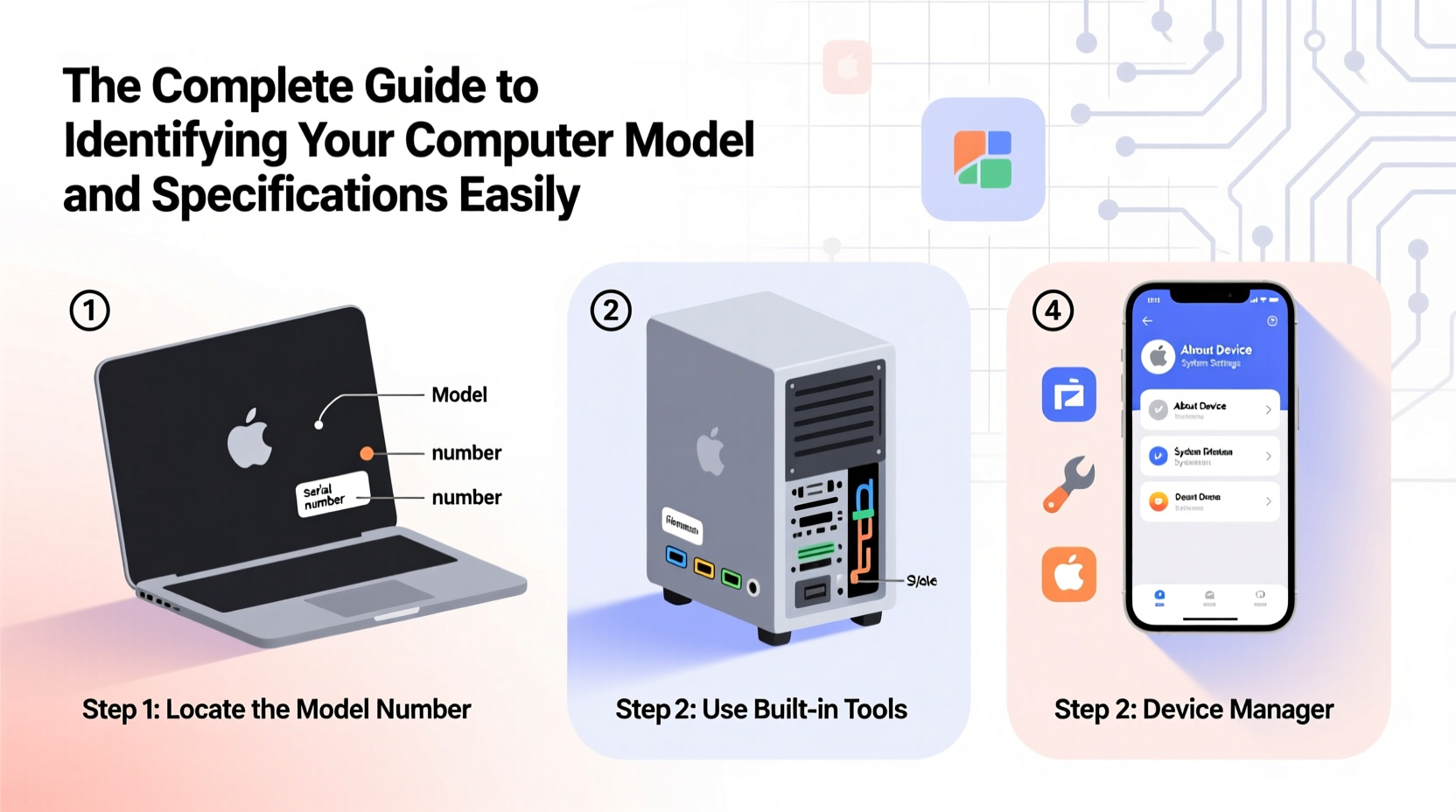
The model number identifies your device’s make and exact version. It's often printed on a label underneath laptops or on the back panel of desktops. But if that label is worn out or inaccessible, here are reliable digital methods:
On Windows
- Press Win + R, type
cmd, and press Enter. - In the Command Prompt, enter:
wmic csproduct get name - The output will display your computer’s model name (e.g., “Latitude 5420”).
To get additional identifiers like serial number or manufacturer:
- Use
wmic computersystem get manufacturer - Or
wmic bios get serialnumber
On macOS
- Click the Apple logo in the top-left corner.
- Select About This Mac.
- The overview screen shows your model (e.g., “MacBook Pro (14-inch, 2023)”).
- For the exact model identifier (like \"Mac14,7\"), click the version number repeatedly or use Terminal:
sysctl hw.model
On Linux
- Open a terminal window.
- Type:
sudo dmidecode -s system-product-name - This returns the model (e.g., “ThinkPad X1 Carbon Gen 9”).
/sys/class/dmi/id/product_name without sudo.
Checking Full System Specifications
Once you’ve identified your model, the next step is gathering detailed specs. Here’s how to access key components across platforms.
Processor (CPU)
The CPU determines processing power. To check:
- Windows: Task Manager → Performance tab → CPU
- macOS: About This Mac → Chip
- Linux: Run
lscpuorcat /proc/cpuinfo
Memory (RAM)
RAM capacity affects multitasking. Check it via:
- Windows: Settings → System → About → Installed RAM
- macOS: About This Mac → Memory
- Linux: Use
free -hortop
Storage (Hard Drive/SSD)
To see disk size and type:
- Windows: File Explorer → This PC → view listed drives
- macOS: About This Mac → Storage
- Linux: Run
df -horlsblk
Graphics Card (GPU)
Critical for gaming and design work:
- Windows: Task Manager → Performance → GPU
- macOS: About This Mac → Graphics
- Linux: Use
lspci | grep VGAornvidia-smi(if NVIDIA)
Operating System Version
Ensure software compatibility by checking OS version:
- Windows: Settings → System → About → Windows edition and build
- macOS: About This Mac → Version (e.g., Sonoma 14.5)
- Linux:
uname -rorlsb_release -a
Quick Reference Table: Commands by OS
| Information | Windows Command | macOS Command | Linux Command |
|---|---|---|---|
| Computer Model | wmic csproduct get name |
sysctl hw.model |
sudo dmidecode -s system-product-name |
| Manufacturer | wmic computersystem get manufacturer |
sysctl hw.machine |
sudo dmidecode -s system-manufacturer |
| Serial Number | wmic bios get serialnumber |
Apple Menu → About → Serial | sudo dmidecode -s system-serial-number |
| CPU Info | Task Manager or wmic cpu get name |
About This Mac → Chip | lscpu |
| RAM | Settings → System → About | About This Mac → Memory | free -h |
Real-World Example: Upgrading an Old Laptop
Sarah had a five-year-old Dell Inspiron 15 5000 and wanted to improve its performance. She couldn’t remember the exact model but needed to know if she could upgrade the RAM. Using the Command Prompt method, she ran:
wmic csproduct get name
The result: “Inspiron 15 5570”. A quick web search confirmed her model supported up to 32GB RAM and had one accessible slot. She purchased an 8GB DDR4 stick, installed it, and doubled her system’s responsiveness—all because she correctly identified her model first.
“Never assume all models in a series have the same upgrade paths. One digit in a model number can mean entirely different internals.” — James Reed, IT Support Specialist with 12 years of experience
Checklist: What to Record About Your Computer
Keep a personal log of your system details. Use this checklist:
- ✅ Manufacturer (e.g., HP, Lenovo, Apple)
- ✅ Full model name and number (e.g., MacBook Pro A2378)
- ✅ Serial number (for warranty claims)
- ✅ Operating system and version
- ✅ Processor type and speed
- ✅ Total RAM and type (DDR3, DDR4, etc.)
- ✅ Storage type (HDD, SSD, NVMe) and capacity
- ✅ Graphics card model
- ✅ BIOS/UEFI version (use
wmic bios get smbiosbiosversionon Windows)
Store this list in a secure document or note-taking app. You’ll thank yourself during future upgrades or tech support calls.
Frequently Asked Questions
Can I find my computer model without turning it on?
Yes. Most laptops and desktops have a service label on the bottom or rear panel listing the model and serial number. Look for terms like “Model,” “Product Name,” or “P/N.”
What if wmic isn’t working on my Windows PC?
Some newer Windows 11 systems deprecate WMIC. Use PowerShell instead: run Get-CimInstance -ClassName Win32_ComputerSystem to get model and manufacturer.
Is there a universal tool to detect all specs?
Third-party tools like CPU-Z (Windows), Mactracker (macOS), or Neofetch (Linux) provide comprehensive reports. However, built-in methods are faster and don’t require downloads.
Final Thoughts and Action Steps
Identifying your computer model and specifications doesn’t require technical expertise—just the right steps. Whether you're resolving a driver issue, preparing for an upgrade, or simply auditing your devices, having accurate system data at your fingertips makes all the difference. Take ten minutes today to run the commands relevant to your OS, record the results, and store them safely.




 浙公网安备
33010002000092号
浙公网安备
33010002000092号 浙B2-20120091-4
Comments
No comments yet. Why don't you start the discussion?