
Every iPhone carries a unique identity encoded in its model number—a string of letters and digits that reveals critical details about its design, region, storage capacity, and cellular capabilities. Whether you're troubleshooting, selling your device, or sourcing replacement parts, knowing how to find and decode this identifier is essential. Unlike the more visible serial or IMEI numbers, the model number isn't always obvious, but it holds vital information that can save time, money, and confusion.
Why Your iPhone Model Number Matters
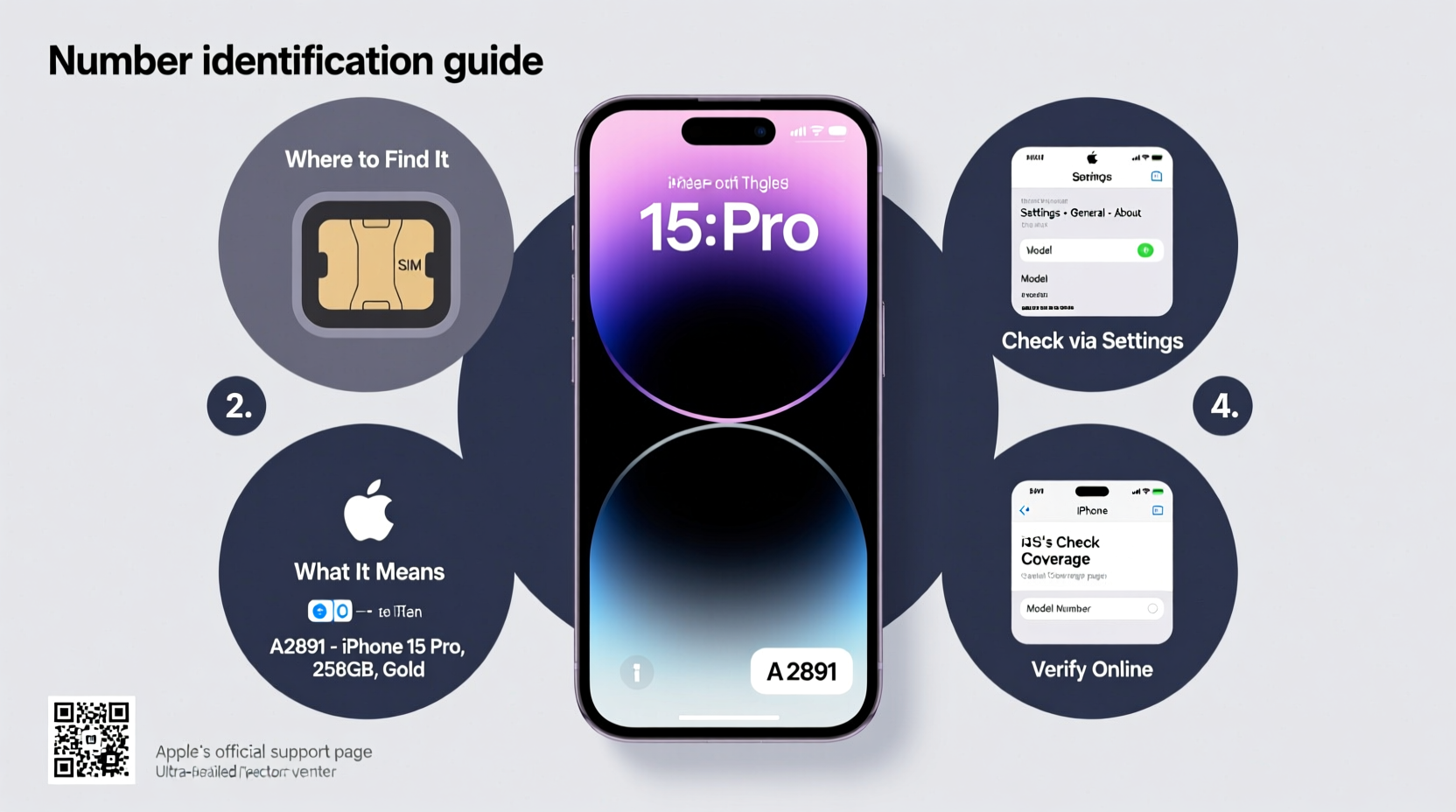
The model number on your iPhone is more than just a factory code—it’s a key to unlocking precise technical knowledge about your device. Apple uses multiple variants of the same iPhone design across different regions and carriers, each carrying a slightly different model number. For example, an iPhone 14 sold in the United States may have different cellular bands or support features like Dual SIM compared to one sold in Japan, even if they look identical.
This distinction becomes crucial when:
- Purchasing replacement parts (e.g., screens, batteries)
- Checking carrier compatibility before switching networks
- Verifying authenticity during resale or trade-in
- Looking up repair manuals or regulatory details
- Determining if your device supports specific technologies like eSIM or mmWave 5G
“Knowing your exact model number prevents costly mistakes—like ordering a screen that fits physically but lacks Face ID calibration.” — Jordan Lee, Certified Apple Technician
How to Find Your iPhone Model Number: Step-by-Step
There are several reliable ways to locate your iPhone’s model number. Some methods show the consumer-facing model (like A2634), while others reveal the internal part number used by Apple technicians.
Method 1: Check Settings (Consumer Model Number)
- Open the Settings app.
- Tap General, then select About.
- Scroll down to find Model Name and Model Number.
- The displayed number will begin with an “A” followed by four digits (e.g., A2634).
This is the most user-friendly method and sufficient for most purposes like checking compatibility or identifying your device online.
Method 2: View the Physical Engraving
Flip your iPhone over. On the back panel, near the bottom, you’ll find a series of text lines engraved into the metal or glass. Look for the line that starts with “Model A” followed by four digits.
Method 3: Use the SIM Tray (For Some Models)
On certain iPhones, particularly older models like the iPhone 6s or SE (1st generation), the model number is also printed on the SIM card tray. Remove the tray using the eject tool and inspect the tiny text.
Method 4: Access the Field Test Menu (Advanced)
Dial *3001#12345#* to enter Field Test Mode. Once inside, look for “Phone Information” or “Device Info,” where your model number may appear alongside other identifiers. Note: This method varies by iOS version and is not guaranteed to display the model number on newer devices.
Decoding the Model Number: What the Letters and Numbers Mean
Apple assigns model numbers based on a consistent internal system. While the public sees the “A-number” (e.g., A2634), Apple’s internal database uses a longer M or N code (like MLD93LL/A) for inventory and service tracking.
Understanding the A-Number Format
The “A” prefix stands for “Apple,” and the following digits uniquely identify a product variant. Here's how to interpret common patterns:
| A-Number | iPhone Model | Region/Carrier | Key Features |
|---|---|---|---|
| A2634 | iPhone 14 Pro Max | USA (AT&T, T-Mobile) | FCC-approved, mmWave 5G |
| A2692 | iPhone 14 Pro Max | China Mainland | No dual SIM physical tray, different band support |
| A2784 | iPhone 14 | Global (Dual SIM) | eSIM + nano-SIM support |
| A2889 | iPhone 15 | Japan (SoftBank) | LTE-only, carrier-locked features |
Note that two phones with different A-numbers might be the same model released in different markets. Always cross-reference with Apple’s official support pages or trusted databases like Everyi.com or iClarified.
Interpreting the Full Part Number (e.g., MLD93LL/A)
This format breaks down as follows:
- MLD93: Unique product identifier
- LL: Region code (LL = USA/Canada)
- /A: Revision or packaging suffix
Other common region codes include:
- BH – Middle East
- CH – China
- ZA – Southeast Asia
- LL – North America
- SN – South Africa
Real-World Example: Avoiding a Repair Mistake
Sophie purchased a replacement battery online for her iPhone 13 Mini. She entered her serial number into a third-party site, which returned “A2484.” Confident, she ordered the part. Upon installation, the battery health calibration failed—the phone wouldn’t recognize maximum capacity.
After contacting a repair technician, she learned that A2484 refers to the global dual-SIM variant, while her U.S.-purchased model was actually A2628. Though functionally similar, Apple uses subtly different battery connectors and firmware pairing between variants. The correct model number would have ensured compatibility.
This scenario underscores why relying solely on appearance or general model names (e.g., “iPhone 13 Mini”) isn’t enough—precision matters.
Frequently Asked Questions
Is the model number the same as the serial number?
No. The serial number is a globally unique identifier assigned to every individual iPhone, used for warranty tracking and activation. The model number identifies the hardware variant. You’ll need both for comprehensive device verification.
Can I tell my storage size from the model number?
Indirectly, yes. Certain model numbers correspond to specific configurations. For example, A2634 (iPhone 14 Pro Max) typically indicates 128GB or 256GB storage for the U.S. market, while higher-capacity versions may carry different numbers. However, Apple doesn’t encode storage directly into the model number, so check Settings > General > About for definitive specs.
Why does my iPhone show a different model number in Settings vs. the back?
It shouldn’t. Both locations should display the same A-number. If they differ, it may indicate a replaced back panel or counterfeit device. Verify authenticity through Apple Support or an authorized service provider.
Essential Checklist: Verifying Your iPhone Model
Use this checklist whenever confirming your iPhone’s identity:
- Go to Settings > General > About and note the model number (starts with “A”)
- Compare it with the engraved number on the back of the device
- Cross-check the number on Everyi.com or Apple’s official support documentation
- Confirm region and carrier compatibility if switching networks
- Verify the model before purchasing accessories or scheduling repairs
Final Thoughts and Next Steps
Your iPhone’s model number is a small detail with outsized importance. It bridges the gap between generic device names and the precise engineering behind your phone. Whether you’re upgrading, repairing, or simply curious, taking a moment to locate and understand this identifier empowers smarter decisions.
Don’t wait until you’re mid-repair or stuck with incompatible gear. Take out your iPhone now, open Settings, and find your model number. Write it down. Save it. Know what you own.




 浙公网安备
33010002000092号
浙公网安备
33010002000092号 浙B2-20120091-4
Comments
No comments yet. Why don't you start the discussion?