
Logging out of the App Store might seem like a minor task, but it's essential for maintaining privacy, managing multiple Apple IDs, or preparing a device for sale or transfer. Whether you're switching accounts, troubleshooting download issues, or securing your personal data, knowing how to properly sign out across all your devices is a fundamental digital hygiene practice. Unlike some apps, the App Store doesn’t offer a direct “Log Out” button within its interface—instead, signing out requires navigating through system settings. This guide walks you through the correct steps for every Apple device, ensuring you maintain control over your digital identity.
Why Logging Out of the App Store Matters
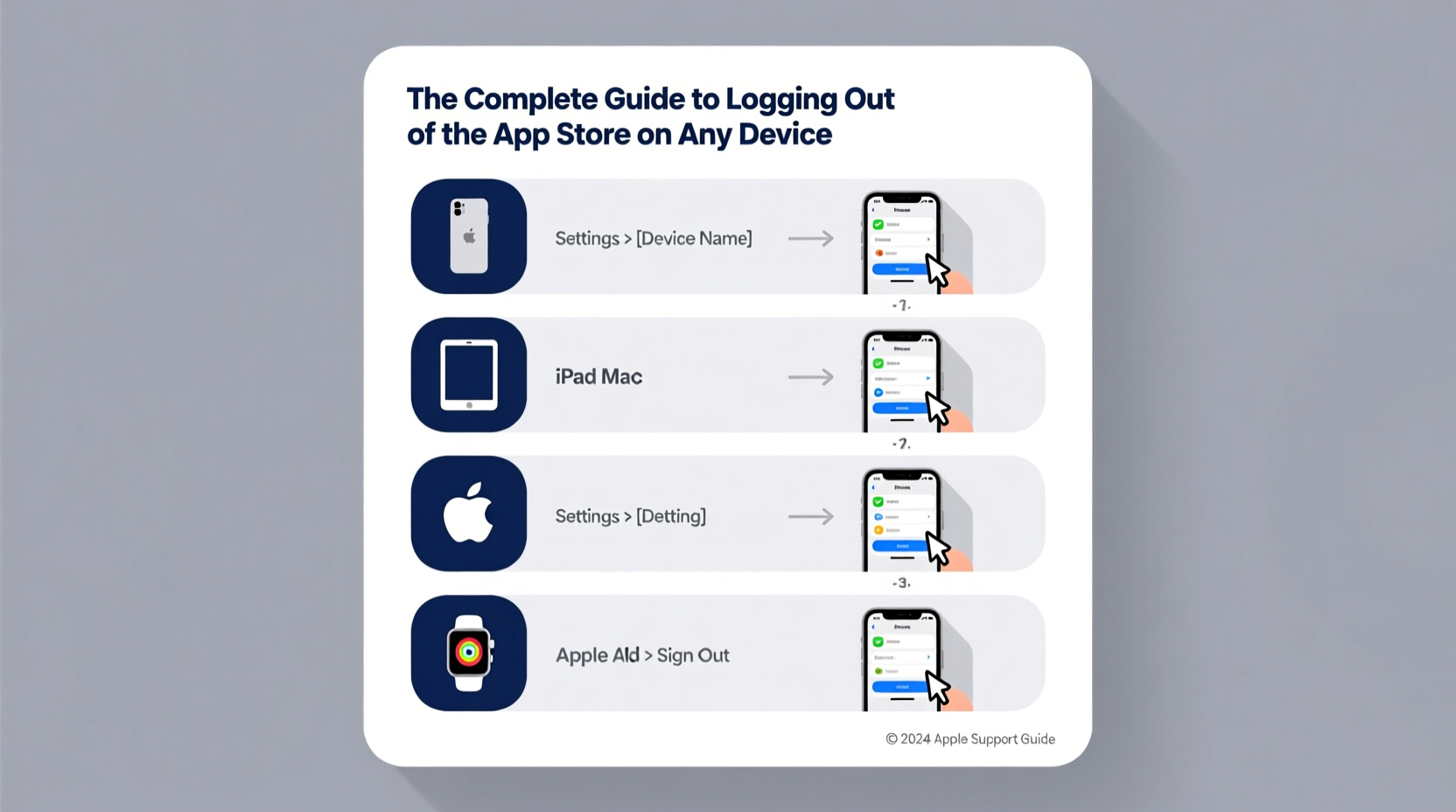
Many users assume that simply closing the App Store app ends their session. However, Apple maintains your signed-in status at the system level, meaning your Apple ID remains active in the background. This can lead to unintended purchases, syncing conflicts, or exposure of personal information if someone gains access to your device.
Common scenarios where logging out is necessary include:
- Selling or giving away an iPhone, iPad, or Mac
- Switching between personal and work Apple IDs
- Fixing authentication errors when downloading apps
- Preventing automatic downloads tied to another user’s account
- Enhancing security after using a shared or public device
“Signing out of the App Store isn’t just about convenience—it’s a critical step in protecting your digital footprint.” — Jordan Lee, Mobile Security Analyst
How to Log Out of the App Store on iPhone and iPad
iOS integrates the App Store login with your Apple ID settings, so you won’t find a logout option inside the App Store itself. Instead, you must sign out through the Settings app.
Step-by-Step: iOS Devices (iOS 15 and Later)
- Open the Settings app.
- Tap your name at the top to enter your Apple ID profile.
- Scroll down and select Media & Purchases.
- Tap Sign Out.
- Confirm by tapping Sign Out again when prompted.
If you’re using Family Sharing, you may see a message explaining that signing out will stop purchases from being attributed to your account. This does not affect your membership in the family group.
Signing Out on Mac: macOS Ventura and Later
On Mac computers, the App Store uses the same Apple ID as other services like iCloud and Messages. To log out, follow these steps:
Step-by-Step: macOS Devices
- Click the Apple menu in the top-left corner.
- Select System Settings (or System Preferences on older versions).
- Click your name in the sidebar to access your Apple ID settings.
- Scroll down to the Apps Using Your Apple ID section.
- Find App Store and click the three-dot menu next to it.
- Select Sign Out.
This action signs you out only from the App Store—not from iCloud, iMessage, or FaceTime—preserving your primary account functions while removing purchase privileges.
Apple TV and Other Devices
Even less frequently used devices like Apple TV require proper sign-out procedures to prevent unwanted charges or content access.
Apple TV (4th Gen and Later)
- Go to Settings from the home screen.
- Navigate to Users and Accounts.
- Select your account name.
- Choose Sign Out.
- When prompted, confirm that you want to sign out of the App Store and iTunes.
Note: Signing out here logs you out of both the App Store and iTunes, which are unified on Apple TV.
Older Devices and iPod touch
The process mirrors that of iPhone and iPad. Use the Settings app, go to your Apple ID, then Media & Purchases, and sign out. Older iOS versions (before iOS 10) required signing out of the entire Apple ID, which disabled iCloud and iMessage. Modern systems allow granular control.
| Device | Path to Sign Out | Affects Other Services? |
|---|---|---|
| iPhone/iPad | Settings → [Your Name] → Media & Purchases → Sign Out | No (only App Store) |
| Mac | System Settings → Apple ID → Apps Using Apple ID → App Store → Sign Out | No |
| Apple TV | Settings → Users and Accounts → [Account] → Sign Out | Yes (also logs out of iTunes) |
| iPod touch (iOS 10+) | Same as iPhone | No |
Troubleshooting Common Issues
Occasionally, users encounter obstacles when trying to sign out. Here are common problems and solutions:
- \"Sign Out\" option is missing: Ensure you're running the latest OS version. Check for updates under Software Update in Settings.
- Stuck on loading screen: Restart the device and try again. A temporary sync glitch may be blocking access.
- Prompt asks for password repeatedly: Enter the correct Apple ID password. If forgotten, use Apple’s account recovery tools.
- Family Organizer restrictions: Some parental controls prevent signing out. Disable Screen Time restrictions temporarily if needed.
Real-World Scenario: Preparing a Device for Resale
Mark, a freelance designer, decided to upgrade his iPad Pro and sell the old one. Before listing it online, he followed a strict deactivation protocol. He backed up his data, signed out of iCloud, and crucially, logged out of the App Store via Settings > [His Name] > Media & Purchases > Sign Out. When the new owner activated the device, they were prompted to sign in with their own Apple ID—no trace of Mark’s account remained. This prevented accidental purchases and protected his purchase history. Had he skipped this step, the buyer could have downloaded paid apps using Mark’s credentials, risking unauthorized charges.
Best Practices Checklist
Before selling, gifting, or sharing any Apple device, follow this checklist:
- ✅ Back up your device using iCloud or Finder
- ✅ Sign out of the App Store (via Media & Purchases)
- ✅ Sign out of iCloud and iMessage
- ✅ Turn off Find My [Device]
- ✅ Remove credit cards from Apple Pay
- ✅ Reset the device to factory settings
- ✅ Verify no residual data remains
Frequently Asked Questions
Does logging out of the App Store delete my downloaded apps?
No. Your installed apps remain on the device. However, updates will require re-authentication with an Apple ID. You won’t be able to redownload them without signing back in.
Can I stay signed in to iCloud but log out of the App Store?
Yes. Starting with iOS 10 and macOS High Sierra, Apple allows independent management of services. You can remain signed in to iCloud for photos and backups while being logged out of the App Store.
What happens to my subscriptions if I log out?
Subscriptions are tied to your Apple ID, not the device login. Logging out of the App Store doesn’t cancel subscriptions, but you may need to sign back in to manage or renew them.
Final Thoughts and Action Steps
Logging out of the App Store is a simple yet powerful habit that enhances your digital security and account management. It ensures that your purchases, downloads, and preferences stay private and under your control. Whether you're switching devices, sharing a computer, or stepping into a new phase with updated tech, taking a few moments to sign out properly prevents future complications.
Don’t wait until you’re handing over a device to learn these steps. Practice them now on an old iPad or secondary phone. Familiarity builds confidence—and protects your digital life.




 浙公网安备
33010002000092号
浙公网安备
33010002000092号 浙B2-20120091-4
Comments
No comments yet. Why don't you start the discussion?