
Logging out of your Google account is a simple yet crucial step in protecting your personal data, especially when using shared or public devices. Whether you're switching phones, lending your laptop, or stepping away from a kiosk, staying aware of your login status helps prevent unauthorized access to your emails, files, photos, and browsing history. Despite its importance, many users overlook the logout process, assuming closing a browser tab or turning off a screen is enough. It’s not.
This guide walks you through secure logout procedures across all major platforms—Android, iOS, Windows, macOS, Chromebooks, and even smart TVs. You’ll also learn best practices for managing multiple accounts, recognizing active sessions, and ensuring no trace of your identity remains behind.
Why Logging Out Matters
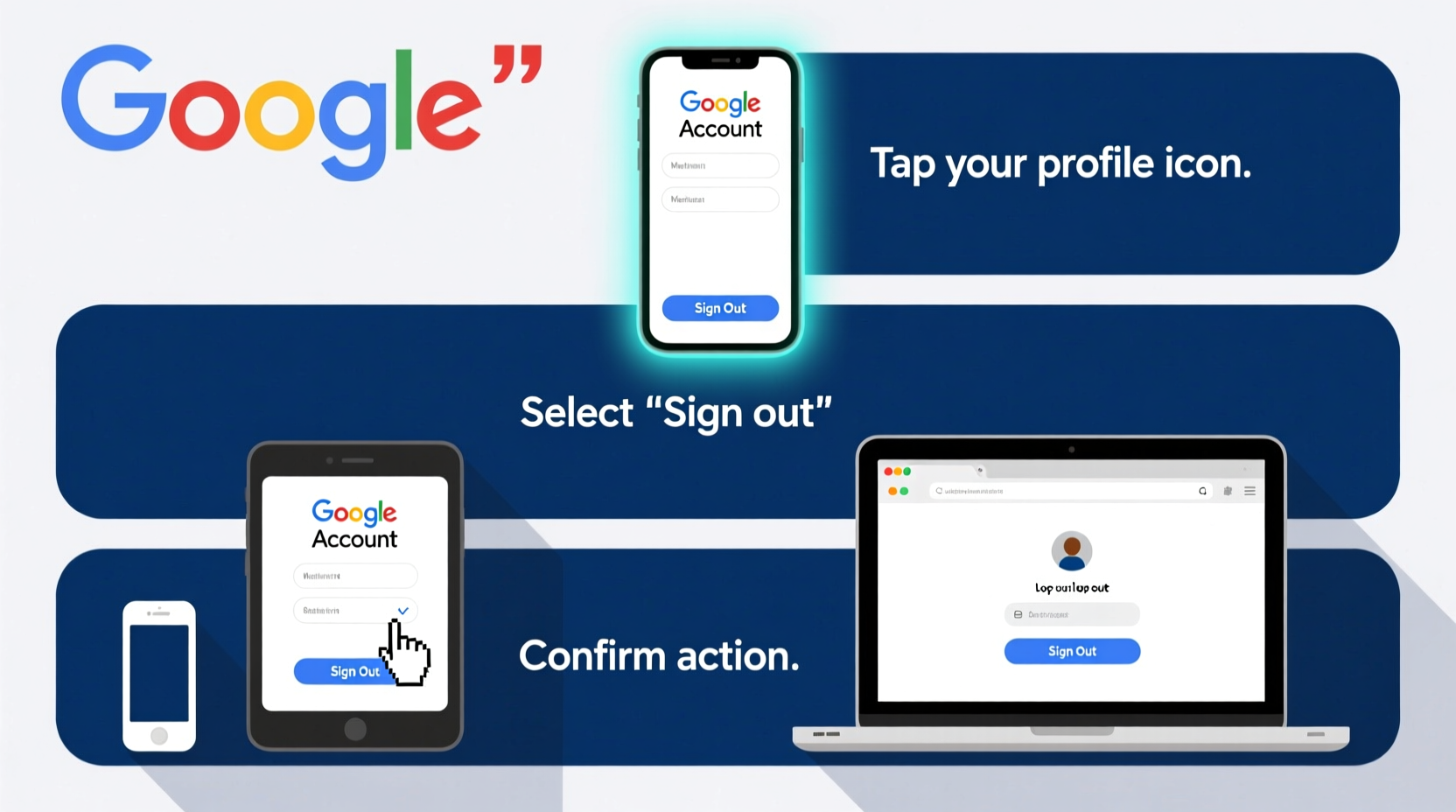
Google ties nearly every digital interaction to your account: Gmail, Drive, YouTube, Maps, Chrome bookmarks, and more. Remaining logged in on an unattended device exposes sensitive information. Even if you trust the people around you, lost devices, malware, or phishing attacks can exploit persistent logins.
Security experts emphasize that automatic sign-ins are convenient but risky. “Users often forget they’re still logged in,” says cybersecurity analyst Lara Nguyen. “A quick logout can stop a data breach before it starts.”
“Always assume any device not in your physical control is a potential security threat. Logging out isn’t paranoia—it’s due diligence.” — Lara Nguyen, Cybersecurity Analyst at SecureEdge Labs
How to Log Out Based on Your Device
The method for logging out varies significantly depending on the operating system and browser. Below are detailed, platform-specific instructions.
On Android Phones and Tablets
Unlike apps such as Facebook or Twitter, Google doesn’t offer a direct \"Log Out\" button within most apps. Instead, you must remove your account from the device settings:
- Open Settings.
- Tap Accounts (may appear as “Passwords & Accounts” or “Users & Accounts” depending on brand).
- Select your Google account.
- Tap the three-dot menu or Remove Account.
- Confirm removal.
Note: This removes the account from syncing contacts, email, and backups. You can re-add it anytime.
On iPhones and iPads
iOS handles Google accounts differently, particularly when added via the Mail app or Chrome browser.
- If added via Settings > Mail: Go to Settings > Mail > Accounts > Google, then tap Delete Account.
- If signed in via Chrome: Open Chrome > tap your profile icon > choose your account > tap Sign Out.
- For Google apps (Gmail, Drive): Open the app > tap your profile picture > select Manage Accounts on This Device > Remove account.
Removing the account stops background sync and revokes app access.
On Windows, macOS, and Linux Computers
When using a desktop browser like Chrome, Firefox, or Edge, logging out prevents others from accessing your Google services.
- Navigate to any Google service (e.g., Gmail, Google.com).
- In the top-right corner, click your profile picture or initial.
- Select Sign out from the dropdown.
This logs you out of all Google services in that browser. However, if multiple accounts are active, repeat the process for each one.
On Chromebooks
Chromebooks are deeply integrated with Google accounts. Logging out here exits your entire user session.
- Click your profile icon in the bottom-left corner.
- Select Sign out.
- Wait for the device to return to the login screen.
After signing out, no personal data remains accessible. Other users can sign in without seeing your files or history.
On Smart TVs and Streaming Devices
Many smart TVs and streaming boxes (like Roku, Fire TV, or Chromecast) allow you to sign into Google services such as YouTube or Google Photos.
To log out:
- YouTube app: Go to Settings > Account > Switch Account > Remove Account.
- Google TV/Android TV: Settings > User & Account > Select your account > Remove.
These steps vary slightly by model, but the goal is to detach your identity from the device.
Managing Active Sessions Remotely
Sometimes, you may not have immediate access to a device where you’re still logged in. Google allows you to remotely sign out of all other sessions.
- Go to myaccount.google.com and sign in.
- Navigate to Security > Your devices.
- Browse the list of currently active devices.
- Click on any suspicious or outdated entry.
- Select Sign out.
This action revokes access to Gmail, Drive, and other Google services on that device. The next time someone tries to access your account, they’ll need to re-authenticate.
| Action | Where to Do It | Effect |
|---|---|---|
| Sign out from browser | Gmail or Google homepage | Logs out current browser session only |
| Remove account from phone/tablet | Device Settings > Accounts | Stops sync and app access |
| Remote sign-out | Google Account > Security > Your devices | Terminates all sessions on selected device |
| Sign out on Chromebook | System profile menu | Ends full user session; local data encrypted |
Common Mistakes to Avoid
Even tech-savvy users make errors when managing logouts. Here are frequent pitfalls and how to avoid them:
- Mistake: Closing the browser window instead of signing out.
Solution: Always click \"Sign out\" explicitly. - Mistake: Forgetting secondary accounts.
Solution: Check all profiles in the top-right corner and sign out of each. - Mistake: Not removing accounts from public kiosks or library computers.
Solution: Use Guest mode or incognito browsing when possible, and always sign out afterward.
Mini Case Study: The Forgotten Library Login
Jamal, a college student, used a library computer to check his Gmail before class. He closed the browser tab and left, assuming he was logged out. Two hours later, another student found the session still active and accessed Jamal’s inbox, forwarding a private message to themselves.
After reporting the incident to campus IT, Jamal learned that simply closing a tab does nothing. He now uses Incognito Mode on shared computers and double-checks by clicking his profile to confirm no account appears. Since then, he hasn’t had any further issues.
Best Practices Checklist
Follow this checklist whenever you finish using a device:
- ✅ Click “Sign out” explicitly—don’t just close the tab.
- ✅ Remove your Google account from Android/iOS if the device isn’t yours.
- ✅ Use Guest or Incognito mode on public computers.
- ✅ Regularly review active devices in your Google Account settings.
- ✅ Enable 2-Step Verification to add another layer of protection.
Frequently Asked Questions
Does closing my browser log me out of Google?
No. Closing the browser does not automatically sign you out. Your session remains active until you manually click “Sign out.”
Can someone else log me out remotely?
No. Only you can terminate your own sessions via your Google Account settings. No third party—including Google support—can sign you out without your permission.
What happens to my data when I log out?
Your data remains safe in the cloud. Logging out only ends the current session. Files in Drive, emails, and photos stay intact and can be accessed again when you sign back in.
Stay in Control of Your Digital Identity
Logging out of your Google account isn’t just a formality—it’s a fundamental act of digital self-defense. In an age where a single login can unlock years of personal communication, financial records, and creative work, taking a few seconds to sign out responsibly makes all the difference.
Make it a habit. Whether you’re at home, at work, or on the go, treat every login as temporary. Review your active sessions monthly, remove accounts from shared devices, and teach others to do the same. Small actions today build long-term security tomorrow.




 浙公网安备
33010002000092号
浙公网安备
33010002000092号 浙B2-20120091-4
Comments
No comments yet. Why don't you start the discussion?