
A slow-booting computer can be frustrating, especially when you're in a hurry. One of the most common culprits behind sluggish startup times is an overloaded list of programs launching automatically when Windows starts. These startup items—ranging from essential drivers to forgotten utilities—can consume valuable system resources and delay your access to the desktop. The good news is that managing or disabling unnecessary startup entries is one of the fastest and most effective ways to speed up your PC. This guide walks you through identifying, evaluating, and controlling what launches at startup, so you can reclaim performance without compromising functionality.
Why Startup Items Matter for Performance
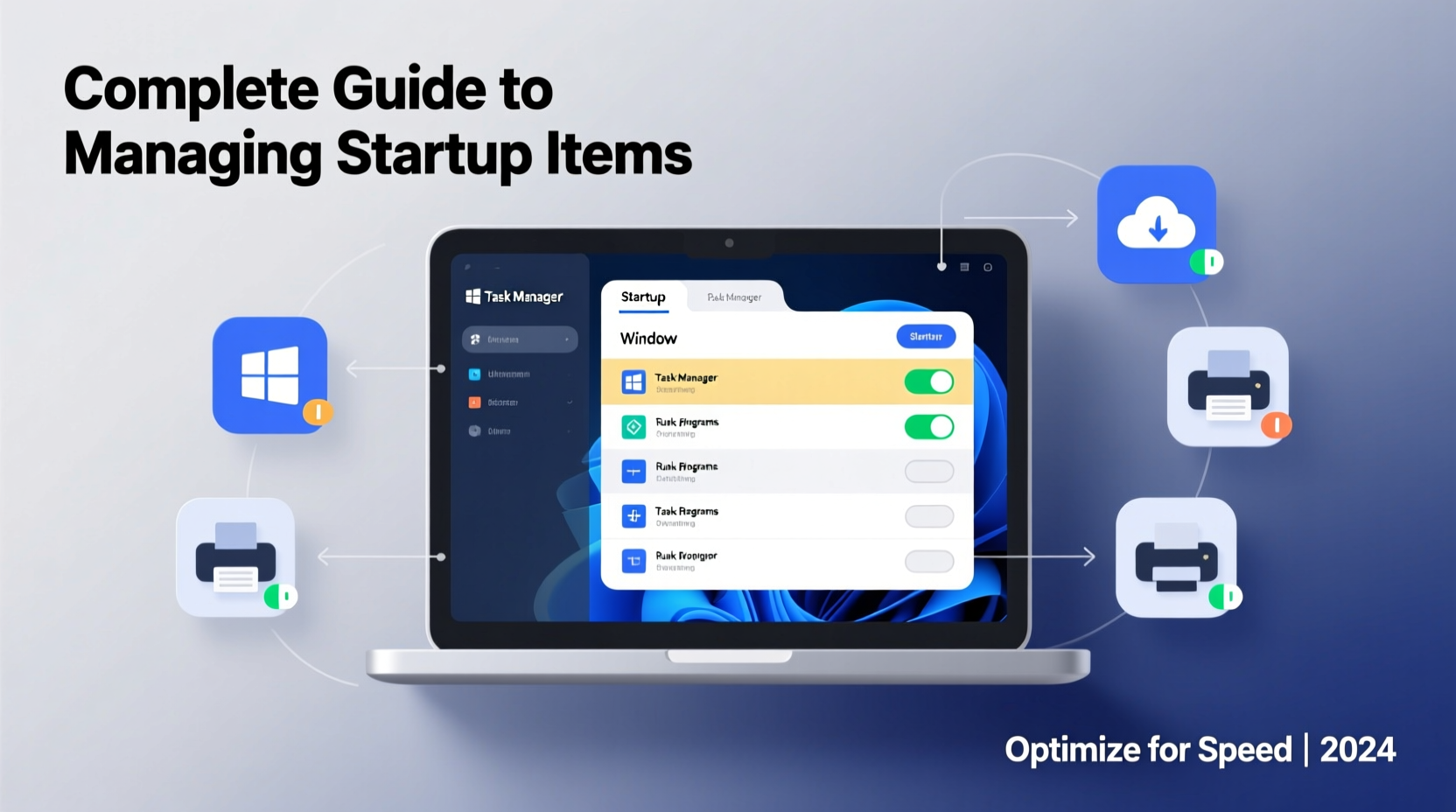
Every time you turn on your computer, Windows loads core operating system components and then runs any applications configured to start automatically. While some of these are necessary—like antivirus software or hardware drivers—many others serve little purpose during boot. Programs like cloud storage sync tools, messaging apps, media players, and even outdated installers often add themselves to startup without your knowledge.
Each additional item consumes CPU cycles, RAM, and disk I/O during the critical early phase of boot-up. When too many programs compete for resources simultaneously, the result is longer wait times, unresponsive behavior, and reduced overall system efficiency. According to Microsoft, reducing unnecessary startup processes can cut boot time by 30% or more on average systems.
“Optimizing startup is one of the most impactful yet underutilized tweaks for improving real-world PC responsiveness.” — David Liu, Senior Systems Engineer at TechPerformance Labs
How to Access and Manage Startup Programs
Windows provides built-in tools to view and control startup behavior. The primary method across modern versions (Windows 10 and 11) is the Task Manager, which offers detailed insights into each startup entry’s impact.
Step-by-Step: Using Task Manager to Control Startup
- Press Ctrl + Shift + Esc to open Task Manager directly.
- If the window opens in compact mode, click More details at the bottom.
- Navigate to the Startup tab.
- You’ll see a list of all programs set to launch at startup, along with their current status and impact level (Low, Medium, High).
- Select any program you want to disable and click the Disable button.
The “Startup Impact” column is particularly useful—it estimates how much each application slows down boot time. Focus first on items labeled “High” impact that aren’t essential.
What Should Stay Enabled at Startup?
Not all startup programs are harmful. Some play critical roles in security, hardware functionality, or background services. Disabling the wrong ones can lead to instability or missing features. Use this general guideline to distinguish between safe-to-disable and essential items.
| Type of Program | Typical Examples | Action |
|---|---|---|
| Antivirus & Security Tools | Windows Defender, Bitdefender, Malwarebytes | Keep enabled |
| Hardware Drivers | HP Support Assistant, NVIDIA GeForce Experience, Logitech Options | Evaluate per device need |
| Cloud Sync Services | Dropbox, OneDrive, Google Drive | Safe to disable if manual sync is acceptable |
| Communication Apps | Slack, Skype, Discord | Usually safe to disable |
| Media & Utilities | Spotify, Adobe Creative Cloud, Steam | Disable unless immediate access is needed |
Advanced Methods: Using System Configuration and Third-Party Tools
For users comfortable with deeper system settings, the System Configuration utility (msconfig) offers another way to manage startup items, though it's being phased out in favor of Task Manager. To access it:
- Press Win + R, type
msconfig, and press Enter. - Go to the Startup tab (in older Windows versions) or click Open Task Manager for newer ones.
Third-party tools like CCleaner, Glary Utilities, or AutoRuns from Microsoft Sysinternals provide even greater visibility. AutoRuns, in particular, reveals hidden startup locations including registry keys, scheduled tasks, and browser extensions—many of which don’t appear in Task Manager.
“AutoRuns shows you everything that runs at boot—including malware disguised as legitimate entries. It’s invaluable for power users.” — Sarah Kim, IT Security Analyst
Real-World Example: Recovering a Sluggish Laptop
Consider Mark, a freelance graphic designer using a three-year-old laptop running Windows 11. His machine took over four minutes to become usable after powering on. A check of his Task Manager revealed 27 startup entries, including five different cloud storage apps, two music players, a game launcher, and an outdated printer assistant.
By disabling non-critical items—especially those marked “High” impact—he reduced startup time to just 58 seconds. He also noticed improved battery life and smoother multitasking, simply because fewer background processes were consuming memory from the moment he logged in.
Best Practices Checklist
Follow this checklist to safely optimize your startup configuration:
- ✅ Open Task Manager and review all startup programs.
- ✅ Sort by “Startup Impact” and target high-impact, non-essential apps.
- ✅ Research unfamiliar entries before disabling them.
- ✅ Keep antivirus and critical driver-related tools enabled.
- ✅ Reboot your system to test changes and measure improvement.
- ✅ Repeat every few months as new software installs may re-enable auto-start.
Frequently Asked Questions
Can disabling startup items harm my computer?
No, disabling startup items does not damage your system. It only prevents programs from launching automatically at boot. You can still open them manually whenever needed. However, avoid disabling system-critical entries like security software unless you have a replacement in place.
Why do some programs keep reappearing in startup after I disable them?
Some applications, especially updaters and cloud services, are designed to re-add themselves to startup after updates or reinstalls. If this happens frequently, consider adjusting the app’s internal settings—most have an option like “Start with Windows” that you can toggle off within the program itself.
Is it better to disable startup items or uninstall the programs entirely?
Disabling startup is ideal if you use the program occasionally but don’t need it running constantly. Uninstalling is better for software you no longer use, as it frees up disk space and removes background processes completely. Use both strategies together for maximum optimization.
Take Control of Your PC’s Performance Today
Managing startup items is a simple, risk-free way to breathe new life into your computer. Whether you’re dealing with a years-old machine or noticing recent slowdowns, taking five minutes to clean up your startup list can yield noticeable improvements in speed and responsiveness. Unlike hardware upgrades, this fix costs nothing and requires no technical expertise beyond basic navigation.




 浙公网安备
33010002000092号
浙公网安备
33010002000092号 浙B2-20120091-4
Comments
No comments yet. Why don't you start the discussion?