
Configuration files—commonly known as \"config files\"—are the backbone of how software, operating systems, and services behave. They store settings that dictate everything from user preferences to network behavior and performance limits. While powerful, they can also be dangerous if edited incorrectly. A single typo or misplaced character can render an application unusable or even crash a system.
This guide walks you through everything you need to know to open, understand, edit, and save config files with confidence. Whether you're adjusting your Wi-Fi router's settings, tweaking a game's performance, or configuring a server, these principles apply universally.
Understanding What Config Files Are and Where to Find Them
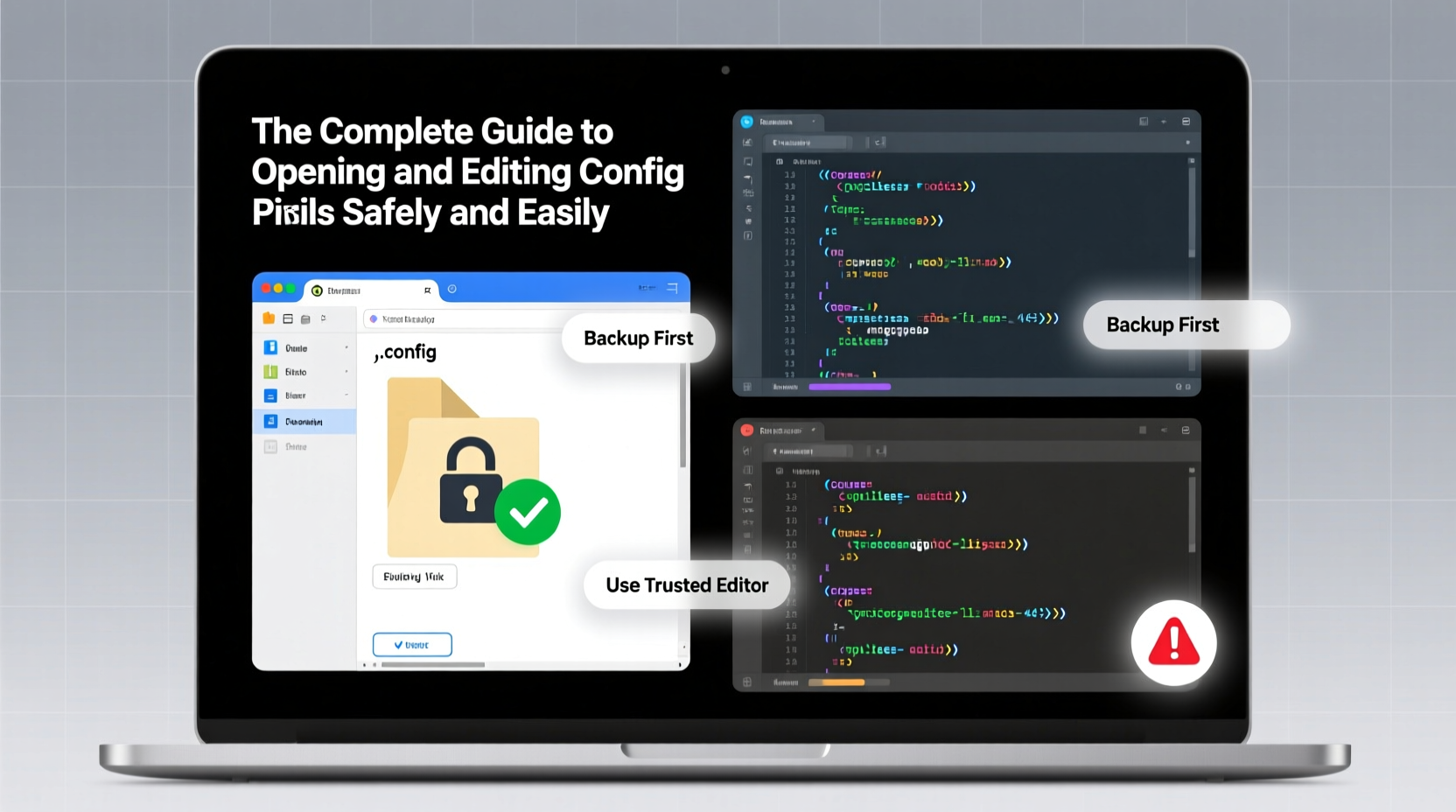
Config files come in many formats: .conf, .cfg, .ini, .json, .yaml, .xml, and more. Each format has its own syntax rules but serves the same purpose—to store structured data that applications read at startup or during runtime.
Location varies by operating system and software:
- Windows: Typically found in
C:\\ProgramData\\,C:\\Users\\[Username]\\AppData\\Roaming\\, or within the installation folder. - macOS: Often located in
/Library/Preferences/or~/Library/Application Support/. - Linux: Commonly stored in
/etc/for system-wide settings or~/.config/for user-specific configurations.
Before making any changes, always verify the file path using official documentation. Never assume location based on naming patterns alone.
settings.json) to locate config files quickly.
Essential Tools for Opening and Editing Config Files
Not all text editors are created equal when it comes to handling config files. The right tool helps prevent formatting errors, highlights syntax, and safeguards against accidental corruption.
| Tool | Best For | Key Features |
|---|---|---|
| Notepad++ (Windows) | .ini, .conf, .cfg | Syntax highlighting, regex search, tabbed interface |
| VS Code (Cross-platform) | .json, .yaml, .xml | Extensions, auto-indent, error detection |
| Sublime Text | All formats | Fast loading, multi-cursor editing |
| Vim / Nano (Linux/macOS) | Terminal-based editing | Lightweight, scriptable, no GUI needed |
Avoid using basic word processors like Microsoft Word or Apple Pages. These add hidden formatting characters that corrupt plain-text config files.
“Always use a plain-text editor with syntax awareness. It reduces human error and makes structure visible.” — Lin Zhao, DevOps Engineer at CloudScale Inc.
Step-by-Step: How to Edit a Config File Safely
Making changes without a plan is risky. Follow this sequence to ensure stability and traceability.
- Identify the correct file: Consult the software manual or developer documentation.
- Make a backup: Copy the original file and rename it with a timestamp (e.g.,
config.yaml.bak_20250405). - Check file permissions: Ensure you have read/write access. On Unix-like systems, use
chmodorsudoif necessary. - Open with a suitable editor: Choose one that supports the file’s format and shows line numbers.
- Read comments first: Many config files include instructions written as comments (e.g., lines starting with # or //).
- Edit one setting at a time: Change only what’s needed and test afterward.
- Validate syntax: For JSON or YAML, use online validators or built-in linters (like VS Code’s extensions).
- Save and close: Use UTF-8 encoding and avoid adding extra spaces or tabs unless required.
- Restart the service or app: Some changes require a reload to take effect.
- Monitor for issues: Watch logs or UI feedback to confirm the change worked.
/etc/network/interfaces), boot into recovery mode or schedule maintenance windows.
Common Pitfalls and How to Avoid Them
Even experienced users make mistakes. Here are frequent errors and how to prevent them:
- Editing the wrong file: Double-check paths. One typo in the directory can lead to modifying a different instance.
- Incorrect indentation: In YAML, spacing matters. Two spaces vs. four can break parsing.
- Forgetting backups: If something goes wrong, a backup lets you restore instantly.
- Using commas in INI files: Unlike JSON, INI files don’t use commas between values.
- Leaving debug modes enabled: Features like verbose logging should be disabled post-troubleshooting to avoid performance hits.
Do’s and Don’ts When Handling Config Files
| Do | Don't |
|---|---|
| Use version control for important configs (e.g., Git) | Store passwords in plaintext |
| Add comments explaining custom changes | Delete entire sections without understanding their role |
| Test changes in a staging environment first | Edit live production files without backup |
| Use consistent naming for backups | Assume default values are always safe |
Real-World Example: Fixing a Misconfigured Web Server
Jamal, a junior system administrator, was tasked with increasing the upload limit on an Nginx web server. Users were unable to upload files larger than 1MB, despite the PHP settings allowing 10MB.
He accessed the server via SSH and navigated to /etc/nginx/nginx.conf. After backing up the file, he opened it in Vim and searched for “client_max_body_size.” He found the directive commented out.
Jamal added the line:
client_max_body_size 50M;
He saved the file, validated the configuration with nginx -t, reloaded the service with systemctl reload nginx, and tested uploads. The issue resolved immediately.
Because he followed proper procedure—backup, validation, incremental change—he avoided downtime and ensured reliability.
Frequently Asked Questions
Can I edit config files while the program is running?
It depends. Some applications detect changes automatically (like certain daemons with SIGHUP support). Others require a restart. Always check documentation. When in doubt, restart after saving.
What if my config file won’t save due to permission errors?
You likely lack write privileges. On Linux/macOS, use sudo nano filename.conf. On Windows, run your editor as Administrator. Be cautious: elevated access increases risk of unintended changes.
How do I know which settings are safe to modify?
Stick to documented options. Avoid altering parameters labeled “advanced,” “internal,” or “reserved” unless you fully understand their impact. When uncertain, consult community forums or vendor support.
Final Checklist Before You Begin
- ✅ Identified the correct config file and its location
- ✅ Created a dated backup copy
- ✅ Verified read/write permissions
- ✅ Chosen a syntax-aware text editor
- ✅ Reviewed existing comments and structure
- ✅ Planned one change at a time
- ✅ Prepared to validate and test after editing
Conclusion
Config files give you precise control over software behavior, but with that power comes responsibility. By following proven methods—backing up, validating syntax, testing incrementally—you protect systems from avoidable failures. Mastery doesn’t come from memorizing every setting, but from developing disciplined habits around safety and verification.




 浙公网安备
33010002000092号
浙公网安备
33010002000092号 浙B2-20120091-4
Comments
No comments yet. Why don't you start the discussion?