
Keeping your iPhone’s software up to date is one of the most effective ways to maintain its speed, security, and overall functionality. Apple regularly releases iOS updates that include critical security patches, performance improvements, new features, and bug fixes. While updating seems straightforward, doing it incorrectly—or skipping key steps—can lead to data loss, installation failures, or even reduced battery performance. This guide walks you through every aspect of updating your iPhone safely and efficiently, ensuring a smooth experience every time.
Why Updating Your iPhone Matters
iOS updates are more than just cosmetic changes. They often contain essential security patches that protect your device from emerging threats. Cybersecurity researchers consistently find vulnerabilities in older iOS versions that hackers can exploit. By staying current, you shield your personal data—messages, photos, passwords, and financial information—from unauthorized access.
Beyond security, updates improve system stability. You may notice faster app launches, smoother animations, and better battery optimization after an update. Additionally, new features like enhanced camera modes, improved Siri capabilities, or expanded accessibility options are typically rolled out through these updates.
“Apple’s iOS updates are among the fastest and most secure in the mobile industry. Users who delay updates expose themselves to preventable risks.” — Dr. Lena Park, Mobile Security Analyst at TechShield Labs
When to Update: Timing and Preparation
Apple usually releases major iOS updates in September, coinciding with new iPhone launches. Minor updates (bug fixes, security patches) follow throughout the year. While it’s tempting to install updates immediately, experts recommend waiting 48–72 hours after release to avoid widespread bugs reported by early adopters.
Before starting any update, consider the following:
- Stable internet connection: Wi-Fi is required for over-the-air (OTA) updates. Avoid using cellular data, which may be slow or metered.
- Charging status: Ensure your iPhone has at least 50% battery or connect it to a power source.
- Sufficient storage: Updates require temporary space. Free up at least 5–6 GB before proceeding.
- Backup availability: Always back up your device before installing a major update.
Step-by-Step Guide to Updating Your iPhone
Follow this reliable sequence to update your iPhone without complications.
- Back up your iPhone
Go to Settings > [Your Name] > iCloud > iCloud Backup and tap “Back Up Now.” Alternatively, connect to a computer and use Finder (Mac) or iTunes (Windows) for a local backup. - Check available storage
Navigate to Settings > General > iPhone Storage. If space is low, delete unused apps, clear Safari cache, or offload media to cloud services. - Connect to Wi-Fi
Open Settings > Wi-Fi and select a trusted network. Confirm you’re connected by checking for the Wi-Fi symbol in the status bar. - Plug into power
Use your original charger or a certified cable and adapter. This prevents shutdowns during installation. - Download and install the update
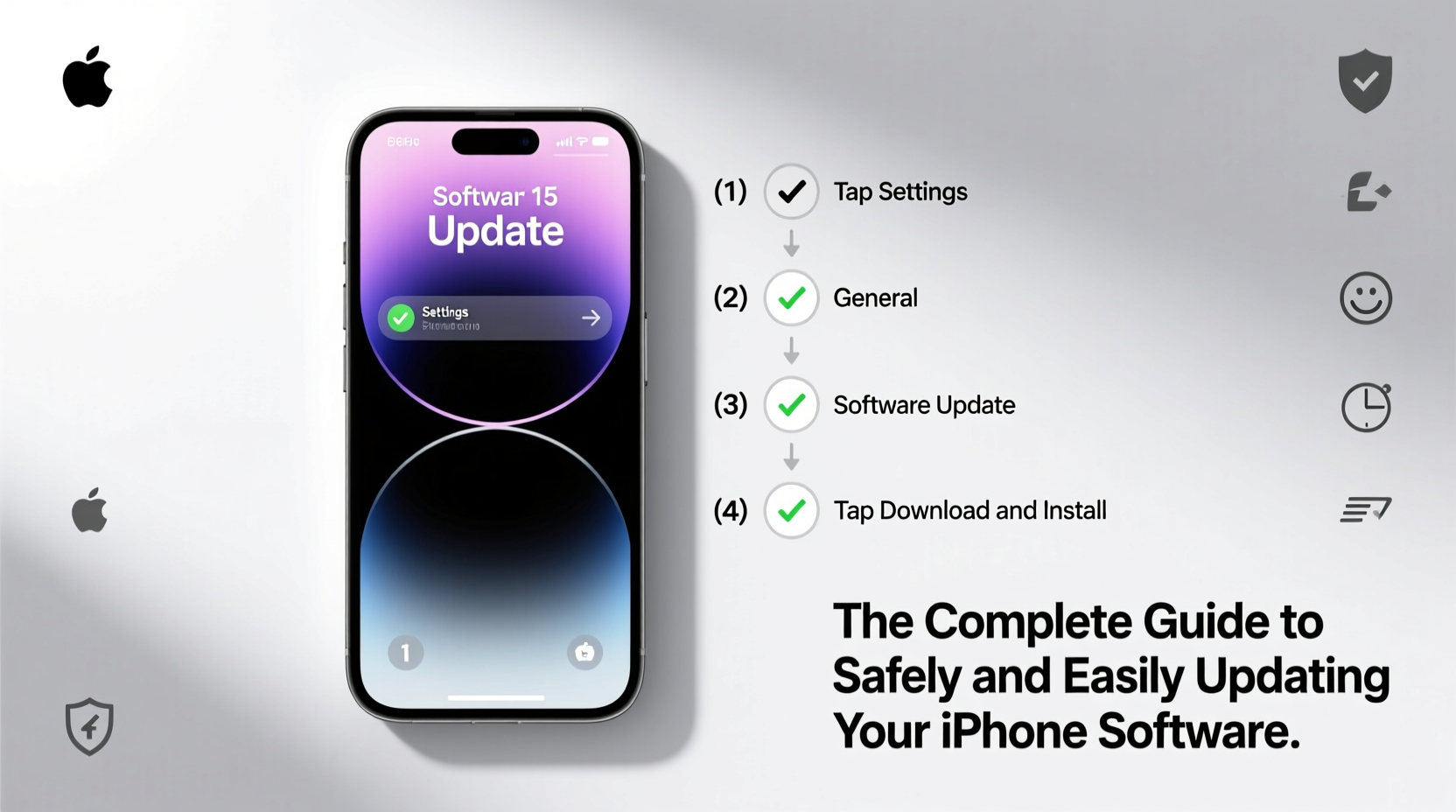
Go to Settings > General > Software Update. If an update is available, tap “Download and Install.” The device will download the update, verify it, and prompt you to install. - Complete the installation
After downloading, tap “Install Now.” Your iPhone will restart several times. Do not disconnect it or press any buttons during this phase. - Verify post-update settings
Once rebooted, check that Face ID/Touch ID, Wi-Fi, and Bluetooth are functioning. Review any new privacy prompts or feature introductions.
Do’s and Don’ts of iPhone Software Updates
| Do’s | Don’ts |
|---|---|
| ✅ Back up before every major update | ❌ Skip updates for extended periods |
| ✅ Use Wi-Fi and a power source | ❌ Install updates on less than 20% battery |
| ✅ Wait a few days after major releases | ❌ Ignore storage warnings during download |
| ✅ Monitor Apple’s support site for known issues | ❌ Force-restart mid-installation unless frozen |
| ✅ Test core functions after update | ❌ Assume all third-party apps will work immediately |
Real-World Example: A Smooth Update Experience
Sarah, a freelance photographer in Austin, delayed her iOS 17 update for three weeks due to a busy shoot schedule. When she finally updated, she skipped the backup step, assuming her iCloud was current. Midway through the installation, her home Wi-Fi dropped. The update failed, leaving her iPhone stuck on a black screen. After a factory reset via Finder, she recovered most data—but lost recent voice memos and custom camera settings.
The next time, Sarah followed a disciplined approach: she backed up locally, used a wired Ethernet-to-Wi-Fi adapter for stability, and scheduled the update for Saturday morning. The process completed in under 30 minutes, and all her apps and settings were intact. Her lesson? Preparation isn’t optional—it’s essential.
Troubleshooting Common Update Issues
Even with careful planning, problems can occur. Here’s how to handle frequent issues:
- “Update Required” loop: Restart your iPhone, then go back to Software Update. If unresolved, connect to a computer and restore via Finder/iTunes.
- Insufficient storage: Offload large apps (Settings > General > iPhone Storage), delete old messages, or temporarily remove videos.
- Stuck on Apple logo: Wait at least 15 minutes. If no progress, perform a forced restart: press and release Volume Up, then Volume Down, then hold Side button until the logo appears.
- Update verification failed: This often results from poor connectivity. Switch networks or try again later.
FAQ: Common Questions About iPhone Updates
Can I revert to an older iOS version after updating?
Apple typically stops signing older iOS versions within a week of a new release. Once your device updates and the old version is no longer signed, downgrading is not officially supported. Proceed with updates only when ready to commit.
Will updating erase my photos and messages?
No—if you back up first, your data remains safe. However, rare glitches can occur. Always ensure your iCloud or computer backup is current before starting.
Why does my iPhone feel slower after an update?
Major updates sometimes cause temporary lag as the system indexes data and optimizes apps. This usually resolves within 24–48 hours. If slowness persists, restarting the device or freeing up storage can help.
Final Checklist Before Every Update
Use this concise checklist to ensure a successful update every time:
- ☑ Backed up to iCloud or computer
- ☑ Connected to stable Wi-Fi network
- ☑ iPhone plugged into power
- ☑ At least 6 GB of free storage available
- ☑ No pending app downloads or installations
- ☑ Aware of any known bugs in the current update (check Apple’s website)
Stay Current, Stay Secure
Updating your iPhone doesn’t have to be stressful. With the right preparation and knowledge, it becomes a routine maintenance task that enhances your device’s longevity and reliability. Think of each update as a tune-up for your digital life—keeping your tools sharp, your data protected, and your experience seamless.
Make software updates part of your monthly tech hygiene. Set calendar reminders when major versions are expected, and never ignore persistent update notifications. Your future self will thank you when your iPhone continues to run smoothly years down the line.




 浙公网安备
33010002000092号
浙公网安备
33010002000092号 浙B2-20120091-4
Comments
No comments yet. Why don't you start the discussion?