
Keeping your Android device updated is one of the most effective ways to ensure peak performance, robust security, and long-term usability. Yet, many users delay or skip updates due to concerns about data loss, slow downloads, or fear of software glitches. This guide walks you through every stage of the update process—from preparation to post-installation checks—with actionable advice that ensures a smooth, fast, and secure experience.
Why Android Updates Matter
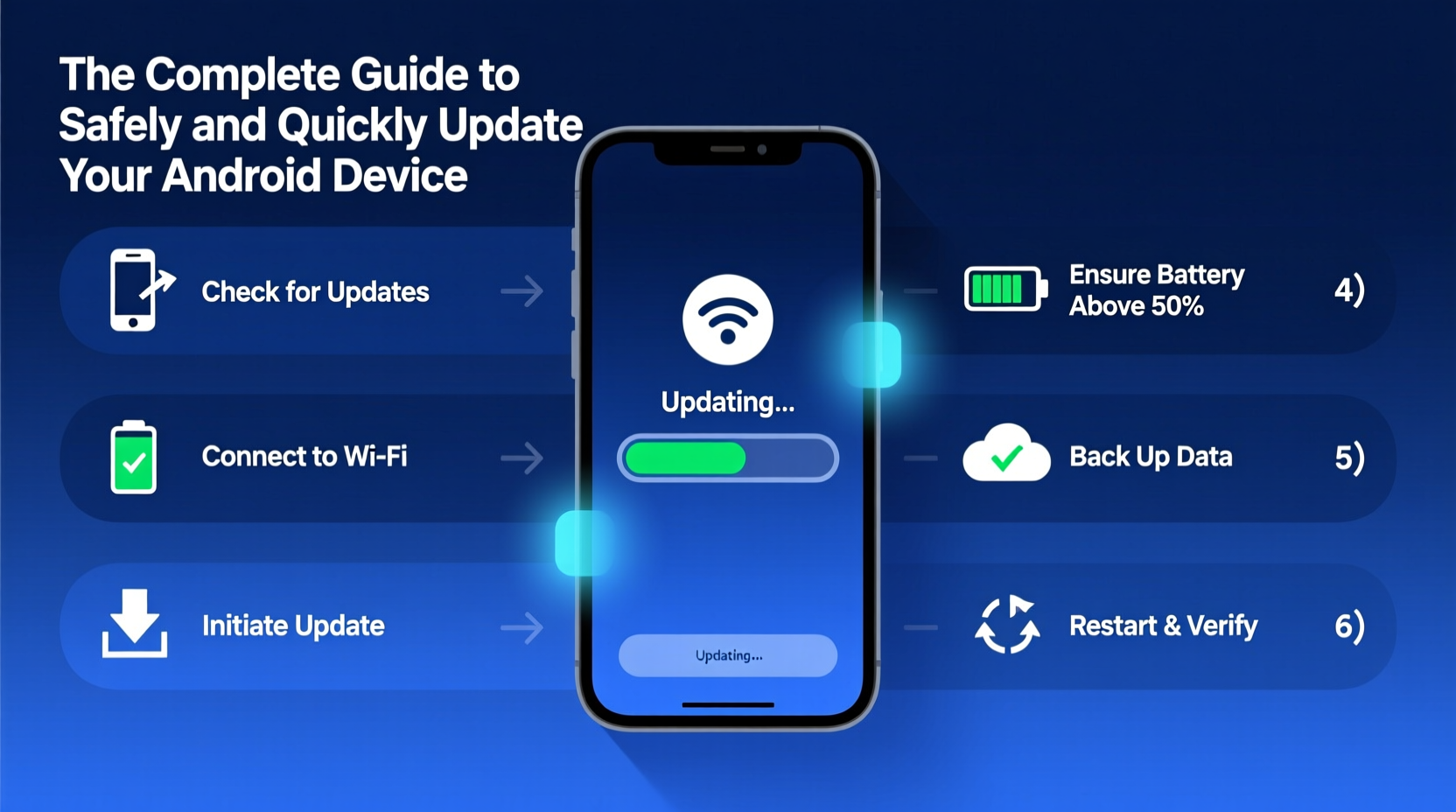
Android updates are not just about new features or visual tweaks. They serve critical functions: patching security vulnerabilities, improving system stability, enhancing battery efficiency, and supporting newer apps. Google releases monthly security patches, while manufacturers and carriers distribute major OS upgrades like Android 14 or 15 at varying intervals.
According to cybersecurity firm Kaspersky, unpatched Android devices account for over 60% of mobile malware infections. An outdated operating system leaves your personal data—photos, messages, banking info—exposed to exploits that could have been prevented with a simple update.
“An Android update isn’t optional maintenance—it’s essential digital hygiene.” — Dr. Lena Torres, Mobile Security Researcher at CyberShield Labs
Step-by-Step Guide to Updating Your Android Device
Follow this structured timeline to ensure your update completes without interruptions or errors.
- Check for Available Updates: Go to Settings > System > System Update (varies slightly by brand).
- Connect to Wi-Fi: Ensure a stable connection to avoid download corruption.
- Charge Your Device: Plug in your phone or tablet; aim for at least 50% battery.
- Free Up Storage Space: Delete unused apps or media if prompted.
- Download the Update: Tap “Download and Install” and wait patiently.
- Install and Reboot: The device will restart automatically during installation.
- Verify Post-Update Functionality: Test core features like camera, messaging, and connectivity.
Preparation Checklist Before Updating
Avoid common pitfalls by completing these steps before initiating any update:
- ✅ Back up all important data to Google Drive or an external storage solution.
- ✅ Confirm your device model supports the latest OS version (e.g., Samsung Galaxy S series vs. older budget models).
- ✅ Disable battery optimization for the system updater app to prevent pauses.
- ✅ Clear cache partition (optional but helpful): Power off, hold Volume Up + Power, navigate to 'Wipe Cache Partition'.
- ✅ Close background apps to free RAM and reduce conflict risks.
Do’s and Don’ts During the Update Process
| Do’s | Don’ts |
|---|---|
| Use official over-the-air (OTA) updates from your manufacturer | Don’t root your device before updating unless you’re technically experienced |
| Keep the screen on during installation until reboot completes | Don’t press buttons randomly if the screen freezes mid-update |
| Wait up to 10 minutes if the device seems stuck after reboot | Don’t force shutdown during installation—it may brick your device |
| Update during low usage periods (e.g., evenings or weekends) | Don’t install beta versions on primary devices without backup |
Real Example: Recovering from a Failed Update Attempt
Samantha, a freelance photographer in Portland, attempted to update her Pixel 6 Pro while traveling. She used public Wi-Fi at an airport café, started the download, then disconnected when called for boarding. Upon landing, she resumed the process, only to find her phone stuck on the boot logo for over 30 minutes.
She followed recovery steps: charging fully, entering recovery mode (Power + Volume Down), and selecting \"Apply update from ADB.\" After connecting to her laptop and re-downloading the OTA file via Android Debug Bridge, the update completed successfully. Her mistake? Interrupting the initial download. Her lesson? Always use uninterrupted Wi-Fi and time updates carefully.
Speeding Up Future Updates
While some delays are inevitable due to file size and server loads, you can optimize future update speeds:
- Prioritize Off-Peak Hours: Download updates late at night when network traffic is lower.
- Use 5GHz Wi-Fi Band: Faster than 2.4GHz and less prone to interference.
- Enable Auto-Update Downloads: Found under System Update settings—downloads silently when conditions are met.
- Reduce Bloatware: Uninstall carrier-added apps that consume resources and slow down system processes.
Devices like the Google Pixel series receive updates directly from Google, often within days of release. In contrast, Samsung, Motorola, or LG devices may take weeks due to custom skin integration (e.g., One UI). Consider this when purchasing new hardware if timely updates are a priority.
Frequently Asked Questions
How long should an Android update take?
Typically 10–30 minutes, depending on internet speed, device age, and update size. Major OS upgrades may take longer, especially if data migration is involved. Allow up to an hour for full completion.
Can I use my phone while the update installs?
No. Once installation begins, the system locks the device. Using it may cause corruption. Wait until the reboot finishes and the lock screen appears.
What if my device isn’t receiving updates anymore?
Manufacturers typically support phones for 3–5 years. If no updates appear, check your model’s end-of-support date online. You may need to consider upgrading or installing a custom ROM (advanced users only).
Conclusion: Stay Secure, Stay Updated
Updating your Android device doesn’t have to be stressful or time-consuming. With proper planning, the right tools, and awareness of best practices, you can complete updates safely and efficiently—often with minimal downtime. These small efforts yield significant returns: better performance, stronger privacy, and extended device lifespan.
Your smartphone holds your digital life. Treat each update as a necessary shield against evolving threats and a boost to your daily productivity. Make it a habit—just like locking your front door or backing up your computer.




 浙公网安备
33010002000092号
浙公网安备
33010002000092号 浙B2-20120091-4
Comments
No comments yet. Why don't you start the discussion?