
Your Mac’s Keychain is a powerful but often overlooked feature that quietly manages passwords, certificates, secure notes, and encryption keys. While it simplifies daily tasks by auto-filling logins and securing sensitive data, mismanagement can lead to sync issues, forgotten passwords, or even system-wide authentication failures. Knowing how to safely delete and manage keychains ensures both security and usability—especially when troubleshooting, switching accounts, or preparing a device for transfer.
Unlike simple password storage, the Keychain operates as an encrypted vault tied directly to your user account. Improper deletion or configuration can lock you out of saved credentials or disrupt iCloud Keychain syncing across devices. This guide walks through responsible practices for viewing, backing up, resetting, and removing keychains—without compromising your digital safety.
Understanding the Keychain System
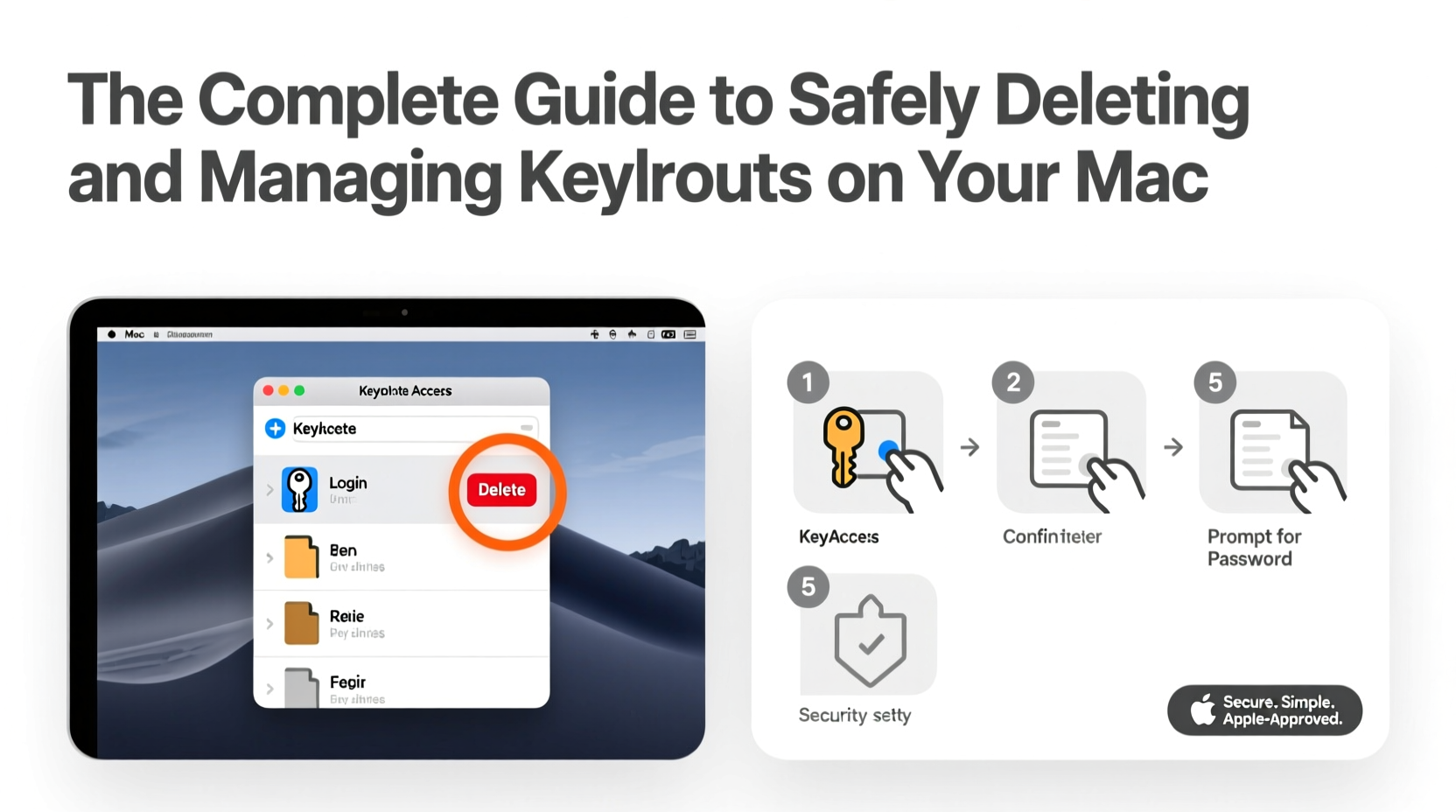
macOS uses multiple keychains, each serving a distinct purpose:
- Login Keychain: The primary vault unlocked with your user password. Stores website logins, Wi-Fi passwords, app credentials, and more.
- iCloud Keychain: Syncs passwords, credit cards, and Wi-Fi info across Apple devices via end-to-end encryption.
- System Keychain: Contains certificates and network authentication data used by macOS itself.
- Local Items (iCloud): Stores locally cached iCloud Keychain data not synced to Apple’s servers.
Each keychain appears in the Keychain Access app (/Applications/Utilities/Keychain Access.app). Misidentifying which keychain to modify is a common cause of post-deletion issues. For example, deleting the \"login\" keychain doesn’t erase iCloud-synced entries but will remove local-only items unless properly backed up.
“Deleting a keychain without understanding its dependencies is like removing a fuse without checking what circuits it controls.” — Jordan Lee, macOS Systems Architect
When Should You Delete or Reset a Keychain?
Not every password issue requires deleting a keychain. Consider these scenarios before proceeding:
- Repeated login prompts: If your Mac keeps asking for the “login” keychain password at startup—even after entering your account password—a mismatch has likely occurred.
- Migration problems: After transferring data from another Mac, conflicting keychains may cause authentication loops.
- Selling or donating your Mac: Removing keychains helps protect stored credentials before handing over the device.
- Corruption symptoms: Apps failing to authenticate, missing auto-fill suggestions, or Keychain Access crashing unexpectedly.
Step-by-Step: Safely Deleting Your Login Keychain
If troubleshooting fails and deletion is necessary, follow this sequence to minimize risk:
- Backup existing keychains: Open Keychain Access, select each keychain in the left sidebar, then go to File > Export Items. Save encrypted copies (.keychain files) to an external drive using a strong password.
- Quit all browsers and apps: Prevent active writes to the keychain during removal.
- Open Keychain Access: Navigate to Applications > Utilities > Keychain Access.
- Select the “login” keychain: Click it once in the sidebar. Do not open individual entries.
- Delete the keychain: Right-click (or Ctrl+click) and choose “Delete ‘login’”. Confirm the action.
- Create a new login keychain: Restart your Mac. At the login screen, enter your password. macOS will detect the missing keychain and create a new one automatically.
- Re-enable iCloud Keychain (if used): Go to > System Settings > Apple ID > iCloud > Passwords & Keychain. Toggle on iCloud Keychain and verify with your device passcode or trusted device.
Note: Any non-synced passwords (e.g., local server logins, third-party app tokens) are permanently lost unless backed up. Re-enter them manually or restore selectively from your exported file if needed.
Managing Multiple Keychains: Best Practices
Advanced users often create custom keychains for work profiles, development environments, or shared systems. Proper organization prevents confusion and enhances security.
| Purpose | Recommended Name | Auto-Lock Setting | Sync Status |
|---|---|---|---|
| Personal accounts | login | After 5 minutes of inactivity | iCloud enabled |
| Work or company apps | Work-Credentials | Immediately on sleep | Never sync |
| Development tools | Dev-Tokens | After 2 minutes | Local only |
To add a new keychain, open Keychain Access > File > New Keychain. Assign a unique name and store its password securely. Avoid naming custom keychains “login” or “iCloud” to prevent system conflicts.
Checklist: Pre-Deletion Safety Steps
- ✅ Back up all keychains via export with a strong passphrase
- ✅ Confirm iCloud Keychain is active and syncing on another device
- ✅ Write down critical non-synced passwords (e.g., database admin, SSH keys)
- ✅ Close Safari, Mail, Messages, and other apps accessing credentials
- ✅ Ensure administrator access to the Mac—you’ll need it to approve changes
Real Example: Recovering From a Corrupted Keychain
Lena, a freelance designer, upgraded her MacBook to macOS Sonoma and began seeing repeated prompts for her keychain password—despite entering the correct login. Her browser wouldn’t auto-fill passwords, and Mail failed to reconnect to IMAP accounts.
She opened Keychain Access and noticed two “login” entries—one locked, one missing. After research, she realized a migration tool had duplicated her keychain. She followed the safe deletion process: exported both versions, deleted the corrupted instance, restarted, and allowed macOS to generate a clean login keychain. She then re-enabled iCloud Keychain, restoring most of her passwords within minutes. Only three local development tool passwords were lost—and those she recovered from her backup.
The entire process took 15 minutes and restored full functionality without data compromise.
FAQ: Common Keychain Questions
Will deleting my keychain log me out of iCloud?
No. iCloud Keychain is separate from the local login keychain. As long as you’re signed in to your Apple ID and know your device passcode, your synced data will return after enabling iCloud Keychain on the new vault.
Can I recover a deleted keychain without a backup?
If no backup exists and the keychain was not synced via iCloud, recovery is nearly impossible. The data is encrypted with a key derived from your account password, and deletion removes the container permanently.
Why does my Mac keep asking for the keychain password after startup?
This typically means the login keychain password no longer matches your user account password. Either update the keychain password (in Keychain Access > Edit > Change Password) to match your current login, or reset the keychain entirely.
Conclusion: Take Control of Your Digital Identity
Your Mac’s keychain is more than a convenience—it’s a cornerstone of your digital identity. Handling it with care ensures seamless access while protecting sensitive information. Whether you're resolving persistent errors or preparing a machine for reuse, knowing how to safely delete and manage keychains empowers you to maintain control.
Start by auditing your current keychains, backing up essential data, and applying best practices for naming and locking. A few minutes of proactive management today can prevent hours of frustration tomorrow.




 浙公网安备
33010002000092号
浙公网安备
33010002000092号 浙B2-20120091-4
Comments
No comments yet. Why don't you start the discussion?