
Finding the perfect image online can feel like striking gold—whether you're designing a presentation, creating social media content, or personalizing your phone wallpaper. Google Images remains one of the most accessible tools for visual discovery. But not all images are free to use, and downloading them without caution can lead to legal trouble, poor quality results, or even security risks. This guide breaks down how to download images from Google safely, ethically, and efficiently across smartphones, tablets, and computers.
Understanding Image Rights and Legal Risks
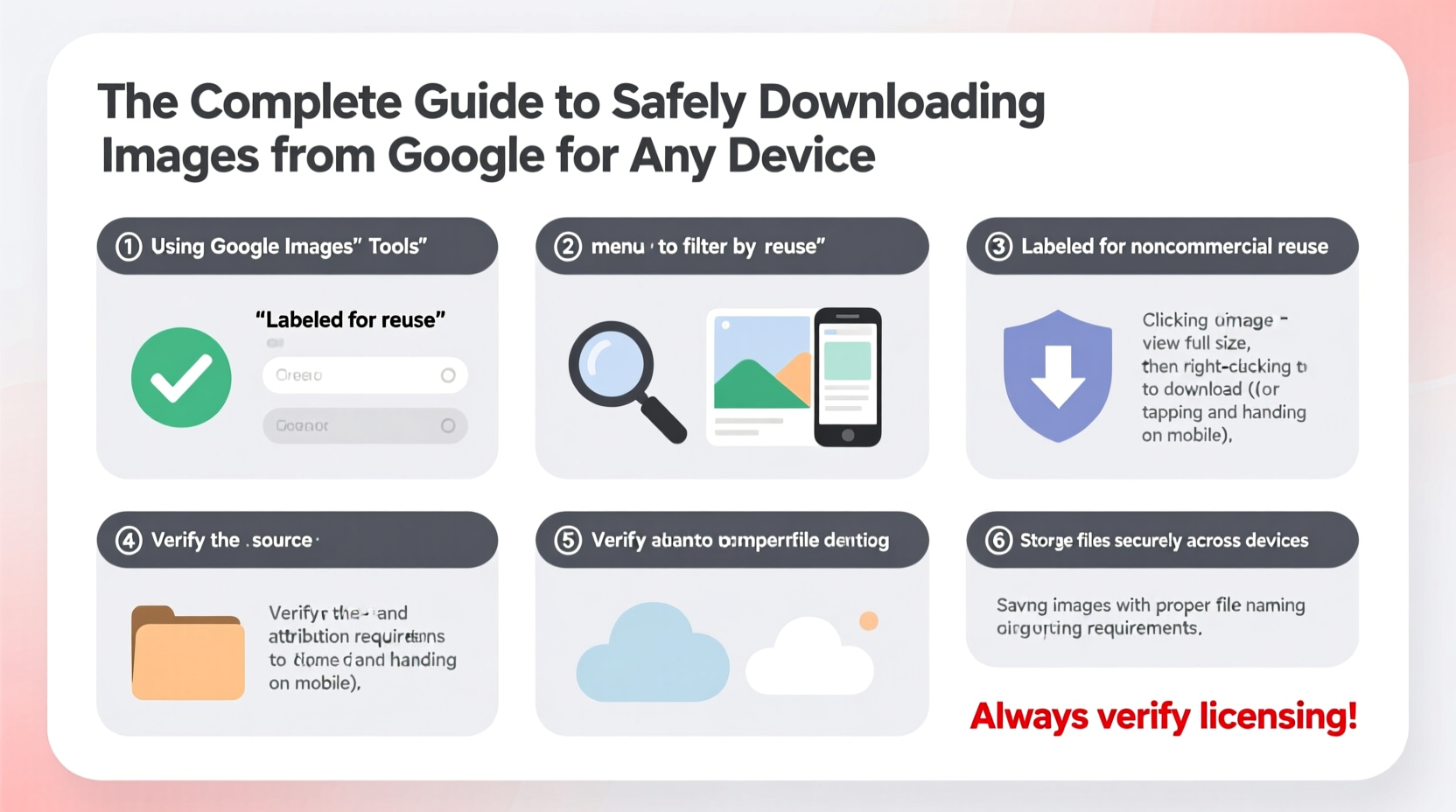
Before clicking “Save,” it’s crucial to understand that nearly every image found through Google is protected by copyright law. Just because an image appears in search results doesn’t mean it’s free for public use. Unauthorized use—even for non-commercial purposes—can result in takedown notices, fines, or legal action.
Google offers a filtering tool to help identify images labeled for reuse. These labels indicate whether an image can be used freely, modified, or shared under Creative Commons or public domain licenses. However, attribution is often still required, and misuse remains common due to misunderstanding.
“Copyright applies automatically upon creation. Always assume an image is protected unless explicitly stated otherwise.” — Sarah Lin, Digital Media Attorney
Step-by-Step Guide to Safe Image Downloads
Safely acquiring images involves more than right-clicking and saving. Follow this five-step process to ensure compliance, quality, and security.
- Start with a targeted Google Images search. Use precise keywords (e.g., “mountain sunset landscape 4K”) to narrow results.
- Apply usage rights filters. Click “Tools” > “Usage Rights” and select options like “Labeled for reuse” or “Labeled for commercial reuse.”
- Verify the source. Click the image to visit the original webpage. Check for licensing details, author information, and terms of use.
- Download from the source site when possible. Some websites offer high-resolution downloads directly, reducing compression loss.
- Record attribution details. Note the creator’s name, URL, license type, and publication date for proper credit.
This method minimizes legal exposure and ensures you’re using images responsibly, regardless of your device.
Device-Specific Download Methods
The way you download images varies depending on your device. Below are reliable techniques for desktops, iOS, and Android platforms.
On Windows or macOS Computers
Right-click the image and select “Save image as…” to store it locally. For higher-quality versions, open the image in a new tab (by clicking it in search results) and download from there. Browser extensions like “Image Downloader” can batch-save multiple images, but exercise caution—only install trusted add-ons.
On iPhone or iPad
Tap and hold the image until a menu appears. Choose “Save Image” to store it in your Photos app. If the option doesn’t appear, try opening the image in full view first. Avoid third-party apps that claim to extract images; many violate App Store policies and may harvest data.
On Android Devices
Long-press the image and tap “Download image” or “Save image.” Some browsers, like Chrome, show a download icon automatically. Samsung and Pixel devices typically save files to the “Downloads” folder or a dedicated “Images” directory.
Do’s and Don’ts of Image Usage
| Do’s | Don’ts |
|---|---|
| Use Google’s “Usage Rights” filter to find reusable images | Assume all search results are free to use |
| Credit creators when required by license | Remove watermarks or alter metadata to hide origin |
| Download from official sources or licensed repositories | Use images for commercial projects without verifying permissions |
| Check file resolution before downloading (aim for 1920px width or higher for HD) | Use low-resolution images for print or large displays |
| Store attribution details with downloaded files | Share downloaded images without confirming redistribution rights |
Mini Case Study: A Blogger’s Image Mistake
Jessica, a lifestyle blogger, once used a striking photo of a lavender field in Provence for her travel post. She found it through Google Images, saw no copyright symbol, and assumed it was safe. Three weeks later, she received a cease-and-desist letter from a European photographer demanding $500 for unauthorized use.
After settling the dispute, Jessica changed her workflow. Now, she only uses images from Google filtered for reuse, verifies licenses on sites like Flickr or Unsplash, and maintains a spreadsheet tracking attributions. Her content is safer, and her audience trusts her integrity.
Alternative Sources for High-Quality, Legal Images
While Google Images is a powerful discovery tool, relying solely on it increases risk. Consider these reputable alternatives:
- Unsplash, Pexels, Pixabay: Free high-resolution photos with permissive licenses.
- Flickr (with license filter): Millions of user-uploaded images tagged with Creative Commons licenses.
- Wikimedia Commons: Public domain and freely licensed educational media.
- Google Arts & Culture: High-res scans of artworks and historical photos, many in the public domain.
These platforms often provide direct download links and built-in attribution generators, simplifying compliance.
FAQ
Can I use Google Images for school projects?
Yes, but only if the image is properly attributed and falls under fair use or has a reuse license. Always cite the source and creator. For presentations, consider using openly licensed platforms like Pexels instead.
Why can’t I download some images on my phone?
Some websites block long-press actions to prevent theft. Try opening the image in a new tab, disabling ad blockers temporarily, or switching to desktop mode in your browser settings.
Is reverse image search safe for finding origins?
Yes. Using Google’s “Search Image” feature (via right-click or upload) helps trace an image’s source and verify authenticity. It’s a vital step before downloading or sharing.
Expert Checklist for Safe Image Downloading
Follow this checklist every time you download an image from Google:
- ✅ Perform a keyword-specific search on Google Images
- ✅ Filter by “Usage Rights” to limit results to reusable content
- ✅ Click through to the original website to review licensing terms
- ✅ Confirm whether modification, commercial use, or sharing is allowed
- ✅ Download the highest available resolution version
- ✅ Record the creator’s name, URL, license type, and date accessed
- ✅ Apply proper attribution when publishing or sharing
Conclusion
Downloading images from Google doesn’t have to be risky or unethical. With awareness of copyright laws, disciplined sourcing habits, and the right tools, you can gather visuals safely across any device. Whether you're a student, marketer, or casual user, respecting creators while accessing quality content builds a more responsible digital ecosystem. Start applying these practices today—your future self, and the artists behind the images, will thank you.




 浙公网安备
33010002000092号
浙公网安备
33010002000092号 浙B2-20120091-4
Comments
No comments yet. Why don't you start the discussion?