
Moving to a new Android phone should feel like an upgrade, not a hassle. Yet, many users dread the transfer process—worrying about losing photos, messages, app settings, or contacts. The good news is that modern Android devices are designed for smooth transitions. With the right tools and preparation, you can move your entire digital life from one Android device to another in minutes. This guide walks you through every phase of the migration, from pre-transfer checks to post-setup optimization, ensuring no data is left behind.
Why Seamless Data Migration Matters
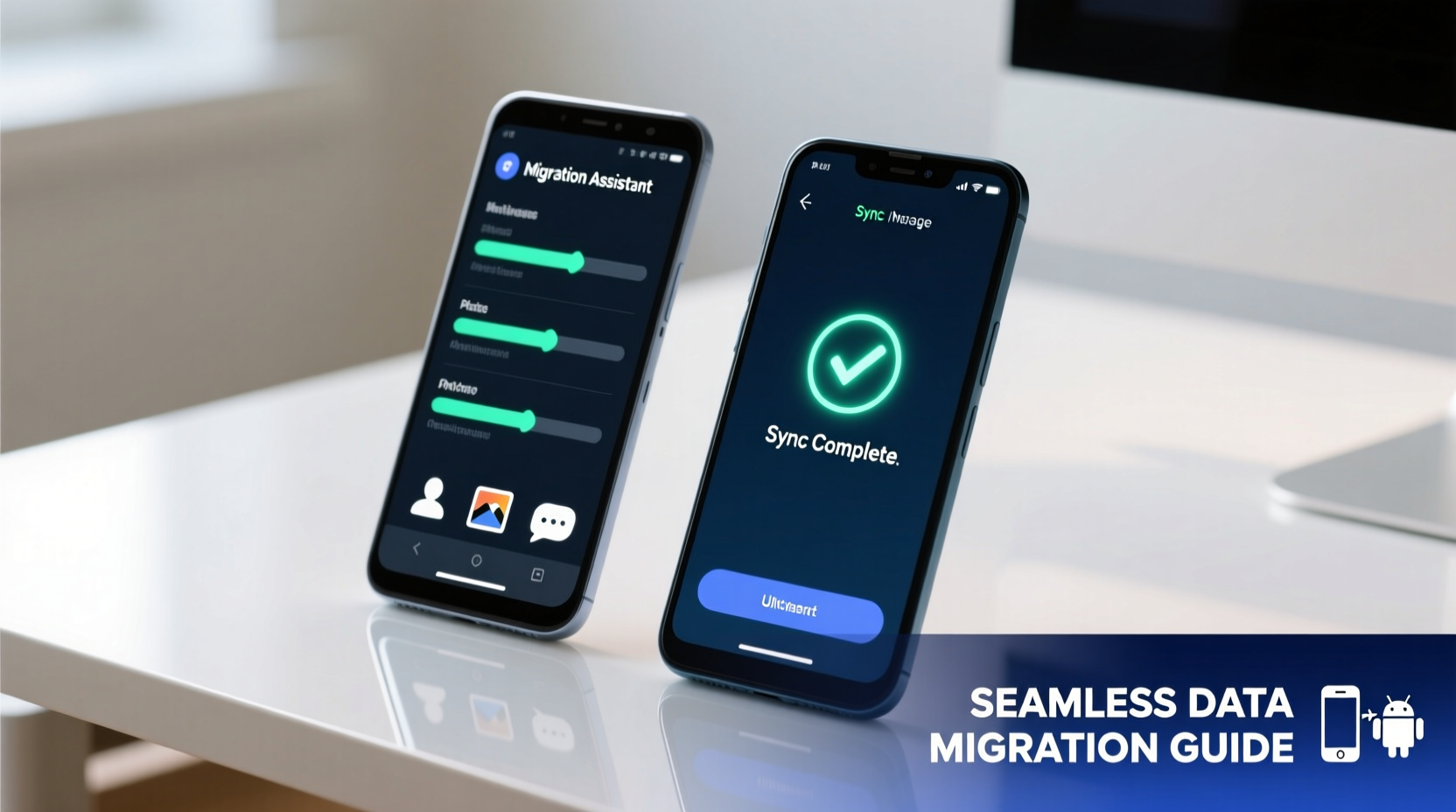
Android devices store more than just apps—they hold years of personal memories, work documents, login credentials, and behavioral preferences. A flawed transfer can disrupt routines, compromise security, or result in irreversible data loss. Google has steadily improved its ecosystem to support effortless migration, but success still depends on user awareness and correct execution.
Whether you're upgrading within the same brand or switching from Samsung to Pixel, the underlying Android framework allows for consistent data portability. The key lies in understanding which tools to use, when to use them, and how to verify completeness after the move.
Step-by-Step Guide: Transferring Data Between Android Devices
The migration process can be broken into three clear phases: preparation, transfer, and verification. Following this structured approach minimizes errors and ensures a full transition.
- Charge both devices – Ensure both old and new phones have at least 50% battery to avoid interruptions.
- Connect to Wi-Fi – Use a stable network connection to prevent timeouts during large file transfers.
- Sign in to your Google Account – On your old device, confirm you’re signed in and that sync is enabled under Settings > Google > Backup.
- Enable backup options – Go to System > Backup and ensure “Back up to Google Drive” is turned on. This includes app data, call history, device settings, and SMS.
- Initiate setup on the new device – Power on the new phone and follow the initial prompts until you reach the “Copy your data” screen.
- Select transfer method – Choose between Google Account restore, local transfer (via cable or peer-to-peer), or manufacturer-specific tools like Samsung Smart Switch.
- Wait for completion – Large transfers may take 30 minutes or more depending on data volume.
- Verify transferred data – Open key apps like Messages, Gallery, and Email to confirm everything arrived intact.
Choosing the Right Transfer Method
Not all data transfer methods are equal. Each has strengths based on speed, reliability, and compatibility. Below is a comparison of the most common approaches:
| Method | Best For | Speed | Limits |
|---|---|---|---|
| Google Account Sync | Contacts, Calendar, App Data, Settings | Medium (depends on internet) | Some app data may not transfer; media files excluded |
| Local Transfer (Nearby Share / Quick Switch) | Photos, Videos, Messages, Call Logs | Fast (direct Wi-Fi or USB) | Requires proximity; older devices may lack support |
| Manufacturer Tools (e.g., Smart Switch, Phone Clone) | Full system clone including hidden settings | Very Fast (dedicated protocols) | Often limited to same brand or specific models |
| Third-Party Apps (Send Anywhere, SHAREit) | Large media files, cross-platform sharing | Fast | Security risks; ads; less integration with OS |
Expert Insight: What Professionals Recommend
“Always perform a manual backup of critical photos and documents before relying on automated transfer tools. Cloud sync is powerful, but it’s not foolproof—especially when migrating across different Android skins like One UI and Stock Android.” — Raj Mehta, Senior Mobile Systems Engineer at Android Authority Labs
Experts emphasize redundancy. Even if you trust Google’s ecosystem, manually copying essential folders to a cloud drive or computer adds a safety net. This is especially important for irreplaceable items like family videos or scanned legal documents.
Mini Case Study: Successful Migration Across Brands
Sophia, a freelance photographer, upgraded from a Samsung Galaxy S21 to a Google Pixel 8 Pro. She needed to preserve her entire photo library, client messaging threads, and editing app presets. Using Samsung Smart Switch initially seemed logical, but she discovered it didn’t fully support transferring third-party app data to non-Samsung devices.
Instead, she used a hybrid method: she backed up all media to Google Photos (ensuring original quality was enabled), synced messages via Google Messages web backup, and exported Lightroom presets manually. On the Pixel, she restored from her Google Account and re-downloaded her presets. The entire process took under 45 minutes, and she retained 100% of her workflow integrity.
This case illustrates that while built-in tools are helpful, combining methods often yields the best results—especially when switching manufacturers.
Data Transfer Checklist
Use this checklist to ensure nothing is missed during your migration:
- ✅ Back up all photos and videos to Google Photos or external storage
- ✅ Enable Google Account sync for Contacts, Calendar, and Chrome bookmarks
- ✅ Turn on “Backup to Google Drive” in system settings
- ✅ Export passwords from Google Password Manager (optional for security audit)
- ✅ Uninstall unused apps to reduce clutter on the new device
- ✅ Verify two-factor authentication is set up on critical accounts
- ✅ Test transfer with a small batch first (e.g., 10 photos and 1 conversation thread)
- ✅ After transfer, check SMS history, Wi-Fi passwords, and home screen layout
Frequently Asked Questions
Will my text messages transfer automatically?
Yes, if you use Google Messages with chat features enabled. SMS and MMS will sync across devices when you restore from a Google backup. Third-party messaging apps like WhatsApp require separate backups and restores through their internal tools.
Can I transfer data without Wi-Fi?
Yes, using a USB cable and manufacturer software like Samsung Smart Switch or LG Bridge allows offline transfers. However, wireless methods are generally faster and more convenient unless you're dealing with poor signal strength.
What happens to app subscriptions after transfer?
In-app purchases and subscriptions tied to your Google account will remain active. However, some apps (especially banking or productivity tools) may require re-authentication for security reasons. Always keep your recovery email and phone number updated.
Final Tips for a Flawless Transition
After the transfer, take time to personalize your new device. Reorganize apps, set up dark mode or accessibility features, and review privacy permissions. Consider doing a factory reset on your old phone only after confirming all data has been successfully migrated and backed up externally.
Remember, migration isn’t just about moving files—it’s about continuity. A well-executed transfer means your new phone feels familiar from the first unlock, letting you focus on what matters most.




 浙公网安备
33010002000092号
浙公网安备
33010002000092号 浙B2-20120091-4
Comments
No comments yet. Why don't you start the discussion?