
Dual monitors transform the way you work, offering expanded screen real estate for multitasking, coding, design, financial analysis, and media editing. Whether you're using a MacBook, a Windows ultrabook, or a Linux-powered machine, connecting a second (or third) display is not only possible—it’s often simpler than expected. The key lies in understanding your laptop’s hardware capabilities, choosing the right cables and adapters, and configuring display settings effectively.
This guide walks through every phase of the setup process, from checking compatibility to fine-tuning resolution and workspace layout. No matter your operating system or device age, you’ll find actionable steps to get both screens working seamlessly together.
Check Your Laptop’s Video Output Capabilities
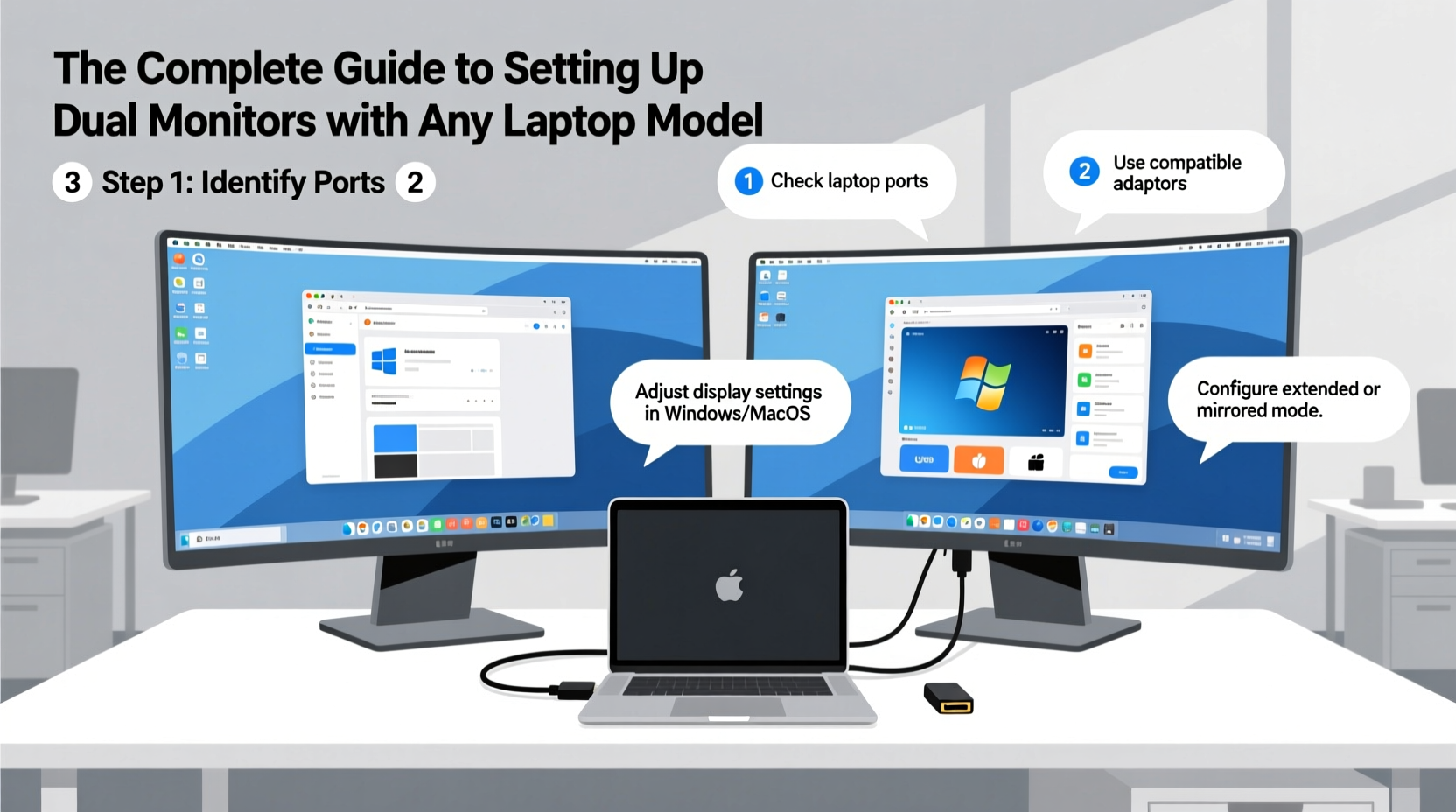
Before purchasing additional hardware, confirm what kind of video output ports your laptop supports. Most modern laptops include at least one of the following:
- HDMI – Most common; supports audio and video over a single cable.
- USB-C / Thunderbolt 3 or 4 – High bandwidth; can carry DisplayPort signals and power delivery.
- DisplayPort (Mini or Full) – Found on business-class laptops; excellent for high-resolution displays.
- VGA – Older analog standard; still present on legacy models but limited to lower resolutions.
Not all ports support external displays simultaneously. Some older or budget machines may only allow one external monitor at a time, especially if integrated graphics are used. To determine your limits:
- Consult your laptop’s user manual or manufacturer’s spec sheet online.
- Look up your GPU model (e.g., Intel Iris Xe, AMD Radeon 680M, NVIDIA GeForce RTX 3050) and check maximum display outputs.
- On Windows: Press Win + R, type
dxdiag, and review the “Device” section under the Display tab. - On macOS: Click Apple logo > About This Mac > System Report > Graphics/Displays.
Choose Compatible Monitors and Cables
Matching the right monitor to your laptop ensures optimal performance. Consider these factors:
- Resolution: Match or scale down from your laptop’s native resolution for consistency.
- Refresh Rate: 60Hz is standard; 120Hz or 144Hz improves smoothness for motion-heavy tasks.
- Panel Type: IPS offers better color accuracy; TN panels are faster but less vibrant.
- Cable Quality: Use certified HDMI 2.0 or higher, DisplayPort 1.4, or USB-C cables rated for video.
If your laptop lacks a specific port (e.g., no HDMI), use an active adapter. Passive adapters only convert physical shape; active ones translate signal types (e.g., USB-C to HDMI with internal chip).
| Laptop Port | Adapter Needed | Max Supported Resolution |
|---|---|---|
| USB-C (with DisplayPort Alt Mode) | USB-C to HDMI or DP | 4K @ 60Hz |
| Thunderbolt 3/4 | Docking station or DP/HDMI adapter | Up to 8K or dual 4K |
| HDMI 1.4 | None (direct connection) | 1080p @ 60Hz or 4K @ 30Hz |
| Mini DisplayPort | MiniDP to DP/HDMI | 4K @ 60Hz (depends on version) |
| USB-A Only | USB 3.0 to HDMI (DisplayLink) | 1080p @ 60Hz (software-dependent) |
Step-by-Step Setup Across Operating Systems
Once hardware is connected, configure your displays correctly. Follow this universal sequence:
- Power off both monitors and your laptop.
- Connect each monitor using appropriate cables or adapters.
- Turn on the monitors first, then boot the laptop.
- Wait for automatic detection. If nothing appears, press the function key combo (e.g., Fn + F4 on Dell, Fn + F8 on Lenovo) to cycle display modes.
- Access display settings in your OS and arrange screens logically.
Windows: Extend or Duplicate Displays
Navigate to Settings > System > Display. You’ll see numbered boxes representing each screen. Click “Identify” to match numbers with physical monitors. Choose between:
- Extend these displays – Use both as one continuous desktop.
- Duplicate these displays – Show the same content on both (useful for presentations).
Drag the screen icons to reflect physical placement. Set the primary display by selecting a screen and checking “Make this my main display.” Adjust resolution and scaling independently per monitor.
macOS: Mirror or Extend with Sidecar Flexibility
Go to System Settings > Displays. Hold the Option key and click “Color Profile” to reveal arrangement options. By default, macOS extends the desktop. Uncheck “Mirror Displays” unless duplicating. Drag the white menu bar to select which screen is primary. Note: M1/M2 MacBooks support native dual external monitors only on Pro and Max models; base models limit to one external display.
Linux (Ubuntu/GNOME Example)
Open Settings > Displays. Detected monitors appear as rectangles. Select each to set resolution and orientation. Choose “Join Displays” to extend or “Mirror” to duplicate. Use command-line tools like xrandr for advanced control:
xrandr --output HDMI-1 --right-of DP-1 --auto
Real-World Example: Remote Worker Boosts Efficiency
Sarah, a freelance data analyst using a 2020 MacBook Air, struggled with constant tab switching while managing spreadsheets, dashboards, and client calls. She purchased a refurbished 27” 1440p IPS monitor and a certified USB-C to HDMI cable. After connecting, she extended her display, placing Excel on the external monitor and Zoom on her laptop screen. Within a week, her task completion speed improved by nearly 40%, and eye strain decreased due to reduced scrolling and zooming.
Her only hurdle was initial confusion about why mirroring was enabled by default. Once she unchecked it in System Settings > Displays, the extended workspace activated immediately. A small investment yielded significant workflow gains.
“Dual monitors don’t just add screen space—they change how your brain organizes information. It’s spatial computing at its most practical.” — Dr. Alan Reyes, Human-Computer Interaction Researcher, MIT Media Lab
Troubleshooting Common Issues
Even with correct hardware, problems can arise. Here’s how to resolve them:
- No signal on second monitor: Ensure the cable is securely plugged in and the monitor input source matches the connection (e.g., HDMI 1 vs. HDMI 2).
- Blurry text or wrong resolution: Manually set the native resolution in display settings. Avoid stretching non-native resolutions.
- Screen flickering: Replace low-quality cables. Disable adaptive sync or variable refresh rate if unstable.
- Laptop won’t detect second display: Update GPU drivers (Windows) or restart the display manager (Linux). On macOS, reset NVRAM (restart and hold Cmd+Option+P+R).
FAQ: Dual Monitor Setup Questions Answered
Can I use two different monitor sizes or brands?
Absolutely. Mix and match based on availability and budget. Just adjust scaling settings so text and UI elements appear consistent across screens.
Will running dual monitors slow down my laptop?
Not significantly for everyday tasks. However, demanding applications like 4K video editing or gaming may stress integrated graphics. Discrete GPUs handle multi-monitor setups more efficiently.
Can I close my laptop lid and still use external monitors?
Yes—on Windows and Linux, go to Power Settings and set “When I close the lid” to “Do nothing.” On macOS, connect to power and an external keyboard/mouse; the laptop will stay awake with closed lid.
Final Checklist Before You Begin
- ✅ Verify video output ports
- Know what your laptop supports before buying accessories.
- ✅ Acquire correct cables/adapters
- Use high-quality, certified connections for stable performance.
- ✅ Test monitor functionality
- Ensure both monitors work independently before dual setup.
- ✅ Update graphics drivers
- Latest drivers improve compatibility and stability.
- ✅ Configure display arrangement
- Align screen positions to match physical desk layout.
Conclusion: Unlock Your Productivity Potential
Setting up dual monitors with any laptop is no longer reserved for desktop towers or high-end workstations. With the right knowledge and tools, even compact ultrabooks can drive powerful multi-display environments. From remote professionals to students and creatives, the benefits of expanded workspace are immediate and measurable.
Take the first step today: inspect your laptop’s ports, gather the necessary cables, and connect a second screen. Fine-tune the arrangement, optimize your workflow, and experience firsthand how a simple hardware upgrade can redefine your digital efficiency.




 浙公网安备
33010002000092号
浙公网安备
33010002000092号 浙B2-20120091-4
Comments
No comments yet. Why don't you start the discussion?