
A stable, fast home internet connection is no longer a luxury—it's essential. Whether you're working remotely, streaming 4K content, or managing smart home devices, unreliable connectivity can disrupt your day. The good news? You don’t need technical expertise to build a dependable network. With the right approach, you can optimize your setup regardless of your internet service provider (ISP). This guide walks you through every stage—from choosing a plan to fine-tuning your Wi-Fi—so you get consistent performance across all your devices.
Assess Your Internet Needs Before Signing Up
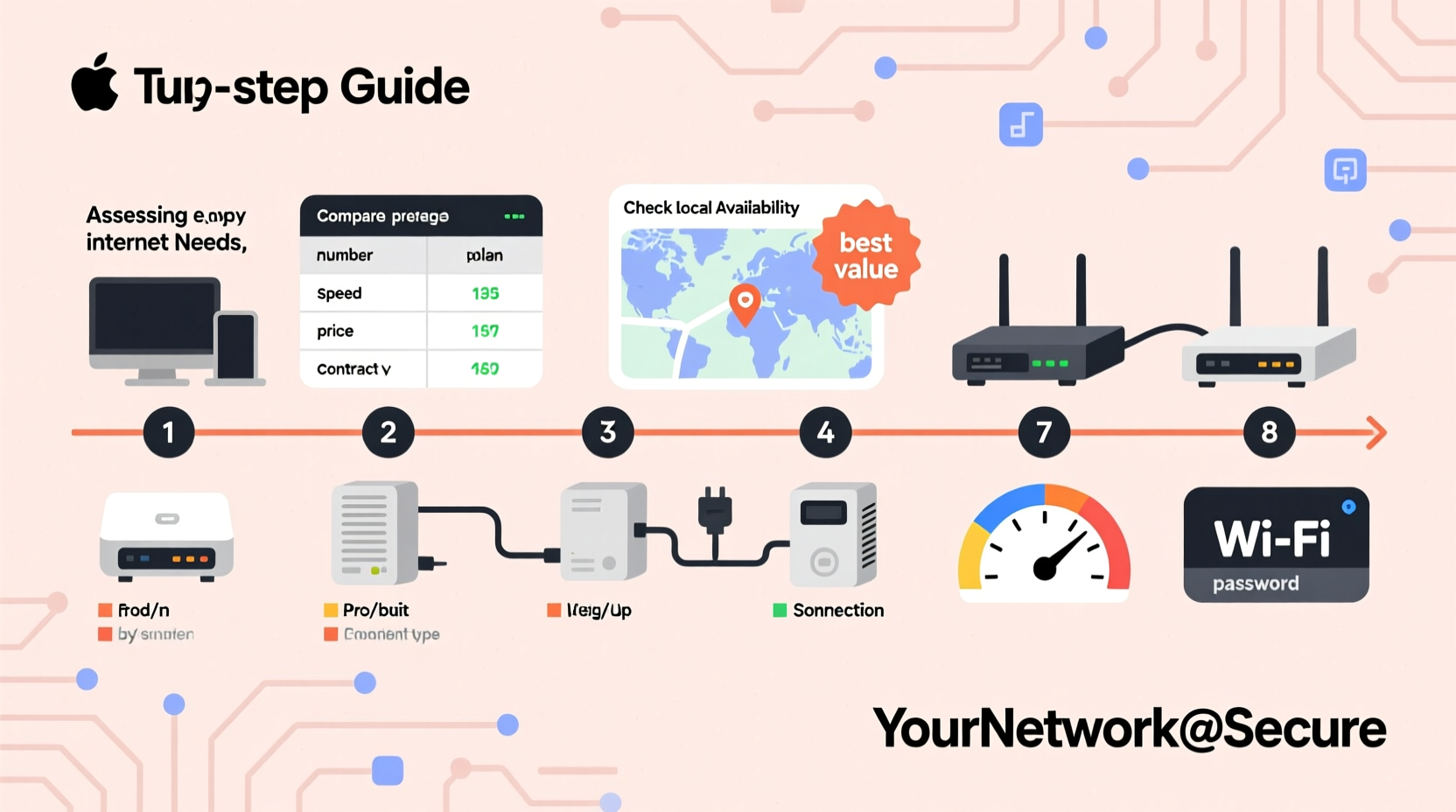
Before contacting an ISP, understand how much bandwidth your household actually requires. Bandwidth needs vary based on the number of users, connected devices, and online activities. Streaming HD video uses about 5–8 Mbps per stream, while video conferencing consumes 1–3 Mbps. Online gaming benefits from low latency more than raw speed, but still requires at least 3–6 Mbps download and 1 Mbps upload.
Consider this: a family of four with multiple smartphones, laptops, tablets, and smart TVs may easily require 100–300 Mbps to avoid congestion during peak usage times. If someone works from home or streams in 4K, aim higher. Underestimating your needs leads to buffering, lag, and frustration.
Choosing the Right Provider and Plan
Not all providers deliver equal performance—even within the same city. Research local options including cable, fiber, DSL, and fixed wireless. Fiber offers the fastest and most symmetrical speeds (equal upload and download), while cable is widely available but can slow down during neighborhood peak hours. DSL is often cheaper but limited in speed and distance sensitivity.
When comparing plans, look beyond advertised speeds. Check customer reviews for consistency, data caps, and customer support responsiveness. Some ISPs throttle bandwidth after a certain usage threshold, which impacts heavy users. Also, consider contract terms—many offer promotional rates for 12 months before increasing prices significantly.
“Speed isn’t everything. Reliability, uptime, and consistent latency matter just as much, especially for remote work and real-time applications.” — David Lin, Network Infrastructure Consultant
Comparison of Common Internet Types
| Type | Max Speed | Latency | Best For |
|---|---|---|---|
| Fiber | Up to 1 Gbps+ | Low (10–20 ms) | Families, gamers, remote workers |
| Cable | 100–500 Mbps | Moderate (20–40 ms) | General use, streaming |
| DSL | 5–100 Mbps | Higher (30–60 ms) | Budget users, light browsing |
| Fixed Wireless | 25–100 Mbps | Variable (30–80 ms) | Rural areas |
Step-by-Step Setup Process After Installation
Once your ISP installs service, proper configuration determines long-term reliability. Follow these steps carefully:
- Locate the modem placement: Place it near the entry point of the line (cable/phone/fiber) and away from thick walls, metal objects, and appliances like microwaves.
- Connect the modem: Plug in the power and connect the coaxial, phone, or fiber line securely. Wait for all status lights to stabilize—usually takes 3–5 minutes.
- Power on the router: Connect it to the modem via Ethernet. Avoid daisy-chaining routers unless necessary.
- Access the admin interface: Open a browser and enter the default IP (often 192.168.1.1). Log in using credentials found on the device or provided by your ISP.
- Update firmware: Check for updates under the administration tab. Outdated firmware can cause security vulnerabilities and instability.
- Change default login: Set a strong password for the router’s admin panel to prevent unauthorized access.
- Set a custom SSID and password: Use WPA3 encryption if supported; otherwise, use WPA2. Avoid common names like “HomeWiFi” that make targeting easier for attackers.
Optimizing Wi-Fi Coverage and Performance
Even with high-speed internet, poor signal distribution causes dead zones. Walls, floors, mirrors, and large appliances interfere with radio waves. To maximize coverage:
- Position the router centrally and elevated—ideally on a shelf, not the floor.
- Adjust antenna orientation: vertical antennas radiate horizontally, so angle one vertically and one horizontally for mixed device heights.
- Use the 5 GHz band for speed (short range), and 2.4 GHz for reach (slower but penetrates walls better).
- Enable Quality of Service (QoS) settings to prioritize critical traffic like video calls or gaming.
If your home exceeds 2,000 square feet or has multiple levels, consider upgrading to a mesh Wi-Fi system. Unlike range extenders, which degrade speed, mesh networks create a seamless blanket of coverage using multiple nodes.
Mini Case Study: Improving Connectivity in a Two-Story Home
Sarah in Austin had spotty Wi-Fi upstairs despite paying for 200 Mbps cable internet. Her router was in the basement near the modem. After moving it to the first-floor hallway and adding a single mesh node upstairs, her speed on the second floor increased from 18 Mbps to 156 Mbps. Video calls stopped freezing, and her kids could stream without interruptions.
Essential Maintenance and Troubleshooting Checklist
Reliability isn't a one-time achievement—it requires ongoing care. Use this checklist monthly to maintain peak performance:
- ✅ Reboot modem and router (unplug for 30 seconds) to clear memory and refresh connections.
- ✅ Verify all cables are secure and undamaged.
- ✅ Run a speed test using tools like Fast.com or Speedtest.net and compare results to your plan.
- ✅ Review connected devices; remove unknown ones that might be leaching bandwidth.
- ✅ Scan for interference using a Wi-Fi analyzer app to detect channel congestion.
- ✅ Switch to a less crowded Wi-Fi channel (e.g., 1, 6, or 11 on 2.4 GHz; non-overlapping channels on 5 GHz).
- ✅ Ensure parental controls or firewalls aren’t blocking legitimate traffic.
Frequently Asked Questions
Why is my internet slow even with a fast plan?
Several factors could be responsible: outdated equipment, Wi-Fi interference, too many connected devices, background downloads, or ISP throttling. First, test speed via Ethernet—if it’s close to expected, the issue is likely your Wi-Fi setup. If wired speed is also low, contact your ISP.
Do I need both a modem and a router?
Yes. The modem connects to your ISP and brings the internet into your home. The router distributes that connection to multiple devices over Wi-Fi or Ethernet. Some ISPs provide combo units, but separate devices often offer better performance and easier troubleshooting.
Can I use my own equipment instead of renting from the ISP?
Absolutely. Renting equipment adds $10–$15 monthly. Buying a compatible modem and router pays for itself in under a year. Just confirm compatibility with your ISP’s network type (DOCSIS 3.1 for cable, etc.).
Final Thoughts: Build a Network That Works for You
Setting up reliable home internet doesn’t depend solely on your provider. While infrastructure matters, smart choices in equipment, placement, and maintenance have an outsized impact on daily experience. By understanding your usage, selecting the right plan, configuring hardware properly, and performing routine checks, you gain control over your connectivity. A well-optimized network supports productivity, entertainment, and peace of mind—all without constant troubleshooting.




 浙公网安备
33010002000092号
浙公网安备
33010002000092号 浙B2-20120091-4
Comments
No comments yet. Why don't you start the discussion?