
From the moment you unbox your Apple Watch, you’re stepping into a world of convenience, health tracking, and connectivity. But to unlock its full potential, proper setup is essential. Whether it’s your first smartwatch or an upgrade, configuring your Apple Watch correctly ensures smooth performance, personalized functionality, and long-term satisfaction. This guide walks you through every phase—pairing, customization, app optimization, privacy settings, and troubleshooting—so your device works effortlessly as an extension of your lifestyle.
Step-by-Step Pairing and Initial Setup
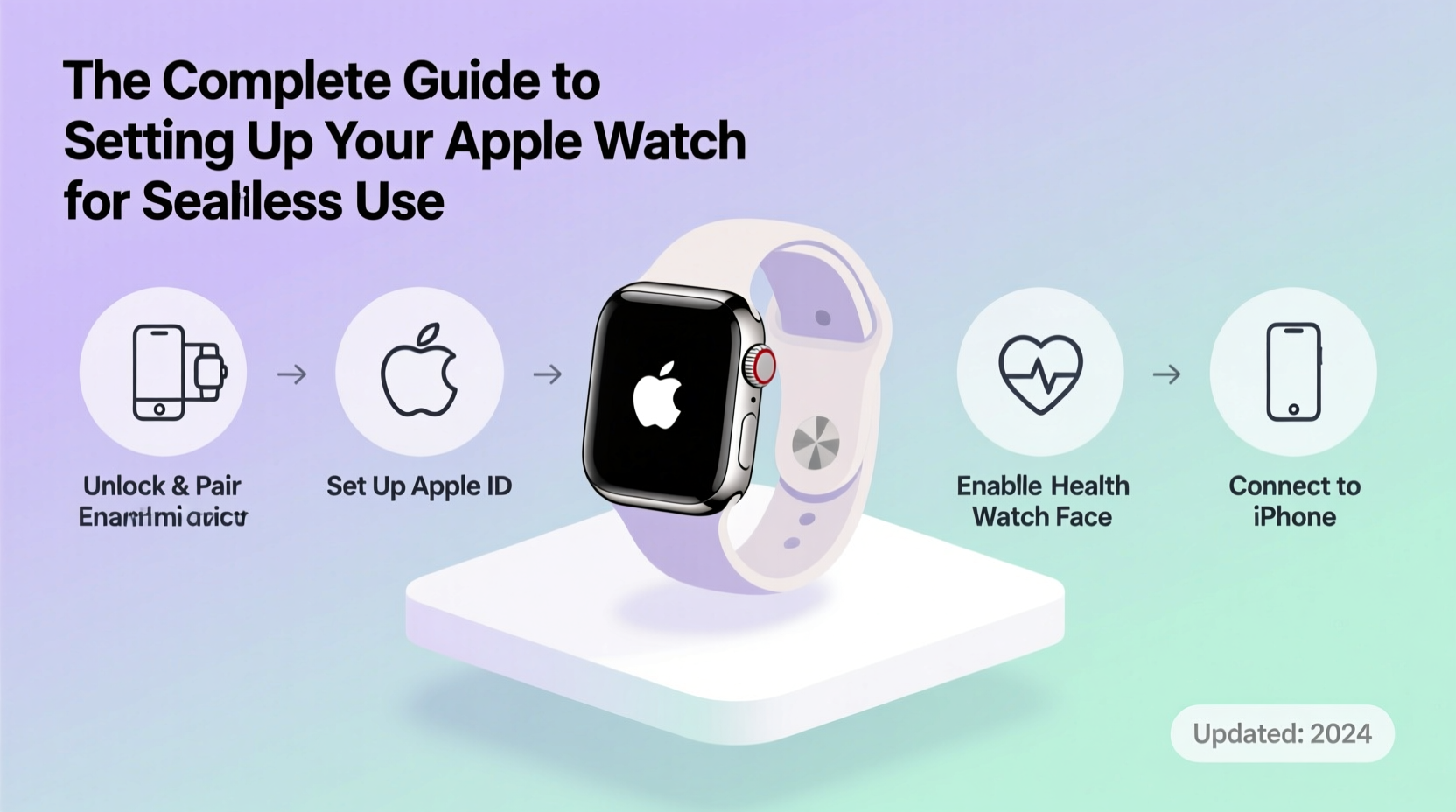
The foundation of a seamless Apple Watch experience begins with correct pairing to your iPhone. The process is intuitive but requires attention to detail to avoid early hiccups.
- Charge both devices: Ensure your Apple Watch has at least 50% battery and your iPhone is sufficiently charged.
- Turn on your Apple Watch: Press and hold the side button until the Apple logo appears.
- Open the Apple Watch app on your iPhone: Located in the Utilities folder or on your home screen.
- Hold your iPhone near the Apple Watch: A pulsating animation will appear on the watch. Align it within the iPhone’s camera frame.
- Follow on-screen prompts: Choose to set up as new or restore from backup, select your preferred wrist, and enable/disable features like Fitness Tracking and Heart Rate notifications.
- Wait for data transfer: Depending on your backup size, this may take 10–30 minutes. Keep both devices close and connected to Wi-Fi.
Customizing Your Experience for Daily Use
Personalization transforms your Apple Watch from a generic device into a tailored companion. Start by refining the interface and core behaviors.
Choose the Right Watch Face
Your watch face is your primary interface. Swipe left or right on the home screen to access the Gallery. Select one that matches your needs—Modular for at-a-glance info, Activity for fitness tracking, or Infograph for detailed complications. Long-press any face to customize complications like weather, calendar, or heart rate.
Adjust Haptics and Sounds
Navigate to Settings > Sounds & Haptics. Reduce haptic strength if alerts feel too strong, or increase it if you miss notifications. Enable “Prominent Haptic” for clearer taps during workouts or alarms.
Set Up Wrist Detection and Unlock with iPhone
Go to Settings > Face ID & Passcode on your iPhone and toggle on “Unlock with Apple Watch.” This allows automatic unlocking when wearing a mask or entering secure apps. Wrist detection (enabled by default) turns off the display when your arm is down, saving battery.
| Setting | Recommended Option | Why It Matters |
|---|---|---|
| Brightness | Auto-Brightness On | Adapts to lighting; saves power outdoors |
| Wake Duration | 7 seconds | Balances responsiveness and battery life |
| Dock | Keep frequently used apps here | Quick access without scrolling |
| Power Saving Mode | Enable during travel | Extends battery when needed |
Optimizing Health and Fitness Features
The Apple Watch excels as a health companion. Proper configuration ensures accurate tracking and meaningful insights.
Ensure Health > Cycle Tracking, Heart Rate, and Workout permissions are enabled. Calibrate your watch by walking or running outdoors for 20 minutes with your iPhone. This improves GPS and distance accuracy.
- Set move, exercise, and stand goals in the Activity app.
- Wear the watch snugly (but comfortably) on your wrist for reliable heart rate monitoring.
- Enable Fall Detection and Emergency SOS under Emergency SOS settings.
“Accurate health data starts with consistent wear and correct sensor placement. The Apple Watch isn’t just a tracker—it’s a preventive health tool.” — Dr. Lena Patel, Digital Health Researcher, Stanford Medicine
Managing Apps and Notifications Effectively
A cluttered watch leads to distraction. Streamline what appears on your wrist.
In the Watch app on iPhone, go to My Watch > Notifications. Toggle off apps that send non-essential alerts. For critical ones (Messages, Calendar), choose “Mirror iPhone Alerts” or customize alert styles.
Review installed apps: Delete unused ones by tapping the app icon on the watch and swiping up to remove. Prioritize lightweight apps like WaterMinder, Carrot Weather, or Todoist that sync quickly and provide value.
Mini Case Study: Sarah’s Productivity Turnaround
Sarah, a project manager in Seattle, initially found her Apple Watch overwhelming. Constant pings from social media and email disrupted meetings. After auditing her notifications and disabling non-urgent apps, she reconfigured her watch to only show calendar reminders, direct messages, and workout prompts. Within two weeks, she reported improved focus and better sleep hygiene due to reduced evening stimulation. Her key insight: “I stopped reacting to everything and started responding to what matters.”
Frequently Asked Questions
How do I extend my Apple Watch battery life?
Enable Power Saving Mode, reduce background app refresh, lower screen brightness, and disable Always-On Display if not needed. Turn off unnecessary complications and limit third-party app usage.
Can I use my Apple Watch without my iPhone nearby?
Yes, cellular models can make calls, stream music, and receive messages independently. GPS-only models rely on iPhone proximity for most functions, though they still track workouts and store health data locally.
Why isn’t my heart rate updating?
Check that Wrist Detection is on and the watch is worn snugly. Restart the device and ensure software is up to date. Sensor dirt is a common cause—clean the back regularly.
Essential Setup Checklist
- ✅ Pair Apple Watch with iPhone using the Watch app
- ✅ Restore from backup or set up as new
- ✅ Customize watch face and complications
- ✅ Enable Unlock with iPhone (if supported)
- ✅ Configure Activity rings and health permissions
- ✅ Calibrate motion sensors with outdoor walk/run
- ✅ Review and filter notification settings
- ✅ Install essential apps and delete unused ones
- ✅ Set up emergency contacts and medical ID
- ✅ Perform a restart after setup to stabilize performance
Final Tips for Long-Term Satisfaction
Seamless use isn’t achieved in a day—it evolves with consistent refinement. Revisit your settings monthly. Update watchOS promptly for security patches and feature improvements. Rotate watch faces seasonally to match your routine (e.g., a sleep-focused face in winter, activity-heavy in summer).
Back up your watch weekly by charging it overnight while connected to your iPhone. This preserves settings and health history in case of loss or repair.
Most importantly, align your Apple Watch with your personal rhythms. If you're a morning exerciser, schedule workout shortcuts. If you work remotely, mute non-urgent alerts during deep work blocks. The device should enhance—not interrupt—your flow.
Conclusion
Your Apple Watch is more than a gadget—it’s a daily partner in health, productivity, and connection. By investing time in thoughtful setup and ongoing optimization, you transform it from a novelty into a vital tool. From precise health tracking to silent notifications that respect your focus, the benefits compound over time. Now that you’ve configured your watch with purpose, wear it with confidence and let it quietly elevate your everyday.




 浙公网安备
33010002000092号
浙公网安备
33010002000092号 浙B2-20120091-4
Comments
No comments yet. Why don't you start the discussion?