
Moving data to a new iPad or upgrading from another device shouldn’t be stressful. Whether you're transitioning from an iPhone, Android phone, Windows PC, or Mac, seamless data transfer is possible with the right method. With so many options available—from iCloud and AirDrop to third-party tools and manual transfers—it’s essential to choose the one that fits your device ecosystem, data type, and comfort level with technology. This guide walks through every practical approach, ensuring your photos, contacts, apps, messages, and files make the journey intact.
Transferring Data from Another Apple Device
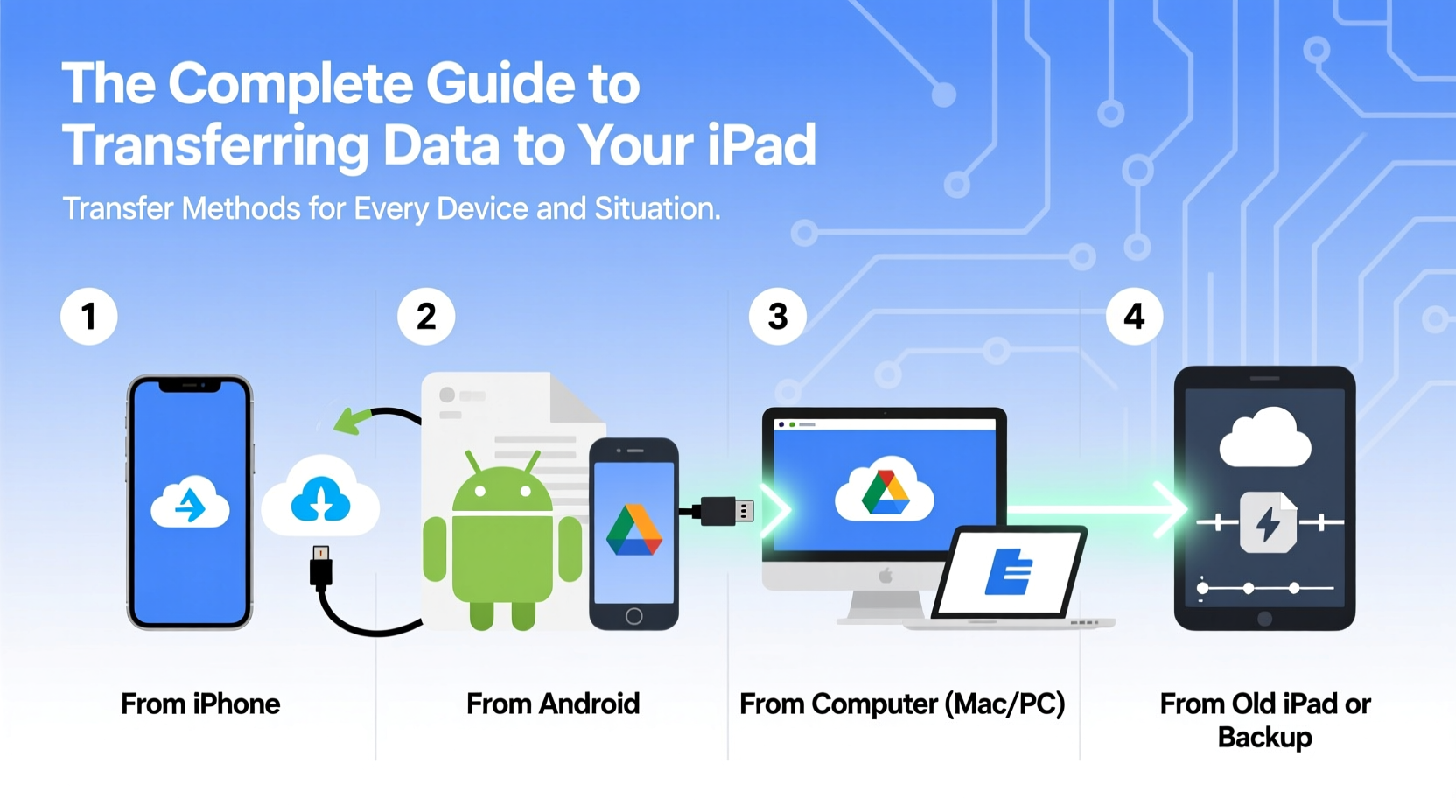
If you're already in the Apple ecosystem, moving data between devices is straightforward. The most efficient way to transfer from an iPhone or older iPad is using Quick Start during initial setup. When you power on your new iPad near your current iPhone, a prompt appears asking if you want to transfer data via Wi-Fi.
This process uses Bluetooth and peer-to-peer Wi-Fi to securely migrate settings, app layouts, accounts, and even encrypted health data. After the initial setup, your iCloud account syncs remaining content like photos, notes, and reminders—provided iCloud Drive and related services are enabled.
Using iCloud Backup for Full Migration
For users who prefer a cloud-based approach, iCloud Backup offers a full snapshot of your device. Navigate to Settings > [Your Name] > iCloud > iCloud Backup on your old device and tap “Back Up Now.” Once completed, restore this backup during iPad setup by selecting “Restore from iCloud Backup” and signing into the same Apple ID.
This method works best when you have a stable internet connection and sufficient iCloud storage (5GB free; additional space requires subscription). It preserves app data, messages, call history, and device settings but may take hours depending on data volume.
Moving Data from an Android Device
Switching from Android to iPad? Apple provides the Move to iOS app, designed specifically for this transition. Available on the Google Play Store, it securely transfers contacts, message history, photos, videos, calendars, and free apps during the initial iPad setup.
- Set up your new iPad until you reach the “Apps & Data” screen.
- Select “Move Data from Android.”
- Install Move to iOS on your Android phone and open it.
- Enter the code displayed on your iPad into the Android app.
- Select the content you want to transfer and wait for completion.
Note: The connection uses a private Wi-Fi network created by the iPad, so disable mobile data and hotspot restrictions on your Android device. Also, ensure both devices remain powered on throughout the process.
“Move to iOS bridges a critical gap for cross-platform users. It’s not perfect for every file type, but it handles core personal data better than any third-party tool.” — David Lin, Mobile Ecosystem Analyst
Transferring Files from Windows and Mac Computers
For those managing large media libraries or documents stored locally, direct computer-to-iPad transfer remains vital. Two primary tools support this: Finder (macOS Catalina and later) and iTunes (older macOS and Windows).
Using Finder or iTunes
Connect your iPad via USB, unlock it, and trust the computer if prompted. On macOS, open Finder; on Windows or older Macs, launch iTunes. Select your device, then navigate to sections like Photos, Files, or Music to sync specific content.
- Photos: Enable “Sync Photos” and choose a folder (e.g., Photos library, Dropbox folder).
- Files: Use the “File Sharing” section to drag and drop documents into compatible apps like Pages or PDF Expert.
- Music: Add songs or playlists manually if you’re not using Apple Music.
This method bypasses cloud limits and gives full control over what gets transferred—ideal for offline use or sensitive files.
Using Third-Party Software
Tools like iMazing, AnyTrans, or Syncios offer enhanced file management beyond Apple’s native options. These allow selective data export (e.g., WhatsApp messages, SMS, app data), bulk photo transfers, and folder-level organization without syncing entire libraries.
While some features require paid licenses, they’re particularly useful for users migrating legacy data or recovering files from backups without restoring the whole device.
Cloud and Wireless Transfer Methods
When physical connections aren’t convenient, cloud platforms provide flexible alternatives. Services like iCloud Drive, Google Drive, Dropbox, and OneDrive let you upload files from any device and access them instantly on your iPad via their respective apps.
| Service | Best For | Free Storage | Offline Access? |
|---|---|---|---|
| iCloud Drive | Apple ecosystem integration | 5 GB | Yes (with sync) |
| Google Drive | Cross-platform collaboration | 15 GB (shared across Gmail, Photos) | Yes (enable offline mode) |
| Dropbox | Large file sharing | 2 GB (expandable via referrals) | Yes |
| OneDrive | Microsoft Office users | 5 GB | Yes |
To transfer a document: Upload it from your laptop to Google Drive, open the Drive app on your iPad, locate the file, and export it to another app (e.g., edit in Word or save to Files). Similarly, iCloud Photos can sync albums automatically across devices when enabled.
AirDrop: Fast Local Sharing
For quick wireless transfers between Apple devices within close range, AirDrop is unmatched in speed and simplicity. Enable Wi-Fi and Bluetooth on both devices, open Control Center, press and hold the network settings card, and tap AirDrop. Choose “Everyone” or “Contacts Only,” then share files directly from Photos, Safari, or Files.
Real-World Scenario: A Professional Switching Devices
Sophia, a freelance graphic designer, upgraded from a Samsung Galaxy Tab S7 to an iPad Pro. She needed her client portfolios, design assets, and project timelines moved quickly. Using Google Drive, she uploaded all PSD and PDF files from her old tablet. On her iPad, she accessed the files via the Drive app and imported them into Affinity Designer and Notability. Contacts were synced via her Google account, while personal photos were migrated using the Move to iOS app during setup. Within two days, her workflow was fully restored—without losing a single file.
Checklist: Preparing for a Smooth Data Transfer
- ✅ Back up your source device (iCloud, Google, or computer)
- ✅ Charge both devices to at least 50%
- ✅ Connect to a stable Wi-Fi network
- ✅ Disable auto-lock during transfer
- ✅ Free up space on your iPad if needed
- ✅ Sign into the same Apple ID or cloud account
- ✅ Install necessary apps (e.g., Move to iOS, Dropbox) ahead of time
Frequently Asked Questions
Can I transfer WhatsApp chats from Android to iPad?
No, WhatsApp does not support iPad natively, so chat history cannot be transferred directly. You can back up chats to Google Drive from Android, but restoration is only possible on another Android phone. Consider using WhatsApp Web on your iPad via Safari as a temporary solution.
Why is my transfer taking so long?
Transfer speed depends on data size, connection type (Wi-Fi vs. USB), and network congestion. Large photo libraries or video collections may take several hours. Ensure both devices remain awake and connected. Restarting both devices and retrying often resolves stalls.
Will transferring data erase my old device?
No, standard transfer methods do not erase your old device. However, if you perform a factory reset after backing up to iCloud or iTunes, all data will be removed. Always confirm you’ve successfully verified the transfer before wiping your old device.
Final Thoughts
Transferring data to your iPad doesn’t have to be complicated. Whether you're coming from an iPhone, Android, or computer, there’s a reliable method tailored to your needs. From seamless iCloud restores to cross-platform tools like Move to iOS and cloud syncing, preparation and the right technique make all the difference. Take time to assess your data types, available tools, and preferred workflow—then execute with confidence.




 浙公网安备
33010002000092号
浙公网安备
33010002000092号 浙B2-20120091-4
Comments
No comments yet. Why don't you start the discussion?