
Google Play Services is a core component of the Android ecosystem, running silently in the background to support app functionality, location services, authentication, and system updates. While it operates behind the scenes, its performance directly affects your device’s speed, battery life, and app reliability. Outdated versions can lead to crashes, slow response times, and security vulnerabilities. Keeping Google Play Services up to date ensures your phone runs smoothly, apps function correctly, and your data remains protected.
Why Google Play Services Matter
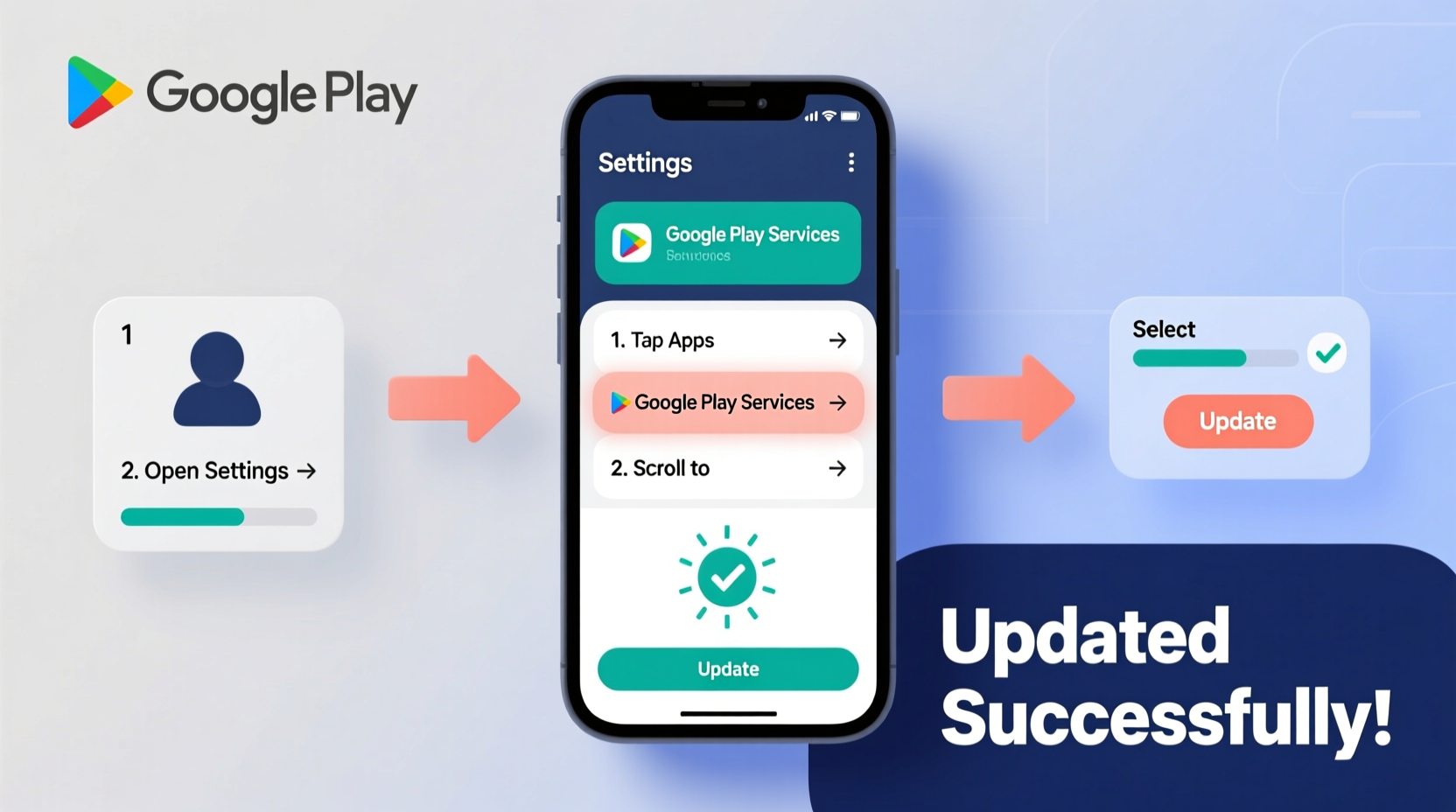
Unlike regular apps, Google Play Services isn’t something you interact with directly. Instead, it acts as a bridge between your device’s operating system and the apps installed on it. It handles tasks like push notifications, Google Maps integration, Firebase analytics, and secure sign-ins through Google accounts. Because so many apps depend on it, any lag or malfunction in Google Play Services can ripple across your entire user experience.
When outdated, Google Play Services may fail to communicate efficiently with newer app versions, leading to errors such as “App isn’t responding” or “Unfortunately, [App] has stopped.” More critically, outdated versions may lack patches for known security flaws, leaving your personal information exposed.
“Google Play Services is the glue that holds the Android experience together. Keeping it current is as essential as updating your OS.” — David Lin, Senior Android Systems Engineer
How to Check Your Current Version
Before updating, confirm which version of Google Play Services is currently active on your device. This helps determine whether an update is needed and assists in troubleshooting if issues persist after an update.
- Open the Google Play Store app.
- Tap your profile icon in the top-right corner.
- Select Manage apps & device.
- Under “Updates available” or “Installed,” search for Google Play Services.
- If an update is pending, you’ll see an “Update” button. If not, your version is current.
You can also check the version number manually:
- Go to Settings > Apps > See all apps.
- Tap the three-dot menu and select Show system.
- Scroll down and tap Google Play Services.
- The version number appears under the app name.
Step-by-Step Guide to Updating Google Play Services
Updating Google Play Services is typically automatic, but manual intervention may be necessary if your device isn’t receiving updates or is experiencing issues. Follow this structured process to ensure a successful update.
- Ensure Stable Internet Connection: Connect to a reliable Wi-Fi network to avoid interruptions during download.
- Clear Cache (if needed): Go to Settings > Apps > Google Play Services > Storage > Clear Cache. This resolves minor glitches preventing updates.
- Open Google Play Store: Navigate directly to the Google Play Services listing by searching or using the manage apps menu.
- Tap “Update”: If available, install the latest version. If no button appears, your app is already up to date.
- Restart Your Device: After updating, reboot your phone to allow changes to take full effect.
- Verify Functionality: Open a few apps that rely on Google services (e.g., Gmail, Maps, YouTube) to confirm smooth operation.
In rare cases where the Play Store doesn’t offer an update, Google may distribute new versions via over-the-air (OTA) system updates. In such instances, check for OS updates under Settings > System > System Update.
Common Issues and Troubleshooting
Even with proper procedures, users sometimes encounter problems when updating or using Google Play Services. Below are frequent issues and their solutions.
| Issue | Possible Cause | Solution |
|---|---|---|
| “Update failed” error | Insufficient storage or unstable connection | Free up space, switch to Wi-Fi, and retry |
| Stuck at “Downloading…” | Play Store cache corruption | Clear cache and data for Google Play Store and Google Play Services |
| App crashes after update | Version incompatibility or corrupted installation | Uninstall updates, restart, then re-update |
| No update button visible | Already updated or waiting for OTA rollout | Check for system updates; wait 24–48 hours |
Mini Case Study: Resolving Performance Lag on a Mid-Range Device
A user with a 3-year-old Android phone noticed increasing sluggishness—apps took longer to load, notifications were delayed, and GPS accuracy dropped. Initial troubleshooting included restarting the device and clearing app caches, but performance remained poor. Upon checking, Google Play Services was two versions behind. After clearing its cache, connecting to Wi-Fi, and manually triggering an update via the Play Store, the device responded noticeably faster. Post-update, maps loaded instantly, and background sync became consistent. The simple act of updating a single system component restored near-original responsiveness.
Best Practices for Ongoing Maintenance
To maintain peak performance, adopt these habits to keep Google Play Services—and by extension, your entire device—in optimal condition.
- Enable Auto-Update: Ensure “Auto-update apps” is enabled in the Play Store settings to receive updates seamlessly.
- Monitor Battery Usage: Occasionally check if Google Play Services is consuming excessive battery. High usage may indicate a bug or misbehaving app syncing improperly.
- Review Permissions: Regularly audit which apps have access to Google account data and revoke unnecessary permissions.
- Keep OS Updated: Major Android updates often include bundled improvements to Google Play Services.
“Performance isn’t just about hardware. Software hygiene, especially system-level components like Google Play Services, determines real-world usability.” — Lena Park, Mobile Optimization Specialist
Frequently Asked Questions
Can I disable Google Play Services?
No. Disabling Google Play Services will break most apps that rely on Google’s ecosystem, including Gmail, YouTube, Maps, and even the Play Store itself. It is not recommended and may render your device largely unusable.
Why does Google Play Services use so much battery?
It manages background tasks like location tracking, app updates, and synchronization. If battery usage seems excessive, check for rogue apps using location or sync features. You can limit background activity in Settings > Battery > Background restriction.
Will updating Google Play Services delete my data?
No. Updates are non-destructive and do not affect your personal files, app data, or account information. They only improve functionality and security.
Maintenance Checklist
Use this checklist monthly to ensure your device stays optimized:
- ✅ Check for Google Play Services update in Play Store
- ✅ Clear cache if performance feels sluggish
- ✅ Verify internet connectivity during updates
- ✅ Restart device after major updates
- ✅ Monitor battery usage for abnormal spikes
- ✅ Keep Android OS updated
Conclusion
Google Play Services plays a quiet but critical role in your Android experience. By staying proactive about updates and maintenance, you ensure smoother performance, better app compatibility, and stronger security. These small efforts compound into significant gains in device longevity and daily usability. Don’t wait for problems to arise—make checking Google Play Services part of your routine digital care.




 浙公网安备
33010002000092号
浙公网安备
33010002000092号 浙B2-20120091-4
Comments
No comments yet. Why don't you start the discussion?