
Photoshop remains one of the most powerful tools in digital design, used by professionals and creatives worldwide. As Adobe regularly releases updates—ranging from security patches to major feature overhauls—keeping your software current is essential for performance, stability, and access to new capabilities. However, updating Photoshop can sometimes lead to unexpected crashes, plugin conflicts, or file corruption if not approached carefully. This guide walks you through every phase of the update process with precision, ensuring your transition is seamless and risk-free.
Why Updating Photoshop Matters
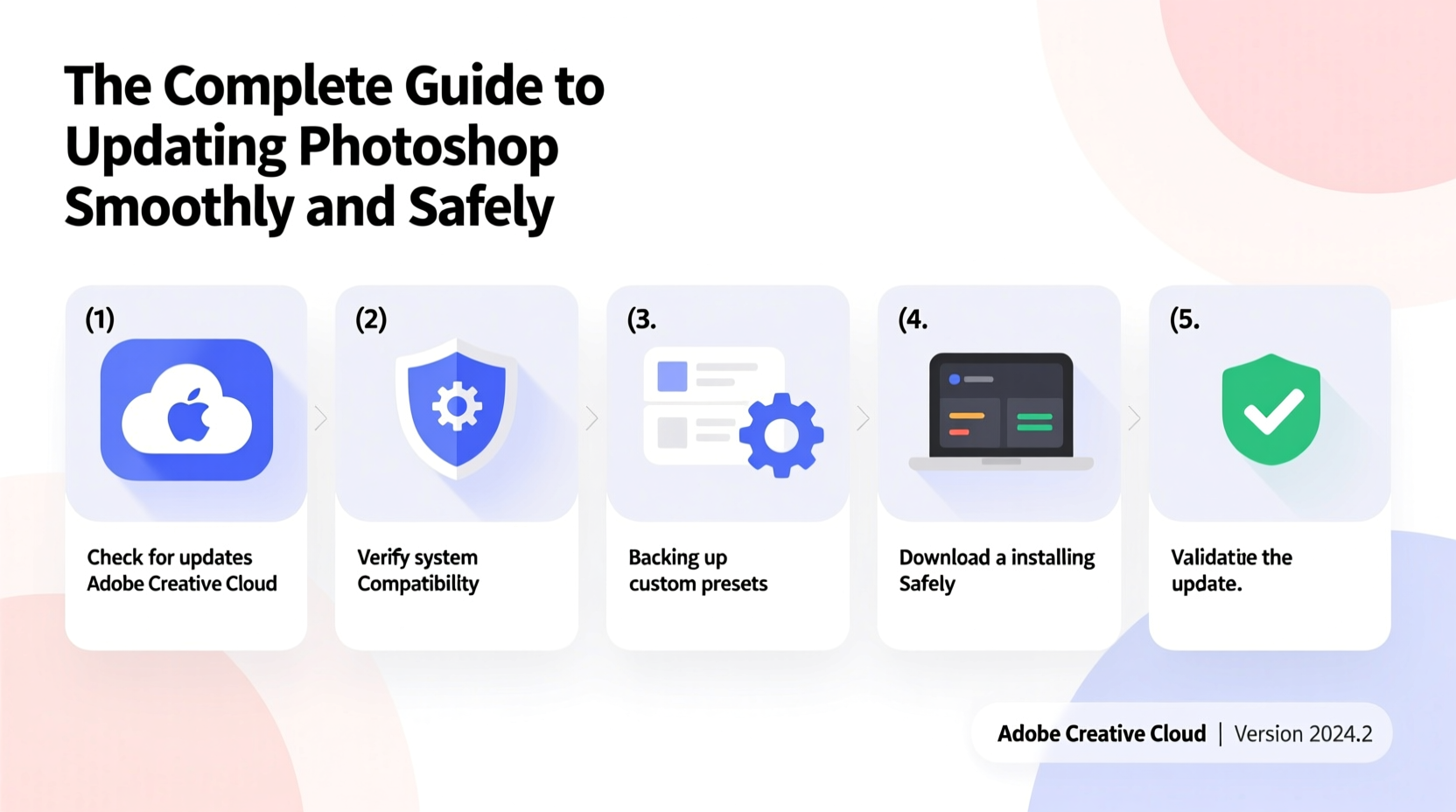
Staying current with Photoshop updates isn’t just about accessing new brushes or AI-powered features. Updates often include critical fixes for security vulnerabilities, improved compatibility with operating systems, and optimizations that enhance rendering speed and memory usage. According to Adobe’s 2023 Creative Cloud report, users who updated within two weeks of a release experienced 47% fewer crashes than those running outdated versions.
Yet, many users delay updates due to fear of instability. The solution isn’t avoidance—it’s preparation. A well-managed update protects your work, improves efficiency, and ensures you're ready when collaboration or client demands require the latest tools.
Step-by-Step: Preparing for Your Photoshop Update
Before initiating any update, take deliberate steps to safeguard your system and creative environment. Rushing into an update without backup or assessment can result in lost presets, incompatible plugins, or even corrupted installations.
- Check System Compatibility: Visit Adobe’s official support page to confirm your OS version (Windows or macOS) meets the minimum requirements for the latest Photoshop build.
- Back Up Your Work: Ensure all active projects are saved and backed up externally or to cloud storage like Adobe Creative Cloud, Dropbox, or Google Drive.
- Export Presets and Settings: Save custom brushes, actions, color swatches, and workspace layouts. Go to Edit > Presets > Export/Import Presets to archive them locally.
- Deactivate Third-Party Plugins Temporarily: Some plugins may not be compatible immediately after an update. Disable them before updating, then re-enable one at a time afterward.
- Free Up Disk Space: Photoshop updates typically require 2–4 GB of free space. Clear temporary files and empty your recycle bin to avoid installation failures.
Real Example: What Happens Without Preparation?
A freelance designer once skipped backing up her custom brush library before updating to Photoshop 2024. After the update completed, she discovered her third-party brush manager failed to load, and several .abr files were corrupted during migration. It took over six hours to manually reinstall and reorganize more than 200 brushes—time she could have spent on billable work. Her mistake wasn’t the update itself but the lack of foresight.
“Updating creative software should feel like routine maintenance, not emergency surgery. Plan ahead, and the process becomes effortless.” — Daniel Park, Senior Digital Imaging Specialist at Adobe Partner Network
Executing the Update Safely
With preparations complete, it’s time to begin the actual update. Whether you’re using the Creative Cloud desktop app or manually downloading the installer, follow this sequence to minimize risks.
Recommended Update Process
- Open the Adobe Creative Cloud application on your computer.
- Navigate to the Apps tab and locate Photoshop under “Installed” or “Updates Available.” <3>If prompted, click Update. If no prompt appears, click the three-dot menu and select “Update” manually.
- Allow the download to complete uninterrupted. Avoid shutting down your machine or putting it to sleep.
- When prompted, restart Photoshop. The first launch after an update may take longer as caches rebuild.
- Verify functionality: Open a test file, use key tools (e.g., Clone Stamp, Pen Tool), and check layer blending modes.
Post-Update Checklist
After successfully installing the update, don’t assume everything is functioning normally. Use this checklist to verify stability and restore your personalized setup.
- ✅ Confirm Photoshop launches without errors
- ✅ Reinstall and test third-party plugins one by one
- ✅ Restore imported presets and verify they appear in menus
- ✅ Check GPU acceleration settings (Edit > Preferences > Performance)
- ✅ Review font lists—if missing, refresh via Type > Font Preview Size
- ✅ Test export functions (Save As, Export As, Quick Export)
- ✅ Monitor RAM and scratch disk usage under heavy loads
Common Pitfalls and How to Avoid Them
Even with careful planning, some users encounter obstacles. Below is a comparison of common mistakes versus best practices.
| Don’t | Do Instead |
|---|---|
| Update while working on a deadline project | Wait until you’ve saved and closed active files |
| Ignore error logs during installation | Review log files located in C:\\Program Files\\Common Files\\Adobe\\Installers\\ (Windows) or /Library/Logs/Adobe/Installers/ (macOS) |
| Assume all plugins will work post-update | Contact plugin developers for compatibility confirmation; look for updated installers |
| Skip clearing Photoshop cache | Purge caches via Edit > Purge > All after first launch |
| Run multiple Adobe app updates simultaneously | Update one app at a time to isolate potential conflicts |
Frequently Asked Questions
Can I roll back to an older version of Photoshop if the update causes problems?
Yes, but only if you haven’t uninstalled the previous version. Adobe allows reinstallation of prior builds via the Creative Cloud app—click the three-dot menu next to Photoshop and choose “Other Versions.” Note: Older versions may lose access to cloud-synced assets or newer file formats over time.
Will my actions and keyboard shortcuts still work after updating?
In most cases, yes. Photoshop preserves user-defined settings across updates. However, if you notice missing actions, re-import your exported set. Also, check Edit > Keyboard Shortcuts to ensure no defaults were reset.
How often should I update Photoshop?
Adobe releases minor updates monthly and major feature updates quarterly. For optimal performance and security, apply updates within 30 days of release. Delaying beyond 60 days increases exposure to bugs and compatibility issues with other apps like Illustrator or Premiere Pro.
Final Recommendations for Long-Term Stability
To make future updates smoother, integrate proactive habits into your workflow. Schedule quarterly “maintenance windows” where you review plugin status, clean preference files, and validate backups. Consider maintaining a secondary user profile or virtual machine solely for testing updates before deploying them on your primary design rig.
Additionally, enable automatic notifications in the Creative Cloud app so you’re alerted early. This gives you time to prepare rather than react under pressure.
“The best designers aren’t just skilled with tools—they’re disciplined about tool management.” — Lila Torres, Lead UX Designer at Studio Nova Labs
Conclusion: Stay Current, Stay Confident
Updating Photoshop doesn’t need to be stressful. With a structured approach—backing up assets, verifying compatibility, following a clear update path, and validating results—you transform what could be a risky operation into a routine enhancement. Each update brings improved performance, new creative possibilities, and stronger protection against threats. Don’t let fear of change hold you back from progress.




 浙公网安备
33010002000092号
浙公网安备
33010002000092号 浙B2-20120091-4
Comments
No comments yet. Why don't you start the discussion?