
Facebook remains one of the most widely used social platforms globally, connecting billions of users. But with great connectivity comes responsibility—especially when it comes to managing your digital footprint. Whether you're concerned about data misuse, unwanted attention, or simply want a cleaner, more accurate online identity, regularly updating your Facebook profile and privacy settings is essential. This guide walks you through every critical step to take control of your information, appearance, and audience reach on the platform.
Why Updating Your Profile and Privacy Matters
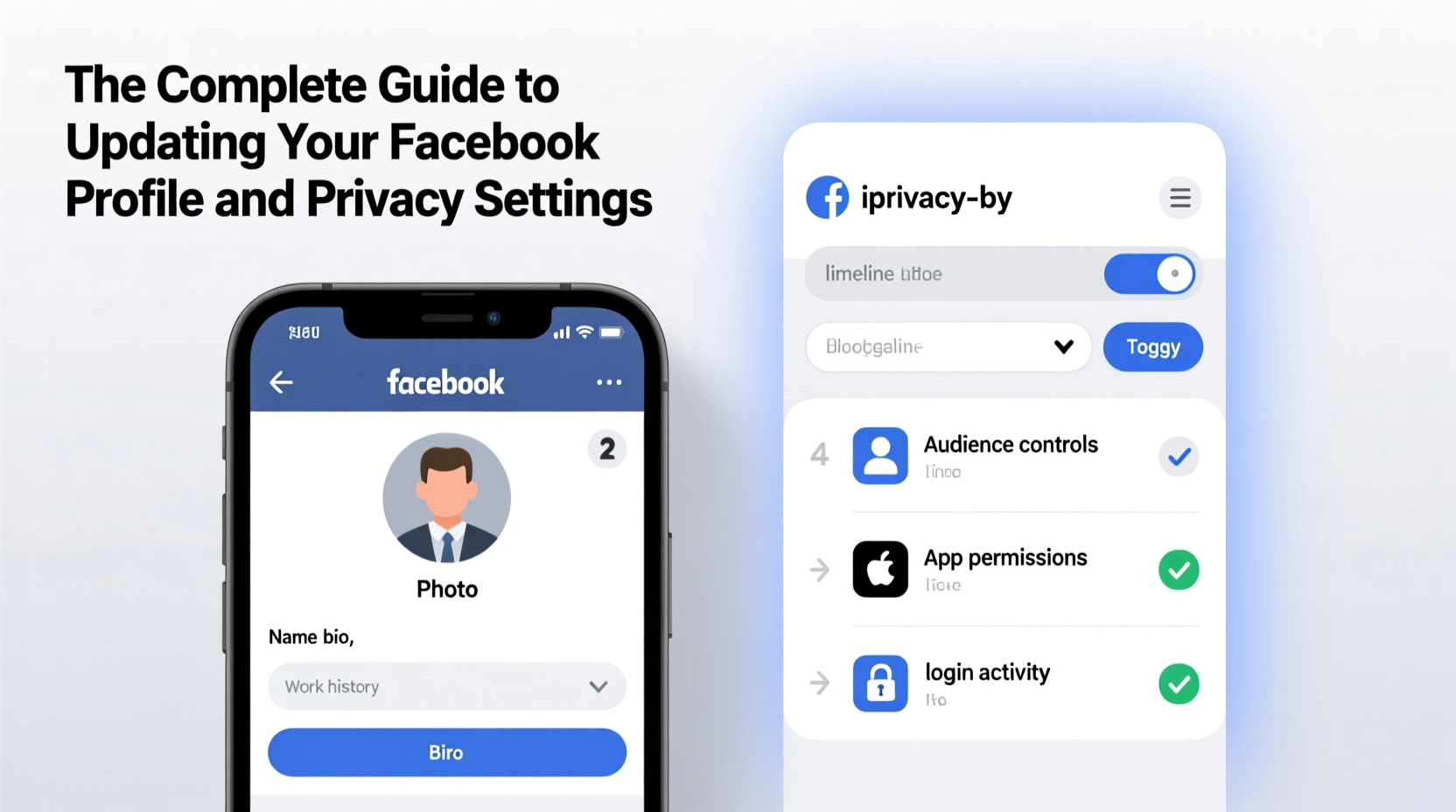
Your Facebook presence isn't just a digital calling card—it's often the first impression people form about you. Recruiters, friends, family, and even strangers may view your profile. Outdated photos, incorrect details, or overly public posts can misrepresent who you are today. Beyond image management, privacy settings determine who sees your activity, location, friend list, and personal milestones. Without regular updates, you risk oversharing unintentionally or exposing sensitive data to advertisers, scammers, or ex-partners.
“Most users don’t realize how much of their daily behavior is tracked and accessible. Taking 30 minutes to review settings can significantly reduce digital exposure.” — Dr. Lena Patel, Cybersecurity Researcher at Digital Trust Institute
Step-by-Step: Refreshing Your Facebook Profile
A polished profile builds credibility and ensures accuracy. Follow this timeline to update your information methodically:
- Review your profile picture and cover photo: Choose images that reflect your current life or brand. Avoid outdated or low-quality visuals.
- Edit your bio and About section: Update your workplace, education, relationship status, and hometown if they’ve changed.
- Clean up past posts: Scroll through old content. Consider deleting or untagging yourself from posts that no longer align with your values.
- Curate featured sections: Use the “Featured” area to highlight important posts, skills, or volunteer work.
- Check your username: A custom URL (facebook.com/yourname) makes sharing easier and looks more professional.
Mastering Facebook Privacy Settings
Privacy settings govern who sees what on your profile. They’re not set-and-forget; algorithms and policies change frequently. Here’s how to stay in control:
Adjust Who Sees Your Future Posts
Navigate to Settings & Privacy > Privacy Shortcuts. Under “Who can see my future posts?”, select your preferred audience: Public, Friends, or a custom list. Defaulting to “Friends” is safer than “Public” unless you’re building a public-facing brand.
Limit Past Post Visibility
If years of public posts make you uneasy, use the “Limit Past Posts” tool. This instantly changes all previous public or friends-of-friends posts to “Friends only.” It doesn’t delete anything—just restricts visibility.
Manage Tagging and Timeline Approvals
Go to Settings > Profile and Tagging. Enable “Review posts you're tagged in before they appear on your timeline” and “Manually approve tags people add to your posts.” These prevent others from attaching your name to content without consent.
Control Search Engine Links
In Settings > Privacy, find “Do you want search engines outside of Facebook to link to your profile?” Disable this to stop Google and Bing from indexing your profile.
Review Location and Camera Settings
If you use Facebook’s mobile app, disable location tagging in posts unless necessary. Also, check app permissions on your phone to limit access to your camera, microphone, and contacts.
Privacy Do’s and Don’ts: Quick Reference Table
| Action | Do | Don’t |
|---|---|---|
| Sharing personal info | Share birthdays, emails, and phone numbers with “Only Me” | Post your full address or ID numbers publicly |
| Friend requests | Accept only from people you know personally | Add strangers just to boost friend count |
| App permissions | Remove unused third-party apps linked to Facebook | Allow games or quizzes full profile access |
| Location sharing | Use “Live Location” sparingly and for short durations | Broadcast your home location in real time |
| Profile visibility | Use “View As” to test audience restrictions | Assume default settings protect your data |
Real Example: Maria’s Privacy Overhaul
Maria, a freelance graphic designer, noticed unfamiliar faces commenting on her personal photos. She realized her profile was set to “Public” after accepting a friend request from an old colleague who had shared her profile in a group. Embarrassed by childhood photos and political rants from years ago, she took action. She used “Limit Past Posts,” reviewed her tagging settings, removed third-party apps like horoscope quizzes, and switched her future posts to “Friends.” She also updated her profile picture and About section to reflect her current profession. Within a week, engagement from unknown accounts dropped to zero, and potential clients began reaching out through her cleaner, more professional presence.
Essential Checklist: Secure Your Facebook Account Today
- ✅ Update profile picture and cover photo
- ✅ Verify and correct all information in the About section
- ✅ Use “Limit Past Posts” to restrict old content
- ✅ Set default audience for new posts to “Friends”
- ✅ Enable post and tag approval controls
- ✅ Remove unnecessary third-party app connections
- ✅ Disable search engine linking to your profile
- ✅ Review active sessions and log out of unrecognized devices
- ✅ Turn off location tracking in posts and settings
- ✅ Create a trusted contact for account recovery
Frequently Asked Questions
Can someone see if I view their Facebook profile?
No, Facebook does not notify users when you view their profile. Third-party apps claiming to offer this feature are scams and should be avoided.
How do I stop Facebook from suggesting me in “People You May Know”?
Go to Settings > Privacy > How People Find and Contact You. Under “Who can send you friend requests?”, set it to “Friends of Friends.” Then, disable “Let others see where you work or go to school in People You May Know.”
Is it safe to use Facebook for professional networking?
Yes, but only if you maintain strict privacy boundaries. Consider creating a separate professional page or using LinkedIn instead. If using your personal profile, customize audience settings for each post and avoid sharing confidential client or business information.
Take Control of Your Digital Identity
Your Facebook profile is more than a social space—it's part of your permanent digital record. The settings you choose today can impact job opportunities, personal relationships, and even your safety. By dedicating time to update your profile and tighten privacy controls, you reclaim authority over your online narrative. Small adjustments compound into significant protection over time. Don’t wait for a privacy breach or awkward post resurfacing to act.




 浙公网安备
33010002000092号
浙公网安备
33010002000092号 浙B2-20120091-4
Comments
No comments yet. Why don't you start the discussion?