
Gaming on a PC doesn’t mean sacrificing the comfort and familiarity of a console-style controller. The Xbox Wireless Controller—whether from the Xbox Series X|S, Xbox One, or even older models—offers precise inputs, ergonomic design, and wide compatibility across Windows systems. With minimal setup, you can transform your PC into a console-like experience. This guide walks you through every step: connecting your controller, optimizing settings, troubleshooting issues, and unlocking advanced features that enhance gameplay across genres.
How to Connect Your Xbox Controller to PC
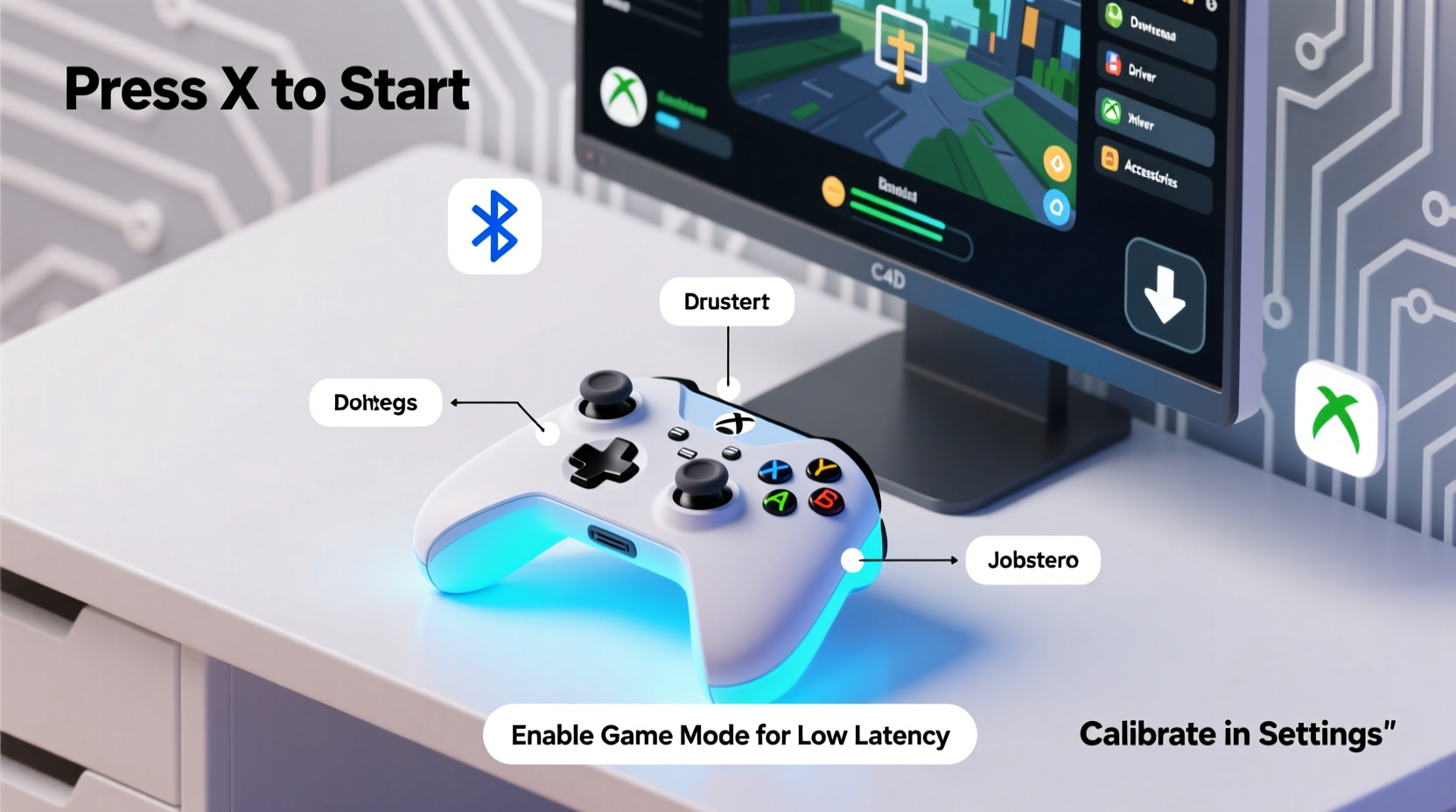
The first step to seamless gaming is establishing a reliable connection. Depending on your hardware, you have three primary options: USB wired, Bluetooth, or Xbox Wireless Adapter. Each has trade-offs in latency, convenience, and compatibility.
- Wired (USB): Plug the controller directly into your PC using a micro-USB or USB-C cable (depending on model). This method guarantees zero input lag and continuous power, ideal for competitive play or long sessions.
- Bluetooth (Built-in or Dongle): Most newer Xbox controllers support Bluetooth. Enable pairing mode by holding the Pair button (top edge) until the Xbox logo flashes rapidly. Then go to Settings > Devices > Bluetooth & other devices in Windows and select “Add Bluetooth or other device.” Choose Bluetooth and wait for “Xbox Wireless Controller” to appear.
- Xbox Wireless Adapter: For true wireless performance matching console quality, Microsoft’s official adapter supports up to eight controllers simultaneously, with lower latency and better interference resistance than standard Bluetooth.
Driver and Software Requirements
Windows 10 and 11 natively support Xbox controllers via built-in drivers. In most cases, no additional software installation is required. However, for optimal performance and customization, install the Xbox Accessories app from the Microsoft Store.
This application allows firmware updates, button remapping, sensitivity adjustments, and profile saving. It also shows battery level and connection status. Older systems running Windows 7 or 8 may require manual driver downloads from Microsoft’s support site, though these are no longer officially updated.
Essential Updates Checklist
- Ensure Windows is up to date (Settings > Update & Security)
- Install the Xbox Accessories app
- Check for controller firmware updates within the app
- Verify USB ports are functioning properly if using wired mode
Optimizing Controller Settings for Better Gameplay
Out-of-the-box functionality works well, but fine-tuning elevates control precision. Using the Xbox Accessories app, you can customize thumbstick sensitivity curves, adjust trigger dead zones, and reassign buttons based on game genre or personal preference.
For example, in fast-paced shooters, reducing trigger response time can improve reaction speed. In racing games, increasing left stick sensitivity helps with steering finesse. You can save multiple profiles and switch between them depending on what you're playing.
| Game Genre | Recommended Adjustment | Rationale |
|---|---|---|
| FPS (e.g., Call of Duty) | Shorten trigger pull distance | Faster shooting response |
| Racing (e.g., Forza Horizon) | Increase right stick sensitivity | Better camera control during high-speed turns |
| Platformers (e.g., Celeste) | Reduce left stick dead zone | More responsive jumping and movement |
| Strategy/RPG (e.g., Baldur’s Gate 3) | Remap View/Menu buttons to back paddles (Elite controllers) | Quicker access to maps and inventories |
Troubleshooting Common Connection Issues
Even with native support, occasional hiccups occur. Here’s how to resolve frequent problems:
- Controller not detected: Restart Bluetooth service or try a different USB port. Re-pair the device after forgetting it in Bluetooth settings.
- Intermittent disconnects: Interference from Wi-Fi routers or USB 3.0 devices can disrupt signals. Move the adapter away from such sources or use shielded cables.
- Low battery warnings despite fresh batteries: Clean battery contacts or reset the controller by pressing the small reset button near the L bumper.
- Input lag over Bluetooth: Upgrade to the Xbox Wireless Adapter for reduced latency and more stable connections.
“We’ve seen up to a 30% improvement in wireless responsiveness when switching from Bluetooth to the official Xbox Wireless Adapter.” — David Lin, Senior Hardware Engineer at Razer
Real-World Example: Transitioning from Keyboard to Controller
Jamie, a longtime PC gamer used to WASD controls, decided to try an Xbox controller for Elden Ring after hearing about smoother combat flow. Initially, she struggled with menu navigation and camera control. After calibrating the right stick’s sensitivity and enabling rumble feedback, her accuracy improved significantly. She later discovered rebinding the map button to the View key made exploration faster. Within two weeks, she completed challenging boss fights she’d previously failed dozens of times. Her experience highlights how proper setup—not just the hardware—makes the difference.
Advanced Tips for Competitive and Casual Gamers
Whether you’re grinding ranked matches or enjoying story-driven adventures, these strategies help maximize comfort and performance:
- Enable Game Bar for quick recording: Press Win + G to open Xbox Game Bar and capture clips without third-party software.
- Use Steam Input for deeper customization: Steam’s configuration interface supports advanced macros, gyro controls (for compatible mice), and even touchpad emulation.
- Map keyboard shortcuts to controller buttons: Tools like JoyToKey or reWASD allow full remapping for non-game applications or titles lacking native controller support.
- Test input delay: Use online tools like LatencyMon or in-game benchmarks to measure frame pacing and ensure smooth responsiveness.
Frequently Asked Questions
Can I use my Xbox controller on any PC game?
Most modern games support Xbox controllers automatically through DirectInput or XInput APIs. Older titles or niche indie games may require wrappers like x360ce to emulate Xbox 360 controller input. Always check community forums for compatibility fixes.
Do all Xbox controllers work with Bluetooth?
No. Only Xbox Wireless Controllers released after 2016 (with the updated design featuring a 3.5mm jack and textured grip) support Bluetooth. Original Xbox One controllers require a wired connection or the official wireless adapter.
How do I know which version of the controller I own?
Check the model number on the back. If it starts with 1914, it includes Bluetooth. Alternatively, look for the presence of a 3.5mm headset jack—if present, it’s Bluetooth-enabled.
Final Thoughts: Elevate Your PC Gaming Experience
An Xbox controller brings console-grade comfort and consistency to your PC setup. From plug-and-play simplicity to deep customization, the flexibility it offers enhances both casual and competitive experiences. Whether you're navigating vast RPG worlds, racing at top speed, or aiming down sights in multiplayer arenas, taking the time to set up your controller correctly pays off in precision, comfort, and enjoyment.




 浙公网安备
33010002000092号
浙公网安备
33010002000092号 浙B2-20120091-4
Comments
No comments yet. Why don't you start the discussion?