
Knowing your computer's specifications is essential whether you're upgrading hardware, troubleshooting performance issues, installing new software, or building a gaming rig. Many users assume this requires technical expertise or third-party tools, but Windows, macOS, and Linux offer multiple built-in ways to access detailed system information. This guide walks you through every reliable method—simple, fast, and accurate—so you can understand exactly what’s under the hood.
Why Knowing Your PC Specs Matters
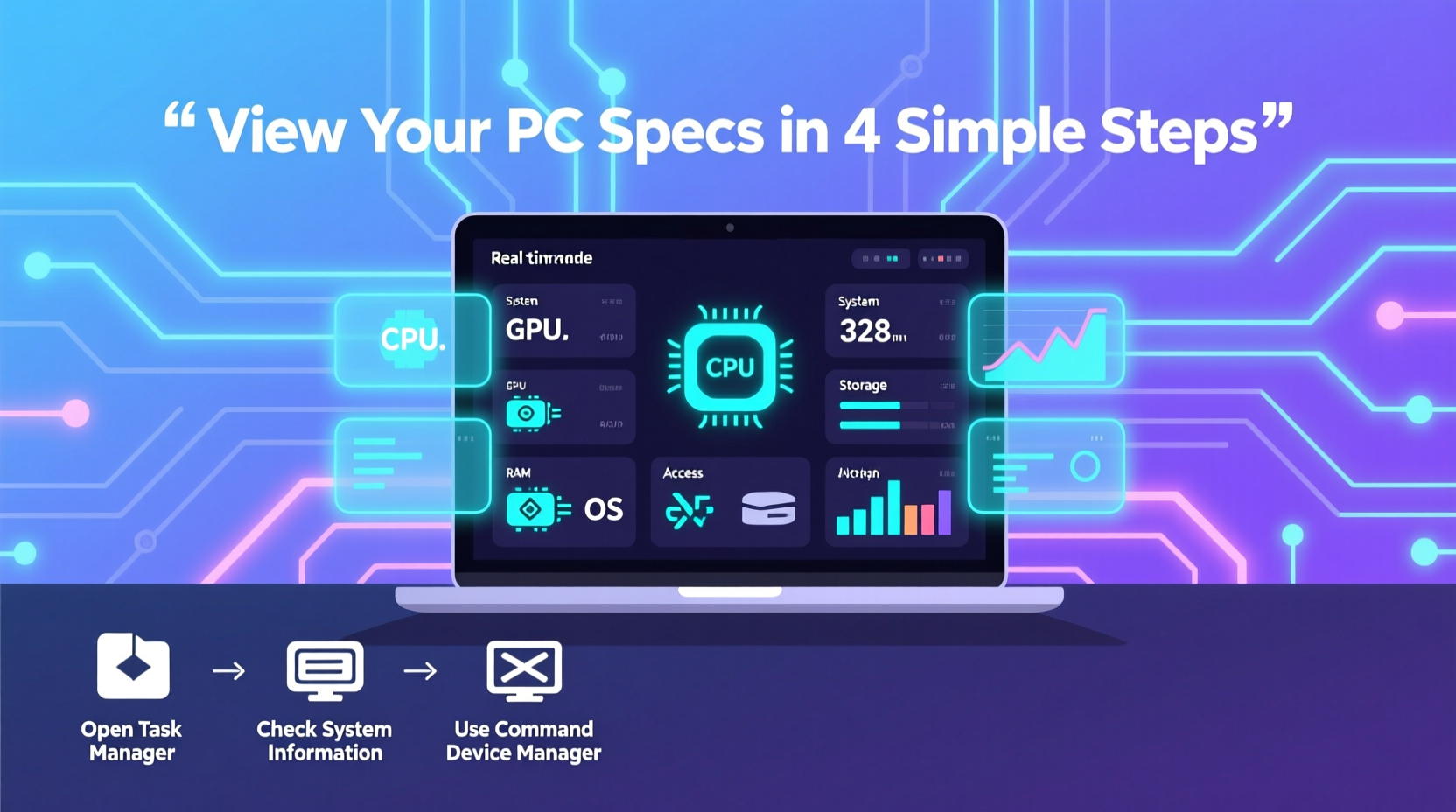
Your PC isn't just a single device; it's a collection of components working in unison. The processor handles calculations, RAM manages active tasks, storage determines load times, and the graphics card renders visuals. When one component lags, the entire system suffers. Understanding your specs helps you:
- Determine if your system meets software or game requirements
- Identify bottlenecks affecting performance
- Make informed decisions when upgrading or replacing parts
- Troubleshoot crashes, overheating, or compatibility errors
- Sell or donate your machine with accurate documentation
“Accurate hardware knowledge is the foundation of smart computing decisions.” — Dr. Alan Reyes, Systems Architect at TechInsight Labs
How to Check PC Specs on Windows
Windows offers several user-friendly ways to view system information without downloading additional software.
Using System Information (msinfo32)
This built-in utility provides a comprehensive overview of your system’s hardware and software environment.
- Press Windows + R to open the Run dialog.
- Type
msinfo32and press Enter. - Review details like system model, BIOS version, processor, RAM, and boot device.
Through Settings App
The modern Settings interface gives a simplified but useful summary.
- Click Start > Settings > System > About.
- Under \"Device specifications,\" you’ll see:
- Processor
- Installed RAM
- Device ID
- System type (32-bit or 64-bit)
Using Task Manager
Task Manager not only monitors performance but also reveals real-time hardware stats.
- Right-click the taskbar and select Task Manager.
- If needed, click “More details” at the bottom.
- Navigate to the Performance tab.
- View live data for CPU, Memory, Disk, GPU, and Wi-Fi usage.
Each section shows clock speed, core count, memory capacity, and utilization trends.
Command Line Methods
For advanced users, command-line tools provide scriptable and precise output.
- systeminfo: Type
systeminfoin Command Prompt for a full report including OS configuration, network cards, and hotfixes. - wmic: Try commands like:
wmic cpu get name– Shows CPU modelwmic memorychip get capacity– Lists RAM size per stickwmic diskdrive get model,size– Displays storage devices
Checking Specs on macOS and Linux
Apple and Linux systems also provide native tools to inspect hardware without external software.
macOS: About This Mac and System Report
- Click the Apple logo in the top-left corner.
- Select About This Mac.
- View processor, memory, macOS version, and serial number.
- Click System Report… for deeper insights into USB devices, battery health, graphics, and more.
This tool is especially useful for MacBook owners checking SSD capacity or GPU capabilities before video editing or gaming.
Linux: Terminal Commands and GUI Tools
Most Linux distributions include both graphical and terminal-based options.
- GUI Method: Open “Settings” > “About” for basic info.
- Terminal Commands:
lscpu– CPU architecture and core countfree -h– Human-readable RAM usagelsblkordf -h– Storage layout and available spacelspci | grep -i vga– Graphics card model
These commands are invaluable for developers, server admins, or anyone running headless systems.
Third-Party Tools for Advanced Users
While built-in tools cover basics, specialized utilities deliver granular detail and monitoring features.
| Tool | Platform | Key Features | Best For |
|---|---|---|---|
| CPU-Z | Windows | Detailed CPU, motherboard, RAM, and GPU clocks | Overclockers, upgraders |
| GPU-Z | Windows | Real-time GPU temps, fan speed, VRAM usage | Gamers, renderers |
| HWInfo | Windows | Comprehensive sensor monitoring and logging | System diagnostics |
| Belarc Advisor | Windows | Generates a detailed profile including installed software and security patches | IT professionals |
Mini Case Study: Upgrading an Old Laptop
Sarah, a freelance graphic designer, noticed her laptop struggled with Adobe Photoshop. Before buying a new machine, she checked her specs using msinfo32. She discovered she had only 4GB of RAM and a dual-core Intel i3 processor. After researching minimum requirements, she upgraded to 16GB of RAM and saw a dramatic improvement in multitasking and export speeds. The cost was under $80—far less than a new laptop. Her experience underscores that knowing your specs can save money and extend device life.
Step-by-Step Checklist: How to Audit Your PC in 10 Minutes
Follow this checklist to quickly gather all critical system information:
- Open System Info: Press Win + R, type
msinfo32, and note down system model and BIOS version. - Check Processor & RAM: Go to Settings > System > About and record CPU and memory size.
- Assess Graphics: In Task Manager > Performance, check GPU usage and dedicated memory.
- Review Storage: Open File Explorer and check drive sizes under “This PC.”
- Verify Bit Version: Confirm if your OS is 32-bit or 64-bit in the same About section.
- Use a Third-Party Tool (Optional): Install CPU-Z to validate clock speeds and core count.
- Save the Data: Take screenshots or copy-paste into a document for future reference.
Frequently Asked Questions
How do I know if my PC supports 64-bit applications?
In Windows, go to Settings > System > About. Under “System type,” it will state either “64-bit operating system” or “32-bit.” Most PCs made after 2008 support 64-bit, which allows access to more than 4GB of RAM.
Can I view my GPU temperature without extra software?
Windows does not natively display GPU temperatures. You’ll need tools like HWInfo or MSI Afterburner to monitor thermal performance, especially during gaming or rendering.
Is it safe to use command-line tools like wmic?
Yes. Commands like wmic and systeminfo are read-only and pose no risk to your system. They simply retrieve existing data from the operating system.
Final Thoughts and Action Steps
Understanding your PC’s specifications doesn’t require technical wizardry. Whether you’re using built-in tools like System Information or diving deep with CPU-Z, the information is readily available. Taking ten minutes to audit your system empowers you to make smarter choices about upgrades, software compatibility, and performance tuning. Don’t guess—know your machine.




 浙公网安备
33010002000092号
浙公网安备
33010002000092号 浙B2-20120091-4
Comments
No comments yet. Why don't you start the discussion?