
Bluetooth technology has transformed the way we interact with our devices. On the iPad, it unlocks a world of wireless freedom—connecting to headphones, speakers, keyboards, mice, and even fitness trackers. Yet, despite its widespread use, many users encounter hiccups during setup or struggle to maintain stable connections. Understanding how to properly configure and manage Bluetooth on your iPad is not just convenient; it's essential for maximizing productivity, entertainment, and mobility.
This guide walks you through every step of establishing reliable Bluetooth connections, troubleshooting common issues, and optimizing performance across different accessories. Whether you're using an iPad for work, creativity, or relaxation, mastering Bluetooth ensures a smoother, more intuitive experience.
Understanding Bluetooth on iPad: What You Need to Know
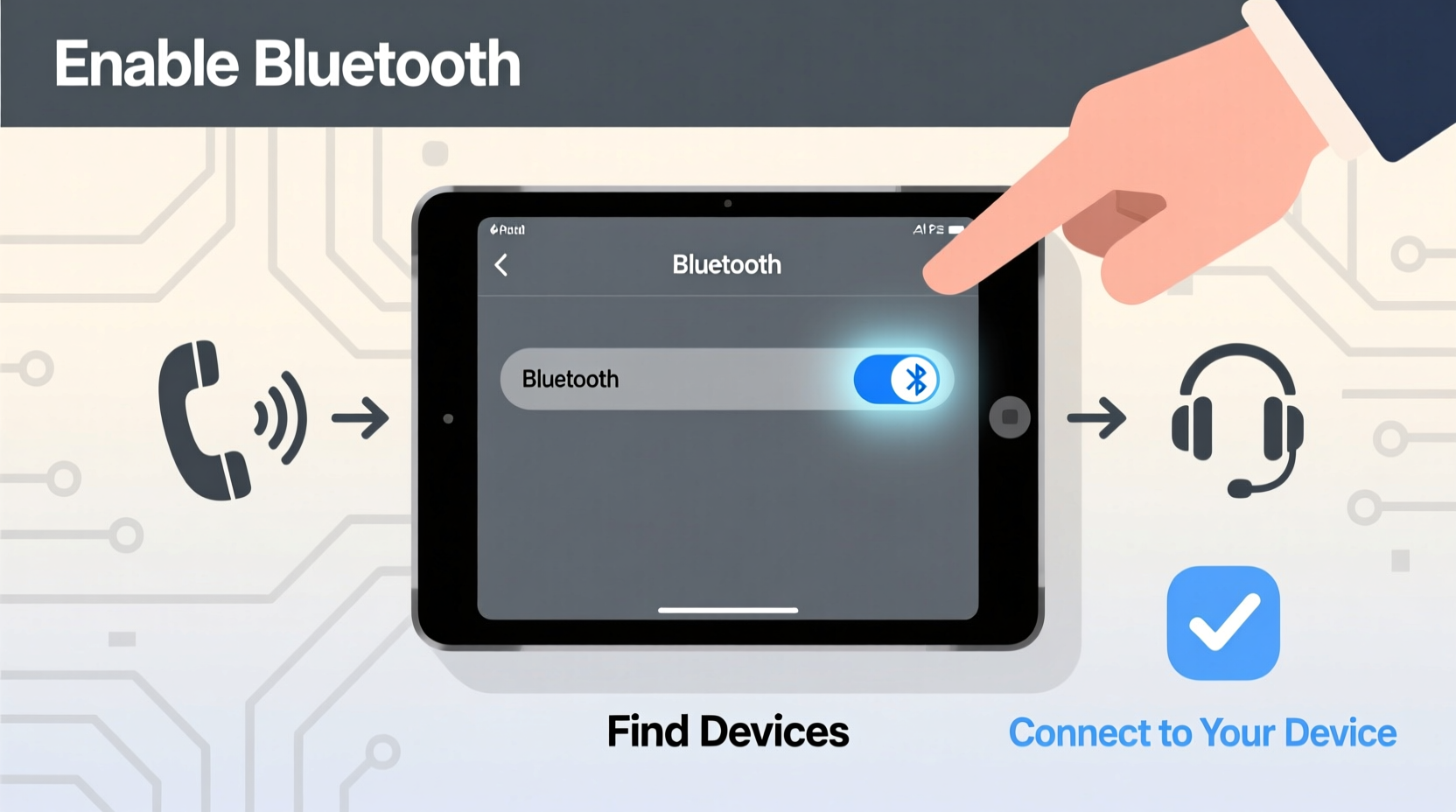
iPad models have supported Bluetooth since the first generation, with modern versions utilizing Bluetooth 5.0 or later on recent devices like the iPad Air (4th gen and later) and iPad Pro models. This newer standard offers faster pairing, extended range (up to 240 feet in ideal conditions), and improved power efficiency—critical for maintaining long-term connections with peripherals.
Apple integrates Bluetooth deeply into iPadOS, allowing seamless handoff between Apple devices via Continuity features. For example, switching audio from iPhone to iPad happens automatically when both are signed into the same iCloud account and in proximity. However, third-party devices require manual pairing and occasional reconfiguration.
Before connecting any device, ensure your iPad is updated to the latest version of iPadOS. Firmware updates often include stability improvements for Bluetooth stacks and expanded compatibility with new hardware.
Step-by-Step Guide to Pairing Bluetooth Devices
Pairing a Bluetooth accessory follows a consistent process regardless of the type of device. Here’s a universal timeline that applies to most use cases:
- Prepare the accessory: Turn on the Bluetooth device and place it in pairing mode. This usually involves holding down a power button for 5–10 seconds until an LED blinks rapidly.
- Open Settings on your iPad: Tap the Settings app from your home screen.
- Navigate to Bluetooth: Select “Bluetooth” from the menu. Ensure it is toggled on.
- Wait for detection: After a few seconds, your accessory should appear under “Other Devices.” Tap its name.
- Confirm connection: Some devices may prompt you to enter a PIN (often 0000 or 1234) or confirm a code displayed on both screens.
- Test functionality: Play audio through headphones, type on a keyboard, or scroll with a mouse to verify the link works.
Once paired, the device will reconnect automatically whenever it's within range and powered on. The iPad can store multiple paired devices but typically connects to only one at a time per category (e.g., one audio output, one input device).
Real Example: Connecting Wireless Earbuds
Sophia uses her iPad daily for video calls and audiobooks. She recently bought AirPods Pro but mistakenly tried connecting them via the Music app instead of Settings. After opening Bluetooth settings and placing the earbuds in pairing mode by pressing the case button, they appeared instantly. Within seconds, she was enjoying noise-canceling audio without tangled wires. When she later switched to her iPhone, the transition happened seamlessly thanks to iCloud syncing.
Optimizing Bluetooth Performance and Stability
A successful initial connection doesn’t guarantee flawless long-term performance. Interference, outdated firmware, and physical obstructions can degrade signal quality. Consider these best practices to maintain strong, uninterrupted links:
- Keep your iPad and accessory within 30 feet and free of thick walls or metal barriers.
- Avoid overcrowding the 2.4 GHz band—limit nearby Wi-Fi routers, microwaves, or cordless phones during critical tasks.
- Charge both devices fully before extended use; low battery can weaken transmission strength.
- Remove unused paired devices from Settings > Bluetooth to reduce clutter and potential conflicts.
“Bluetooth reliability hinges on clean signal paths and proper device management. Users who regularly update software and minimize interference report significantly fewer dropouts.” — Dr. Lena Torres, Wireless Systems Engineer at Mobile Insights Group
Tips for Specific Device Types
| Device Type | Best Practice | Common Pitfall |
|---|---|---|
| Headphones/Speakers | Use AAC codec-compatible models for better audio fidelity | Expecting full spatial audio without H1/W1 chip support |
| Keyboards | Pair via Bluetooth menu, not Smart Connector (unless magnetic) | Leaving keyboard on drains battery even when idle |
| Mice & Trackpads | Enable pointer customization in Accessibility settings | Forgetting to disable when not in use |
| Fitness Devices | Sync via Health app after Bluetooth pairing | Not granting necessary permissions post-pairing |
Do’s and Don’ts of iPad Bluetooth Management
To prevent frustration and extend accessory lifespan, follow these guidelines:
| Do | Don’t |
|---|---|
| Update iPadOS and accessory firmware regularly | Assume all Bluetooth devices support every feature (e.g., Siri voice commands) |
| Label devices in Bluetooth settings (e.g., “Work Keyboard”) | Leave Bluetooth on constantly if rarely used—it drains battery |
| Use Find My to locate lost Bluetooth accessories (if supported) | Pair unknown public devices—they could be malicious |
| Reboot both devices if experiencing persistent lag | Ignore error messages like “Not Connected” or “Failed to Pair” |
FAQ: Common Bluetooth Questions Answered
Why won’t my Bluetooth device show up on my iPad?
The most common reasons include: the device isn't in pairing mode, it's already connected to another device, Bluetooth is disabled on the iPad, or the accessory needs charging. Double-check the user manual for correct pairing procedures and reset the Bluetooth module by toggling it off and on again in Settings.
Can I connect multiple Bluetooth devices at once?
Yes, but with limitations. You can pair several devices (keyboards, headphones, etc.), but only one audio output and one input device operate simultaneously. For instance, you can use Bluetooth headphones while typing on a wireless keyboard, but you cannot stream audio to two separate speakers at the same time natively.
How do I remove a Bluetooth device from my iPad?
Go to Settings > Bluetooth, tap the “i” icon next to the device name, then select “Forget This Device.” This clears all pairing data and resolves many connection errors.
Checklist: Mastering Bluetooth Setup in 7 Steps
- ✅ Update your iPad to the latest iPadOS version
- ✅ Charge both the iPad and the Bluetooth accessory
- ✅ Enable Bluetooth in Settings
- ✅ Put the external device in discoverable/paring mode
- ✅ Select the device from the list under “Other Devices”
- ✅ Confirm pairing code if prompted
- ✅ Test functionality and rename the device for easy identification
Conclusion: Take Control of Your Wireless Experience
Setting up Bluetooth on your iPad shouldn’t be a source of frustration. With the right knowledge, it becomes a gateway to enhanced usability, comfort, and flexibility. From crisp audio sessions to efficient typing on foldable keyboards, a well-managed Bluetooth ecosystem elevates how you work, learn, and play.
Now that you understand the fundamentals—from pairing protocols to performance tuning—you’re equipped to build a reliable network of wireless tools around your iPad. Apply these insights today, revisit the checklist when adding new gear, and enjoy truly seamless connectivity.




 浙公网安备
33010002000092号
浙公网安备
33010002000092号 浙B2-20120091-4
Comments
No comments yet. Why don't you start the discussion?