
If your laptop dies halfway through the workday—despite a full charge that morning—you’re not imagining things. Battery degradation and poor power management are common issues affecting users across brands and models. While some slowdown is natural over time, rapid drainage often points to specific, fixable causes. The good news? Most of these problems aren’t permanent hardware failures. They stem from software settings, usage patterns, or overlooked background processes that can be corrected with minimal effort.
Understanding what’s really draining your battery goes beyond closing unused tabs. It involves knowing how modern operating systems manage power, recognizing hidden energy hogs, and adjusting both behavior and settings for optimal efficiency. Whether you're using a Windows laptop, MacBook, or Chromebook, the principles of battery preservation remain consistent—just applied differently.
Why Your Battery Isn't Lasting as Long as It Should
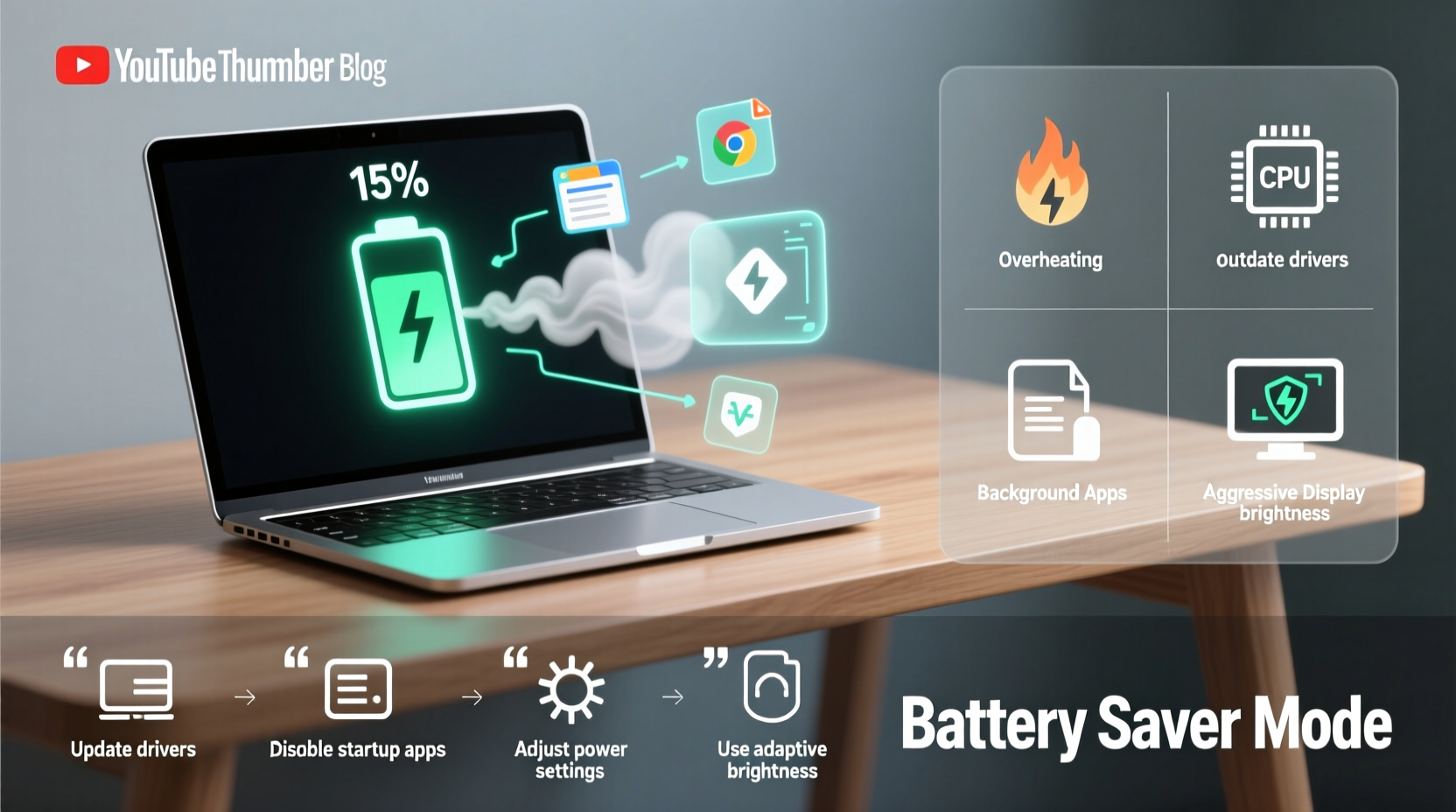
Laptop batteries don’t just “wear out” overnight. Most lithium-ion batteries are rated for 300–500 full charge cycles before capacity drops below 80%. But long before reaching that point, users notice shorter battery life due to factors other than age. The root cause often lies in how the device is used, configured, and maintained.
One major misconception is that screen brightness alone determines battery drain. While display settings do play a role, they're rarely the sole culprit. Modern laptops run dozens of background services—some essential, others unnecessary—that silently consume power even when you're not actively using the machine. Additionally, thermal throttling caused by overheating forces components to work harder, increasing power draw.
“Battery life isn’t just about capacity—it’s about efficiency. A well-tuned system can get 40% more runtime from the same battery.” — Dr. Alan Reyes, Power Systems Engineer at MIT Energy Initiative
Hidden Culprits Behind Rapid Battery Drain
Beneath the surface, several factors contribute to faster-than-expected discharge:
- Background apps and startup programs: Applications like Slack, Dropbox, Spotify, or updaters launch automatically and run continuously, syncing data and checking for updates without user input.
- Wi-Fi and Bluetooth scanning: Constantly searching for networks or devices uses significant energy, especially if signals are weak.
- Outdated drivers or firmware: Poorly optimized drivers can mismanage CPU scaling or GPU switching, leading to inefficient power use.
- High-performance mode enabled: Many laptops default to “Best Performance” instead of “Balanced” or “Power Saver,” prioritizing speed over battery.
- External peripherals: USB devices such as mice, flash drives, or external hard drives draw power directly from your laptop.
Step-by-Step Guide to Diagnose and Fix Battery Drain
Follow this timeline-based process to identify and eliminate the sources of excessive battery consumption.
- Check battery health (Day 1):
On Windows: Open Command Prompt and typepowercfg /batteryreport. This generates a detailed HTML report showing design capacity vs. full charge capacity.
On macOS: Hold Option and click the battery icon in the menu bar to view “Condition.” “Normal” means healthy; “Service Recommended” or “Replace Soon” indicates degradation. - Review active processes (Day 1–2):
Open Task Manager (Ctrl+Shift+Esc on Windows) or Activity Monitor (macOS). Sort by “Power” or “Energy Impact.” Look for apps consistently ranking high—even when idle. - Disable non-essential startup apps (Day 2):
In Windows: Go to Settings > Apps > Startup. Turn off entries like Adobe Reader, iTunes Helper, or gaming clients.
On Mac: System Settings > General > Login Items. Uncheck unnecessary apps. - Adjust power plan settings (Day 3):
Set your power plan to “Balanced” or “Power Saver.” Reduce screen timeout to 2–5 minutes. Lower brightness to 50–70% unless needed otherwise.
Enable adaptive brightness if available. - Update OS, drivers, and firmware (Day 4):
Install all pending updates. Outdated graphics drivers or BIOS versions may prevent proper sleep states or dynamic frequency scaling. - Limit background activity (Day 5):
Go to Privacy settings > Background Apps (Windows) or Battery > Options (macOS). Restrict apps from running in the background unless critical. - Monitor improvements over one week:
Use your laptop normally but track how long it lasts on a single charge. Compare results to your baseline before changes.
Do’s and Don’ts: Managing Laptop Battery Life
| Do | Don’t |
|---|---|
| Keep your laptop cool—avoid using it on beds or cushions that block vents. | Leave your laptop plugged in 24/7 when fully charged. |
| Charge between 20% and 80% for daily use to prolong cycle life. | Expose your laptop to extreme temperatures (hot cars, freezing rooms). |
| Use built-in battery saver modes during travel or long meetings. | Run intensive tasks (video editing, gaming) on battery without cooling support. |
| Turn off Wi-Fi, Bluetooth, and keyboard backlight when not needed. | Ignore battery calibration needs—letting it drop to 0% regularly harms longevity. |
Real Example: How Sarah Regained Two Extra Hours of Battery Life
Sarah, a freelance writer working remotely from cafes, noticed her Dell XPS barely lasted two hours on battery—down from five when new. She assumed the battery was failing and budgeted for a replacement. Before committing, she ran powercfg /batteryreport and discovered her battery still retained 86% of its original capacity. The issue wasn’t hardware—it was configuration.
Her investigation revealed Zoom, OneDrive, and Spotify were running constantly in the background. She also had “High Performance” mode enabled for faster typing response, which kept the CPU at peak frequency. By switching to “Balanced” mode, disabling auto-launch for non-critical apps, lowering screen brightness, and turning off Bluetooth after use, she extended her battery life to nearly four hours. No hardware change required—just smarter settings.
Optimizing Software and System Settings by Platform
Different operating systems offer unique tools to monitor and manage battery usage. Here's how to leverage them effectively:
Windows 10 & 11
Windows includes robust battery diagnostics. Access it via Settings > System > Power & Battery. Use the “Battery Usage” section to see per-app consumption over the last 24 hours or 10 days. Enable “Battery Saver” to automatically activate at 20%. For advanced users, powercfg /energy runs a 60-second analysis and flags inefficiencies like USB selective suspend disabled or processor power policy issues.
macOS
Apple provides excellent energy monitoring. Click the battery icon while holding Option to see “Time Remaining” and “Current Consumption.” In Activity Monitor, the “Energy” tab shows App Nap status and weighted scores. Enable “Optimized Battery Charging” in Battery settings to reduce wear by learning your routine and delaying full charges until needed.
Chromebooks
While simpler, Chrome OS allows basic power management. Adjust screen timeout under Device > Power. Close unused browser tabs—each tab runs as a separate process. Extensions like “The Great Suspender” can help freeze inactive tabs to save memory and power.
“Most people never touch their power settings. Just switching from ‘Best Performance’ to ‘Balanced’ can add an hour to your day.” — Lena Park, Senior Tech Support Analyst at HP
When Hardware Is Actually the Problem
Not all battery issues are software-related. If you’ve optimized settings and still face rapid drain, consider these hardware factors:
- Aging battery cells: After 2–3 years of regular use, capacity naturally declines. Replacement may be necessary.
- Faulty charging circuitry: Inconsistent charging or sudden shutdowns at 30–40% often indicate a deeper electrical issue.
- Dirty or damaged charging port: Dust or debris can interrupt charging, causing the system to draw power while plugged in inefficiently.
- Overheating due to dust buildup: Blocked fans or clogged heat sinks force the CPU to throttle, consuming more power to maintain performance.
If your battery health report shows less than 70% of original capacity, or if the system shuts down unexpectedly below 20%, professional servicing is recommended. Some manufacturers offer self-replacement guides; others require authorized repair centers.
FAQ: Common Questions About Laptop Battery Drain
Is it bad to leave my laptop plugged in all the time?
Modern laptops stop charging at 100%, but staying at full charge for extended periods increases stress on the battery. Lithium-ion cells degrade faster when held at high voltage. To mitigate this, enable features like “Battery Limit” (on Lenovo), “MyAdaptiveBattery” (Dell), or “Optimized Charging” (Apple), which cap charge at 80% when plugged in long-term.
Does closing the lid stop battery drain?
Closing the lid usually puts the laptop into sleep mode, which uses minimal power—typically 1–3% per hour. However, some background tasks (like file sync or updates) may still run. For longer idle periods, use hibernation or shut down completely.
Can a virus drain my laptop battery?
Yes. Malware that mines cryptocurrency or runs hidden processes can max out CPU usage, generating heat and rapidly depleting the battery. Run regular scans with trusted antivirus software, especially if you notice unusual fan noise or sluggish performance alongside fast drain.
Battery Maintenance Checklist
Use this checklist weekly to keep your laptop battery performing at its best:
- ✅ Check battery health status (via OS tools)
- ✅ Review top battery-consuming apps
- ✅ Disable unnecessary startup programs
- ✅ Clean desktop and close unused browser tabs
- ✅ Ensure vents are free of dust and airflow is unobstructed
- ✅ Update operating system and drivers
- ✅ Reboot your laptop at least once per week
- ✅ Avoid exposing the device to direct sunlight or hot environments
Conclusion: Take Control of Your Battery Life Today
Your laptop’s short battery life isn’t inevitable. With a few strategic adjustments, you can reclaim hours of productivity, avoid midday panic, and extend the lifespan of your device. The real reason your battery drains so fast is rarely a single factor—it’s the cumulative effect of small inefficiencies stacking up over time. By diagnosing the true causes and applying targeted fixes, you gain control back.
Start today: run a battery report, review your startup apps, adjust power settings, and clean up background clutter. These steps take less than 30 minutes but deliver lasting results. Don’t wait for another meeting cut short by a dying laptop—optimize now and work confidently, anywhere.




 浙公网安备
33010002000092号
浙公网安备
33010002000092号 浙B2-20120091-4
Comments
No comments yet. Why don't you start the discussion?