
Bringing home a new computer is exciting. Whether it’s a sleek laptop or a powerful desktop, the first few hours are critical in shaping its long-term performance and usability. Many users skip essential setup steps, leading to sluggish speeds, security vulnerabilities, and unnecessary frustration down the line. Taking time to configure your system properly from day one ensures you get the most out of your investment—both in speed and reliability.
This guide walks through every step a beginner should take to set up, secure, and optimize a new Windows or macOS machine. From initial boot-up to advanced customization, each phase is designed to enhance efficiency, protect your data, and tailor the experience to your needs.
1. Initial Setup: First Boot Best Practices
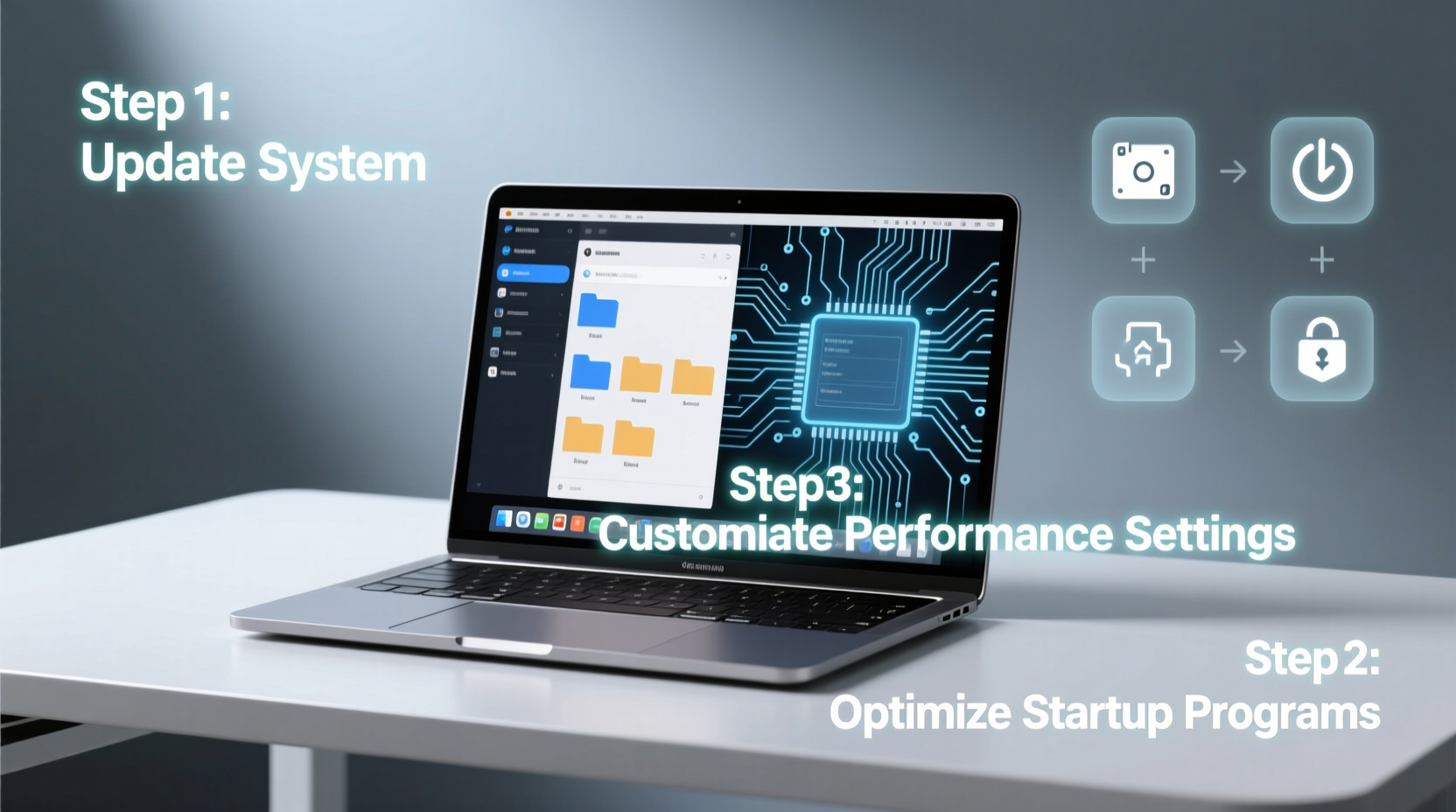
The moment you power on your new computer, resist the urge to dive into browsing or installing apps. The initial configuration sets the foundation for everything that follows. Follow this timeline to ensure a clean, stable start:
- Connect to Wi-Fi securely – Use WPA3 or WPA2 encryption. Avoid public networks during setup.
- Select regional and language settings carefully – Incorrect settings can affect keyboard layouts and software compatibility.
- Skip optional account creation if possible – On Windows, choose “Offline Account” to avoid Microsoft login complications.
- Decline pre-installed bloatware offers – Uncheck boxes for trial antivirus, browser toolbars, or third-party software.
- Allow full system updates before proceeding – This includes firmware, drivers, and OS patches.
2. Essential Security Configuration
A new computer may feel invincible, but without proper protection, it’s vulnerable from the start. Cybersecurity experts agree: the first 24 hours are when systems are most exposed.
“Over 60% of malware infections occur within the first week of device use due to unpatched systems and weak passwords.” — Dr. Lena Torres, Cybersecurity Analyst at NetShield Labs
Must-Do Security Actions
- Enable full-disk encryption (BitLocker on Windows Pro, FileVault on macOS)
- Set up a strong local password or PIN (minimum 12 characters with symbols)
- Activate the built-in firewall (Windows Defender Firewall / macOS Application Firewall)
- Install a reputable ad-blocker and anti-tracking extension in your browser
- Turn on automatic OS and app updates
| Action | Windows | macOS |
|---|---|---|
| Full-Disk Encryption | BitLocker (Pro/Enterprise only) | FileVault (built-in) |
| Firewall | Windows Defender Firewall | System Settings > Network > Firewall |
| Secure Browser | Firefox or Brave with uBlock Origin | Safari with Lockdown Mode enabled |
| Update Frequency | Nightly checks recommended | Daily automatic updates |
3. Performance Optimization Checklist
Out-of-the-box configurations often prioritize marketing over performance. Bloatware, background processes, and inefficient settings sap resources. A few strategic adjustments can dramatically improve responsiveness.
📋 Performance Optimization Checklist- ✅ Disable startup programs (via Task Manager on Windows, Login Items on macOS)
- ✅ Adjust power settings to \"Balanced\" or \"Best Performance\"
- ✅ Set visual effects for performance (disable animations/transparency)
- ✅ Clean temporary files using Disk Cleanup (Windows) or OnyX (macOS)
- ✅ Upgrade to an SSD if still using HDD (for older or budget models)
- ✅ Allocate more RAM to active applications via virtual memory settings
powercfg /energy in Command Prompt (Admin) on Windows to generate a detailed energy efficiency report highlighting performance bottlenecks.
4. Personalization and Workflow Customization
Your computer should adapt to you—not the other way around. Customizing the interface and workflow reduces friction and increases productivity.
Customization Areas to Focus On
- Desktop & Themes: Choose dark mode for reduced eye strain and OLED screen longevity.
- Keyboard Shortcuts: Re-map frequently used actions (e.g., screenshot, volume, search).
- File Organization: Create a consistent folder structure across Documents, Downloads, and Cloud Sync.
- Default Apps: Set preferred browser, PDF reader, media player, and email client.
- Voice Typing & Accessibility Tools: Enable dictation for faster note-taking (Windows Speech Recognition or macOS Dictation).
5. Backup, Maintenance, and Long-Term Care
Even the fastest system will degrade without maintenance. Establish habits early to preserve performance and prevent data loss.
Monthly Maintenance Routine
- Run disk cleanup and clear browser cache.
- Review installed programs and remove unused ones.
- Check for firmware updates (BIOS/UEFI on Windows, SMC on Mac).
- Verify backup integrity (test restoring a file).
- Inspect battery health (especially on laptops).
Backup Strategy Comparison
| Method | Pros | Cons | Best For |
|---|---|---|---|
| External Hard Drive + File History/Time Machine | Fast, full control, no subscription | Risk of physical damage | Local backups, large media files |
| Cloud Storage (OneDrive, iCloud, Google Drive) | Accessible anywhere, automatic sync | Monthly cost, slower upload speeds | Documents, collaboration |
| Hybrid (Cloud + Local) | Maximum redundancy and flexibility | Higher cost and management effort | Power users and professionals |
FAQ
Should I upgrade from Windows Home to Pro for BitLocker?
If you handle sensitive personal or work data, yes. BitLocker provides essential encryption. Alternatively, use third-party tools like VeraCrypt for free full-disk encryption on Windows Home.
How often should I restart my computer?
At least once a week. Regular restarts clear memory leaks, apply pending updates, and reset background processes that accumulate over time.
Can too many browser extensions slow down my computer?
Absolutely. Each extension runs background scripts. Limit to 5–7 essential ones (e.g., ad blocker, password manager, grammar checker). Audit monthly.
Conclusion
Setting up a new computer properly isn’t just about getting it to work—it’s about making it work well for years to come. By following structured setup steps, prioritizing security, optimizing performance, and establishing maintenance routines, you transform a generic device into a personalized productivity powerhouse.
The choices you make in the first few days have long-term consequences. Don’t rush. Take the time to disable bloatware, enable encryption, fine-tune settings, and create reliable backups. These small efforts compound into smoother operation, stronger security, and less frustration over time.




 浙公网安备
33010002000092号
浙公网安备
33010002000092号 浙B2-20120091-4
Comments
No comments yet. Why don't you start the discussion?