
Formatting your mobile phone is one of the most powerful tools at your disposal for restoring performance, removing personal data, or preparing a device for resale. Yet, many users approach it haphazardly—risking data loss, incomplete wipes, or even bricking their devices. Done correctly, formatting can breathe new life into your smartphone. Done incorrectly, it can result in irreversible consequences.
This guide walks you through every critical step: when to format, how to back up properly, what types of resets exist, and how to ensure your data stays secure while your device runs like new. Whether you're upgrading, troubleshooting, or passing on your phone, this is the definitive resource for doing it right.
When Should You Format Your Mobile Phone?
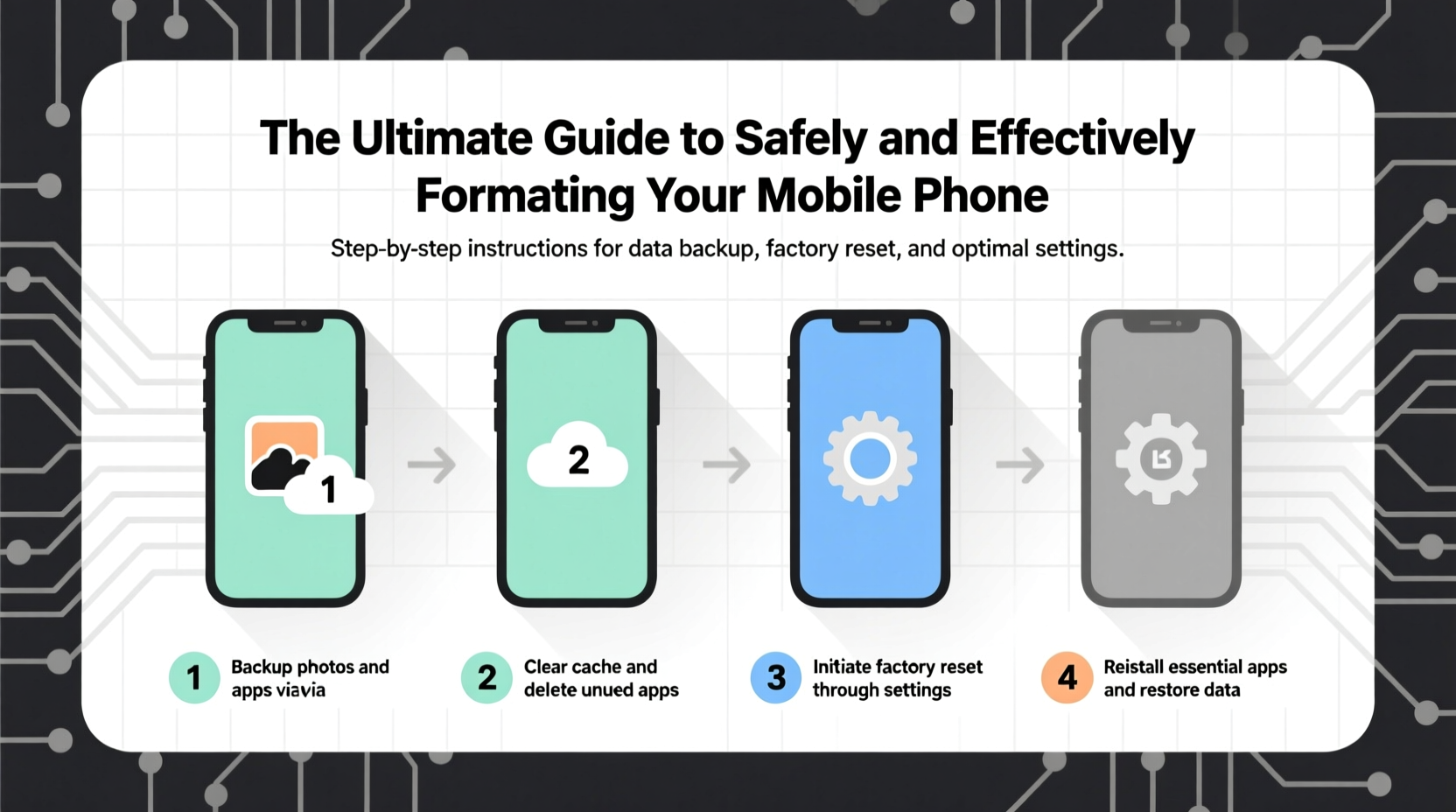
There are several legitimate reasons to format your mobile device. Knowing when it's appropriate helps prevent unnecessary resets that disrupt your digital life.
- Poor performance: If your phone lags, crashes frequently, or takes too long to open apps, a factory reset can clear out software clutter.
- Selling or donating: Formatting ensures all personal data—photos, messages, accounts—are permanently erased.
- Software issues: Boot loops, update failures, or persistent bugs may require a clean install.
- Security concerns: If your phone was compromised by malware or unauthorized access, a reset restores integrity.
- Switching ecosystems: Moving from Android to iOS (or vice versa) often requires full formatting before setup.
The Two Types of Reset: Soft vs. Factory
Not all resets are created equal. Understanding the difference prevents accidental data loss.
| Reset Type | What It Does | Data Lost? | Best For |
|---|---|---|---|
| Soft Reset | Restarts the device; clears temporary memory (RAM) | No | Fixing freezes, unresponsive apps, or minor glitches |
| Factory Reset | Erases all user data and reinstalls the OS from scratch | Yes | Solving deep software issues or prepping for sale |
A soft reset is harmless and often effective. On most phones, it involves holding the power button for 10–15 seconds until the device restarts. A factory reset, however, is irreversible without backups. Always confirm which option you're selecting in settings.
Step-by-Step: How to Format Your Phone Safely
Follow this timeline to format your phone without losing important data or compromising security.
- Back up everything: Use Google Drive (Android) or iCloud (iOS) to save photos, contacts, messages, and app data. Also consider manual backups to a computer or external drive.
- Sign out of accounts: Log out of Google, Apple ID, Samsung Account, and any banking or sensitive apps.
- Remove SIM and SD cards: These aren’t erased during formatting. Take them out to protect stored data and reuse them later if needed.
- Encrypt your device (if not automatic): Modern phones encrypt data by default, but verify this in security settings—especially before selling.
- Perform the factory reset:
- Android: Settings > System > Reset > Erase all data (factory reset)
- iOS: Settings > General > Transfer or Reset iPhone > Erase All Content and Settings
- Wait for completion: This can take 10–30 minutes. Do not interrupt the process.
- Verify erasure: After reboot, the device should show initial setup screens—not your old wallpaper or apps.
“Always assume deleted data can be recovered unless securely wiped. Encryption plus factory reset is the gold standard.” — Dr. Lena Torres, Cybersecurity Researcher, Mobile Forensics Lab
Avoid These Common Formatting Mistakes
Even experienced users make errors that compromise security or recovery. Here’s what to watch out for:
- Forgetting account credentials: Some phones require you to enter your Google or Apple ID after reset due to anti-theft features (like FRP or Activation Lock). Losing these locks you out permanently.
- Assuming ‘erase’ means ‘gone forever’: Without encryption, data remnants can be retrieved with forensic tools.
- Using third-party wipe apps unnecessarily: Built-in factory reset tools are sufficient for most users. Third-party apps may introduce malware.
- Resetting remotely without verification: Using Find My Device or Find My iPhone is useful, but confirm the reset completed before handing over the phone.
- Skipping post-reset checks: Ensure Bluetooth, Wi-Fi, and cameras work after formatting. A failed reset can cause hardware-level issues.
Real Example: Selling a Used Phone Securely
Mark decided to sell his three-year-old Android phone online. He backed up photos to Google Photos and thought that was enough. During the factory reset, he didn’t sign out of his Google account first. After the reset, the phone prompted for his Google email and password—the Factory Reset Protection (FRP) lock.
The buyer couldn’t activate the phone without Mark’s credentials. Even though Mark still had access, he’d forgotten the exact email used. It took two days and customer support to verify ownership and unlock the device. The sale nearly fell through.
Lesson: Always sign out of your primary account *before* resetting. Write down your login details if needed. Prevention saves time and trust.
FAQ: Common Questions About Formatting Phones
Will formatting remove the operating system?
No. A factory reset reinstalls the current version of the OS. It removes your apps, settings, and files—but the system itself remains intact and functional.
Can I recover data after formatting?
If you didn’t back up, recovery is unlikely and never guaranteed. Specialized software exists, but success depends on encryption status and overwrite patterns. Assume all data is lost post-reset.
Does formatting fix hardware problems?
No. Formatting only addresses software issues. Problems like a failing battery, cracked screen, or broken speaker won’t be resolved by a reset.
Final Checklist Before You Format
Use this checklist to ensure nothing is overlooked:
- ✅ Backed up all photos, videos, and documents to cloud or computer
- ✅ Synced contacts and calendar to Google or iCloud
- ✅ Signed out of Google, Apple ID, Samsung, and social media accounts
- ✅ Removed SIM card and microSD card
- ✅ Verified encryption is enabled
- ✅ Confirmed account passwords are accessible (for post-reset activation)
- ✅ Ensured the device is charged above 50% (or connected to power)
Conclusion: Take Control of Your Digital Transition
Formatting your mobile phone doesn’t have to be intimidating. With careful preparation, you can securely erase years of personal data and restore your device to peak condition. Whether you're resolving technical issues, upgrading to a new model, or responsibly recycling your old phone, following the right steps protects your privacy and ensures smooth transitions.
Don’t rush the process. Take an hour to back up, verify, and double-check. That small investment safeguards your identity, preserves your memories, and maintains the value of your device. Now that you know how to format safely and effectively, you’re ready to move forward with confidence.




 浙公网安备
33010002000092号
浙公网安备
33010002000092号 浙B2-20120091-4
Comments
No comments yet. Why don't you start the discussion?