
Knowing what’s inside your computer goes beyond curiosity—it’s essential for troubleshooting, upgrading, optimizing performance, or ensuring compatibility with new software. Whether you're a casual user, a student, or an IT professional, understanding your system’s components helps you make informed decisions. This guide walks you through every layer of your machine, from physical hardware to installed software, drivers, and background processes—equipping you with the tools and knowledge to fully audit your system.
1. Checking Your Computer’s Hardware Specifications
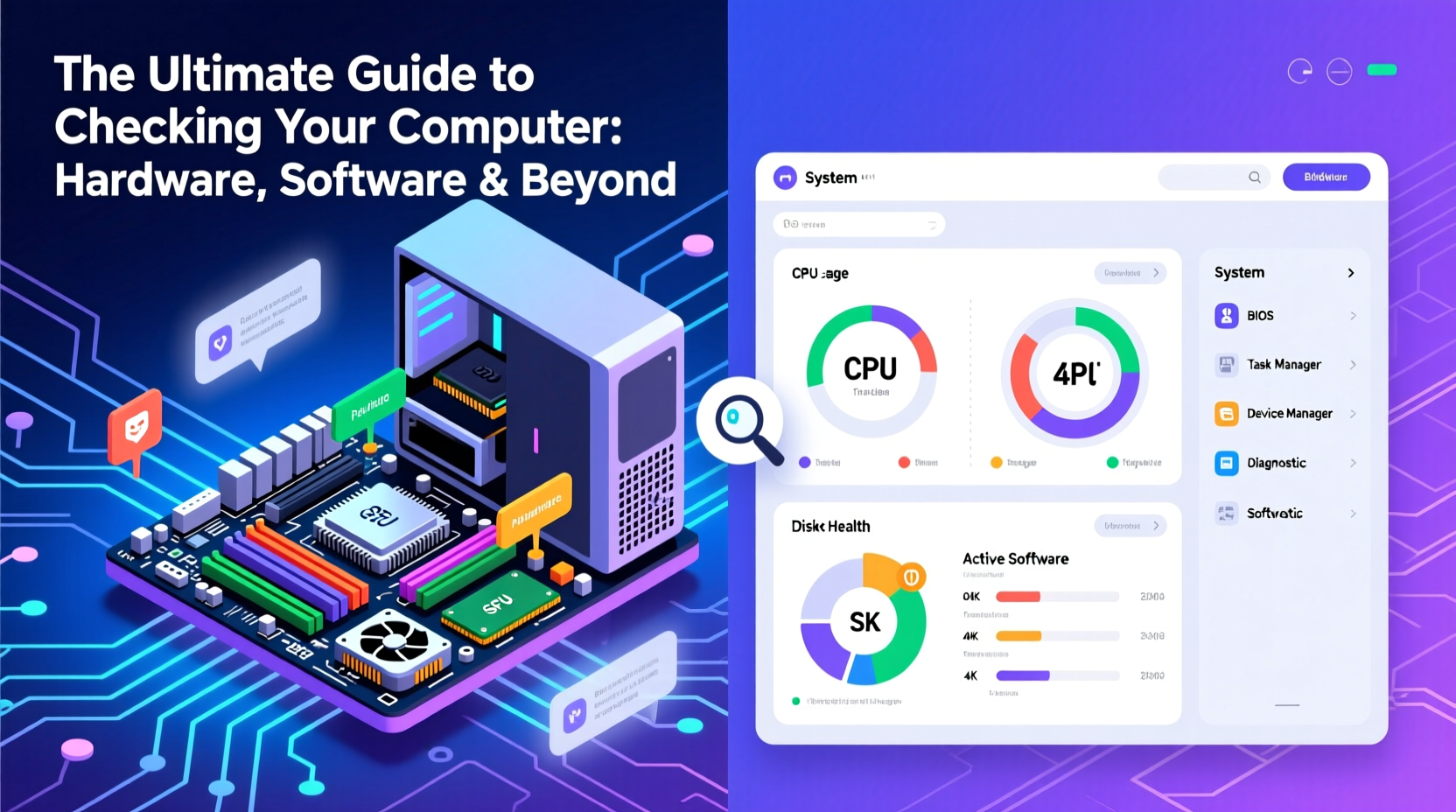
Your computer’s hardware forms the foundation of its capabilities. Key components include the CPU, RAM, storage drives, GPU, motherboard, and network adapters. To view this information on Windows, macOS, and Linux, built-in tools provide detailed insights without requiring third-party software.
On **Windows**, open the Start menu and type “System Information.” This utility displays:
- Processor model and speed
- Installed RAM (both total and available)
- BIOS version and motherboard details
- Boot device and system type (32-bit vs 64-bit)
Alternatively, press Win + R, type msinfo32, and press Enter for a more comprehensive overview.
For a quick snapshot, use the Settings app: go to System > About. Here, you’ll find basic specs such as device name, processor, installed RAM, and Windows edition.
dxdiag (DirectX Diagnostic Tool) by typing it into the Run dialog. It provides real-time info on display, audio, and input devices, plus tests functionality.
On **macOS**, click the Apple logo in the top-left corner and select “About This Mac.” Click “System Report” for deeper details including serial number, battery health (on laptops), USB devices, and PCI cards.
**Linux** users can run terminal commands such as:
lscpu        # CPU details
free -h      # RAM usage
lsblk        # Storage devices
lspci | grep -i vga  # Graphics card
uname -r     # Kernel version
2. Identifying Installed Software and Applications
Software defines what your computer can do. Over time, programs accumulate—some useful, others forgotten or potentially harmful. Regular audits help maintain performance and security.
In Windows, navigate to Settings > Apps > Installed apps. You’ll see a sortable list showing name, size, and installation date. For legacy programs not appearing here, use “Apps & features” or the older “Programs and Features” in Control Panel.
Power users can open Command Prompt or PowerShell and run:
wmic product get nameThis command lists most installed applications, though some lightweight tools may not appear.
On macOS, open Finder, go to the Applications folder, and sort by date added or size. Alternatively, use Terminal:
ls /ApplicationsThird-party tools like Revo Uninstaller (Windows) or AppCleaner (macOS) help identify leftover files after uninstallation, freeing up space and reducing clutter.
“Many performance issues stem not from aging hardware, but from bloated software stacks running in the background.” — David Lin, Senior Systems Administrator at TechFlow Solutions
3. Monitoring Real-Time System Performance
Hardware and software specs are static snapshots. To understand actual behavior, monitor real-time performance using task managers and system monitors.
Press Ctrl+Shift+Esc on Windows to open Task Manager. The “Performance” tab shows live graphs for CPU, memory, disk, and network usage. The “Processes” tab reveals which apps consume resources—helpful for identifying slowdown culprits.
macOS users can launch Activity Monitor from the Utilities folder. It breaks down CPU, Memory, Energy, Disk, and Network usage per process. Sorting by \"% CPU\" quickly highlights resource hogs.
Linux offers multiple options:
top– Classic real-time process viewerhtop– Enhanced, color-coded version (install via package manager)iotop– Monitors disk I/O specifically
4. Examining Drivers, Firmware, and Background Services
Drivers act as translators between hardware and the operating system. Outdated or corrupt drivers cause crashes, poor performance, or missing functionality.
In Windows, open Device Manager (Win + X > Device Manager). Expand categories like Display adapters, Network adapters, or Sound, video and game controllers. Right-click any device and select “Properties” to check driver version, date, and status.
To update drivers, choose “Update driver” and let Windows search automatically—or download the latest version from the manufacturer’s website (recommended for GPUs and chipsets).
Check firmware updates through:
- UEFI/BIOS: Access during boot (usually F2, F12, or Del key)
- Manufacturer utilities (e.g., Dell SupportAssist, HP Support Assistant)
- Windows Update (sometimes includes firmware patches)
| Component | How to Check Version | Where to Update |
|---|---|---|
| Graphics Driver | Device Manager or NVIDIA/AMD control panel | NVIDIA GeForce Experience, AMD Adrenalin, Intel Driver Support |
| BIOS/UEFI | System Information or boot screen | Manufacturer support site (e.g., Lenovo, ASUS) |
| Network Adapter | Device Manager > Network adapters | Vendor site or Windows Update |
Background services also impact performance. In Windows, type “Services” in the Start menu to view all running services. Look for non-Microsoft entries that auto-start unnecessarily. Disable them cautiously—research each service first.
5. Step-by-Step System Audit Checklist
Follow this structured approach to conduct a full system inspection every 3–6 months, or before major upgrades.
- Record basic specs: Note OS version, CPU, RAM, and storage capacity.
- List all installed software: Remove unused or duplicate programs.
- Check for updates: OS, drivers, firmware, and critical applications.
- Analyze startup programs: Disable non-essential items in Task Manager (Startup tab).
- Monitor resource usage: Run system under typical load; identify bottlenecks.
- Verify disk health: Use CrystalDiskInfo (Windows) or
smartctl(Linux/macOS) to check SSD/HDD S.M.A.R.T. status. - Review user accounts and permissions: Ensure no unauthorized access or admin-level guests.
Real-World Example: Diagnosing Slow Boot Times
Sarah, a freelance designer, noticed her laptop took over three minutes to boot. She followed the audit checklist above. In Task Manager’s Startup tab, she found seven programs launching at startup—including an old cloud sync tool, a printer suite, and a gaming overlay. After disabling all except essential antivirus and communication apps, her boot time dropped to 45 seconds. Further investigation revealed her graphics driver was two versions behind. Updating it improved application responsiveness in Adobe Suite. A simple audit resolved what seemed like a hardware limitation.
Frequently Asked Questions
How can I tell if my RAM is sufficient for my workload?
Open Task Manager and monitor memory usage during typical tasks. If usage consistently exceeds 80% of installed RAM, consider upgrading. For multitasking with browsers, design tools, or virtual machines, 16GB is recommended; 32GB or more benefits power users.
Is it safe to update BIOS or firmware myself?
Yes, but proceed with caution. Always back up data, ensure stable power (plug in laptops), and follow the manufacturer’s instructions exactly. A failed update can render your system unbootable.
Can software show fake or incorrect hardware info?
Rarely. Built-in OS tools are reliable. Third-party apps like CPU-Z or HWiNFO are generally trustworthy, but download them only from official sources to avoid malware-laced clones.
Take Control of Your Machine
Your computer is more than a black box—it’s a complex ecosystem of hardware, software, and configurations working in tandem. By learning how to inspect each layer, you gain the power to optimize, troubleshoot, and extend its lifespan. Don’t wait for a crash or slowdown to investigate. Perform regular audits, stay updated, and treat your system with the technical attention it deserves.




 浙公网安备
33010002000092号
浙公网安备
33010002000092号 浙B2-20120091-4
Comments
No comments yet. Why don't you start the discussion?