
Navigating system settings is a fundamental skill in today’s digital world. Whether you're adjusting privacy controls, managing device performance, or customizing user experience, knowing how to quickly and effectively access settings can save time and reduce frustration. This guide walks through the most reliable methods for reaching system preferences across major platforms—Windows, Android, macOS, iOS, and even Chrome OS—ensuring you’re equipped no matter which device you use.
Accessing Settings on Windows 10 and 11
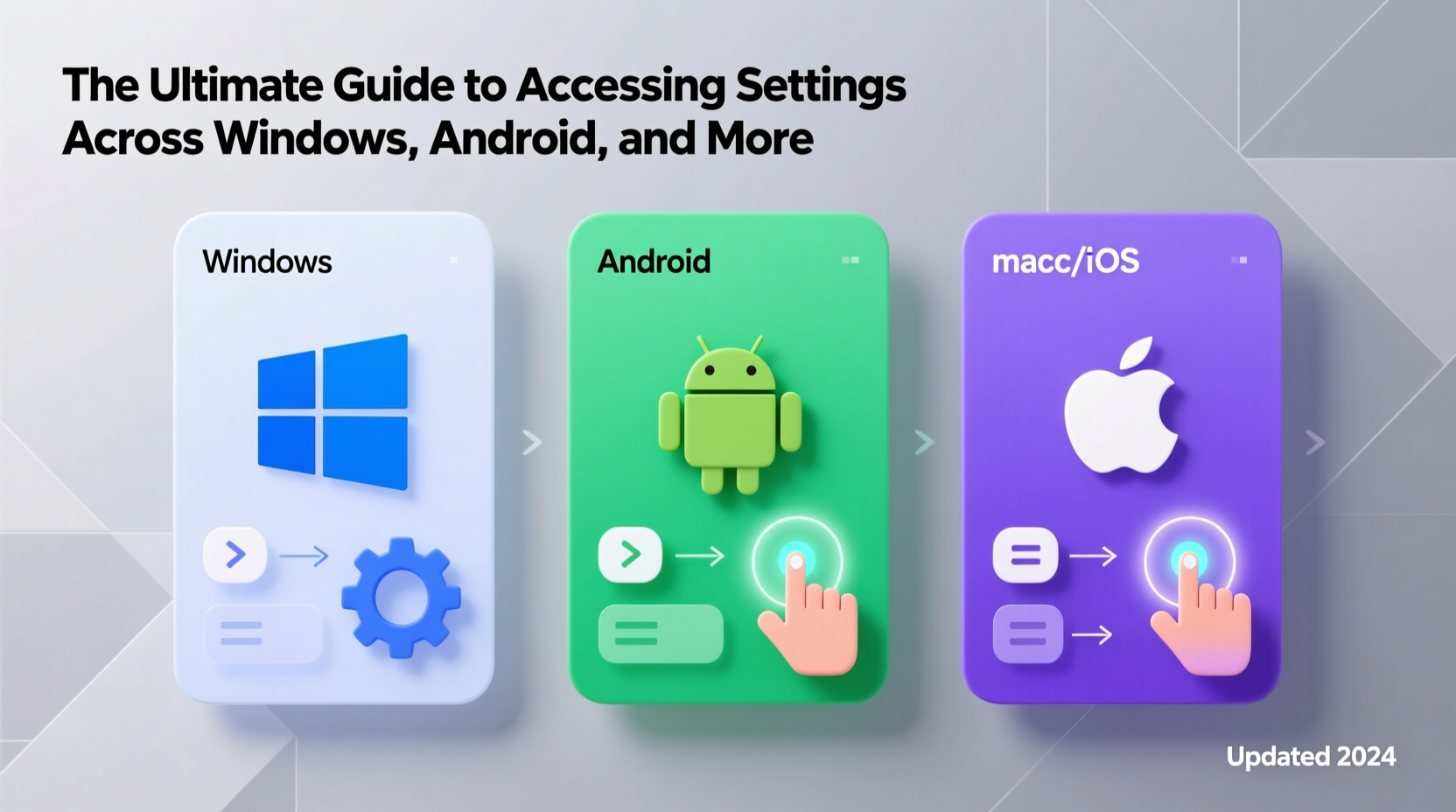
Microsoft has streamlined access to system settings in both Windows 10 and 11, prioritizing simplicity and speed. The modern Settings app replaces much of the older Control Panel functionality, offering a centralized hub for personalization, network configuration, updates, and security.
The fastest way to open Settings is by pressing Win + I on your keyboard. This shortcut works consistently across both versions and bypasses the need to navigate menus. Alternatively:
- Click the Start menu and select the gear icon labeled “Settings.”
- Search for “Settings” using the taskbar search bar.
- Right-click the Start button and choose “Settings” from the power user menu.
ms-settings: to launch the Settings app instantly.
For advanced users, many legacy tools still reside in the Control Panel, accessible via search or by running control in the Run dialog. While Microsoft encourages migration to the modern interface, some administrative functions remain easier to manage in the classic environment.
Navigating Android Settings Efficiently
Android offers multiple pathways to its robust settings ecosystem, which governs everything from connectivity and battery usage to app permissions and digital wellbeing.
The most universal method is swiping down from the top of the screen to reveal the notification shade, then tapping the gear icon in the upper-right corner. On devices with gesture navigation, this requires a two-finger swipe downward.
Additional options include:
- Long-pressing the power button to trigger the power menu, then tapping the gear icon.
- Using voice commands: “Hey Google, open Settings.”
- Finding the Settings app directly in the app drawer.
Android also supports deep linking into specific settings pages. For example, developers and power users can create shortcuts or use ADB commands to jump directly to Bluetooth, Wi-Fi, or accessibility settings without navigating through layers.
“Efficient access to settings reduces friction in device management, especially when troubleshooting connectivity or optimizing performance.” — Lena Torres, Mobile Systems Analyst at DevTech Insights
macOS and iOS: Seamless Integration Across Apple Devices
Apple maintains a consistent philosophy across its operating systems: intuitive design paired with limited but powerful customization. Accessing settings is straightforward, though the terminology differs slightly between platforms.
On macOS, click the Apple logo in the top-left corner of the screen and select “System Settings” (or “System Preferences” on older versions). You can also open it directly from the Dock or Launchpad. Spotlight Search (Cmd + Space) allows instant access—just type “Settings” or the name of a specific pane like “Bluetooth” or “Displays.”
iOS follows a similar logic. Open the **Settings** app from the home screen—it features a gray icon with gears. Swipe down on the home screen and use the search bar to jump to specific options like “Wi-Fi,” “Battery,” or “Screen Time.”
| Platform | Primary Method | Alternative Methods |
|---|---|---|
| Windows 10/11 | Win + I | Start menu → Gear icon, Search |
| Android | Swipe down → Tap gear | App drawer, Voice command, Power menu |
| macOS | Apple menu → System Settings | Spotlight, Dock, Siri |
| iOS | Home screen → Settings app | Search, Siri (“Open Bluetooth settings”) |
| Chrome OS | System tray → Settings icon | Launcher search, Ctrl + Alt + ? (Help menu) |
Streamlining Access: Universal Shortcuts and Hidden Paths
Each platform includes hidden or lesser-known routes to system settings that can dramatically improve efficiency, particularly for frequent adjustments.
In Windows, typing ms-settings:network-wifi in the Run dialog opens the Wi-Fi section directly. Similarly, ms-settings:privacy jumps to privacy controls. These URI schemes are documented and stable across updates.
On Android, long-pressing certain icons in the quick settings panel (like Wi-Fi or Bluetooth) often opens their respective configuration screens instantly. Additionally, developers can enable Developer Options and use ADB commands to automate setting changes.
macOS users benefit from Siri integration. Saying “Open Accessibility settings” or “Show my storage usage” triggers precise navigation. Keyboard enthusiasts can use third-party tools like Alfred or Raycast to map custom shortcuts to specific preference panes.
Mini Case Study: Remote Worker Optimizes Multi-Device Workflow
Sophie, a freelance designer working across a Windows laptop, iPad, and Android phone, struggled with inconsistent device configurations affecting her productivity. She spent minutes each day adjusting display brightness, toggling focus modes, and reconnecting peripherals.
After implementing direct-access strategies—using Win + I for Windows display scaling, creating a widget stack on her iPad for quick Settings links, and setting up a Tasker profile to auto-enable DND during work hours—she reduced daily setup time by over 70%. By mastering native shortcuts and cross-platform search functions, Sophie now transitions seamlessly between devices without disruption.
Essential Checklist for Managing Settings Across Platforms
To maintain control and consistency across all your devices, follow this actionable checklist:
- ✅ Memorize the primary keyboard or gesture shortcut for opening settings on each device.
- ✅ Use search functionality within settings apps to locate options fast.
- ✅ Enable voice assistants (Cortana, Google Assistant, Siri) to open settings hands-free.
- ✅ Organize frequently used settings with widgets, shortcuts, or automation scripts.
- ✅ Regularly review privacy and security settings, especially after OS updates.
- ✅ Keep recovery and reset procedures bookmarked or noted in case of lockouts.
Frequently Asked Questions
Can I sync settings across different operating systems?
While full synchronization isn’t possible due to platform differences, cloud services help bridge gaps. Microsoft accounts sync themes, passwords, and browser data across Windows and Android via Microsoft Launcher and Edge. Apple’s iCloud Keychain and Continuity features allow seamless transfer of Wi-Fi passwords and preferences between iOS and macOS. Third-party tools like LastPass or Dashlane can unify account settings across ecosystems.
What should I do if the Settings app won’t open?
On Windows, restart Windows Explorer via Task Manager or run sfc /scannow to repair system files. On Android, clear the Settings app cache under App Info. For macOS, restart the device or boot into Safe Mode to reset system management controllers. On iOS, force-close and reopen the app, or restart the device if unresponsive.
Are there risks in modifying advanced settings?
Yes. Adjusting developer options, registry entries, or system-level permissions can lead to instability, data loss, or security vulnerabilities. Always back up your device before making significant changes, and avoid enabling unknown features unless guided by trusted sources.
Take Control of Your Digital Environment
Mastery of system settings is not just about convenience—it’s about reclaiming control over your digital life. From securing personal data to optimizing performance and accessibility, the ability to navigate settings efficiently empowers smarter, safer, and more productive technology use.




 浙公网安备
33010002000092号
浙公网安备
33010002000092号 浙B2-20120091-4
Comments
No comments yet. Why don't you start the discussion?