
Managing phone numbers on your iPhone is more than just saving a name and number. It's about creating a seamless communication experience—quick access to loved ones, organized work contacts, and smart tools that help you stay connected without clutter. Whether you're setting up a new device or optimizing an existing one, understanding how to add, edit, and manage contacts effectively can save time, reduce frustration, and enhance privacy.
iOS offers powerful features for handling phone numbers through the Contacts app, iCloud sync, Siri integration, and even QR code scanning. Yet many users rely only on basic functions, missing out on automation, labeling options, and cross-device continuity. This guide walks through every essential method, best practice, and hidden feature for mastering contact management on your iPhone.
Adding Phone Numbers: Multiple Methods for Every Scenario
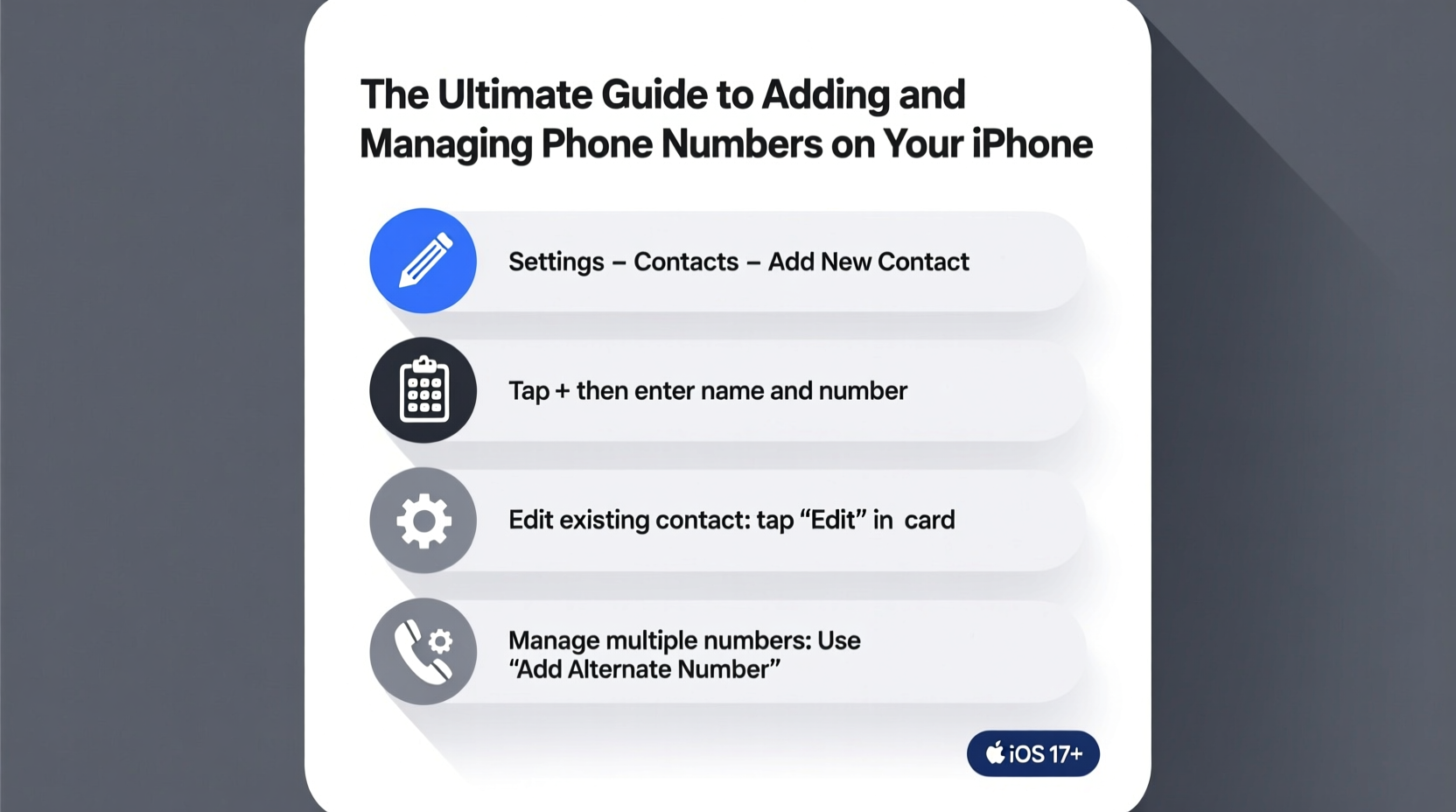
The simplest way to store a number is manually, but iOS supports several faster alternatives depending on context. Knowing when and how to use each method improves efficiency.
- Manual Entry: Open the Phone or Contacts app, tap the \"+\" icon, enter the name and number, then save. Ideal for precise control over formatting and labels.
- From a Call Log: Tap any number in your recent calls (under Recents), then select “Create new contact” or “Add to existing contact.”
- From a Text Message: In Messages, tap the sender’s name at the top, then choose “Create new contact” or “Update contact.”
- Via AirDrop: If someone shares their contact card wirelessly, accept it and choose where to save it.
- Scan a Business Card: Use the Camera app to scan printed cards; if a number is detected, tap the pop-up to create a contact.
- QR Code Import: Some digital business cards use QR codes. Point your camera at the code and follow the prompt to import the vCard.
Organizing Contacts with Labels, Groups, and Favorites
A long list of names becomes unmanageable quickly. Smart organization turns chaos into clarity. The iPhone allows customization beyond simple alphabetical sorting.
You can assign multiple phone numbers and email addresses per contact, each labeled as Mobile, Home, Work, or Custom (e.g., “Dad,” “Office Fax”). To edit labels, open a contact, tap Edit, then tap any field label to change it.
For grouping, iCloud enables Contact Groups via Mac or web browser (contacts.icloud.com). While not directly available in the iPhone Contacts app, synced groups appear across devices. Useful for categorizing by family, team members, clients, or emergency contacts.
Favorites provide one-tap calling from the Phone app. Add someone by opening the Phone tab, tapping “+” under Favorites, and selecting a contact and specific number. This is especially helpful while driving or multitasking.
| Organization Tool | Best For | Limitations |
|---|---|---|
| Number Labels | Differentiating personal/work/mobile lines | Only one label per number/email |
| Contact Groups (via iCloud) | Team coordination, event planning | No native iPhone group creation |
| Favorites | Quick access to frequent callers | Limited display space |
Syncing and Backup: Keep Your Contacts Safe Across Devices
Your contacts are only as reliable as your backup strategy. Accidentally deleted entries or lost phones shouldn’t mean losing critical connections.
iCloud is the default syncing solution. Enable it by going to Settings > [Your Name] > iCloud > toggle on “Contacts.” Once active, all changes sync instantly across your Apple devices. If you switch to a new iPhone, restoring from an iCloud backup includes your full contact list.
If you prefer Google Contacts, go to Settings > Mail > Accounts > Add Account > Google, then enable Contacts sync. Note: Conflicts may arise if both iCloud and Google sync simultaneously—Apple typically prompts you to choose a primary source.
“Over 60% of contact loss incidents occur within 30 days of setting up a new phone without proper syncing.” — Lisa Tran, Senior Support Analyst at AppleCare
Advanced Tips for Power Users
Beyond basics, advanced features unlock deeper utility. These techniques benefit professionals, travelers, and anyone managing complex networks.
- Create Emergency Contacts: Set up ICE (In Case of Emergency) entries in Health app > Medical ID. First responders can access these without unlocking your phone.
- Use Siri Shortcuts: Assign voice commands like “Call Mom on Skype” to specific numbers or apps using the Shortcuts app.
- Block Unwanted Numbers: From a call log or message, tap the info (i) icon, then “Block this Caller.” Also consider enabling Silence Unknown Callers (Settings > Phone).
- Edit Multiple Contacts at Once: Not possible natively on iPhone, but achievable via iCloud.com—select multiple entries and delete or export.
- Share Your Own Contact: Tap your name in Me Myself (your own card), then Share Contact via AirDrop, text, or email.
Mini Case Study: Streamlining Client Communication
Sarah, a freelance designer, used to lose track of client phone lines mixed with personal contacts. She now uses labeled numbers (“Client – Mobile,” “Agency – Direct”) and created a shared iCloud group called “Active Projects” with her assistant. By adding key clients to her Favorites and disabling iMessage for professional numbers (to avoid accidental chats), she reduced response time and improved professionalism. A year later, she hasn’t missed a call—even during hectic launch weeks.
Essential Checklist for Contact Management
Follow this checklist monthly to keep your contact system efficient and secure:
- ✅ Audit duplicates: Search names and merge overlapping entries via iCloud.com
- ✅ Verify sync settings: Confirm iCloud or Google Contacts is active
- ✅ Update outdated numbers: Especially for family, doctors, and service providers
- ✅ Review blocked numbers: Remove old blocks if necessary
- ✅ Backup before major changes: Use iCloud or computer backup via Finder/iTunes
- ✅ Test emergency access: Ensure Medical ID is updated and visible on lock screen
Common Questions About iPhone Contact Management
Why did my contacts disappear after updating iOS?
This usually happens when iCloud Contacts was turned off before the update. Go to Settings > [Your Name] > iCloud and ensure Contacts is enabled. If still missing, restore from a previous iCloud backup or re-enable Google sync if applicable.
Can I have two numbers for the same person with different labels?
Yes. Open the contact, tap Edit, then tap “Add Field” > Phone. Enter the second number and assign a unique label such as “Work” or “Alternate.” You can also set one as the default for calls.
How do I stop contacts from appearing twice?
Duplicate entries often result from syncing multiple accounts (e.g., iCloud and Gmail). Go to Settings > Contacts > Default Account and choose one primary source. Then disable contact syncing for secondary accounts unless needed.
Final Thoughts: Take Control of Your Communication Ecosystem
Your iPhone’s contact system is a cornerstone of daily functionality. Properly managed, it eliminates guesswork, speeds up communication, and ensures you’re always prepared—whether calling a doctor, reaching a colleague, or sharing your details professionally. Don’t wait for a crisis to realize a number is missing or mislabeled.
Start today: clean up duplicates, enable iCloud sync, set up Favorites, and test your emergency information. Small actions now prevent big problems later. With consistent maintenance, your contact list becomes not just a directory, but a well-oiled part of your digital life.




 浙公网安备
33010002000092号
浙公网安备
33010002000092号 浙B2-20120091-4
Comments
No comments yet. Why don't you start the discussion?