
Google Photos offers convenient cloud storage for millions of users, but relying solely on the cloud is risky. Server outages, accidental deletions, account breaches, or changes in Google’s policies can put your precious memories at risk. The smart move? Take control by backing up your Google Photos library to a physical external drive. This guide walks you through every essential step, tool, and strategy to create a reliable, long-term backup that keeps your photos safe—even if the internet disappears.
Why You Shouldn’t Rely Only on Google Photos
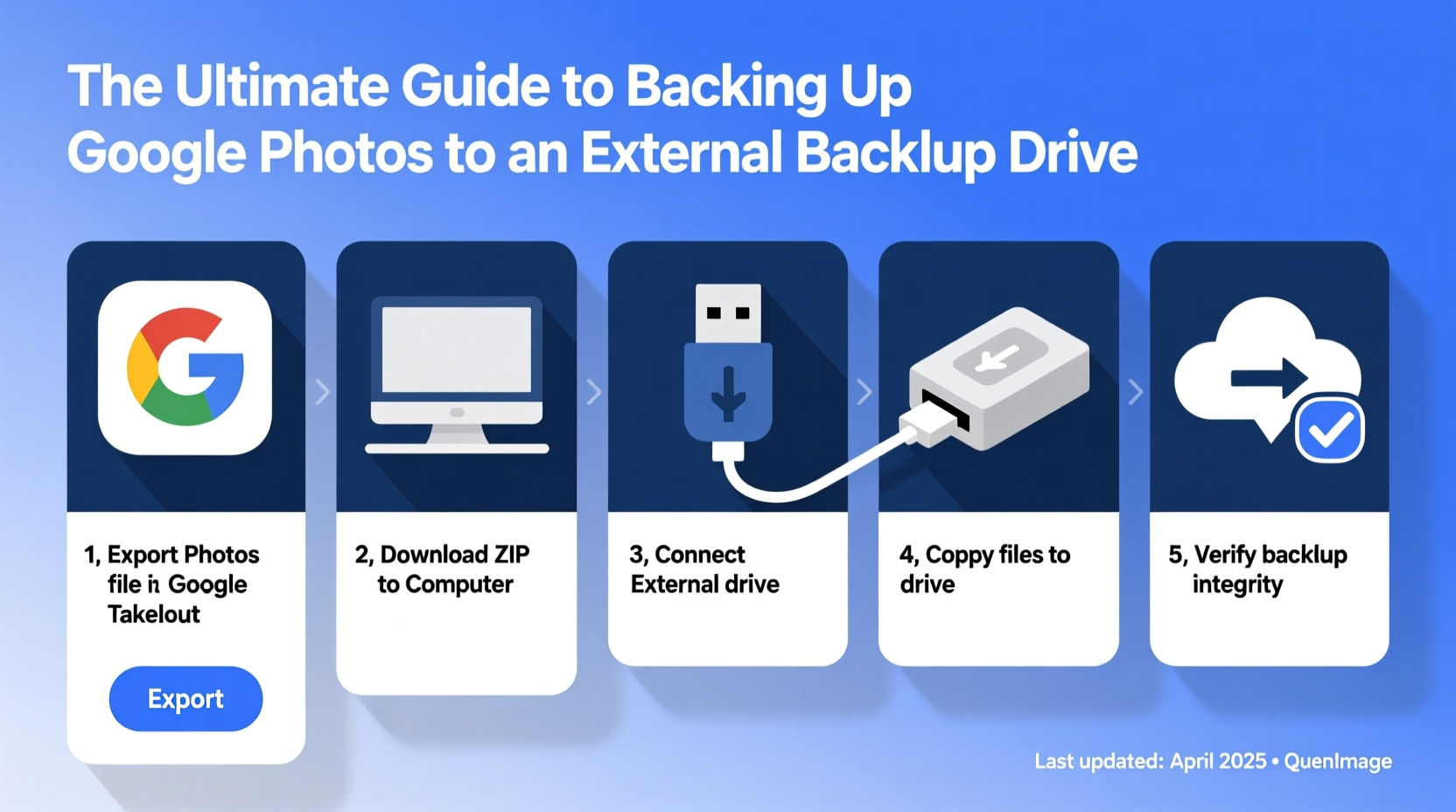
While Google Photos provides automatic syncing and intelligent organization, it’s not a true backup solution. A backup, by definition, means having multiple independent copies stored in different locations. When all your photos live only in the cloud under one account, they’re vulnerable. If your account gets compromised, deleted, or suspended, everything could vanish overnight. Additionally, after June 2021, new uploads count against your 15 GB free Google Drive quota, and unlimited “high quality” backups are no longer available for most users.
“Cloud services are great for access and sharing, but they’re not foolproof. True data resilience requires local, offline copies.” — David Lin, Digital Archivist & Data Preservation Specialist
An external hard drive gives you full ownership and control. It's immune to internet outages, subscription lapses, and corporate policy shifts. For families, travelers, photographers, or anyone with irreplaceable images, this layer of protection is non-negotiable.
What You’ll Need: Tools and Setup
Before starting the backup process, gather the necessary tools:
- A computer (Windows or macOS)
- An external hard drive (preferably 1TB or larger, formatted for your OS)
- Stable internet connection (for downloading large libraries)
- Google Account with Google Photos enabled
- Optional: Dedicated photo management software (e.g., Adobe Lightroom, CyberLink PhotoDirector)
Recommended External Drives
| Drive Model | Capacity | Speed | Best For |
|---|---|---|---|
| SanDisk Extreme Portable SSD | 1TB–2TB | Up to 550 MB/s | Fast, rugged backups on the go |
| Western Digital My Passport | 2TB–5TB | 100–150 MB/s | Budget-friendly long-term storage |
| Seagate Backup Plus Hub | 4TB–8TB | 120 MB/s | Large libraries; dual-drive setup option |
Step-by-Step: How to Back Up Google Photos to an External Drive
Follow this structured process to ensure a complete, organized, and verifiable backup.
- Connect and Format Your Drive: Plug in your external drive. On macOS, use Disk Utility to format as APFS or Mac OS Extended. On Windows, use File Explorer to format as NTFS for full compatibility.
- Download Google Photos via Google Takeout:
- Go to takeout.google.com.
- Deselect all services, then check only “Google Photos.”
- Choose file type (e.g., .zip archives), size per archive (2GB recommended), and delivery method (download to computer).
- Click “Create Export.” Google will prepare your data and email you when ready.
- Download and Extract Files: Click the link in the email, sign in, and download each .zip part. Save them directly to your desktop or Downloads folder. Extract using built-in tools (Windows Explorer or macOS Archive Utility).
- Transfer to External Drive: Create a folder named “Google Photos Backup – [Date]” on the drive. Copy the entire extracted photos folder into it.
- Verify the Transfer: Spot-check folders, open random photos and videos, and compare file counts. Ensure timestamps and albums are preserved.
- Safely Eject and Store: Once confirmed, eject the drive properly. Store it in a cool, dry place away from magnets and direct sunlight.
Real Example: Recovering After an Account Lockout
Sarah, a freelance photographer from Portland, had her Google Account locked due to suspicious login activity while traveling in Europe. Despite verifying her identity, it took three days to regain access. During that time, she couldn’t retrieve client photos stored only in Google Photos. Fortunately, she had completed a full backup to a Samsung T7 Shield SSD two months earlier. She used the local copy to deliver files on time, maintaining her reputation. After restoring access, she updated her backup schedule to quarterly—and now keeps two drives: one at home, one at her studio.
This case highlights a critical truth: emergencies don’t wait for customer support tickets to resolve. Physical backups provide immediate access when you need it most.
Best Practices for Long-Term Photo Safety
Backing up once isn’t enough. Digital preservation is an ongoing practice. Follow these guidelines to keep your archive secure over years.
- Update backups regularly – Schedule a recurring reminder (quarterly or biannually) to export new photos.
- Use the 3-2-1 rule – Keep 3 copies of your data: 2 local (computer + external drive), 1 offsite (cloud or second physical location).
- Rotate drives every 3–5 years – Mechanical parts degrade; proactively replace aging hardware.
- Encrypt sensitive albums – Use encrypted containers (e.g., VeraCrypt) for private family photos.
- Organize with clear folder structures – Example:
/Google Photos Backup 2024/2024-03-March Trip/
Backup Checklist
- ☑ Acquired external drive with sufficient capacity
- ☑ Formatted drive for my operating system
- ☑ Signed into Google Account and verified Photos library
- ☑ Started Google Takeout export for Google Photos
- ☑ Downloaded and extracted all .zip files
- ☑ Copied files to external drive in dated folder
- ☑ Verified sample photos and videos play correctly
- ☑ Safely ejected drive and labeled it
- ☑ Set calendar reminder for next backup (e.g., 6 months)
Frequently Asked Questions
Can I back up Google Photos automatically to an external drive?
Not natively. Google doesn’t offer direct sync to external drives. However, you can automate parts of the process using scripts or third-party tools like MultCloud or CloudMounter, which map cloud storage as a local drive. Even then, manual oversight is recommended to confirm integrity.
Will my album structure be preserved when I download via Takeout?
Yes, Google Takeout maintains original folder hierarchies and album groupings. However, dynamic features like “People & Pets” or AI-generated albums aren’t included. These rely on Google’s algorithms and aren’t exported as standalone folders.
What happens if my external drive fails?
All storage media can fail. That’s why following the 3-2-1 backup rule is crucial. Never rely on a single drive. Keep a secondary copy—either another external drive stored elsewhere or a secure cloud service like Backblaze B2 or iDrive.
Secure Your Memories—Start Today
Your photos are more than pixels—they’re moments frozen in time. A child’s first steps, a sunset on a dream vacation, a loved one’s smile. Trusting them to a single digital vault is a gamble few should take. By backing up Google Photos to an external drive, you reclaim ownership of your digital legacy. The process takes a few hours, but the peace of mind lasts for decades. Don’t wait for a deletion, hack, or outage to act. Connect that drive tonight. Start the export. Verify the files. And know that no matter what happens online, your memories remain safely in your hands.




 浙公网安备
33010002000092号
浙公网安备
33010002000092号 浙B2-20120091-4
Comments
No comments yet. Why don't you start the discussion?