
Custom mechanical keyboards are no longer reserved for enthusiasts with deep pockets. With smart sourcing and informed choices, it’s entirely possible to build a high-quality, fully personalized mechanical keyboard for under $100. This isn’t about cutting corners—it’s about maximizing value without sacrificing performance, feel, or aesthetics. Whether you're a beginner looking to enter the world of custom keyboards or a budget-conscious tinkerer, this guide breaks down every component, cost-saving strategy, and practical step needed to assemble a satisfying typing machine on a tight budget.
Why Build Your Own Keyboard?
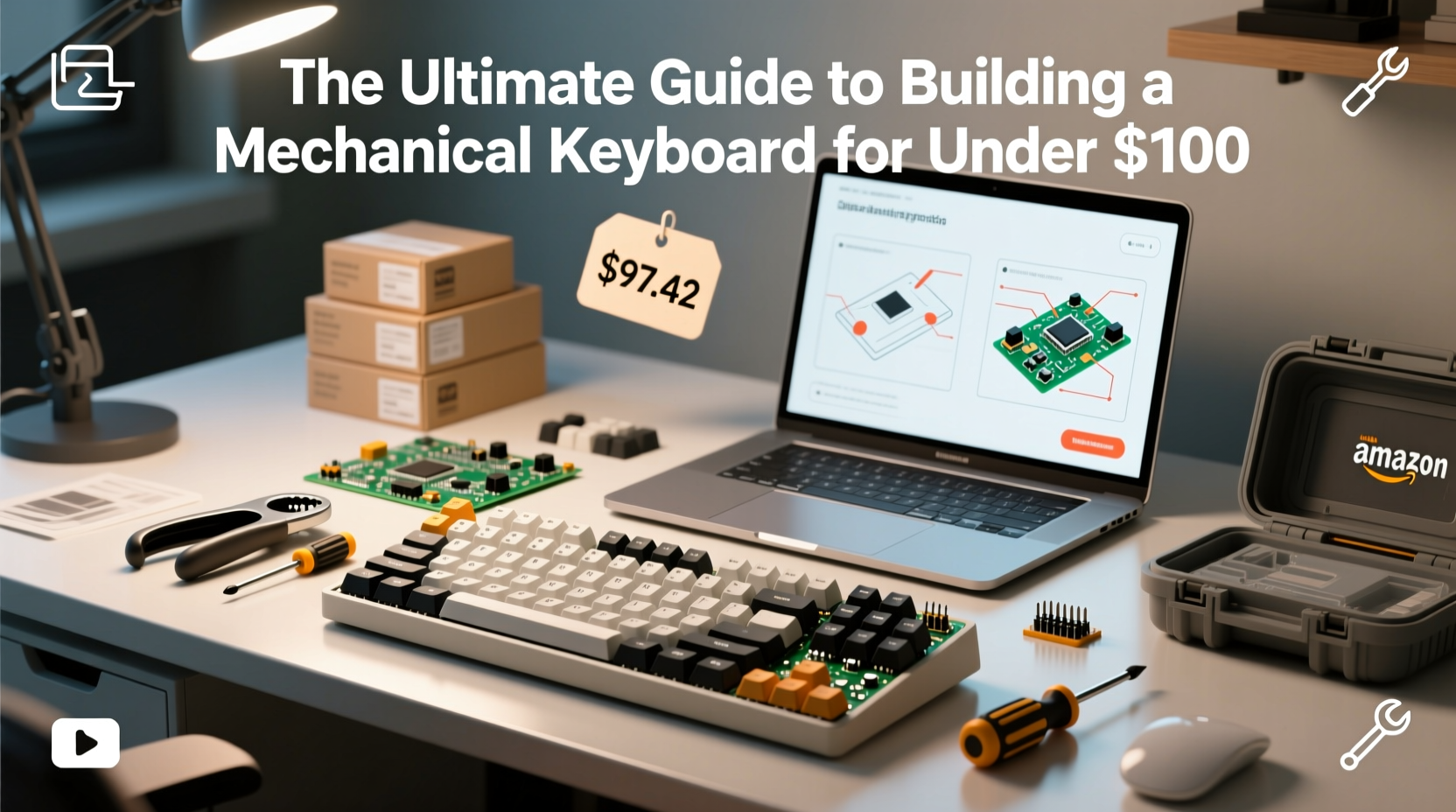
Pre-built keyboards often come with compromises: generic layouts, mediocre switches, plastic cases, and limited customization. Building your own gives you control over every detail—from switch type and keycap material to case design and backlighting. More importantly, the process teaches you how keyboards work, making future upgrades intuitive. And contrary to popular belief, doing it right doesn’t require a large investment. The growing market for affordable components from manufacturers in China and community-driven group buys has made entry easier than ever.
“Building your first keyboard is like learning to cook. Once you understand the ingredients, you can create something far better than takeout.” — Jordan Lee, Mechanical Keyboard Designer at KeyHaus Labs
Understanding the Core Components
A mechanical keyboard consists of several key parts. Each contributes to the overall feel, sound, and durability. To stay under $100, you’ll need to make strategic decisions about where to save and where to spend. Here's a breakdown of essential components:
- PCB (Printed Circuit Board): The brain of the keyboard. It registers keystrokes and communicates with your computer. For budget builds, hot-swap PCBs are ideal—they allow switch changes without soldering.
- Case: Houses all internal components. Materials range from plastic to aluminum. Plastic cases are cheaper and still offer solid acoustics when paired with proper dampening.
- Plate: Sits above the PCB and holds the switches in place. Typically made from polycarbonate, aluminum, or steel. A simple plastic plate keeps costs low.
- Switches: Determine tactile feedback, actuation force, and sound. Options include linear, tactile, and clicky types. Budget-friendly clones now rival premium brands in performance.
- Keycaps: The visible top layer. ABS plastic is cheaper; PBT is more durable and textured. Look for affordable doubleshot PBT sets.
- Stabilizers: Used for larger keys (like spacebar and enter) to prevent wobbling. Stock stabilizers can be noisy, but lubed budget options perform well.
- USB Cable: Often overlooked, but a good detachable cable improves usability. Many kits include one.
Step-by-Step Build Process Under $100
Follow this realistic timeline and sequence to source and assemble your keyboard without overspending. All prices listed are based on current (2024) average market rates from trusted vendors like KBDFans, AliExpress, and MechMarket.
- Choose a Form Factor (Day 1–3): Start by selecting a layout. A 60% keyboard (68 keys) is ideal for beginners—it removes the numpad and function row but retains navigation keys through layers. It’s compact, widely supported, and cheaper due to fewer parts.
- Select a Kit (Day 4–7): Look for integrated kits that bundle case, plate, PCB, and screws. The Zelenia 65% or JYDP 68 are excellent sub-$50 options. These include Gasket Mount designs for better feel and noise reduction.
- Purchase Switches (Day 8): Opt for reputable budget switches like Kailh Box Whites (tactile), Gateron Yellows (linear), or TTC Brown V1 (tactial). Expect to pay $2–$3 per switch. A full 68-key set costs around $15–$20.
- Order Keycaps (Day 9): Search for “budget PBT 68 keycap set” on AliExpress or KBDFans. Sets like the “GMK-inspired Panda” or “Desert Sun” offer good color and texture for $25–$35. Avoid ultra-cheap ABS sets—they wear quickly.
- Wait for Delivery (Days 10–21): International shipping takes time. Use this period to research lubing techniques or watch assembly videos.
- Assemble the Keyboard (Day 22): Once everything arrives, begin assembly. Follow the kit instructions carefully. Install the PCB into the case, add foam dampening (if included), mount the plate, insert switches, then snap on keycaps.
- Test and Refine (Day 23): Plug in the keyboard and test every key using online tools like Keyboard Tester. If any switch feels scratchy, consider removing and lubing it later.
Smart Budgeting: Where to Save and Where to Invest
Staying under $100 requires discipline, but also intelligent allocation. Some components matter more than others. Use the table below to guide your spending priorities.
| Component | Where to Save | Where to Invest |
|---|---|---|
| Case & Plate | Go with plastic gasket-mount kits instead of aluminum. | Ensure the case includes silicone padding or foam for better sound. |
| Switches | Use Kailh or Gateron instead of Cherry MX. | Spend a little extra on pre-lubed switches or buy lube separately. |
| Keycaps | Avoid OEM-profile ABS; they degrade fast. | Invest in doubleshot PBT sets—they resist shine and legends won’t fade. |
| PCB | Stick to basic microcontroller boards (e.g., Pro Micro compatible). | Choose hot-swap sockets—they eliminate soldering and enable switch swaps. |
| Tools | Borrow a screwdriver; don’t buy a full toolkit yet. | Buy a small tube of dielectric grease for stabilizers—it reduces ping. |
Real Example: Alex’s First Build for $94.73
Alex, a college student and self-taught coder, wanted a reliable, quiet keyboard for late-night programming. He had no prior experience but followed a strict budget. His build:
- JYDP 68 Gasket Mount Kit: $46 (includes case, plate, PCB, screws, foam)
- Gateron Ink Black V2 (Linear) Switches: $22 for 80 switches (pre-lubed)
- KBDFans XDA Low Profile PBT Keycaps – Grey Navy: $28
- Total: $96 (including $1.27 shipping coupon)
The result? A smooth, silent, and visually clean keyboard perfect for typing. Alex reported that the gasket mount design reduced hand fatigue, and the PBT keycaps resisted oil from frequent use. He later replaced the stock stabilizers with lubed Costar-style ones for $5 more—proving that even budget builds can evolve.
Essential Checklist Before You Buy
Before placing any order, run through this checklist to avoid costly mistakes or missing parts.
- ✅ Confirm the kit includes screws, plate, PCB, and mounting foam
- ✅ Verify switch compatibility (3-pin vs 5-pin)
- ✅ Check keycap profile compatibility (Cherry, OEM, SA, etc.)
- ✅ Ensure the PCB supports your desired layout (QMK/VIA firmware?)
- ✅ Confirm whether switches are included (most kits don’t include them)
- ✅ Double-check international shipping times and import fees
- ✅ Have a small Phillips screwdriver and switch puller ready
Frequently Asked Questions
Can I build a mechanical keyboard for under $100 without compromising quality?
Absolutely. While premium materials like aluminum cases or GMK keycaps cost more, modern budget components offer excellent performance. A well-assembled $90 keyboard can feel and perform better than a $150 mass-market model due to superior switch quality and custom tuning.
Do I need to solder to build a keyboard?
No. Hot-swap PCBs let you plug switches directly into sockets. Just align the pins and press down. This also lets you try different switches later without tools. Most budget kits now include hot-swap support.
Are cheap switches worth it? Won’t they fail early?
Modern clones like Kailh, Gateron, and TTC are rated for 50–80 million keystrokes—comparable to Cherry MX. Failures are rare and usually due to manufacturing defects, not inherent design flaws. Buying from reputable sellers minimizes risk.
Final Tips for Long-Term Satisfaction
Your first build doesn’t have to be perfect. What matters is learning the process and enjoying the result. After assembly, spend time typing emails, coding, or writing to evaluate the feel. If certain keys sound hollow or loud, adding tape mod or extra foam can help. Over time, you might want to lube switches or upgrade stabilizers—but those are enhancements, not requirements.
Keep your workspace clean during assembly. Static damage is rare but possible. Store spare parts in labeled bags. And most importantly, don’t rush. Take photos at each step so you can backtrack if needed.
“The best $100 keyboard is the one you built yourself. It fits your hands, your style, and your needs perfectly.” — Lin Zhao, DIY Keyboard Community Moderator
Start Building Today
Building a mechanical keyboard for under $100 isn’t just feasible—it’s rewarding. You gain a deeper appreciation for the tools you use daily, develop technical confidence, and end up with a device tailored to your preferences. With the right research and patience, your dream keyboard doesn’t require a luxury budget. Gather your components, follow the steps, and enjoy the satisfying click of your first self-assembled keystroke.




 浙公网安备
33010002000092号
浙公网安备
33010002000092号 浙B2-20120091-4
Comments
No comments yet. Why don't you start the discussion?