
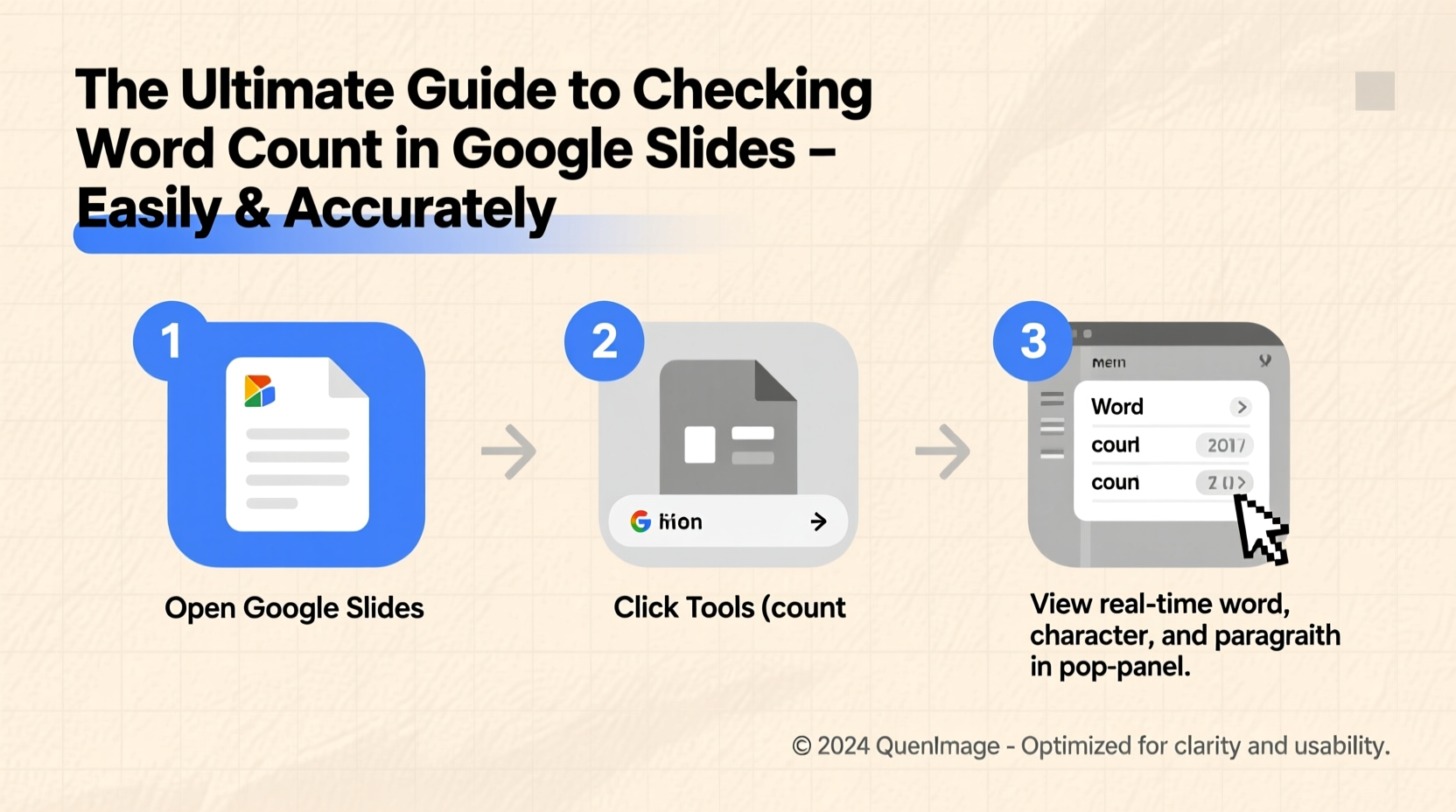
Google Slides is a powerful tool for creating dynamic and engaging presentations. However, one of its most frustrating limitations is the absence of a built-in word count feature. Whether you're preparing a pitch deck, academic report, or business proposal, knowing the exact number of words can be crucial for pacing, readability, and meeting submission requirements. Unlike Google Docs, which includes a straightforward word counter, Google Slides requires workarounds. This guide walks through reliable, accurate, and easy-to-follow methods to determine your slide deck’s word count—without guesswork.
Why Word Count Matters in Presentations
While slides are visual by nature, the text they contain still plays a vital role. Overloading slides with dense paragraphs can overwhelm audiences, while underwriting may leave key points unexplained. A balanced approach ensures clarity and impact. Knowing your word count helps maintain that balance. For educators, researchers, and professionals submitting work to institutions or clients, specific word limits often apply. Even when no formal limit exists, understanding how much you’re writing allows for better editing and more effective communication.
“Clarity in presentation design begins with disciplined writing. Knowing your word count keeps you focused on what truly matters.” — Dr. Alan Reyes, Communication Strategist and UX Researcher
Method 1: Copy and Paste into Google Docs (Most Accurate)
The most reliable way to check word count in Google Slides is to transfer all text into Google Docs, which has a native word counter. This method captures every word from titles, bullet points, speaker notes, and text boxes.
Step-by-Step Guide:
- Open your Google Slides presentation.
- Select all text on the first slide by clicking inside each text box and using Ctrl+A (Cmd+A on Mac).
- Copy the selected text with Ctrl+C (Cmd+C).
- Paste it into a new Google Docs document.
- Repeat this process for each slide, ensuring you capture content from every text element.
- Once all text is compiled, go to Tools > Word count in Google Docs.
- Review the total number of words, including or excluding footnotes and comments as needed.
This method works best for smaller presentations or when precision is required. It's manual but foolproof.
Method 2: Use Add-Ons for Automated Counting
For frequent users of Google Slides, installing an add-on can streamline the word counting process. Several third-party tools integrate directly into Google Slides and provide instant analysis.
Recommended Add-On: “Word Counter Plus”
- Free to install from the Google Workspace Marketplace.
- Analyzes all text across slides, including shapes and tables.
- Displays character, word, and paragraph counts in a sidebar.
- Supports real-time updates as you edit.
How to Install and Use:
- In Google Slides, click Extensions > Add-ons > Get add-ons.
- Search for “Word Counter Plus” and install it.
- After installation, go to Extensions > Word Counter Plus > Start.
- A sidebar will appear showing the total word count instantly.
While convenient, some add-ons may not count text in images or non-editable elements. Always verify results if high accuracy is critical.
Method 3: Export to Microsoft PowerPoint and Use Word
If you have access to Microsoft Office, exporting your Google Slides file to .pptx format allows you to leverage Word’s advanced word counting capabilities.
Steps:
- In Google Slides, go to File > Download > Microsoft PowerPoint (.pptx).
- Open the downloaded file in PowerPoint.
- Select all slides and copy the text (Ctrl+A, then Ctrl+C).
- Paste into a blank Microsoft Word document.
- Click on the word count displayed at the bottom left, or go to Review > Word Count.
This method is particularly useful for collaborative environments where teams use mixed platforms. It also preserves formatting better than plain text pasting.
What Counts—and What Doesn’t—in Your Slide Deck
Not all visible text is captured equally across methods. Understanding what gets included helps avoid inaccuracies.
| Text Type | Captured in Google Docs? | Captured in Add-Ons? | Notes |
|---|---|---|---|
| Title and body text | Yes | Yes | Standard text in placeholders and text boxes |
| Speaker notes | Only if manually copied | Sometimes | Must be explicitly included in copy-paste workflows |
| Text in shapes or diagrams | Yes, if selected | Varies by tool | Easily missed during manual selection |
| Alt text or captions | No | No | Not part of visible slide content |
| Text in images | No | No | OCR required; not machine-readable |
Mini Case Study: Academic Conference Submission
Lena Kim, a graduate student in environmental science, was preparing a conference presentation with strict guidelines: no more than 500 words across six slides, including speaker notes. She initially estimated her content visually but exceeded the limit by nearly 120 words. After discovering the copy-paste-to-Google-Docs method, she recalculated her total and revised her slides by simplifying bullet points and removing redundant phrases. Her final submission met the requirement exactly and received positive feedback for its conciseness. This experience led her to adopt word counting as a standard step in her presentation workflow.
Best Practices Checklist
To ensure consistent and accurate word counts in future projects, follow this checklist:
- ✅ Audit all text elements: titles, bullets, captions, and speaker notes
- ✅ Use Google Docs for highest accuracy
- ✅ Install a trusted add-on for recurring tasks
- ✅ Count words before finalizing design changes
- ✅ Edit ruthlessly—aim for clarity over quantity
- ✅ Recheck after revisions to confirm compliance
Frequently Asked Questions
Can Google Slides show word count natively?
No, Google Slides does not have a built-in word count feature. You must use external methods like copying text to Google Docs or using third-party add-ons to calculate word totals.
Does the word count include speaker notes?
Only if you manually include them. Speaker notes are stored separately and won’t be counted unless you specifically copy and paste them into your analysis tool.
Are add-ons safe to use with sensitive content?
Most reputable add-ons from the Google Workspace Marketplace are secure. However, always review permissions before installation. For confidential material, prefer offline methods like exporting to PowerPoint or using local text editors.
Final Thoughts and Action Steps
Accurately measuring word count in Google Slides isn’t just about meeting technical requirements—it’s about mastering communication. Every word should serve a purpose. By adopting one of the methods outlined here, you gain control over your message, improve audience engagement, and present with greater professionalism.
Start today: open your latest presentation, choose a counting method, and evaluate your current content. Trim excess, clarify complex points, and align your writing with your speaking pace. Once you make word awareness part of your routine, your presentations will become sharper, more impactful, and easier to deliver.




 浙公网安备
33010002000092号
浙公网安备
33010002000092号 浙B2-20120091-4
Comments
No comments yet. Why don't you start the discussion?