
Removing an app from a Mac isn’t always as simple as dragging it to the Trash. Many applications leave behind hidden files—preferences, caches, logs, and support folders—that continue to occupy valuable disk space and may interfere with future installations. For users serious about maintaining a clean, optimized system, truly erasing software means going beyond the surface. This guide walks through proven strategies to fully remove any application, ensuring no trace remains.
Why Standard Uninstalling Isn't Enough
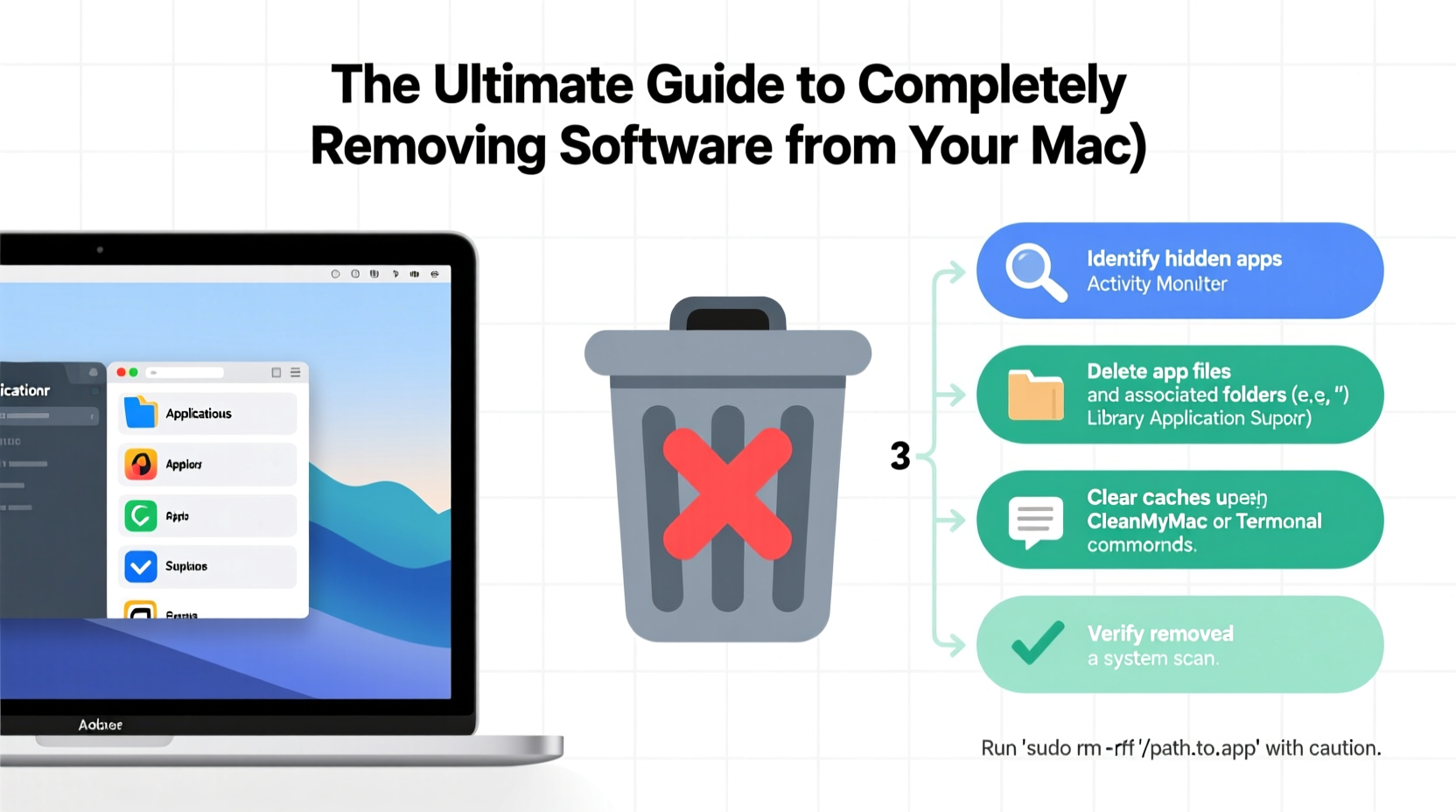
When you drag an app from the Applications folder to the Trash, you're only removing the main application bundle. macOS allows apps to store related data in multiple locations across the system. These include:
- Preferences: Stored in
~/Library/Preferences, often as .plist files. - Caches: Found in
~/Library/Cachesand/Library/Caches. - Application Support: Located in
~/Library/Application Support. - Logs: Generated in
~/Library/Logs. - Shared resources: Plug-ins, extensions, or helper tools installed system-wide.
Leftover files from uninstalled apps can accumulate over time, silently consuming gigabytes of storage. In some cases, remnants can cause conflicts if you reinstall the same software later.
“Most users think deleting an app is done when it disappears from Launchpad. But real cleanup requires hunting down invisible files.” — David Lin, macOS Systems Analyst
Step-by-Step: How to Fully Remove Any App
Follow this systematic approach to ensure complete removal of any software from your Mac.
- Quit the Application
Make sure the app is not running. Use Activity Monitor if necessary to force quit background processes. - Delete the App Bundle
Navigate to/Applications, locate the app, and drag it to the Trash. Alternatively, right-click and select “Move to Trash.” - Remove Preferences (.plist Files)
Open Finder, press Shift + Command + G, and enter:~/Library/Preferences
Look for files named after the app (e.g.,com.adobe.photoshop.plist) and delete them. - Delete Application Support Files
Go to:~/Library/Application Support
Find and remove any folder associated with the app. - Clear Caches
Visit:~/Library/Cachesand/Library/Caches
Delete any cache folders related to the app. - Check for Login Items and Extensions
Go to System Settings > General > Login Items and remove any entries tied to the app. Also check Privacy & Security > Extensions for plug-ins or helpers. - Empty the Trash
Right-click the Trash icon and select “Empty Trash” to permanently erase all removed files.
Tools That Automate Clean Removal
For users who prefer efficiency, third-party uninstallers can scan for and remove all associated files automatically. These tools save time and reduce the risk of accidentally deleting critical system files.
| Tool | Key Features | Price |
|---|---|---|
| AppCleaner | Free, lightweight, scans dependencies, drag-and-drop interface | Free |
| CleanMyMac X | Uninstaller, malware removal, optimization suite | Paid (subscription) |
| AppZapper | Simple UI, fast scanning, trusted since 2007 | Paid (one-time) |
| OnyX | Advanced maintenance tool with file cleanup capabilities | Free |
Of these, AppCleaner is widely recommended for most users due to its simplicity and zero cost. It analyzes an app’s footprint and presents a list of related files for review before deletion.
Real Example: Removing Adobe Creative Cloud Completely
Adobe apps are notorious for leaving behind extensive files. Simply deleting Photoshop or Premiere Pro won’t remove the Creative Cloud installer, helper tools, or licensing daemons.
A user attempted to free up space by deleting Adobe Photoshop from Applications. Weeks later, they noticed the Creative Cloud icon still appeared in the menu bar. Investigation revealed that:
- The Creative Cloud desktop app was still active.
- Support files occupied over 3 GB in
~/Library/Application Support/Adobe. - Preference files lingered in
~/Library/Preferences. - Helper processes were launching at startup.
Using AppCleaner, the user selected both Photoshop and Creative Cloud for removal. The tool identified over 50 related files across six directories. After deletion and a restart, no Adobe processes remained, and nearly 4.2 GB of space was reclaimed.
Do’s and Don’ts of App Removal
| Do’s | Don’ts |
|---|---|
| Always quit the app before removal | Don’t manually delete system-level folders like /System or /usr |
| Use Shift+Command+G to access hidden Library folders | Don’t skip checking Login Items and Extensions |
| Use trusted uninstaller tools like AppCleaner | Don’t empty Trash immediately if unsure—verify system behavior first |
| Verify app removal by searching Spotlight for its name | Don’t assume third-party installers remove everything during uninstall |
Frequently Asked Questions
Can I reinstall an app after completely removing it?
Yes. Once all traces are gone, you can safely reinstall the app as if it were new. This is often useful for troubleshooting issues caused by corrupted preferences.
Are there apps that resist complete removal?
Some security or monitoring software (like antivirus tools or MDM clients) require specific uninstallers provided by the vendor. These often run background daemons that must be stopped before removal.
Is it safe to delete files in the Library folder?
It’s safe to delete app-specific files in ~/Library (your user library). However, avoid modifying /System/Library or /Library unless you’re certain of the file’s purpose. When in doubt, use a dedicated uninstaller.
Final Checklist for Complete App Removal
- Close the app and any related processes.
- Delete the app from the Applications folder.
- Remove preference files (.plist) in
~/Library/Preferences. - Clear support files from
~/Library/Application Support. - Delete caches from
~/Library/Cachesand/Library/Caches. - Check Login Items and disable any related entries.
- Review System Extensions and remove unnecessary ones.
- Use a tool like AppCleaner to verify no files remain.
- Search Spotlight for the app name to confirm total removal.
- Empty the Trash.
Take Control of Your Mac’s Performance
A clutter-free Mac runs faster, boots quicker, and avoids unexpected glitches. Removing software completely isn’t just about freeing space—it’s about maintaining digital hygiene. Whether you use manual methods or trusted tools, the goal is the same: eliminate bloat, reclaim control, and keep your system running like new.




 浙公网安备
33010002000092号
浙公网安备
33010002000092号 浙B2-20120091-4
Comments
No comments yet. Why don't you start the discussion?