
A cluttered inbox can be overwhelming. With hundreds—or even thousands—of unread or outdated messages, finding what matters becomes harder every day. Gmail offers powerful tools to help you regain control, but knowing how and when to delete emails is just as important as the act itself. This guide walks through practical methods, smart workflows, and expert-backed habits that turn email chaos into clarity. Whether you're aiming for Inbox Zero or simply want a cleaner digital space, these strategies will help you maintain an organized Gmail account long-term.
Understanding Gmail’s Deletion System
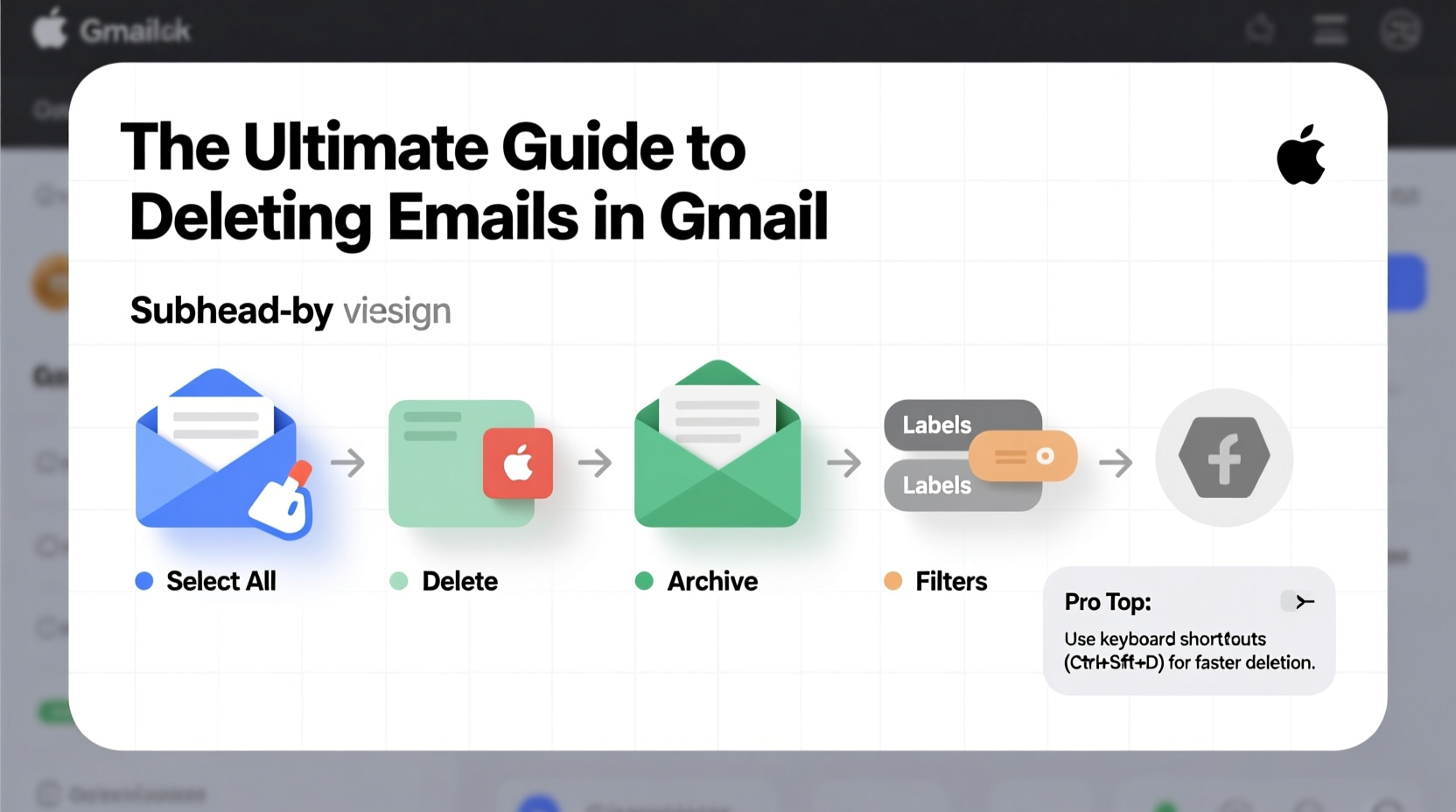
Gmail doesn’t permanently erase emails the moment you hit “Delete.” Instead, it moves them to the Trash folder, where they remain for 30 days before being automatically removed. This safety net prevents accidental loss but also means deleted messages still take up space during that period. Understanding this two-step process—moving to Trash, then permanent deletion—is key to effective cleanup.
Additionally, Gmail treats “Archive” and “Delete” differently. Archiving removes a message from your inbox but keeps it searchable and stored in “All Mail.” Deleting sends it to Trash with eventual removal. Knowing when to use each action ensures you don’t lose valuable information while streamlining your view.
Step-by-Step: How to Efficiently Delete Emails in Bulk
Cleaning a full inbox manually is time-consuming. The most effective approach combines selection shortcuts with strategic filtering. Follow this timeline to remove large volumes of unwanted mail quickly:
- Log into Gmail and ensure you’re on the standard inbox view (not Priority or Unread).
- Use search operators to isolate specific types of emails. For example:
from:newsletter@site.com– finds all emails from one senderis:unread older_than:1year– targets old unread messageshas:attachment larger:5MB– locates large files clogging storage
- Select all matching results by clicking the checkbox above the message list. A prompt will appear asking if you want to select all conversations matching your search—click it.
- Click the Trash icon to move all selected emails to the Trash folder.
- Empty Trash immediately by navigating to Trash > Select All > Delete Forever, especially if freeing up space is urgent.
This method can clear thousands of messages in under ten minutes. Repeat monthly with different filters to stay ahead of clutter.
Smart Filters and Labels for Ongoing Organization
Prevention beats cleanup. Setting up filters automates sorting and reduces future manual labor. For instance, create a filter that automatically deletes daily deal alerts or forum digests after archiving them for 30 days.
To set up a deletion filter:
- Search for messages using criteria (e.g.,
from:promo@retailer.com) - Click the filter icon (funnel shape) in the search bar
- Review your search terms and click “Create filter”
- Select “Delete it” and confirm
Now, any new message matching those rules bypasses your inbox entirely and goes straight to Trash. Combine this with labeling for important senders so critical emails never get caught in broad sweeps.
| Scenario | Action | Recommended Tool |
|---|---|---|
| Old newsletters | Delete in bulk | Search + Select All |
| Spam-like promotions | Auto-delete via filter | Filter creation |
| Important but low-priority | Archive with label | Labels + Archive |
| Large attachments | Delete forever after download | Search operator: larger:10M |
Real Example: Cleaning Sarah’s Overloaded Inbox
Sarah, a freelance designer, hadn’t touched her Gmail in over two years. Her inbox held 8,400 unread messages—mostly client updates, automated backups, and subscription renewals. She felt paralyzed trying to sort through them.
She started by searching is:unread older_than:6months. Over 5,000 messages appeared. After previewing a few pages, she realized most were status reports she no longer needed. She selected all, moved them to Trash, then emptied it immediately.
Next, she created filters for recurring automated emails (like Dropbox notifications), choosing “Delete it” for future arrivals. Finally, she labeled active clients and archived ongoing projects. In less than 90 minutes, her inbox dropped to fewer than 50 messages—all actionable.
Today, Sarah reviews her inbox weekly and uses filters religiously. Her productivity has improved because she only sees what demands attention.
“Automating deletions isn’t about losing data—it’s about protecting your focus.” — David Lin, Digital Productivity Coach
Checklist: Monthly Email Cleanup Routine
Maintain a lean inbox with this repeatable checklist:
- ✅ Search for and delete emails older than 1 year (
older_than:1y) - ✅ Remove promotional messages (
category:promotions) - ✅ Identify and trash duplicate or test emails
- ✅ Review Trash folder and empty it permanently
- ✅ Update filters to reflect current subscriptions
- ✅ Scan for large attachments and delete unnecessary ones
- ✅ Archive resolved threads with appropriate labels
Set a calendar reminder to perform this routine every four weeks. Consistency prevents buildup and makes each session faster.
Frequently Asked Questions
Can I recover an email after deleting it?
Yes—if it was deleted within the last 30 days. Go to the Trash folder, locate the message, and select “Move to Inbox” or another folder. After 30 days, messages are permanently erased unless backed up externally.
Is there a way to delete all emails at once?
No built-in “nuke” button exists for security reasons, but you can simulate it. Use search operators like * to show all messages, select all (including future matches), and delete them in batches. Be extremely cautious—this affects everything, including important correspondence.
Does deleting emails free up Google Drive space?
Only if the email contains attachments. Gmail, Google Drive, and Photos share a combined storage pool. Large file attachments (PDFs, videos, ZIPs) contribute to your quota. Deleting such emails—especially those with big attachments—can significantly improve available space.
Advanced Tips for Power Users
For those comfortable with Gmail’s interface, consider these advanced techniques:
- Use keyboard shortcuts: Press E to archive, # to delete, and / to jump to search—speeding up bulk actions.
- Create custom search tabs: Save complex queries (e.g.,
is:inbox has:attachment from:billing@) as saved searches for instant access. - Leverage Gmail’s Priority Inbox: Train the system to highlight what matters, reducing noise and helping you decide what to delete faster.
- Integrate with third-party tools: Apps like Clean Email or Unroll.Me offer visual dashboards to mass-unsubscribe and purge across categories with one click.
Conclusion: Take Control of Your Digital Space
Your inbox shouldn’t be a storage unit for forgotten messages. By applying deliberate deletion strategies, leveraging automation, and maintaining regular hygiene, you transform Gmail from a source of stress into a tool for efficiency. Start small—clear one category today. Then build systems that keep clutter at bay. A clean inbox isn’t just satisfying; it’s a foundation for better focus, faster decisions, and more intentional communication.




 浙公网安备
33010002000092号
浙公网安备
33010002000092号 浙B2-20120091-4
Comments
No comments yet. Why don't you start the discussion?