
Function keys (F1 through F12) are built into every standard keyboard and offer quick access to common system actions—from adjusting volume to opening help menus. While useful in many scenarios, they can also be a source of frustration when pressed accidentally. A misplaced tap on F5 might refresh an entire web page you’ve been editing for hours, or F1 could launch an unwanted help window during a presentation. For users seeking greater control over their workflow, disabling or reassigning these keys is a practical solution. This guide walks through reliable methods to customize function key behavior across major operating systems, ensuring your keyboard works the way you want it to.
Why Disable Function Keys?
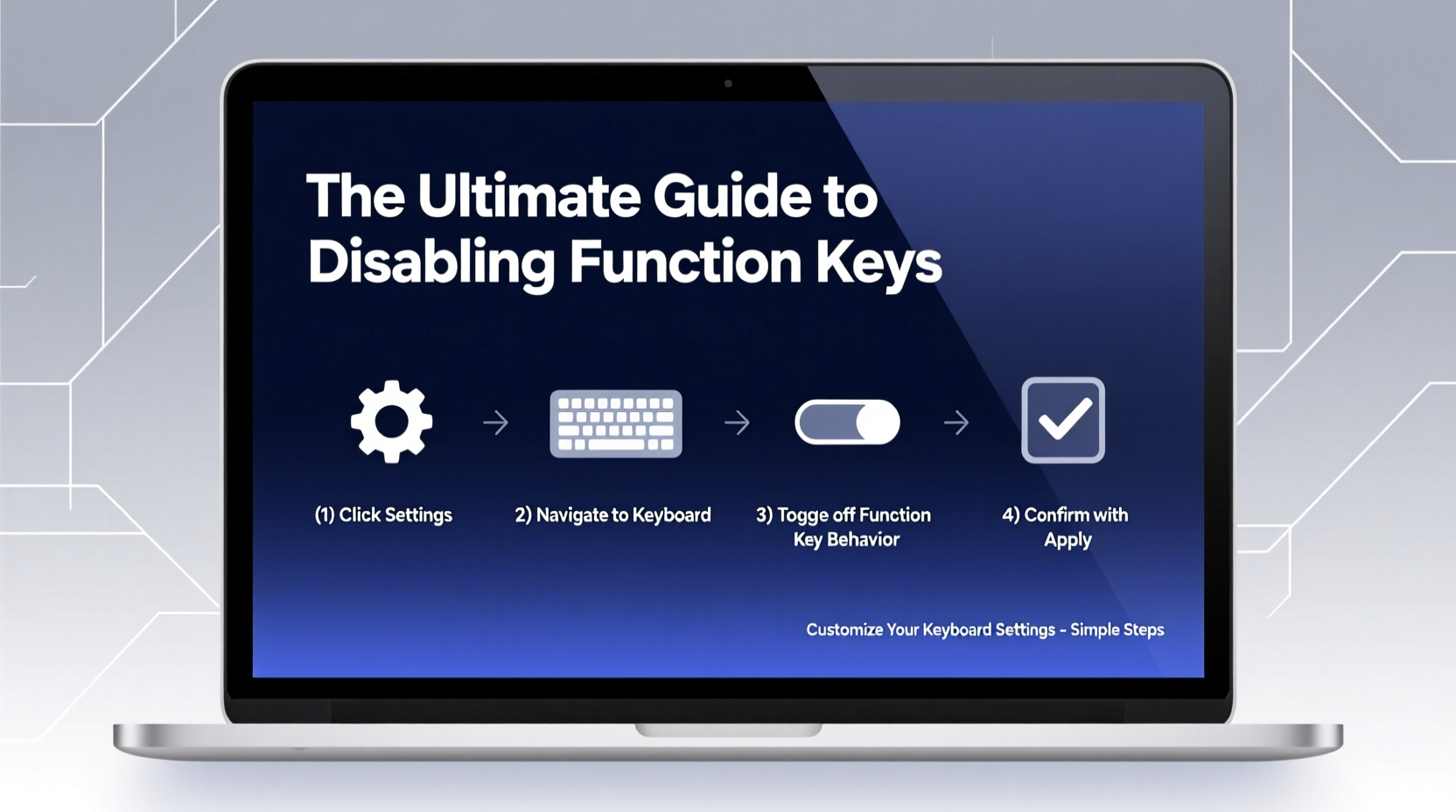
Many users don’t realize how often they interact with function keys—until something goes wrong. Accidental activation is especially common on laptops where F-keys double as media controls (volume, brightness, etc.) and require pressing the Fn key to access traditional functions. However, some prefer the reverse: having F1–F12 act as primary functions without needing the Fn modifier. Others may want to disable them entirely to prevent unintended commands.
Professionals such as writers, developers, and data analysts benefit most from customized key behavior. For example, a developer using F5 frequently for debugging in an IDE might find it disruptive when the same key refreshes their browser instead. Similarly, presenters often disable F1 to avoid launching help dialogs mid-presentation.
Customizing Function Keys on Windows
Windows offers multiple ways to manage function key behavior, ranging from BIOS/UEFI settings to third-party tools. The method you choose depends on your hardware and level of control desired.
Step-by-Step: Change Function Key Behavior in BIOS/UEFI
- Restart your computer.
- Press the BIOS key (commonly F2, F10, Del, or Esc) during startup.
- Navigate to the \"Advanced\" or \"System Configuration\" tab.
- Look for an option labeled \"Action Keys Mode,\" \"Function Key Behavior,\" or similar.
- Toggle between \"Multimedia First\" and \"Function Key First.\"
- Save changes and exit.
This setting determines whether pressing F2 directly lowers volume (multimedia action) or sends an F2 signal (function key). Changing this in BIOS ensures system-wide consistency, even before Windows loads.
Using Keyboard Manufacturer Software
Brands like Dell, Lenovo, HP, and ASUS provide utilities such as Dell QuickSet, Lenovo Vantage, or HP Support Assistant that allow granular keyboard customization. These tools often include options to remap or disable specific function keys.
- Download and install the official keyboard utility for your device.
- Open the application and navigate to keyboard settings.
- Select individual F-keys and assign new behaviors—or set them to “Disabled.”
- Apply and test changes.
Third-Party Tools: SharpKeys and AutoHotkey
For advanced users, tools like SharpKeys let you remap or disable any key at the registry level. It uses a simple GUI to map F-keys to “Turn Key Off” or another keystroke.
AutoHotkey provides scripting flexibility. A single line like F1::Return prevents F1 from doing anything when pressed. More complex scripts can conditionally disable keys based on active applications.
“Keyboard customization isn’t just about comfort—it’s about reducing cognitive load and preventing costly errors.” — David Lin, Human-Computer Interaction Researcher, MIT Media Lab
Configuring Function Keys on macOS
Apple has long integrated seamless function key control into macOS. By default, MacBook keyboards prioritize media functions (like brightness and volume), requiring the Fn key to trigger traditional F1–F12 actions. Reversing this behavior is straightforward.
Changing Function Key Settings in System Preferences
- Click the Apple menu and select System Settings (or System Preferences on older versions).
- Go to Keyboard.
- Check the box labeled Use F1, F2, etc. keys as standard function keys.
Once enabled, F1 will act as F1 unless you press Fn + F1 to adjust brightness. This setting applies globally and persists across reboots.
Application-Specific Overrides
Some apps, like video editors or IDEs, may override global settings. To ensure consistent behavior:
- In Xcode or IntelliJ-based editors, check keymap preferences under Preferences > Keymap.
- Disable any conflicting shortcuts involving function keys.
- Create custom bindings if needed.
Linux: Full Control via Terminal and Desktop Environments
Linux users enjoy unparalleled control over input devices. Whether using GNOME, KDE, or a minimal window manager, function keys can be modified through configuration files or GUI tools.
Using GNOME Settings
- Open Settings and go to Keyboard.
- Scroll to view existing shortcuts.
- Find entries like “Launch Help Browser” (F1) or “Refresh” (F5).
- Click the shortcut and press Backspace to clear it.
Remapping Keys with xmodmap
The xmodmap utility allows low-level remapping. To disable F1:
bash
xmodmap -e \"keycode 67 = NoSymbol\"
To make changes persistent, add the command to your shell profile or desktop environment’s autostart script.
Using setkeycodes for Hardware-Level Changes
For deeper system integration, setkeycodes maps scancodes to keycodes. This is useful when dealing with external keyboards or unusual layouts.
| Command | Purpose |
|---|---|
showkey --scancodes |
Capture raw key inputs |
setkeycodes 70 0 |
Disable key with scancode 70 |
xev |
Test key events in GUI environments |
Mini Case Study: Reducing Errors in a Data Entry Team
A financial services firm noticed recurring errors in spreadsheet submissions. After investigation, they discovered employees were accidentally pressing F12, which triggered “Save As” and created duplicate files with inconsistent naming. With hundreds of entries daily, version control became chaotic.
The IT department deployed a group policy across all workstations using SharpKeys to disable F12 system-wide. They also trained staff to use Ctrl+Shift+S for saving, reserving F12 for intentional backups only. Within two weeks, file duplication dropped by 92%, and employee satisfaction improved due to fewer interruptions.
Do’s and Don’ts of Function Key Management
| Do | Don't |
|---|---|
| Test changes in a non-critical environment first | Disable all F-keys at once without backup plans |
| Document your custom mappings | Forget that some software relies on F-keys (e.g., debuggers) |
| Use reversible methods when possible | Modify system files without creating restore points |
| Leverage Fn lock features on modern keyboards | Assume settings persist after OS updates |
FAQ
Can I re-enable disabled function keys later?
Yes. Most methods—whether BIOS changes, software tools, or scripts—are reversible. Keep notes on what you changed so restoration is easy.
Will disabling F1 affect system help features?
Only if the help feature is bound exclusively to F1. Most applications offer alternative access (e.g., menu bar or right-click options). You can also reassign help to another key combination.
Do these changes work on external keyboards?
It depends. Built-in laptop keys are managed at the firmware or OS level. External keyboards may require vendor-specific software (e.g., Logitech Options, Corsair iCUE) for full customization.
Final Checklist: Customize Your Keyboard Successfully
- ✅ Identify which function keys cause issues
- ✅ Determine your preferred behavior (disable, remap, or require Fn)
- ✅ Access BIOS/UEFI or OS settings to adjust defaults
- ✅ Use manufacturer or third-party tools for fine-tuning
- ✅ Test functionality across different applications
- ✅ Document changes and create backups if modifying system files
Take Control of Your Workflow Today
Your keyboard should serve your needs—not hinder them. Small adjustments to function key behavior can lead to significant gains in productivity, accuracy, and peace of mind. Whether you're a casual user tired of accidental refreshes or a professional protecting against critical input errors, taking a few minutes to customize your setup pays long-term dividends. Explore the settings unique to your operating system, experiment safely, and tailor your device to match your habits. The perfect keyboard experience isn’t out of reach—it starts with one deliberate change.




 浙公网安备
33010002000092号
浙公网安备
33010002000092号 浙B2-20120091-4
Comments
No comments yet. Why don't you start the discussion?